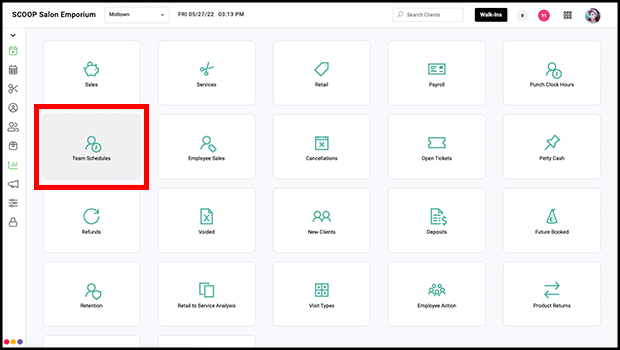
Team Schedules Report, the Employee Scheduler
The Team Schedules Report is accessed via Owners and Managers and by going to Reports > Team Schedules
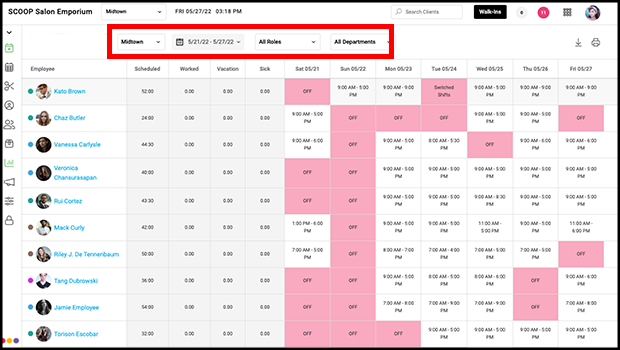
The report can be filtered by Location, Date Range, Roles, and Departments
To access the Employee Scheduler for the an employee for the entire date range, select the employee's name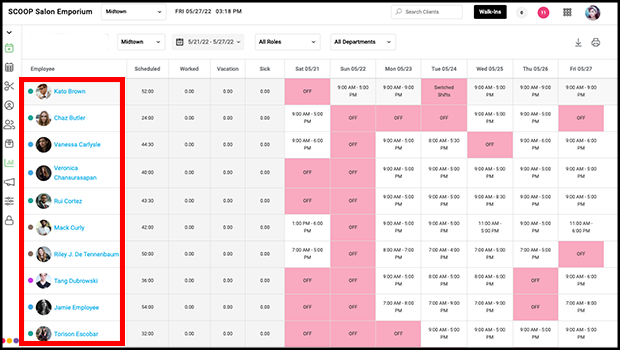
Access the Employee Scheduler for individual days by selecting any individual shift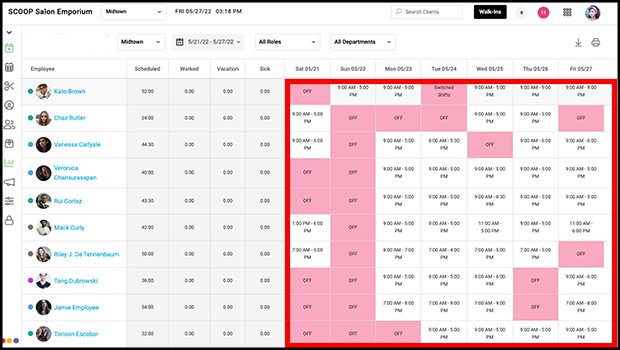
Within the Employee Scheduler, Set the employee to work or not work in the Working columns(1), set the hours they will work in the Start and Finish columns (2), and dictate whether they should show on the calendar or not in the Display columns(3). Display setting here does not override "Display on Calendar" within the Employee Profile. Select Save to save your changes.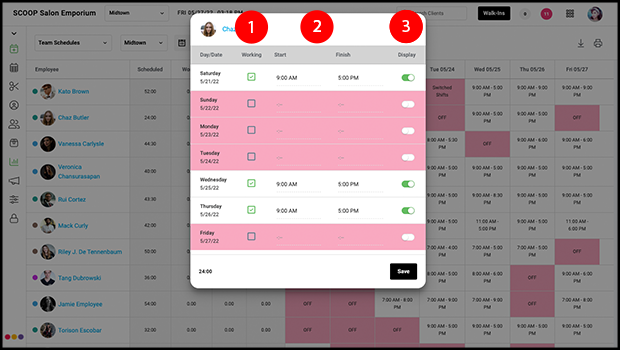
Note:
-Checking "Working" for the shift creates an added day in the employee's schedule
-Unchecking "Working" for the shift removes any added day for that date in the employee's schedule and created a removed day
-Sequences of Added or Removed days will be broken up to accomplish the above items
-If a sequence of removed days had a reason, such as "Sick", the reason will not be maintained once the sequence is split to accommodate an added day.
-An employee's regular, repeating, schedule may be left in a default status, such as Off on every day, and then a more nuanced schedule may be input for every work week with the Employee Scheduler.
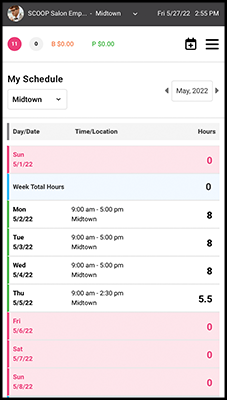
My Schedule
Employees will see their schedule on their mobile device by selecting the menu and then "Schedule". Within My Schedule they will see the shifts they are set to work as well as the total hours they work each week.