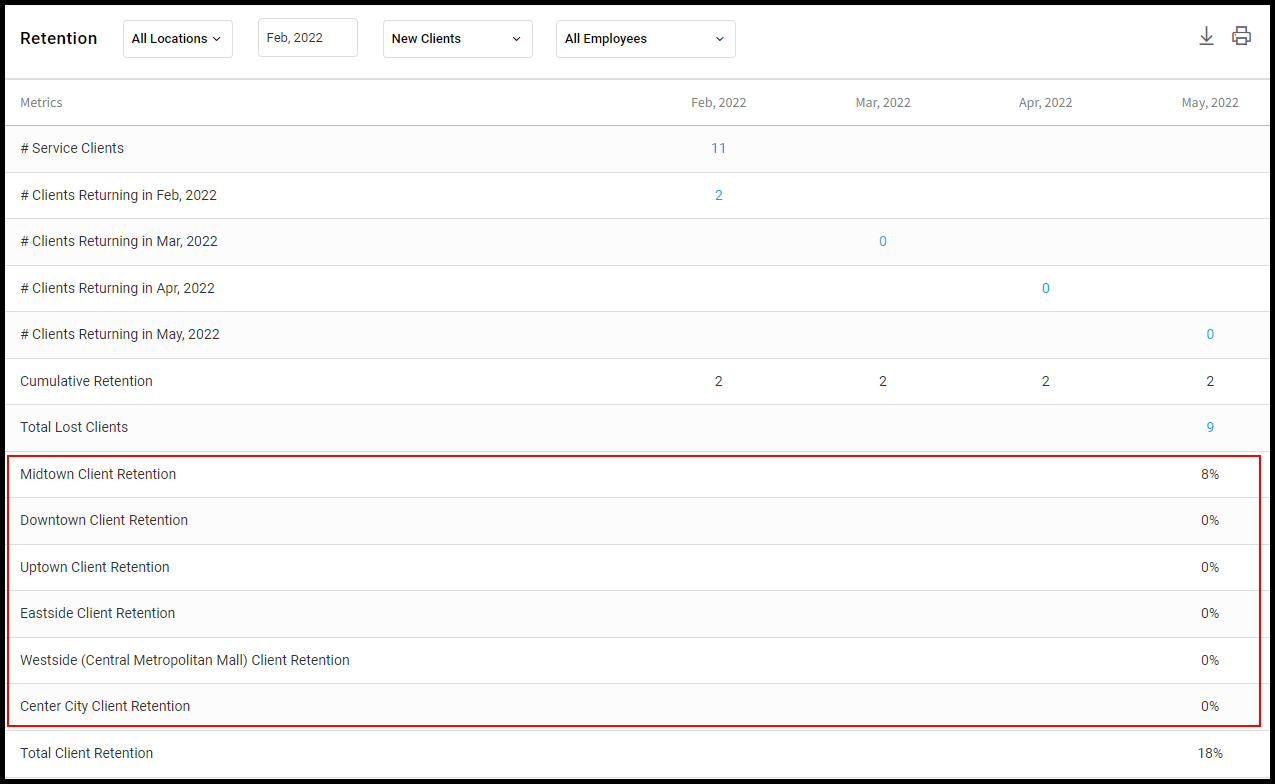
Owners and Managers can see retention numbers for clients for any previous four-month period in the Retention Report. See each business location or all locations at once, and all employees or individual employees. Drill down and see which clients were retained and the tickets associated with their visits.
Note: A client is considered as having visited or being retained once a ticket with services has been processed under their name. Retail, gift card purchases, and any other tickets that do not have services will not count towards this report.
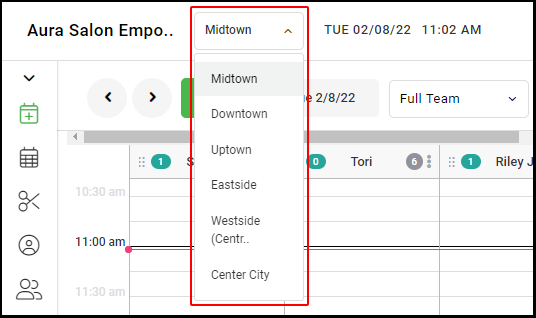
1. If your Salon has multiple locations, select the location at the top left of the screen.
NOTE: If your salon only has one location, skip this step and proceed to Step #2.
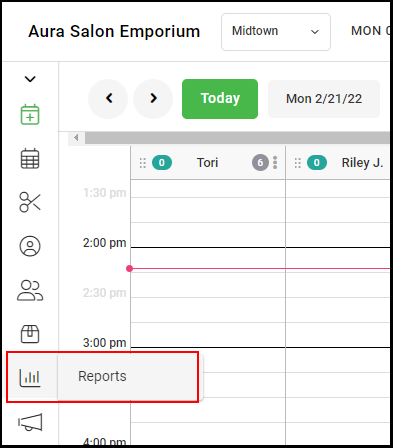
2. Select "Reports".
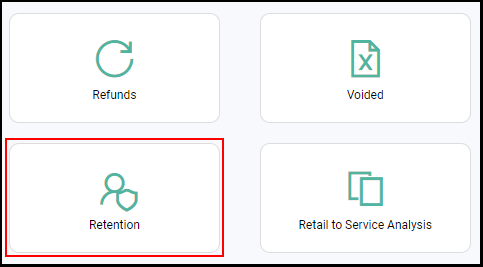
3. Select "Retention" report.
4. You will begin by seeing location-specific data for the previous four-month period.
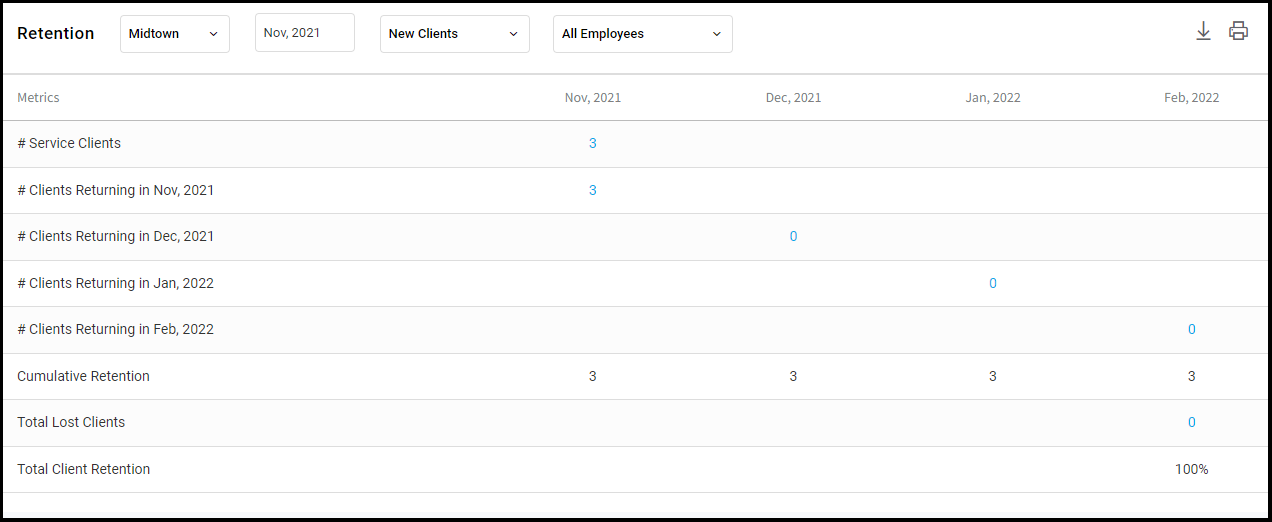
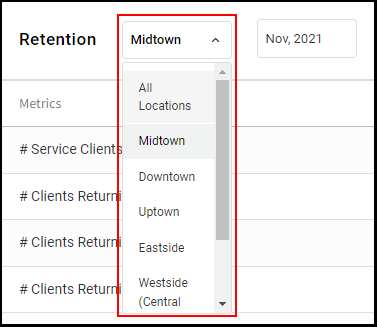
5. Select the location dropdown to see data for a specific location or for all locations.
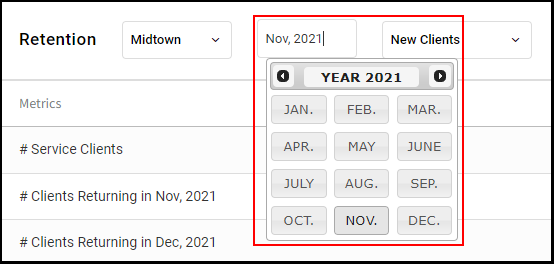
6. Select the month picker to choose the starting month for the data. This defaults to four months before the current month
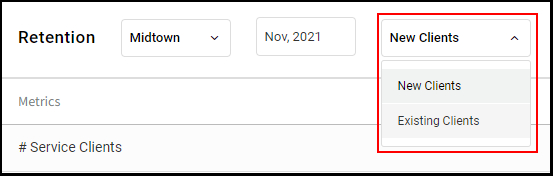
7. View the report by New Clients or by Existing Clients.
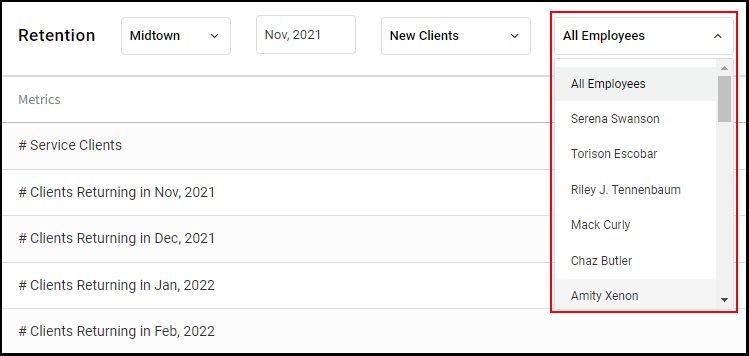
8. View all employees or a specific employee.
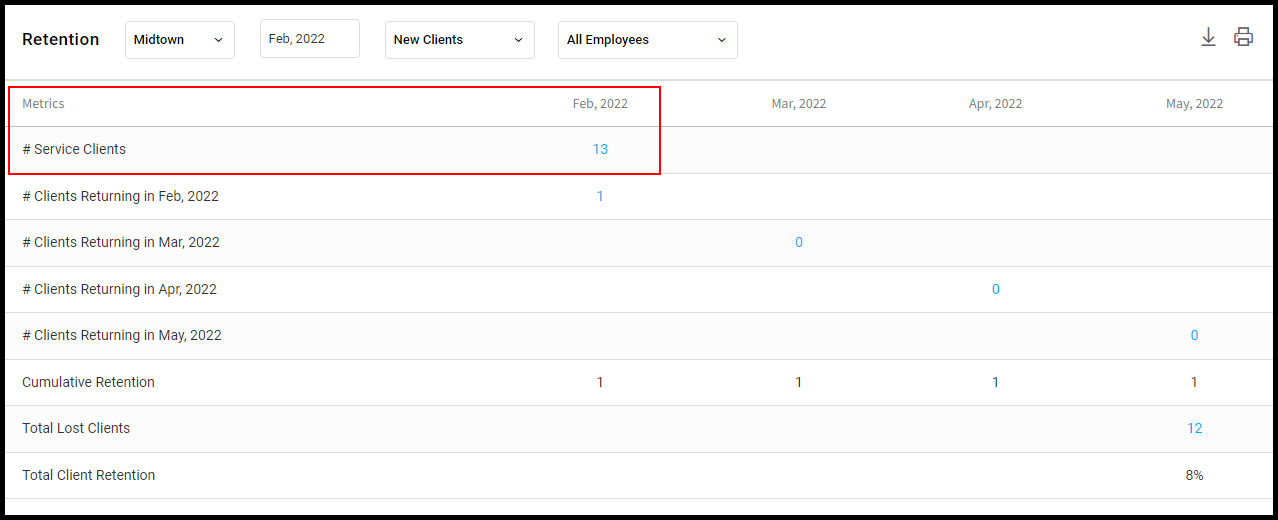
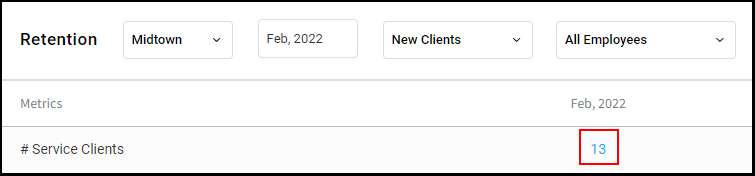
9. Since retention data is based on clients who have visited during the first month in the period being displayed, the first row shows the number of clients for that first month.
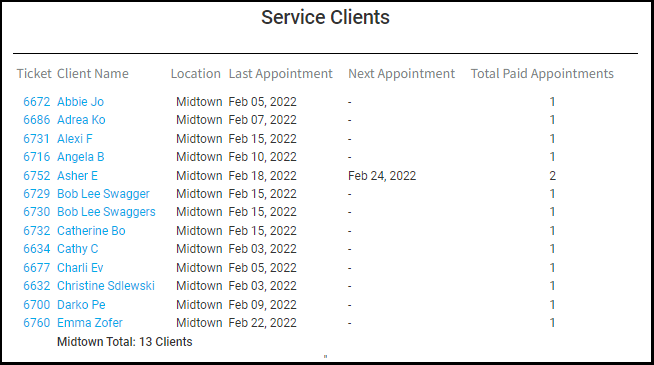
10. Select the number of clients, in blue, to see the ticket number, client name, and location associated with the visit. The clients' last appointment, next appointment, and the total paid appointments for that month are also displayed. Select the client name to view the client file or the ticket number to view the ticket.
11. Data for clients who returned the same month as the first month, or in the following three months can also be viewed
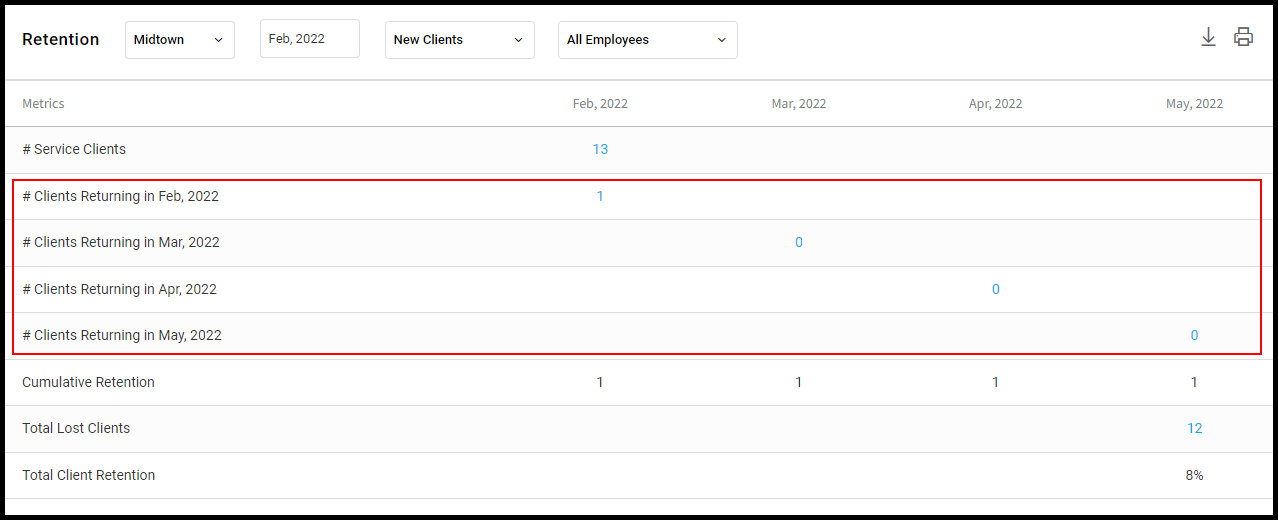
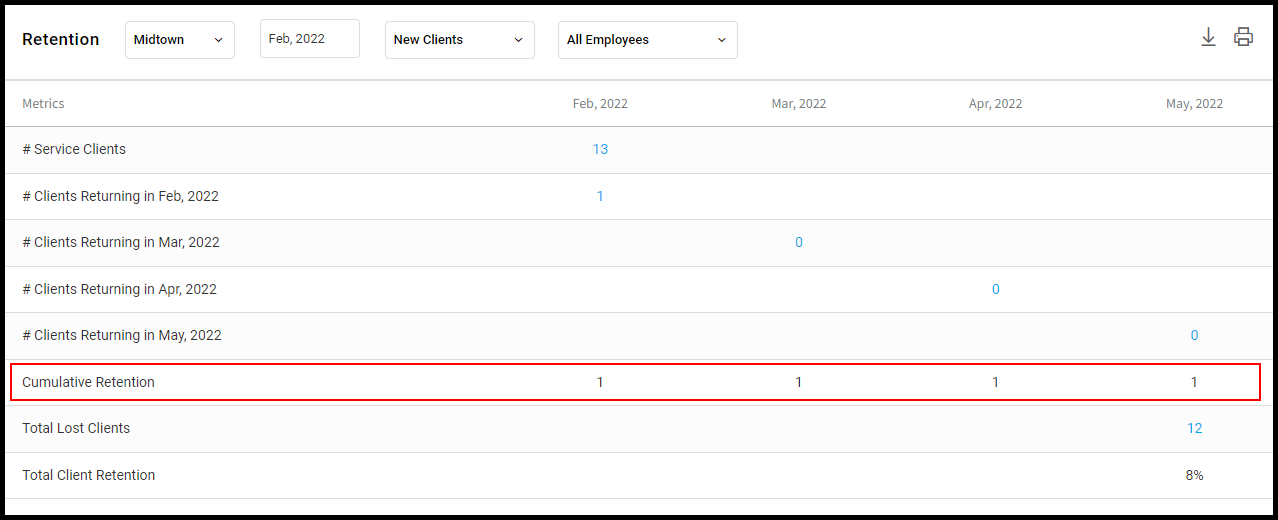
12. Cumulative retention adds up the clients who had a visit in the first month and then returned either that month or in the following three months.
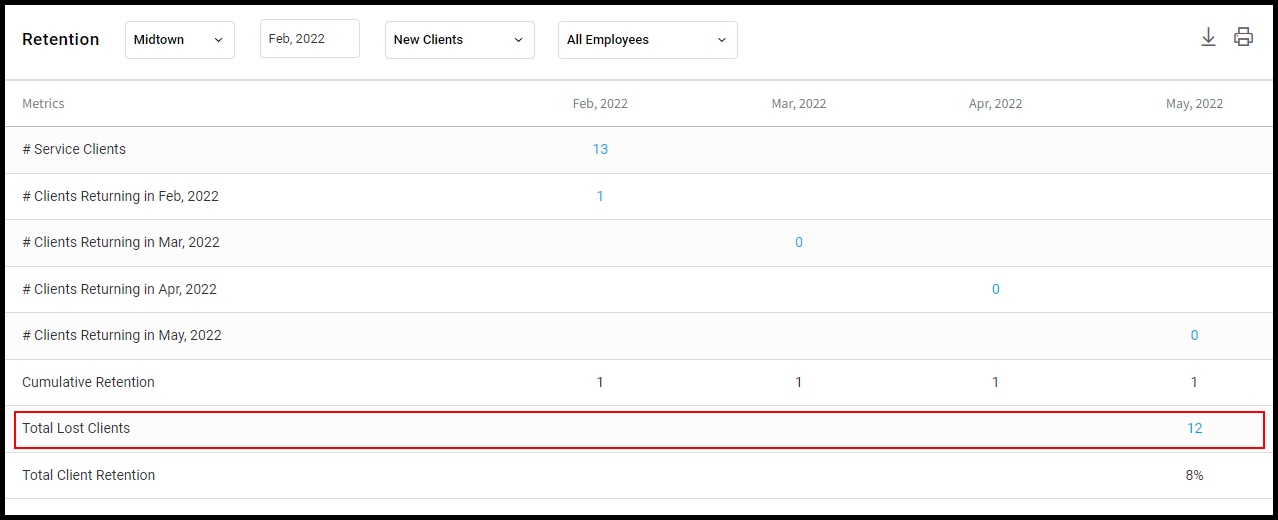
13. Therefore, 12 clients were lost.
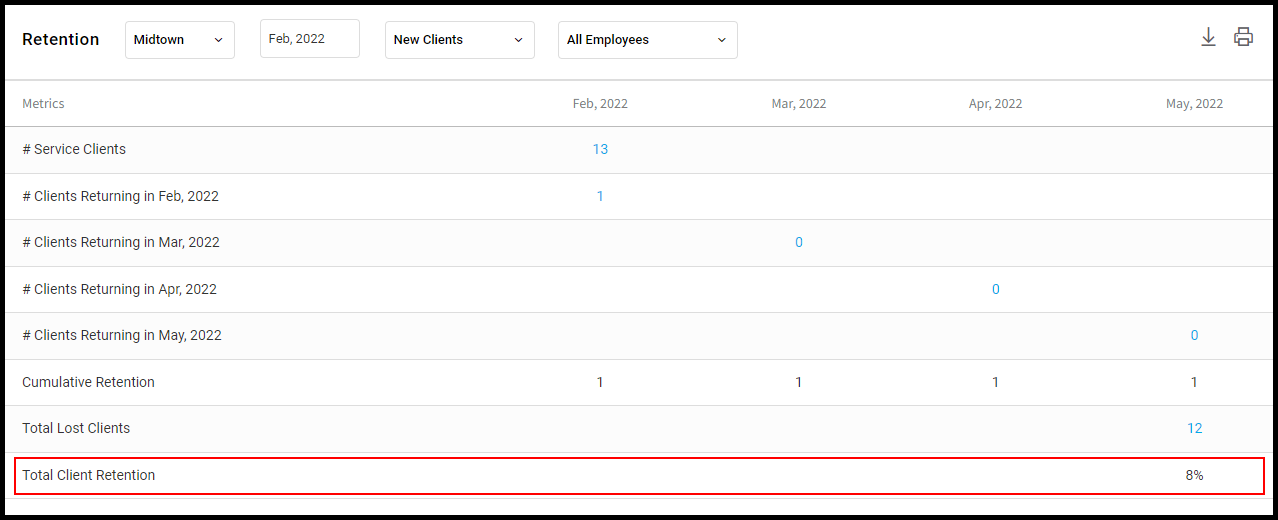
14. Total client retention is 8% because 1/12=.83
15. Selecting all locations adds data from all locations to the report. Percentages from each location are shown on their own row