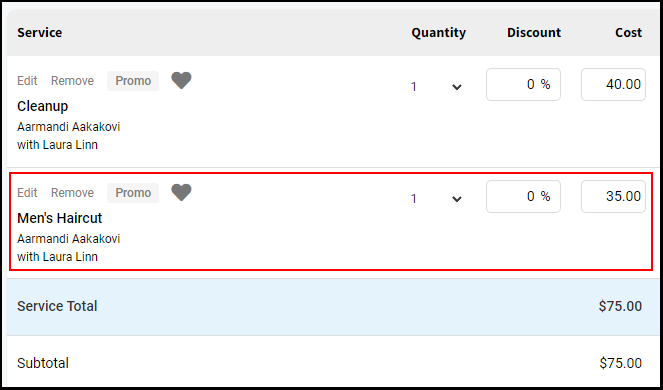
Click here to watch the video.
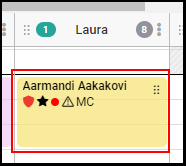
1. Select the appointment on the calendar.
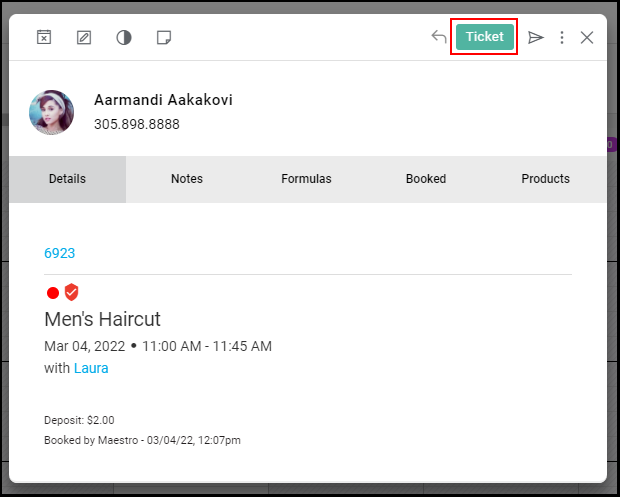
2. Select “Ticket”.
NOTE: The appointment must be marked as "Arrived" to access the ticket.
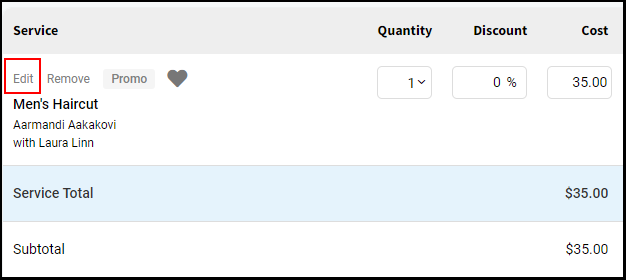
3. Select "Edit" for the service you would like to edit.
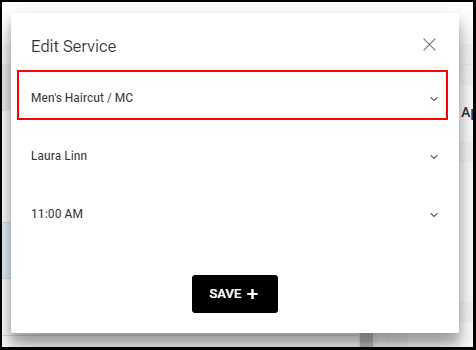
4. Select the correct service from the Service drop down menu and click “Save +”.
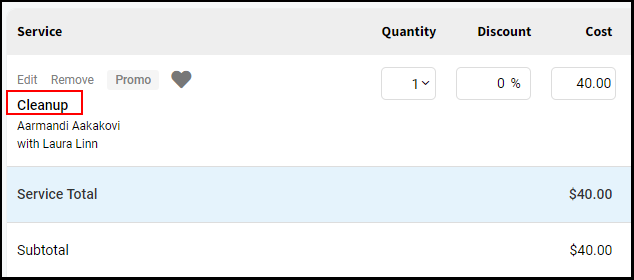
5. Upon saving, the service will be updated on the ticket.
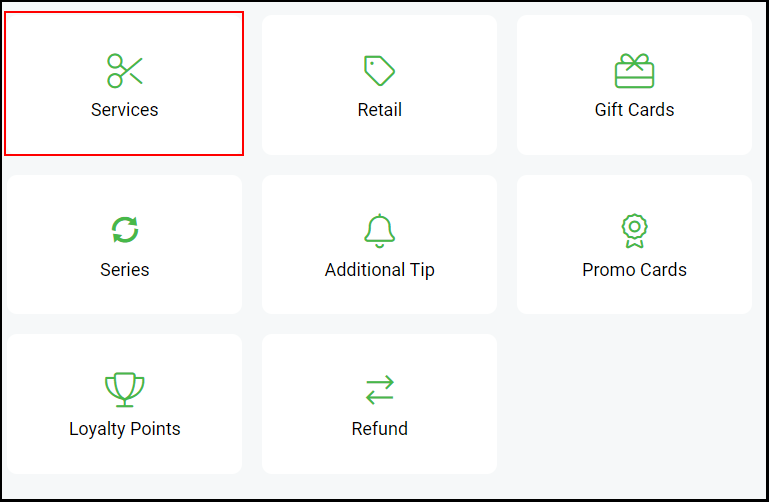
6. To add an additional service, Select the green “Service” button
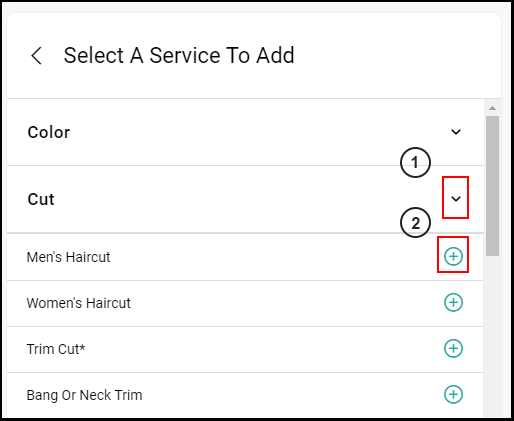
7. Click the applicable service category and then select the desired service by clicking the "+" button.
8. Select the provider performing the service.
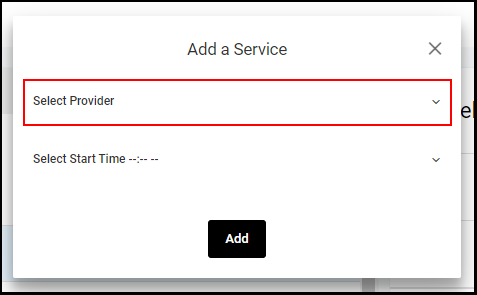
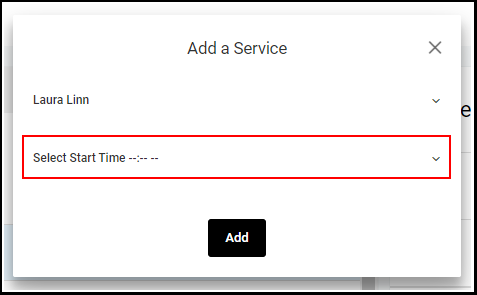
9. If you want the additional service to display on the appointment book, then select a time. If you do not want the additional service to display on the book, then leave the “time” field blank.
10. Click the "Add" button to add the service to the ticket.
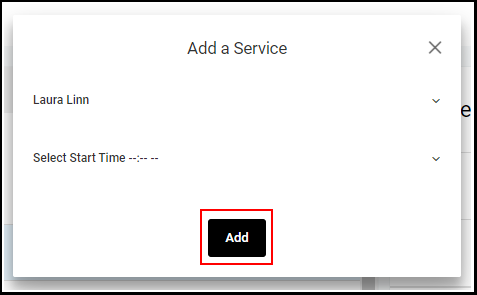
11. Upon saving, the additional service will display on the ticket.