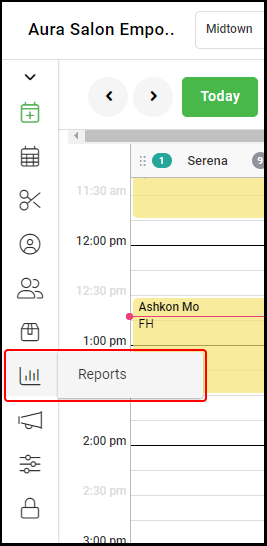
1. Select "Reports" .
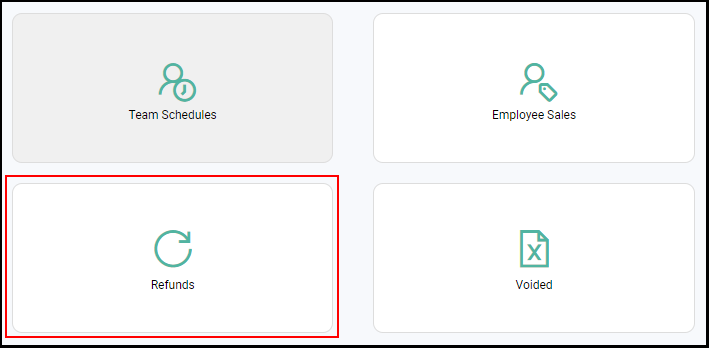
2. Select "Refunds".
3. If the salon has multiple locations, then select the appropriate location.
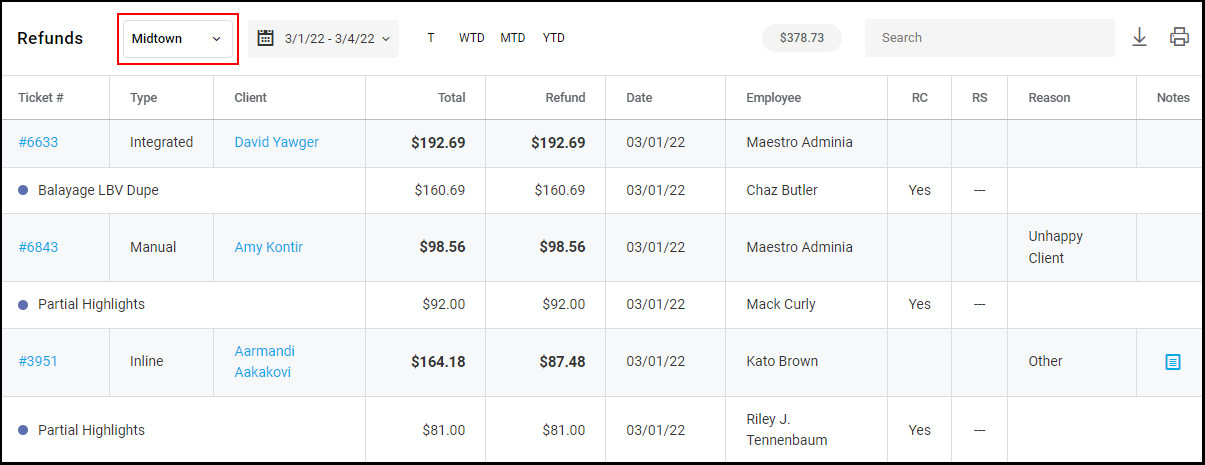
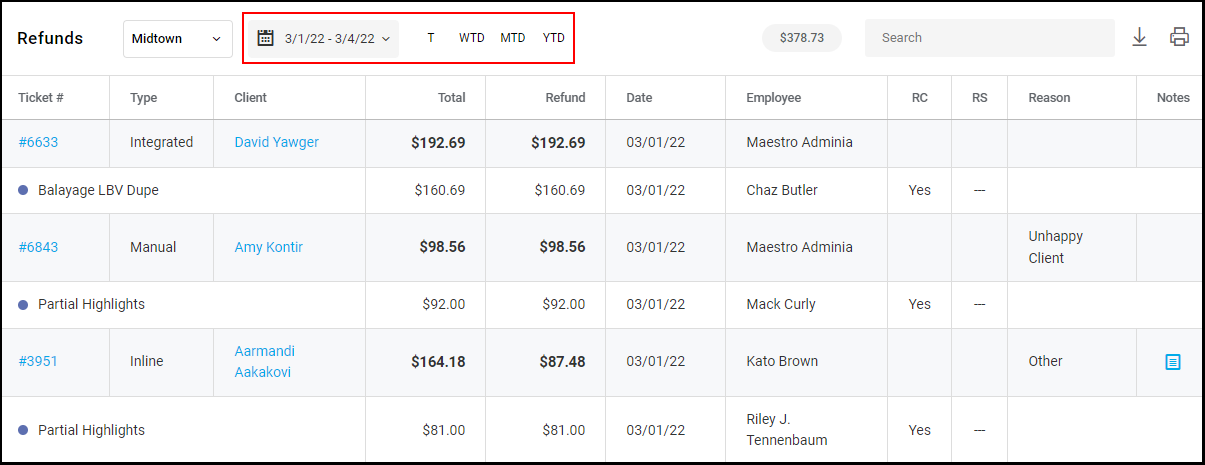
4. Select the date range on the date range calendar to view all refunds within that period.
The date range can also be selected for the Refund Report by selecting the date range icons:
T for Today, WTD for Week to Date, MTD for Month to Date and YTD for Year to Date.
NOTE: The date range on the date range calendar is defaulted to the range set in payroll
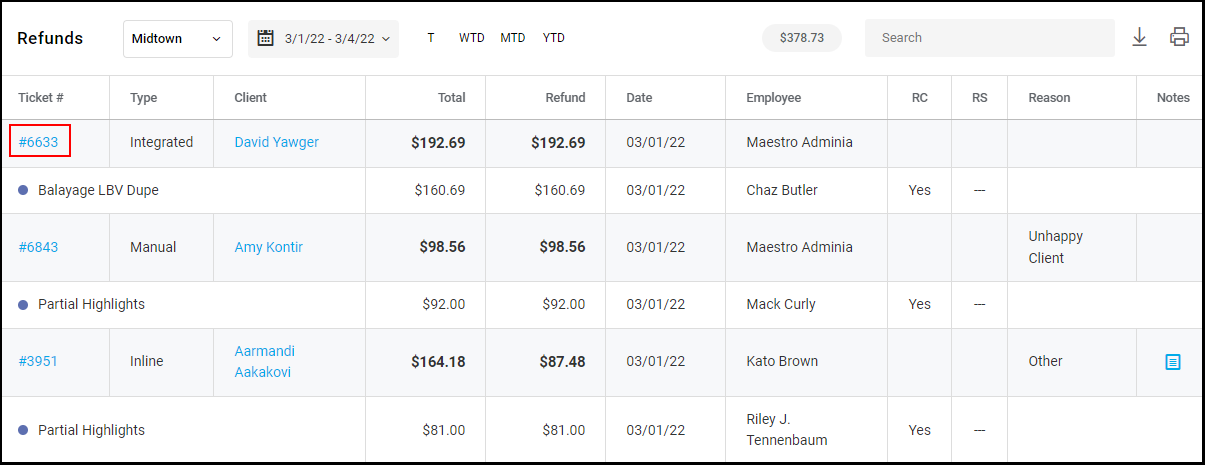
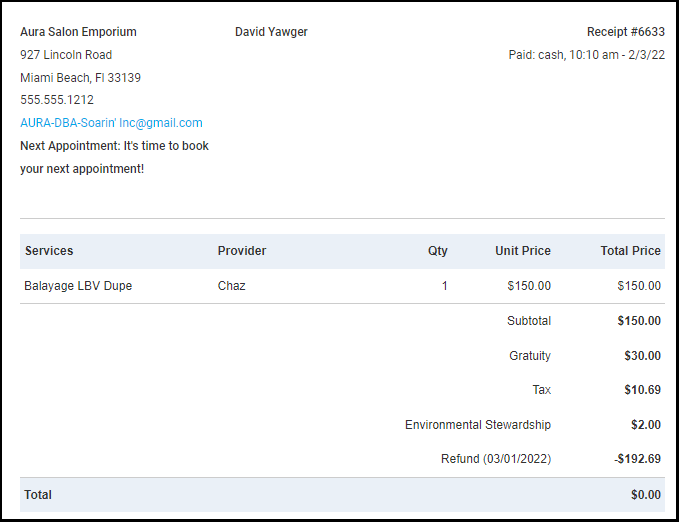
5. To view more details on the refunded transaction select the ticket number.
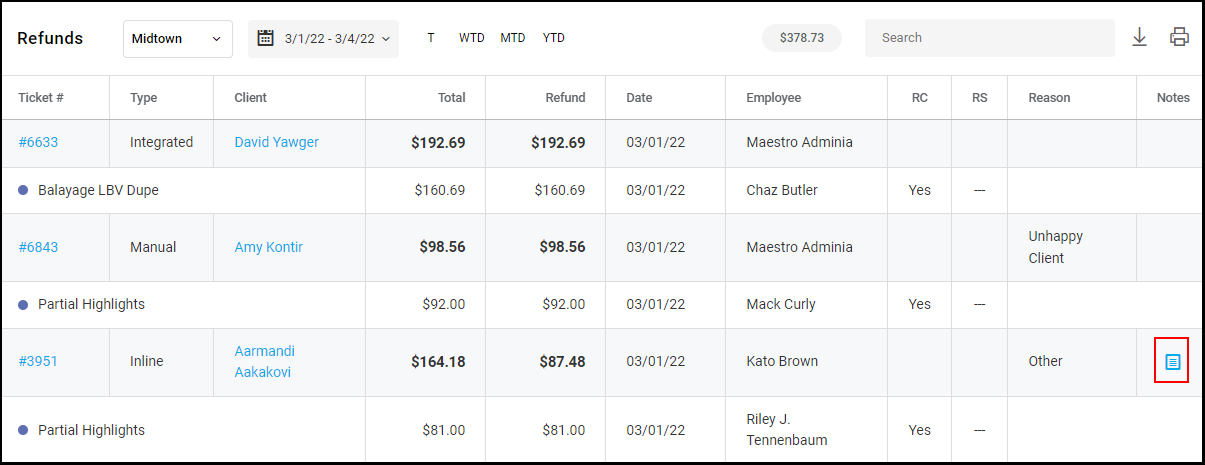
6. Select the Notes icon to see any notes that were entered while issuing the refund.
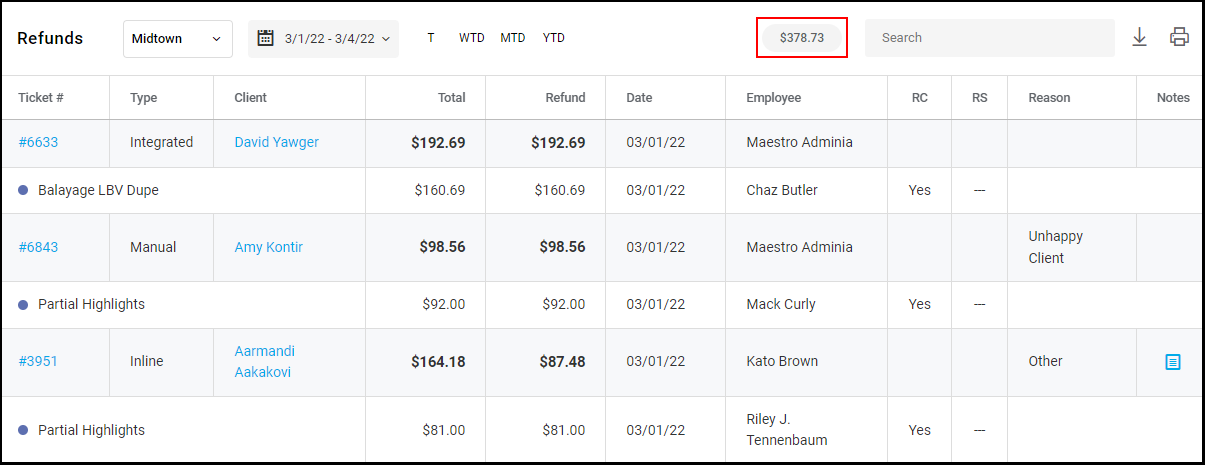
7. The total of the refunds in the selected date range is displayed within the grey widget.
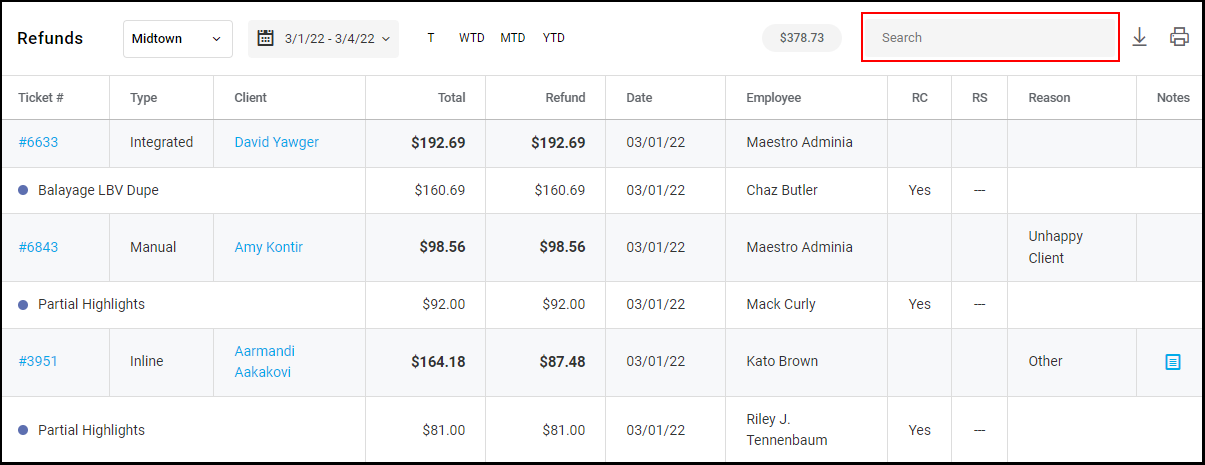
8. Refunds can be searched through entering the name of the client or the ticket number in the search bar
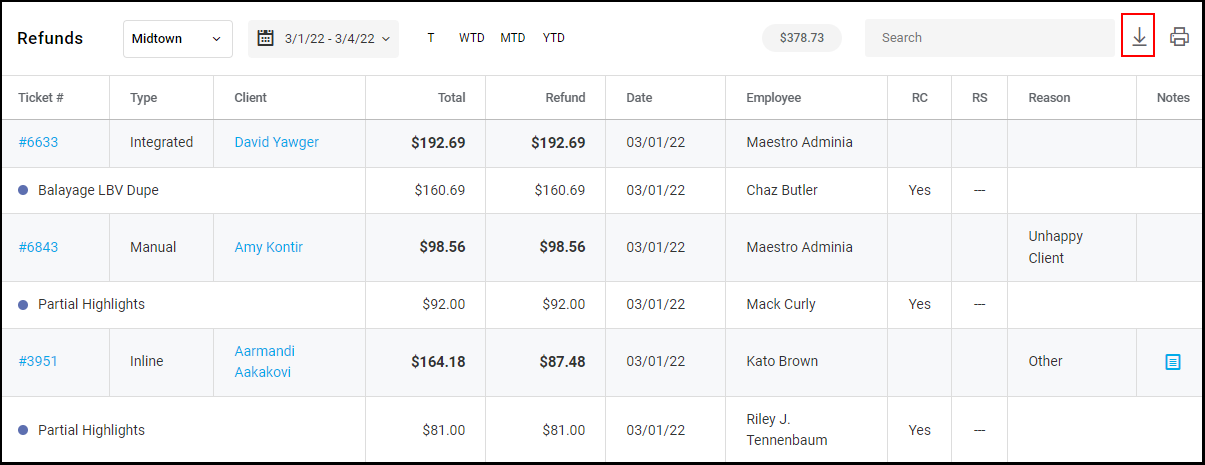
9. The The Refund Report can be downloaded by selecting the download icon.
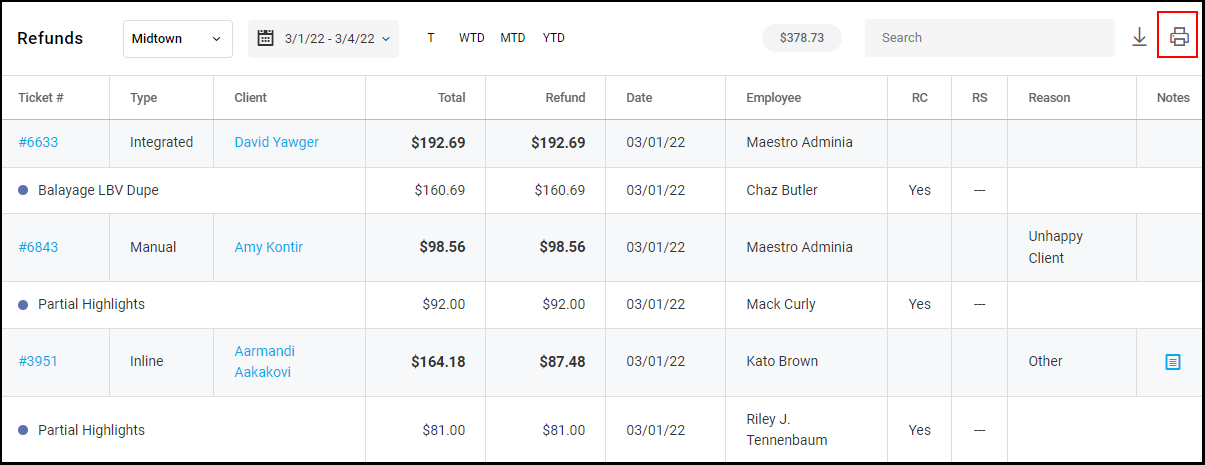
10. The Refund Report can be printed by selecting the print icon.