
The waitlist experience makes handling walk-ins faster and easier. Clients can check themselves in and choose a service—no staff assistance needed. Providers can then take control of their schedule by selecting their next client when ready, helping reduce front desk workload and keep the salon running efficiently.
Customer Check-in
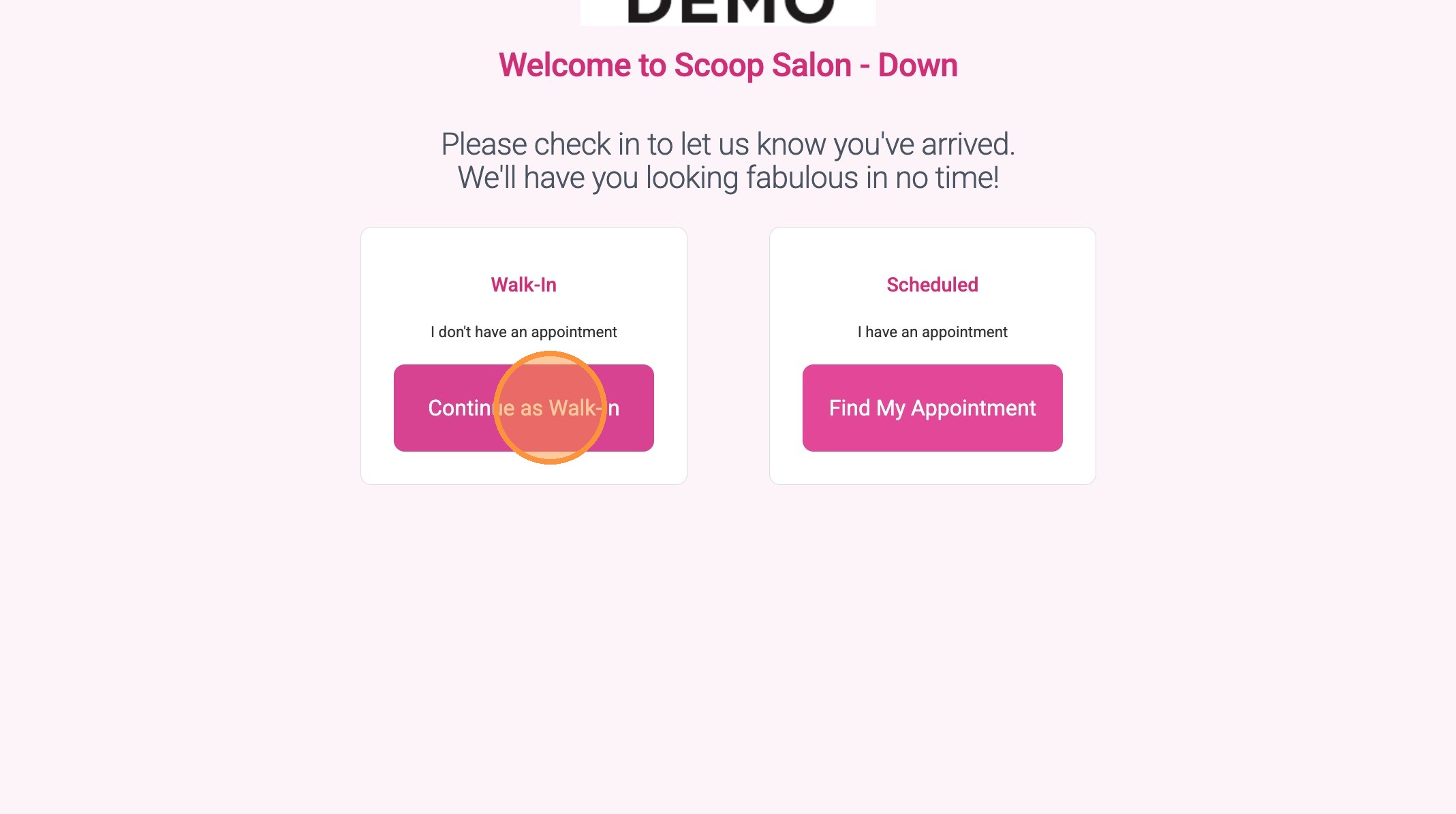
1. When a client walks in without an appointment, click “Continue as Walk-In.”

2. Enter the phone number associated with the client’s account and click “Continue.”
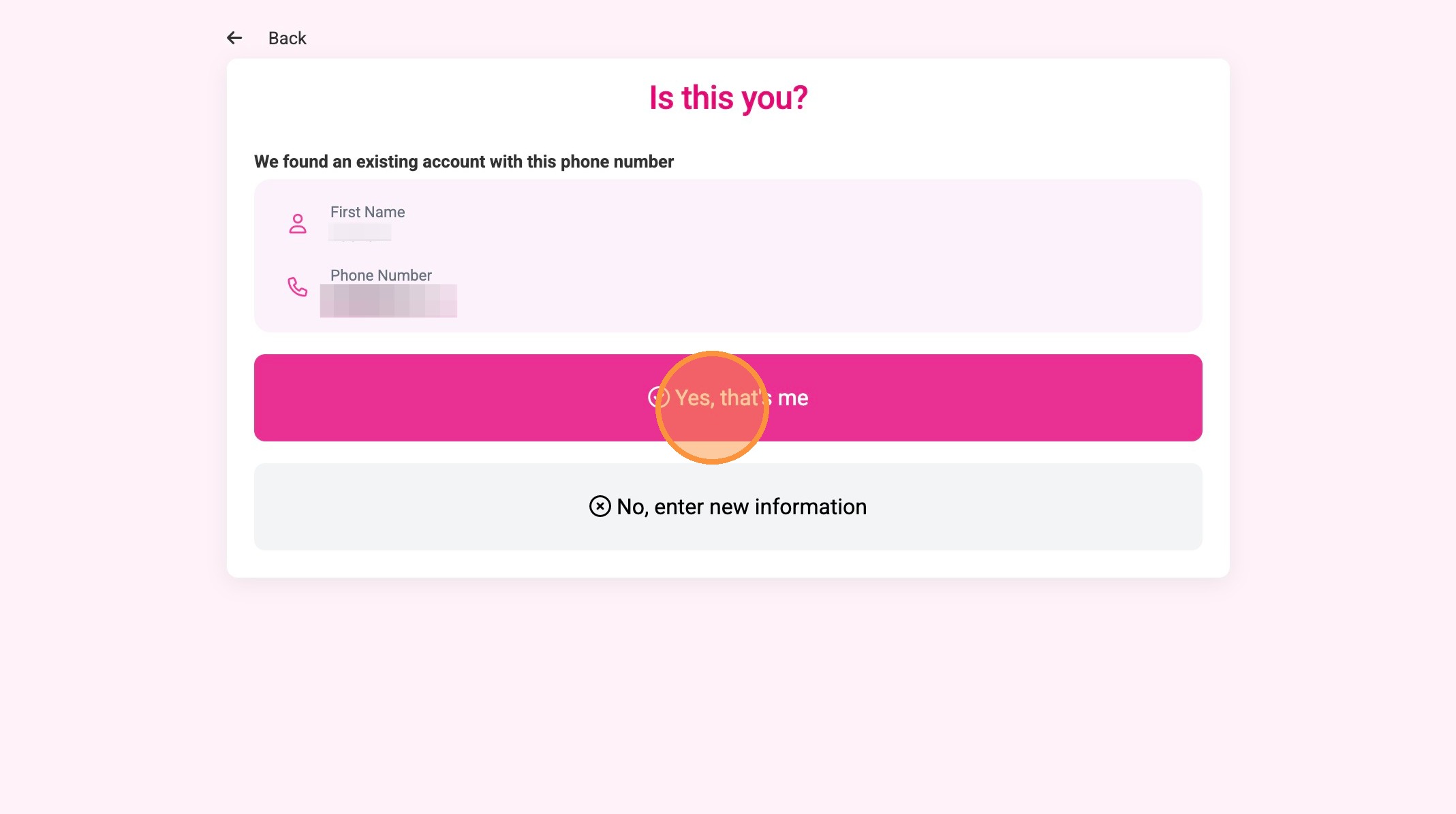
3. Click “Yes, that’s me.”
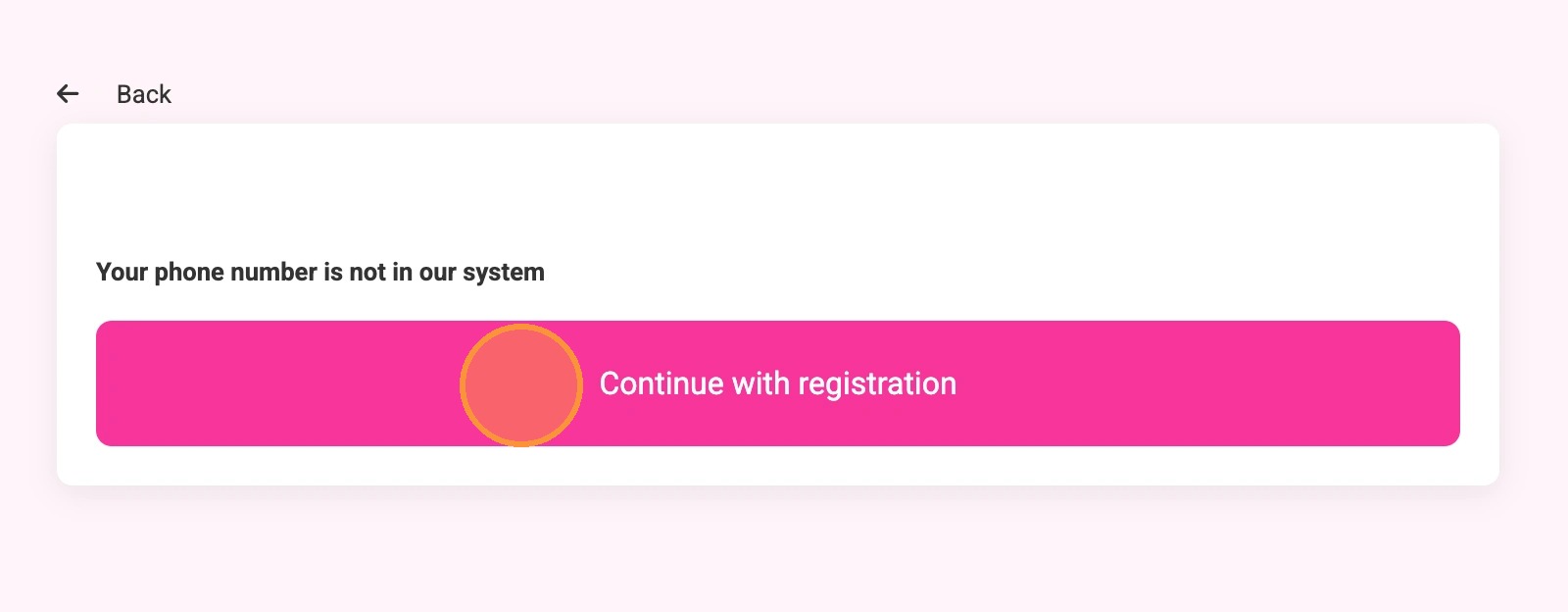
4. If the client is not found, click “Continue with Registration.”
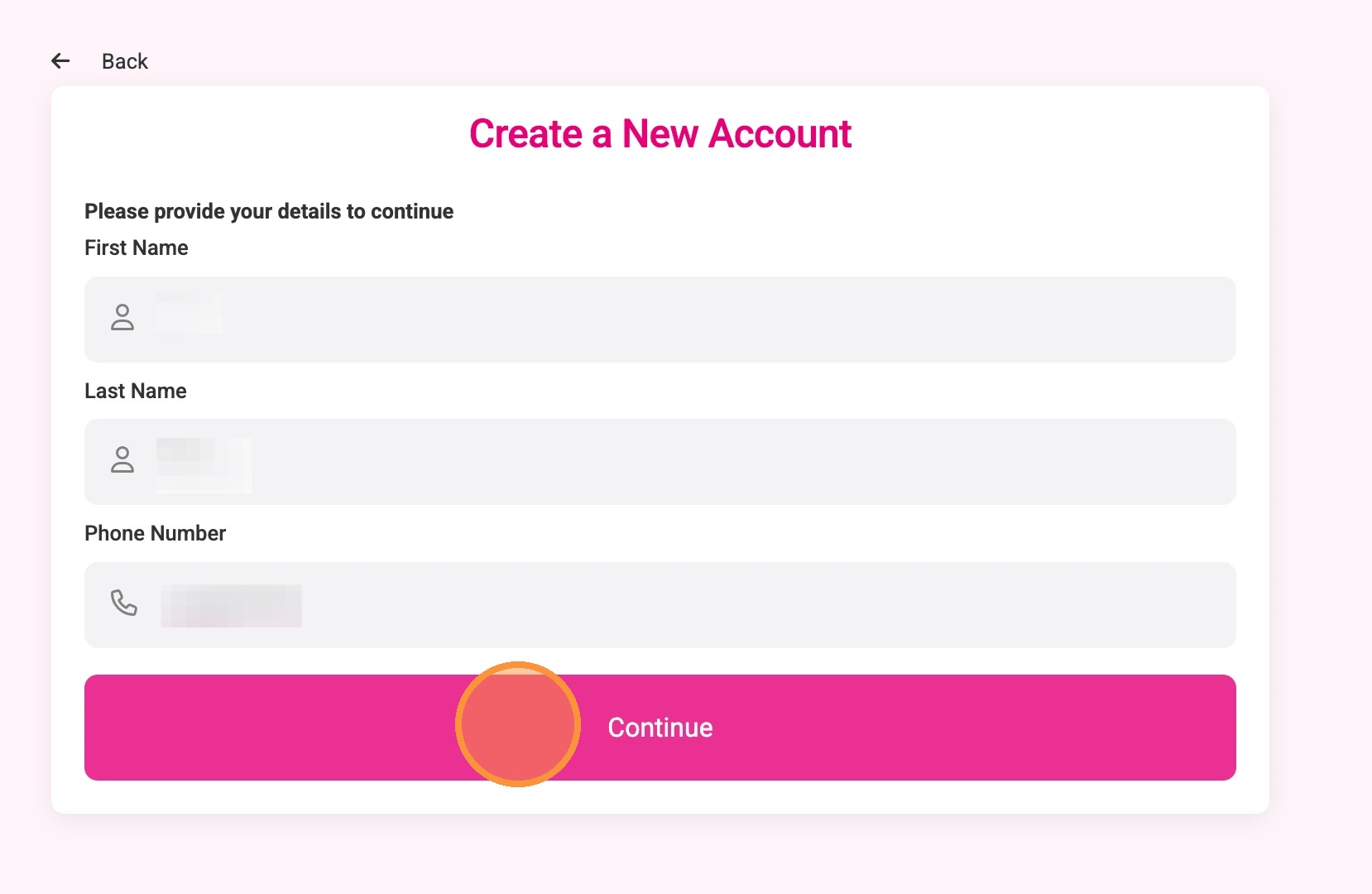
5. Enter the client’s first name, last name, and phone number, then click “Continue.”
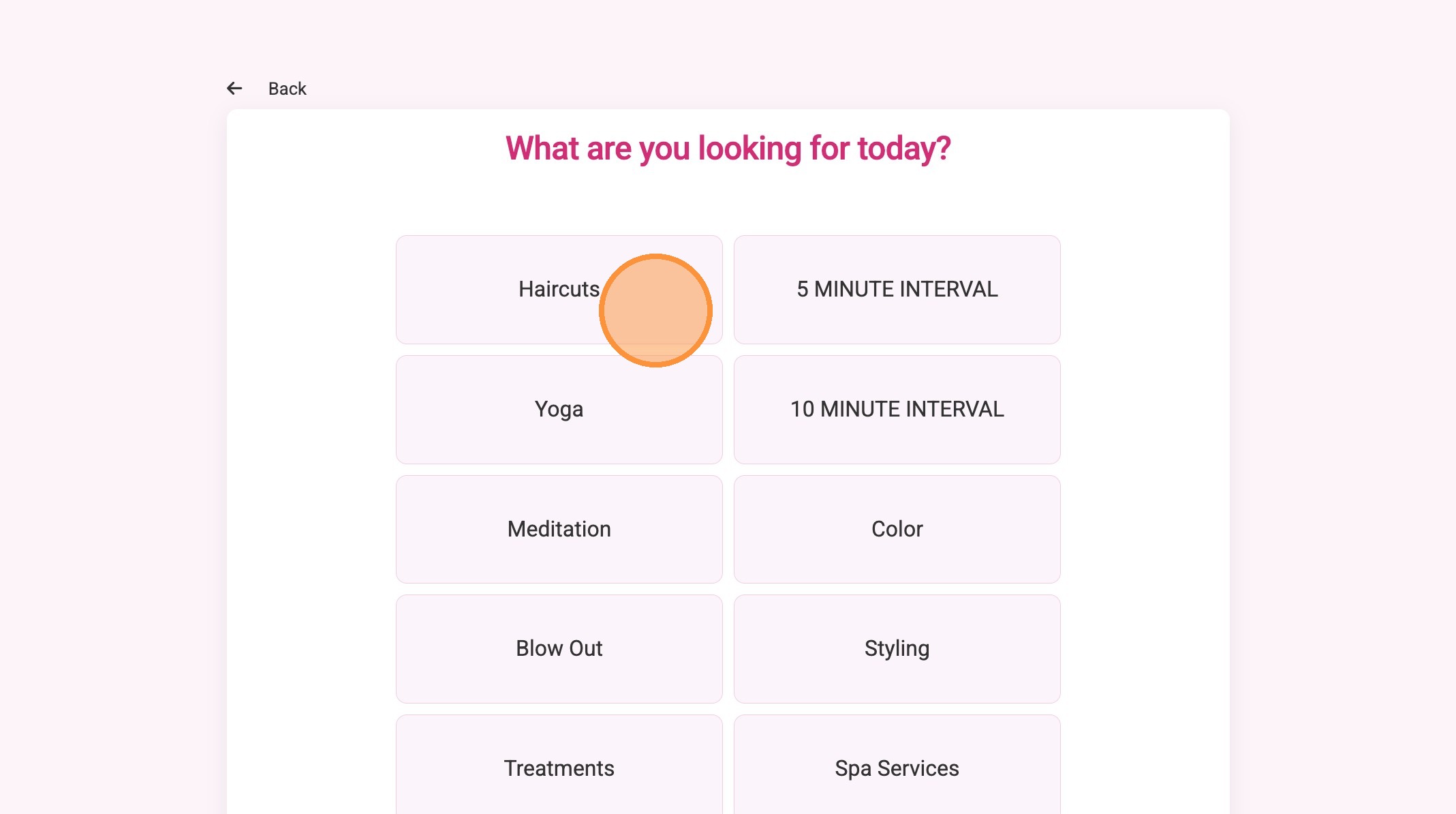
6. Click the service category.
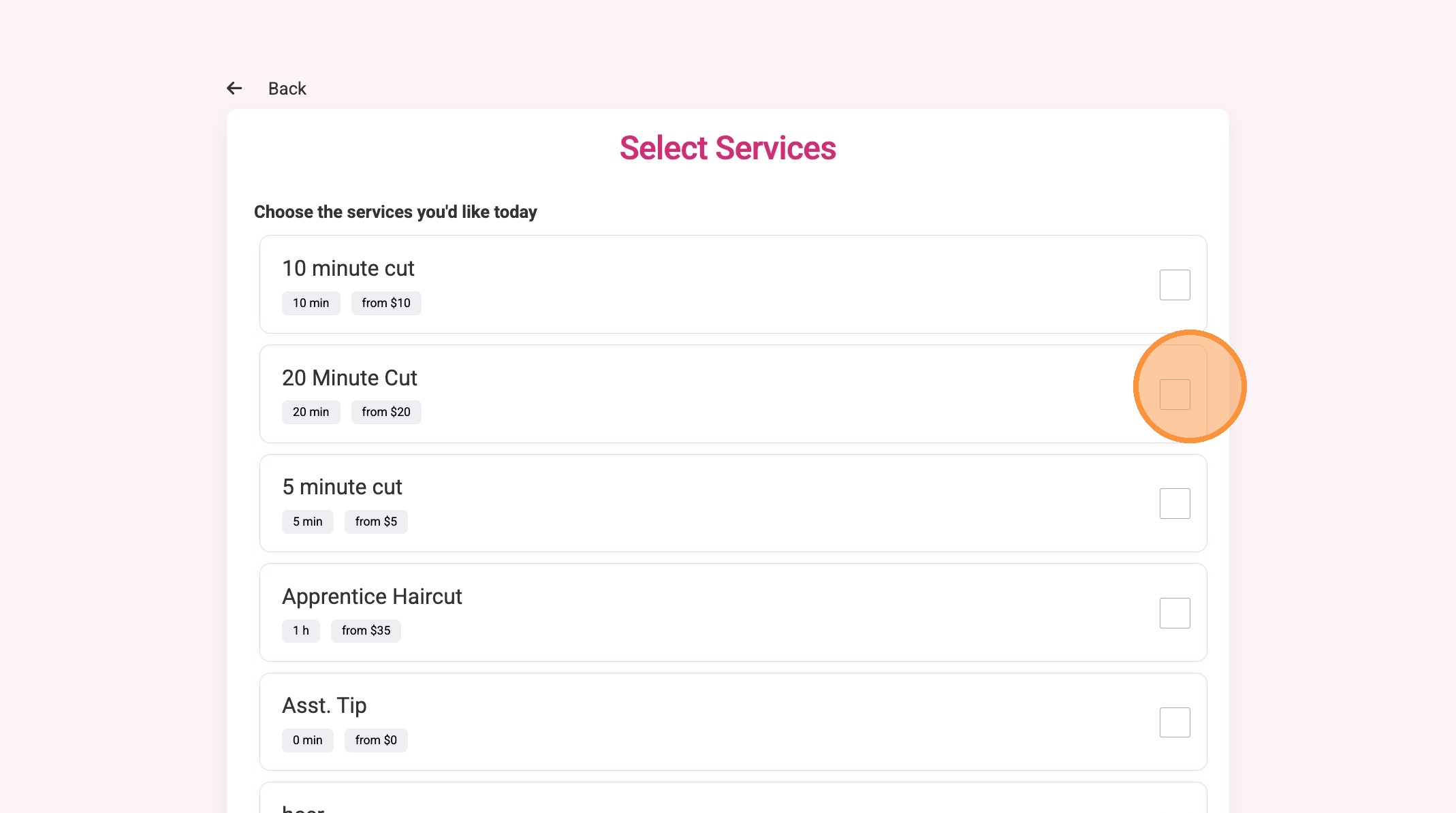
7. Select the desired service from the list.
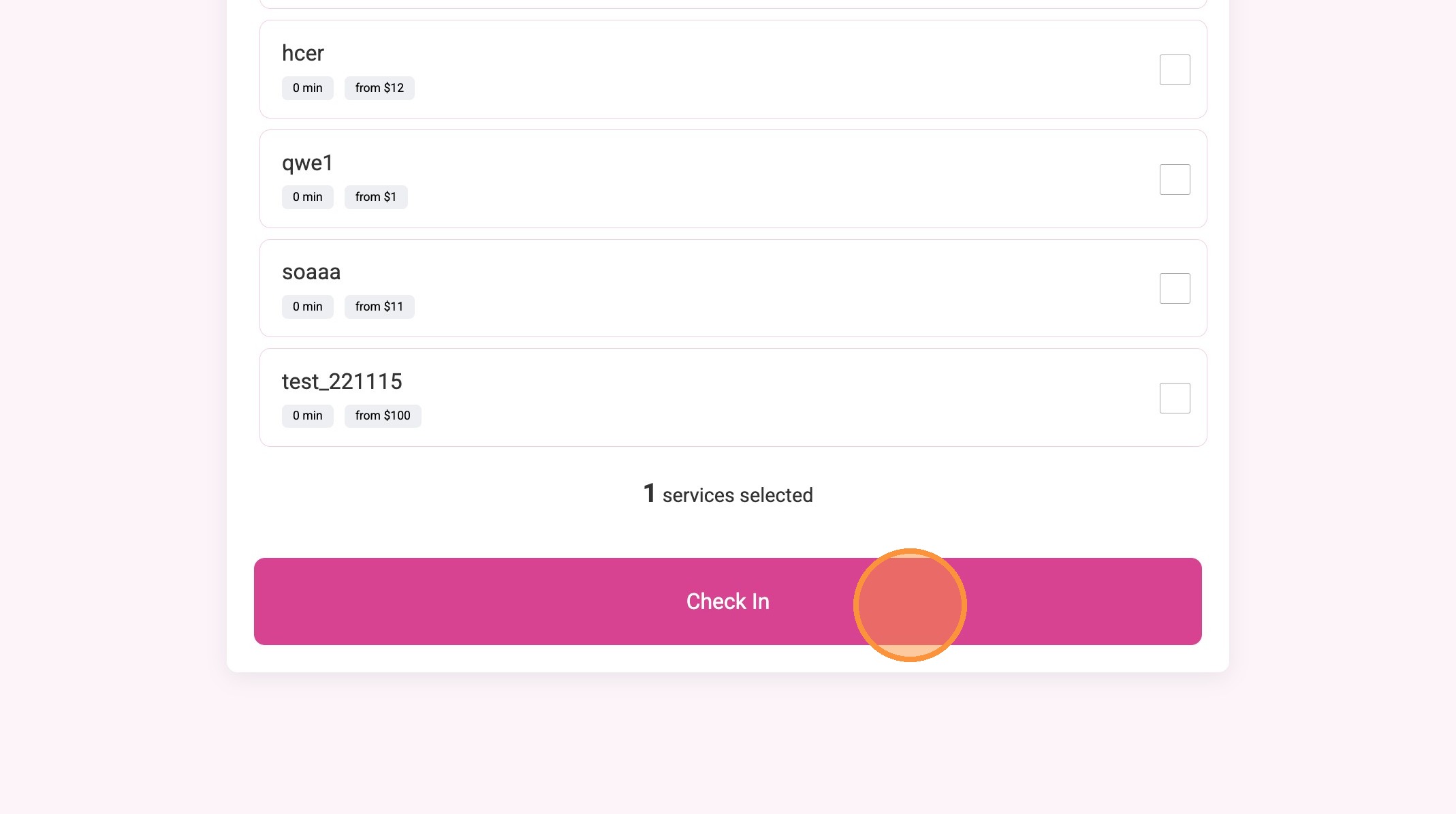
8. Click “Check In.”
Salon Walk-in Management
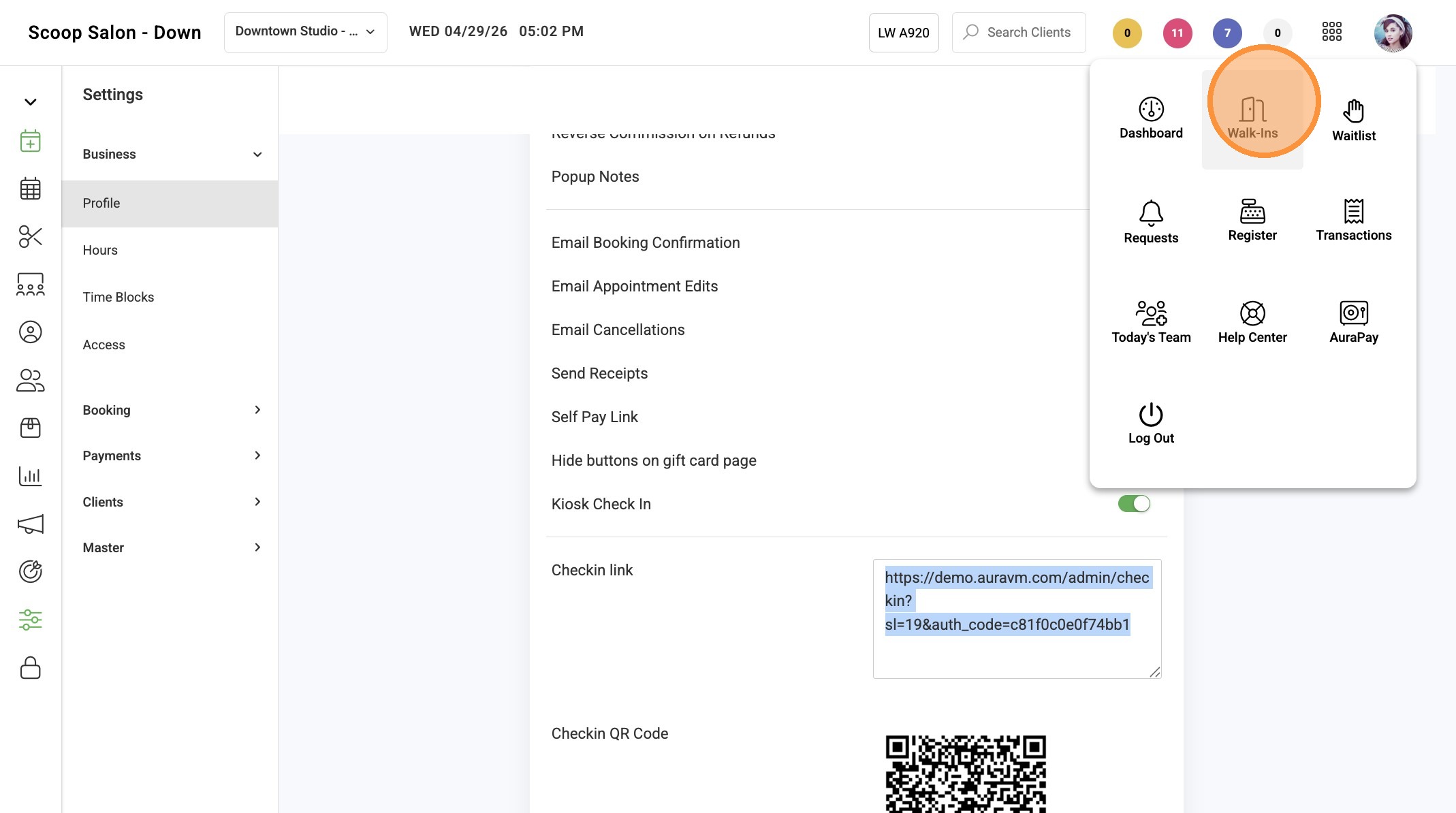
1. Navigate to the 9-dot menu and click “Walk-Ins.”
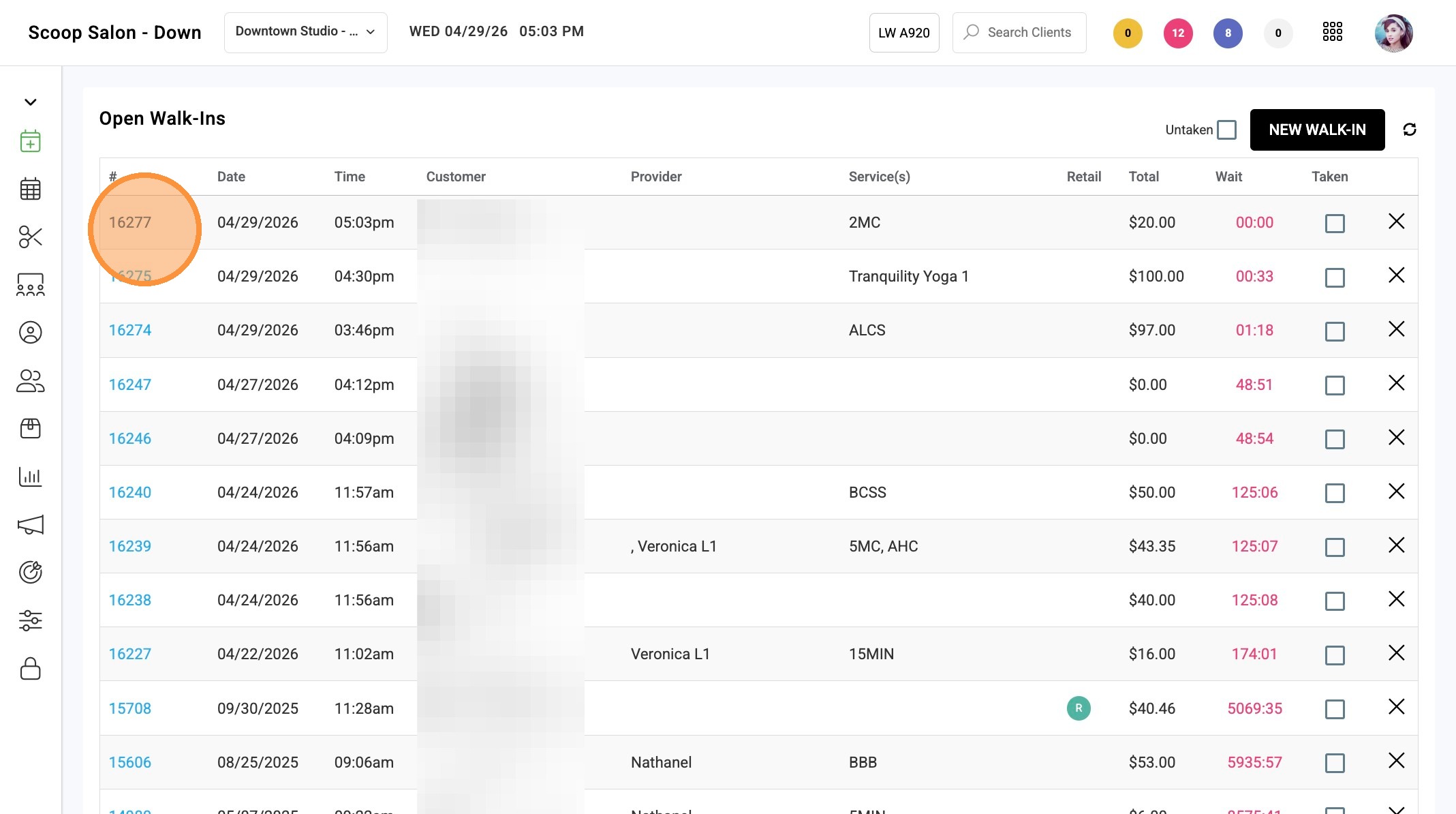
2. Select walk-in record to
3. Click "Edit"
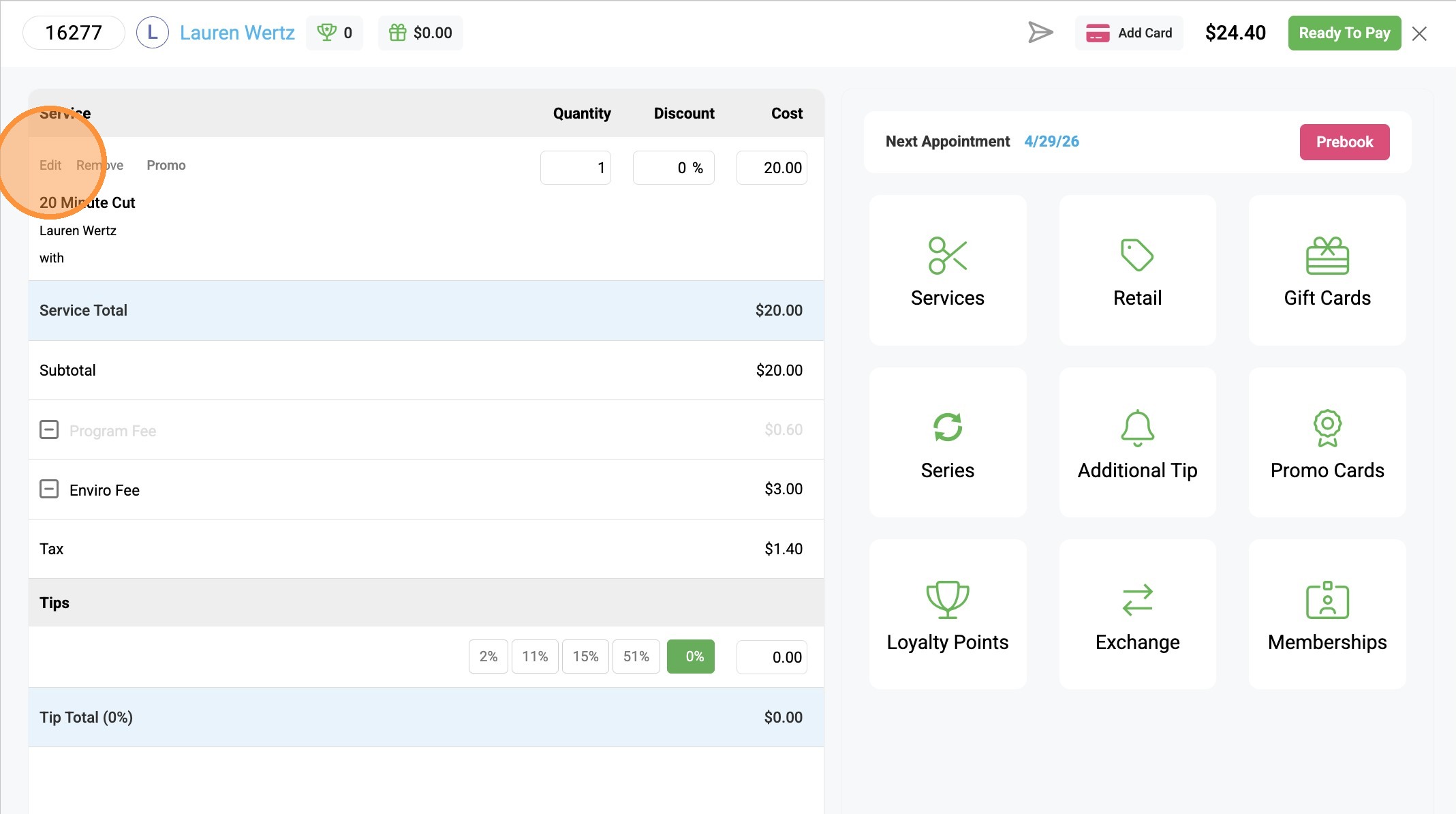
4. Select the service provider and the walk-in time for the service.
Click “Save +” to finalize the updates, then continue with the ticket to complete the transaction.