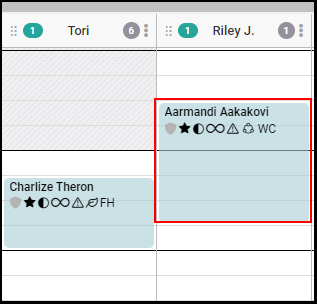
1. Select the appointment.
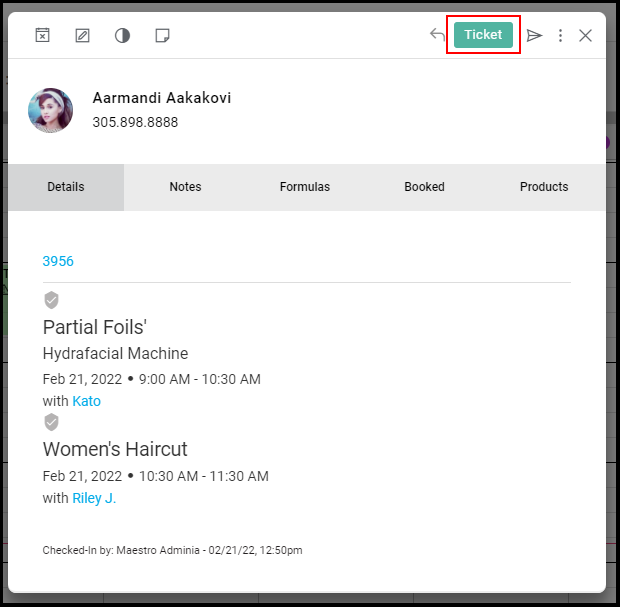
2. Select "Ticket".
NOTE: Client must be marked as "Arrived" prior to seeing the ticket.
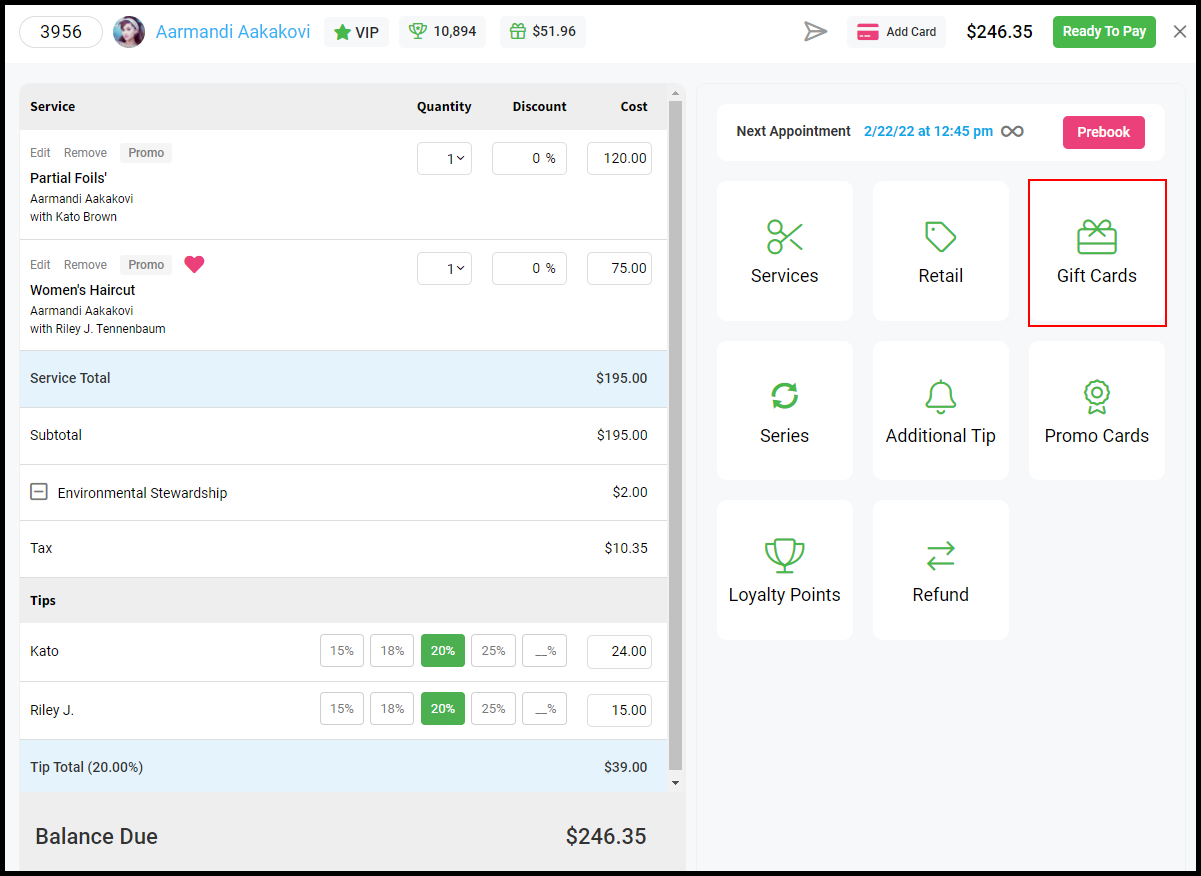
3. Select "Gift Cards".
4. Verify "Purchase" is selected on the top right.
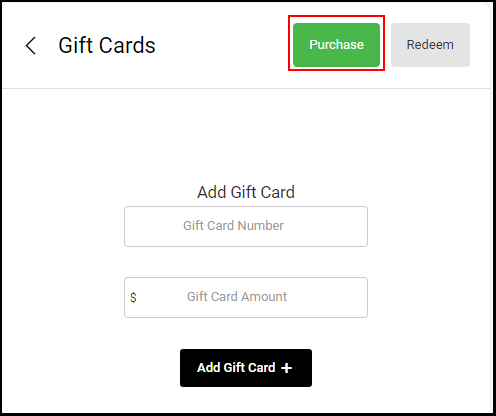
5. Scan of enter the Gift Card Number in the "Gift Card Number" field.
NOTE: If scanning, place the cursor in the "Gift Card Number" field prior to scanning.
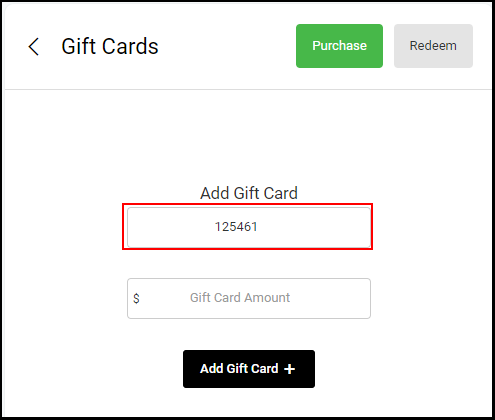
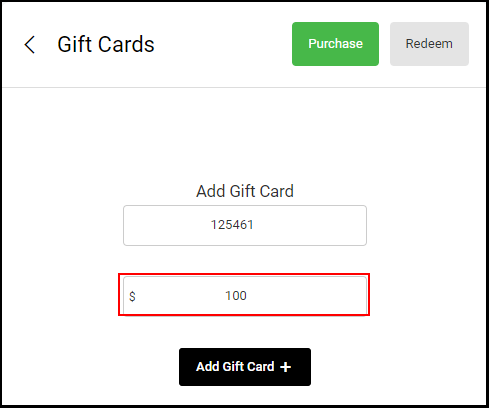
6. Enter the desired Gift Card amount, and then click "Add Gift Card +".
7. Proceed with the check-out process.
- Proceed with check-out process
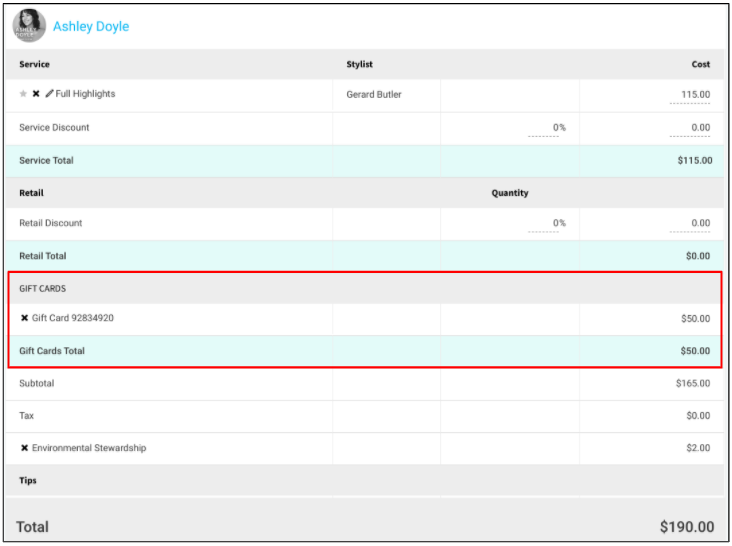
NOTE: A “Gift Cards” section will display on the ticket and the total will be adjusted to include the addition of the gift card.