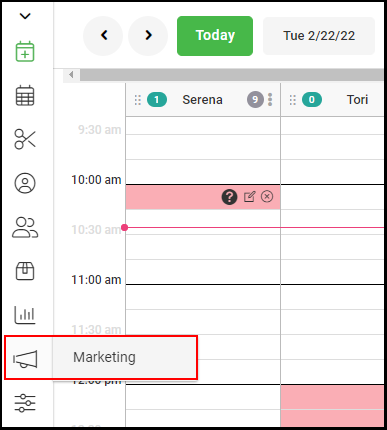
1. Select Marketing
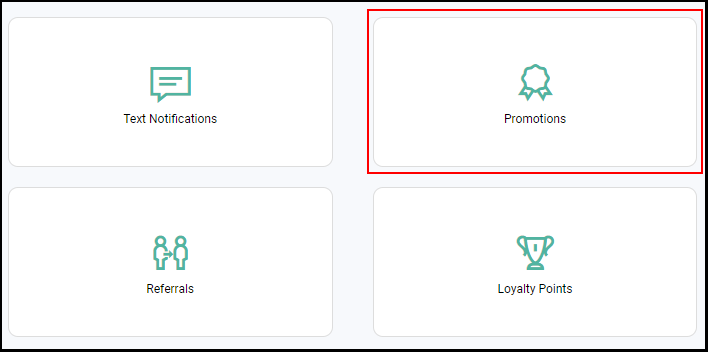
2. Select "Promotions".
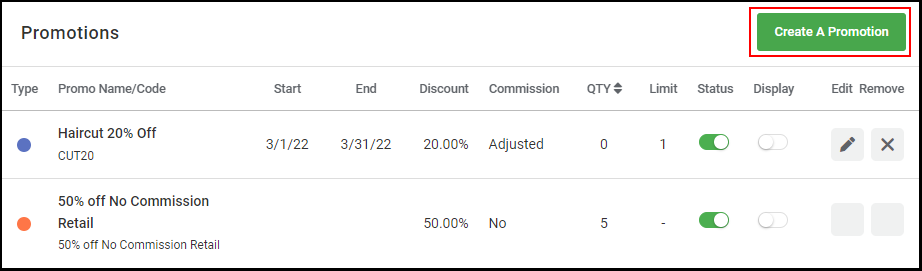
3. Select "/Create a Promotion".
4. In the "Promo Name" field, enter the name of the promotion..
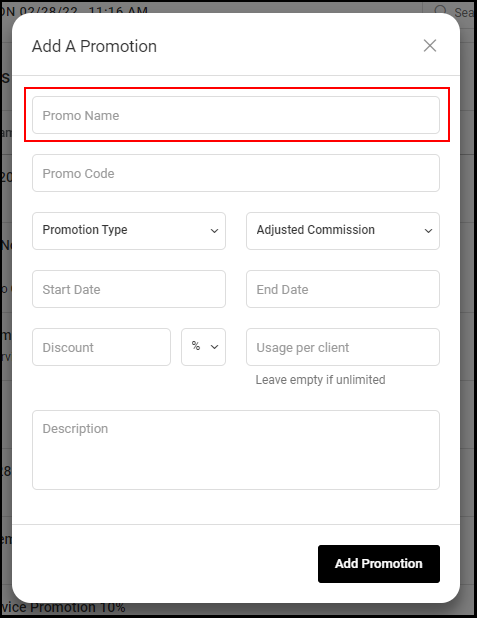
5. In the "Promo Code" field, create and enter a promo code.
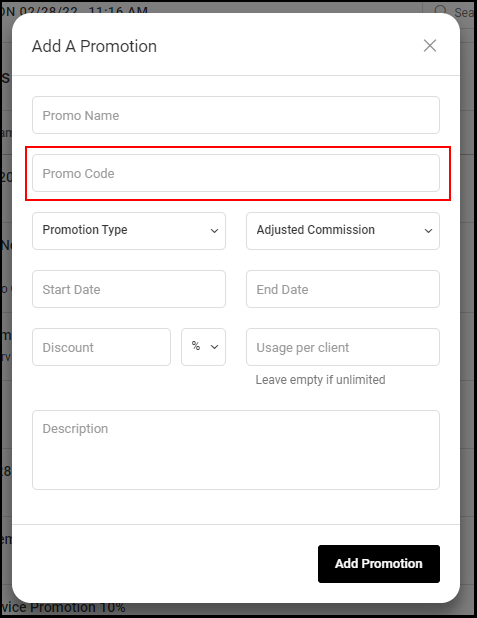
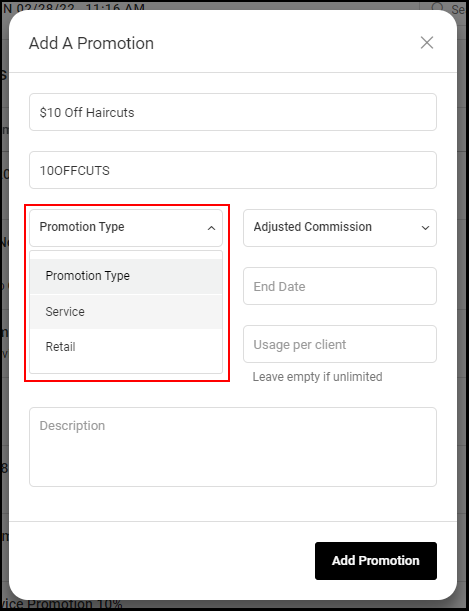
6. Select "Service" from the Promotion Type drop down menu.
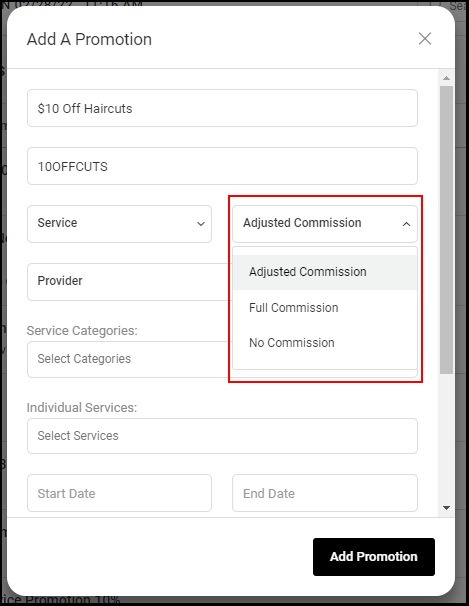
7. Determine how you'd like the promotion to effect commissions.
- Adjusted Commission: Provider receive commission based upon the price after the promotion has been applied.
- Full Commission: Providers receive commission based upon the price of the service prior to the promotion.
- No Commission: Providers receive no commission on the promoted service.
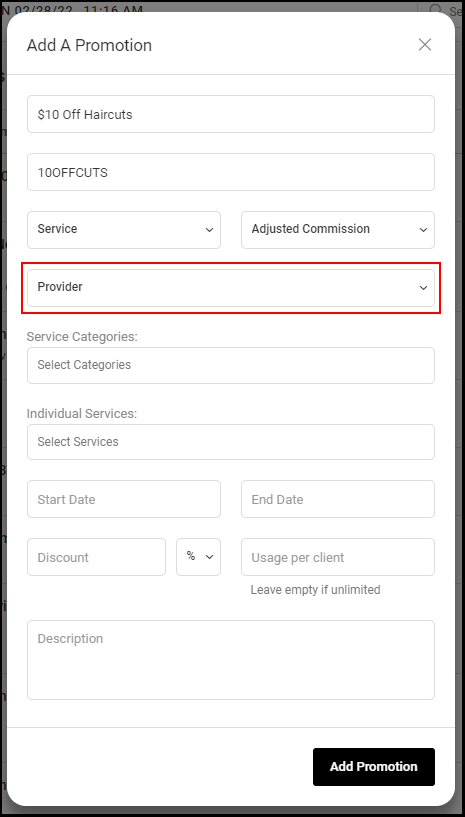
8. Select the Providers offering the promotion.
NOTE: If all providers are offering the promotion, then leave Provider section as Provider.
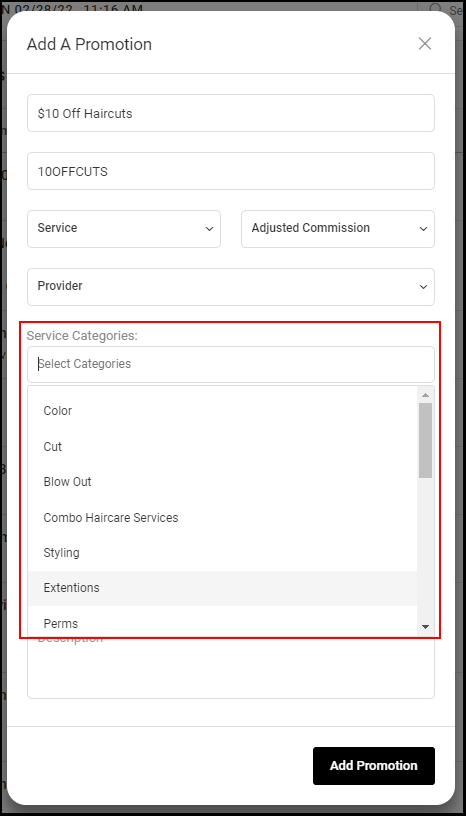
9. In the "Service Categories" field, enter or select all the service categories that you want linked to the promotion.
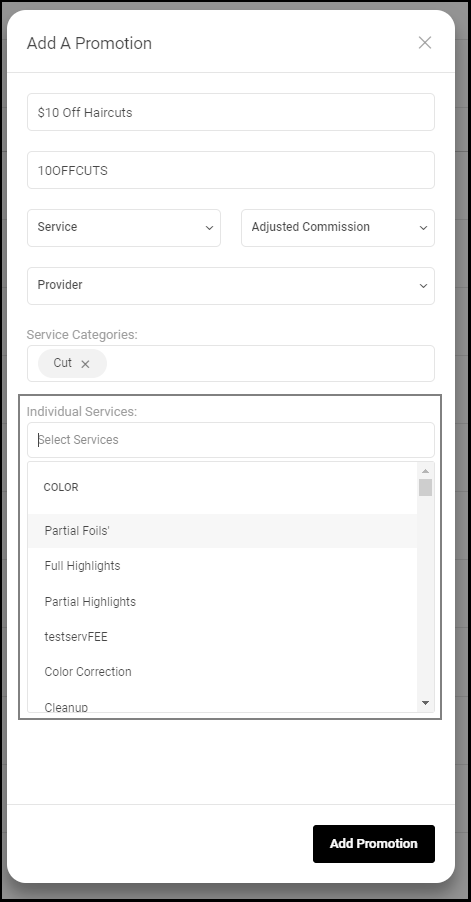
10. If the promotion only applies to certain services under the selected service categories, then enter or select the services in the Individual Services field.
NOTE: Leave this field blank if the promotion applies to all services under the selected service categories.
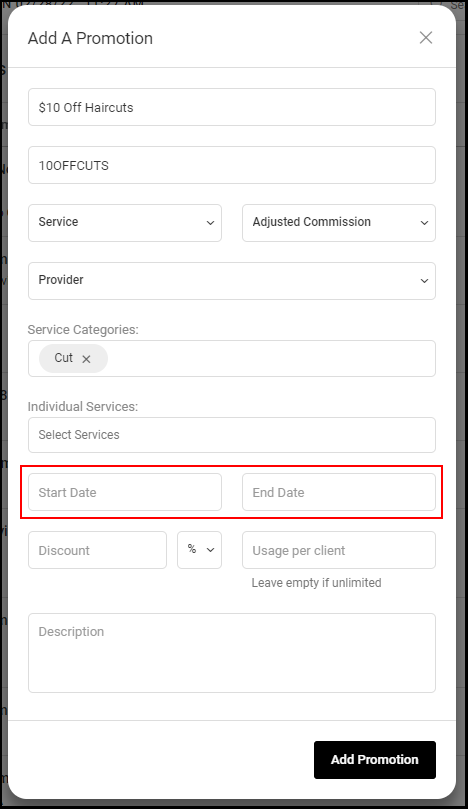
11. Select the Start and End Dates of the promotion.
NOTE: If the promotion never expires, leave the End Date field blank.
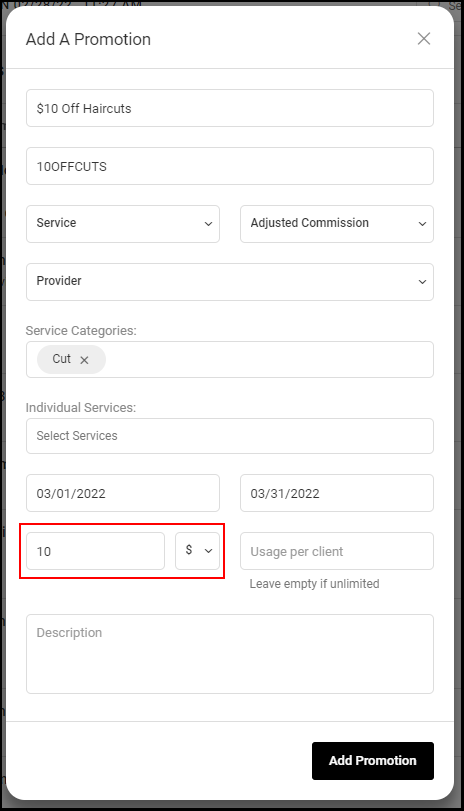
12. Enter the discount amount.
NOTE: The promotion can be based on a dollar amount or a percentage amount using the drop-down.
13. Enter the number of times a client can redeem the promotion in the "Usage Per Client" field.
NOTE: If this field is left blank, clients will have unlimited redemptions.
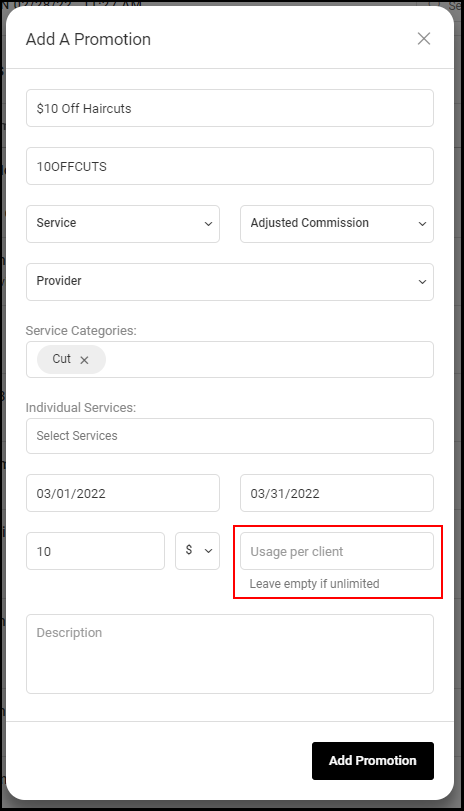
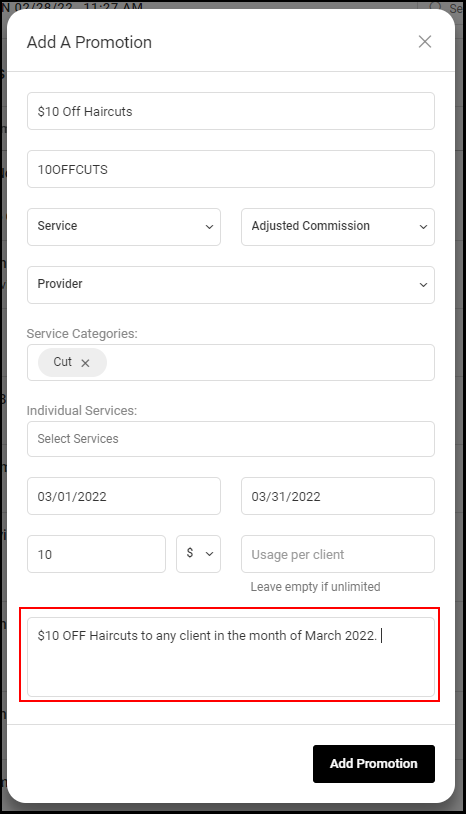
14. Enter a description of the promotion in the "Description" field.
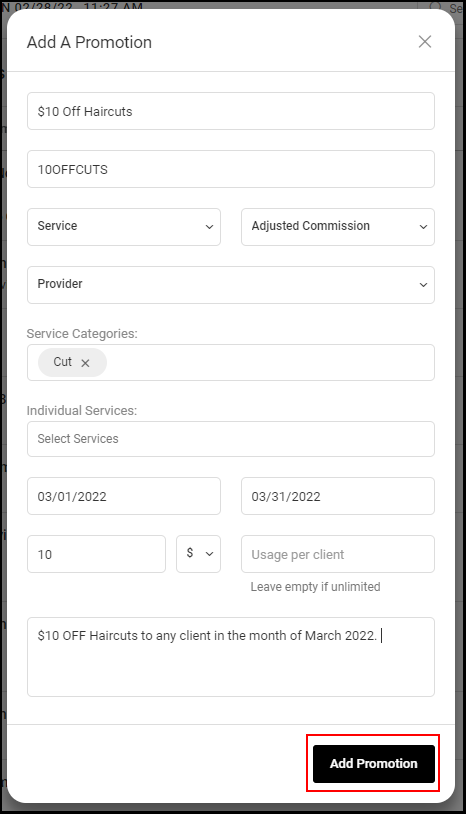
15. Select "Add Promotion".
16. To turn the promotion on and off select the "Status" toggle.

17. To have the promotion displayed in the client app then select the "Display" toggle

18. To edit a promotion select the edit icon.
NOTE: If the promotion is already used by a client then the promotion can no longer be edited.

19. To delete a promotion select the "X" icon.
NOTE: If the promotion is already used by a client then the promotion can no longer be deleted, but it can be turned off and removed from the client app using steps 16 and 17. .
