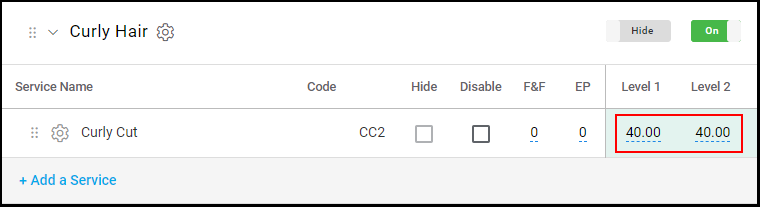
Owners and Managers can add categories or services to the default service list.
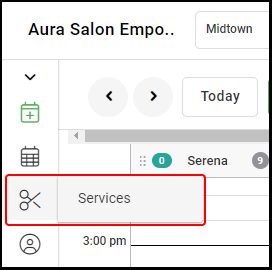
1. Select "Services".
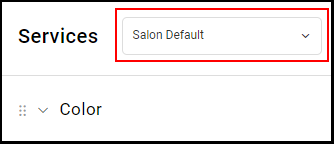
2. The default service list will automatically be selected.
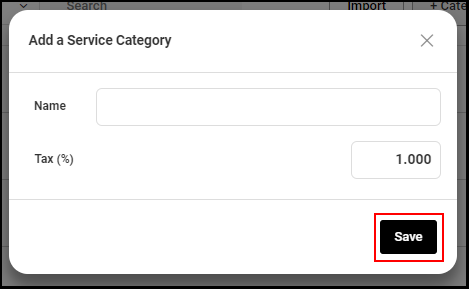
3. To add a category, Select "+ Category".

4. Enter the category "Name" and Tax %.
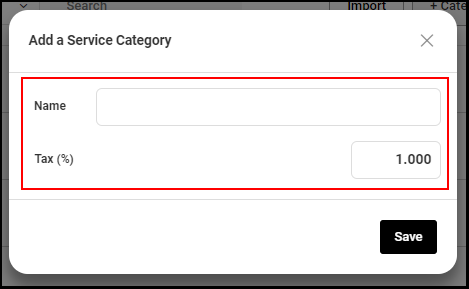
5. Select "Save".
6. The category appears at the bottom of the page if categories already exist.

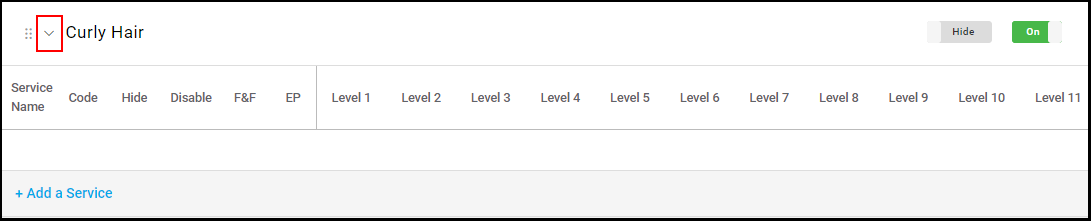
7. Select the "Arrow" to show any services within the category.
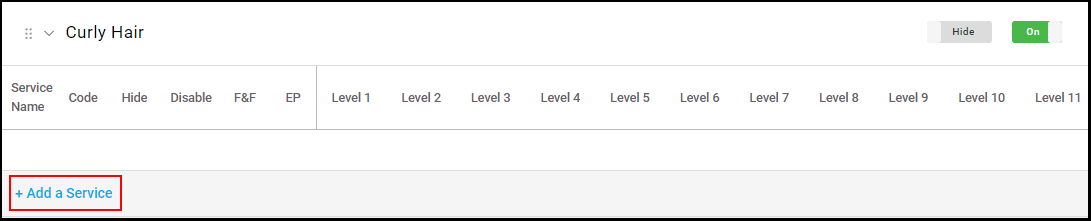
8. Select "+ Add A Service" to add services to the new category.
9. Input the Category (Defaults to the category from step #7), Setup, Service Name, the Service Code, Fees, Service Timing, Add Ons, Equipment, Description, First Booking, Dashboard, and Pin.
NOTE: For a multi-part service, the duration is the total service time.
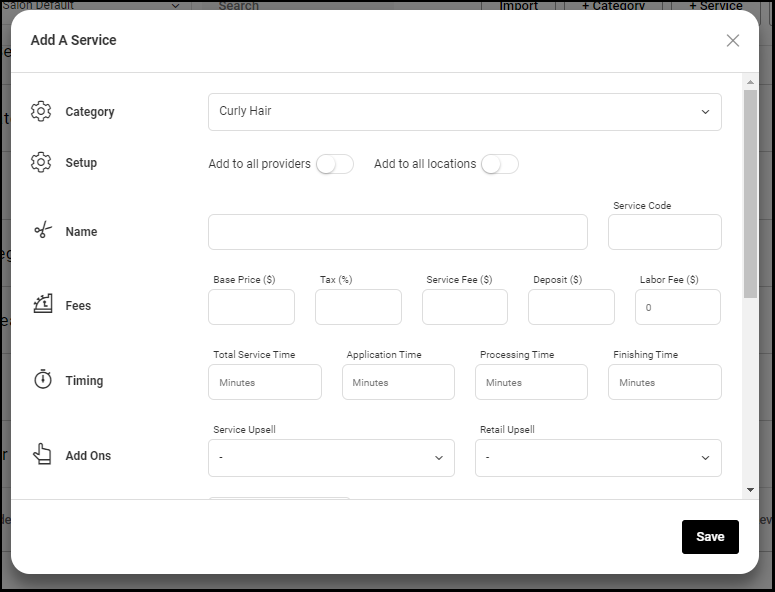
10. Select "Save".
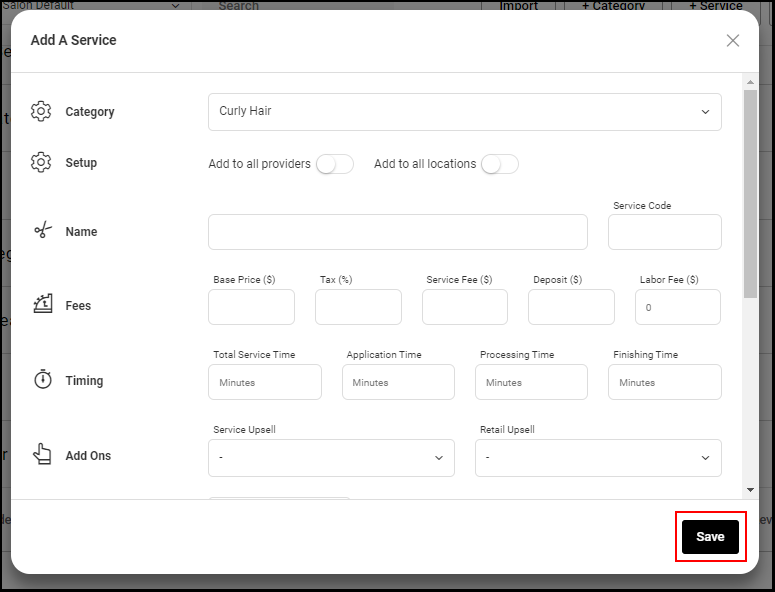
10. The service appears in the category

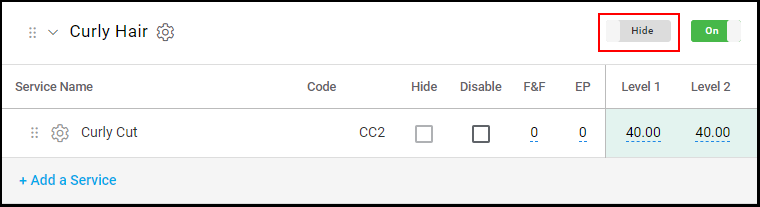
11. To have this category of services show on the client application select the toggle to switch the status from Hide to "Show". To hide a category select the toggle to switch the status from Show to "Hide".
12. To enable the category so clients and staff can book services from that category select the toggle to go from Off to "On". To disable the category completely select the toggle to from On to "Off". 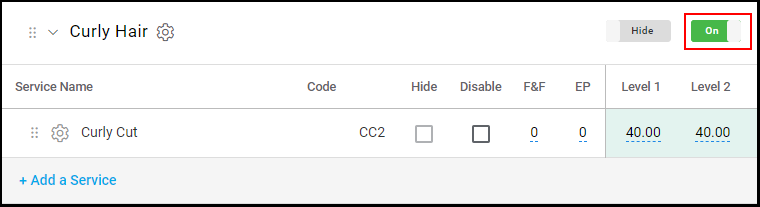
13. If Providers are set at different pricing levels for the service then input those pricing levels. Find more information HERE.