1. Navigate to Inventory> Purchase Orders
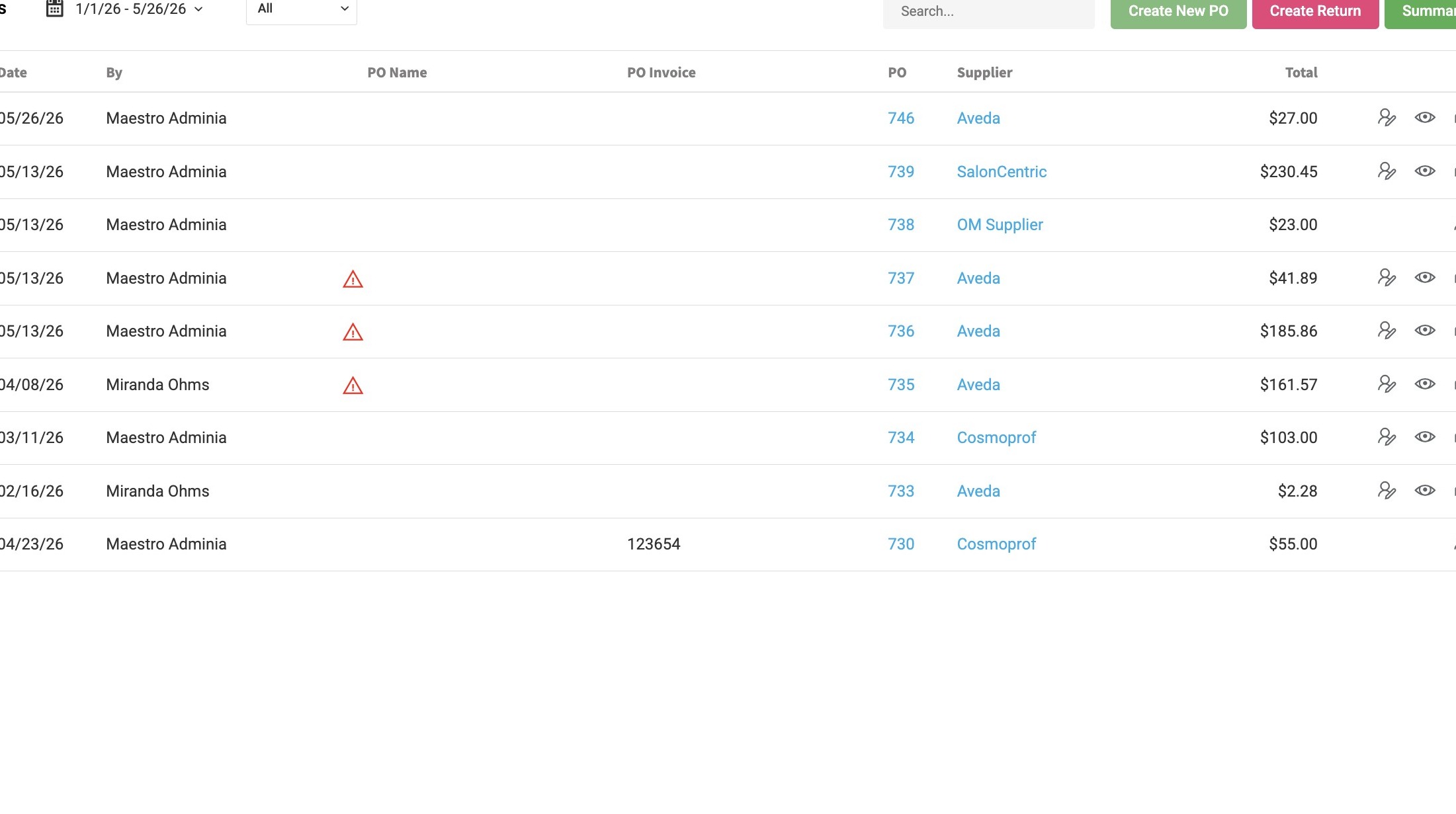
Purchase Order Initiation
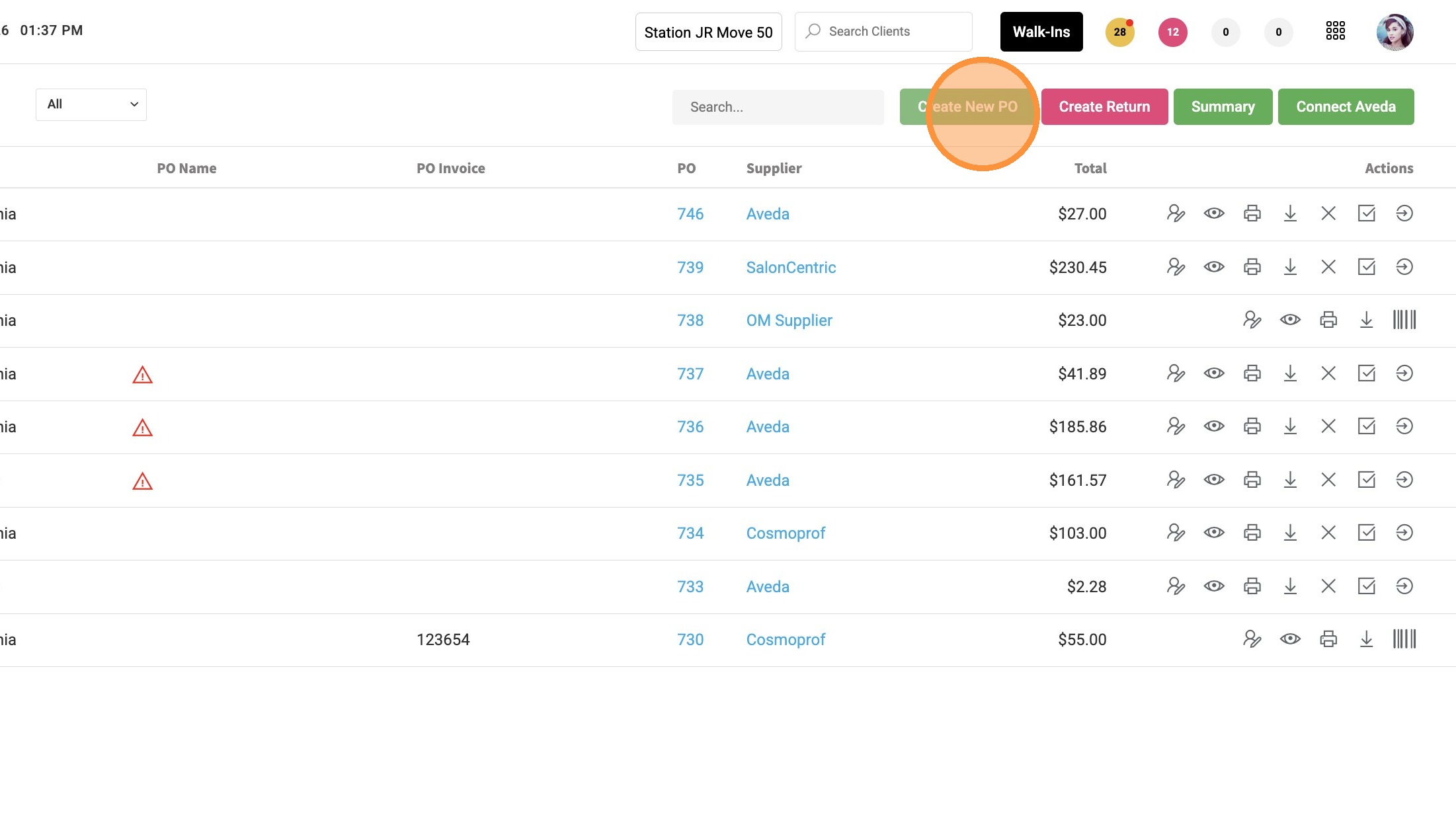
2. Click "Create New PO"
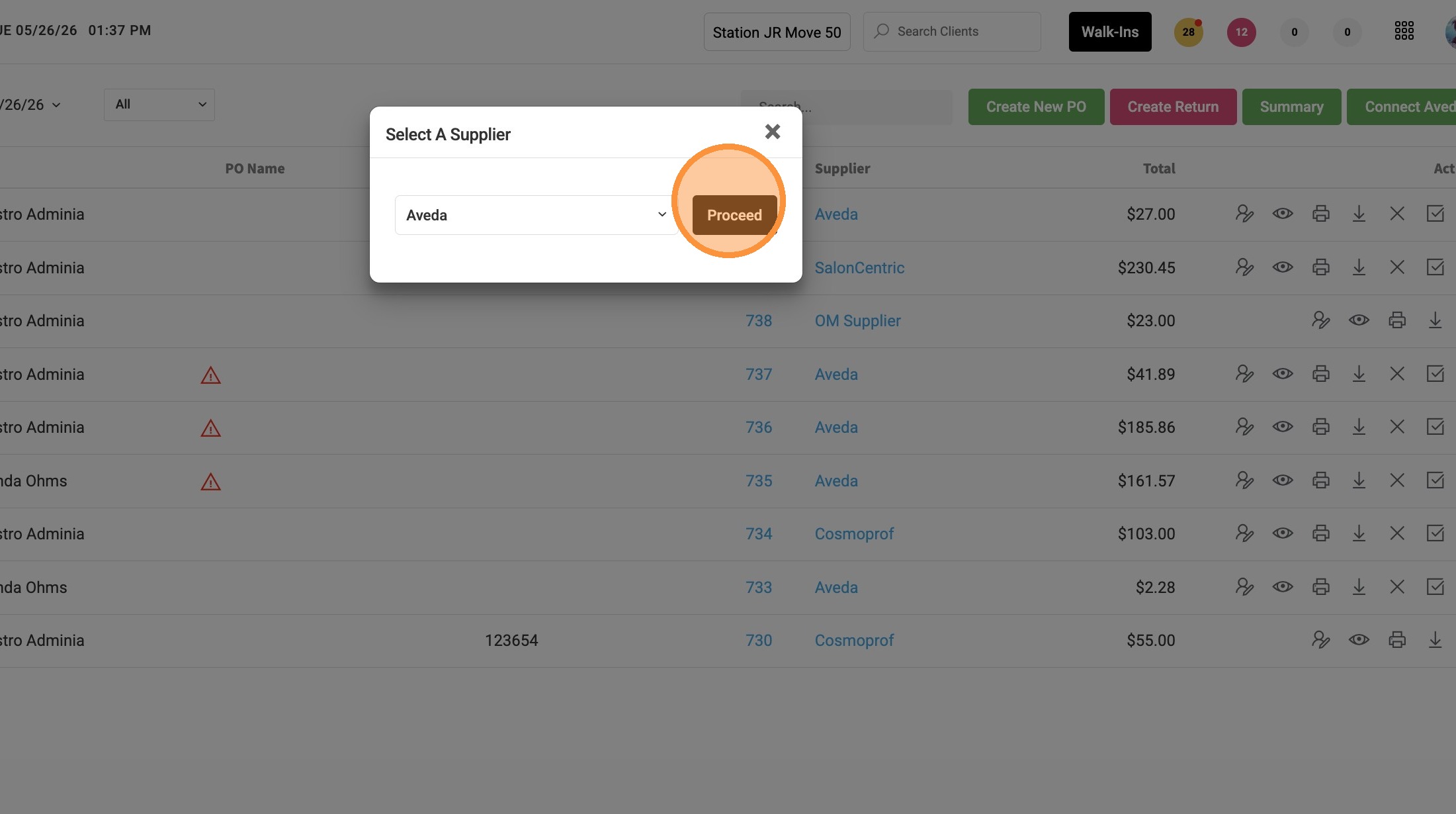
3. Select "Supplier" "from the dropdown menu.

4. Click "Proceed"
Product Selection and Pricing
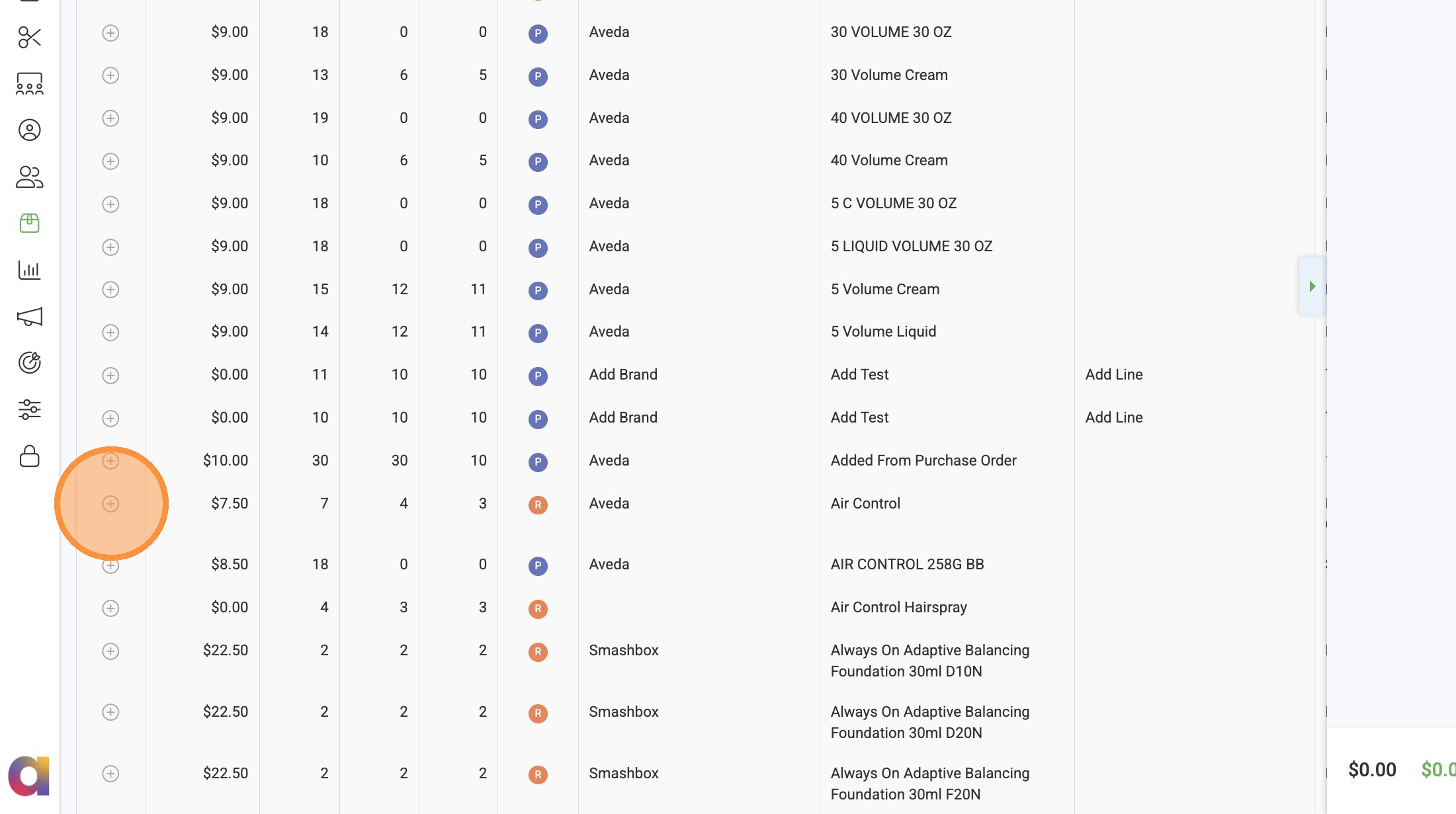
5. Click the "+" icon to add product to the purchase order.
6. To apply a discount to a line item:
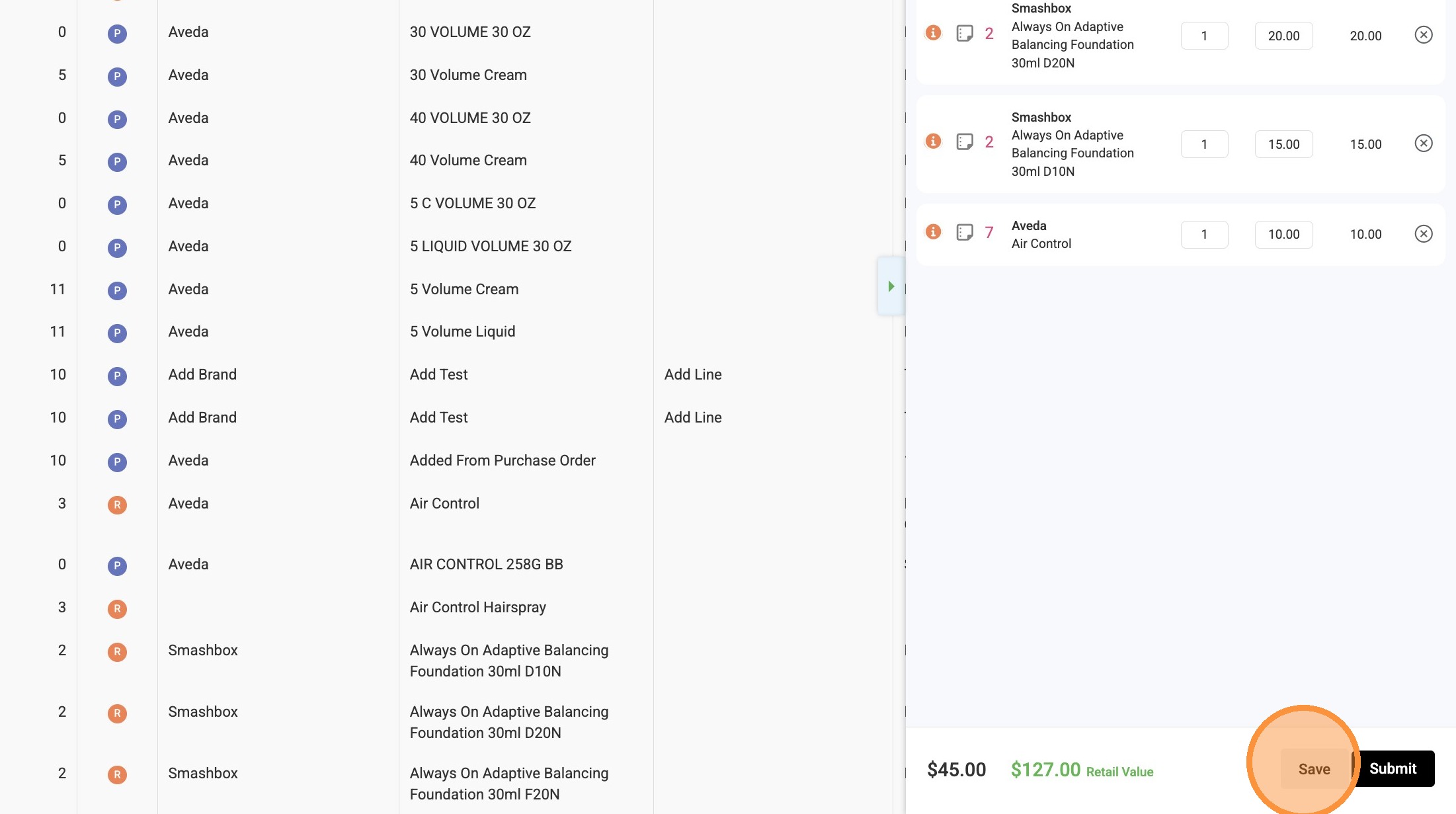
- Locate the line item you would like to discount.
- Click into the Unit Cost field.
- Update the amount to the desired sale price or invoice price.

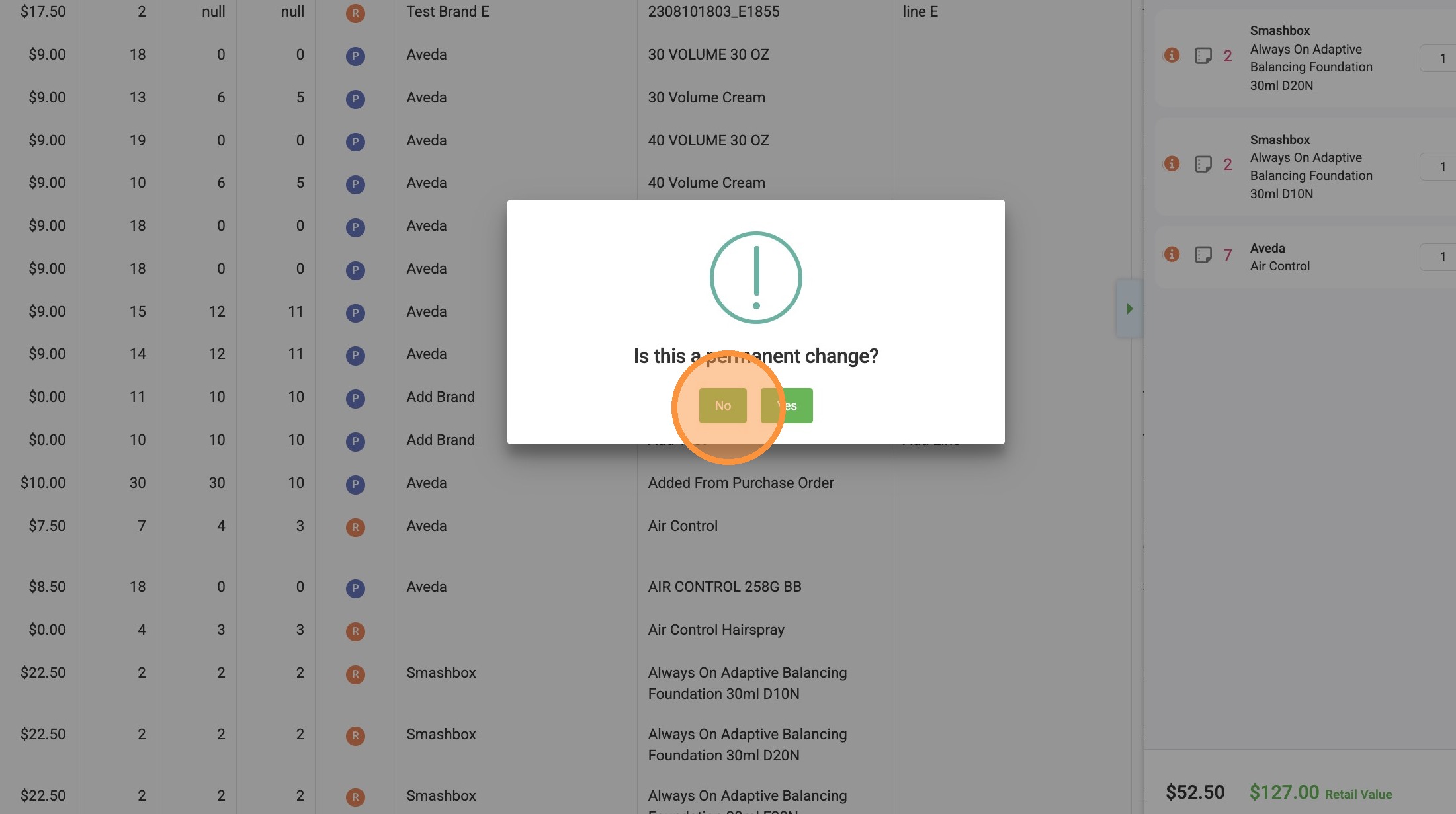
7. Is this a permanent change or a promotional pricing?
8. Click "Save" to finalize the purchase order details.
Reporting and Review
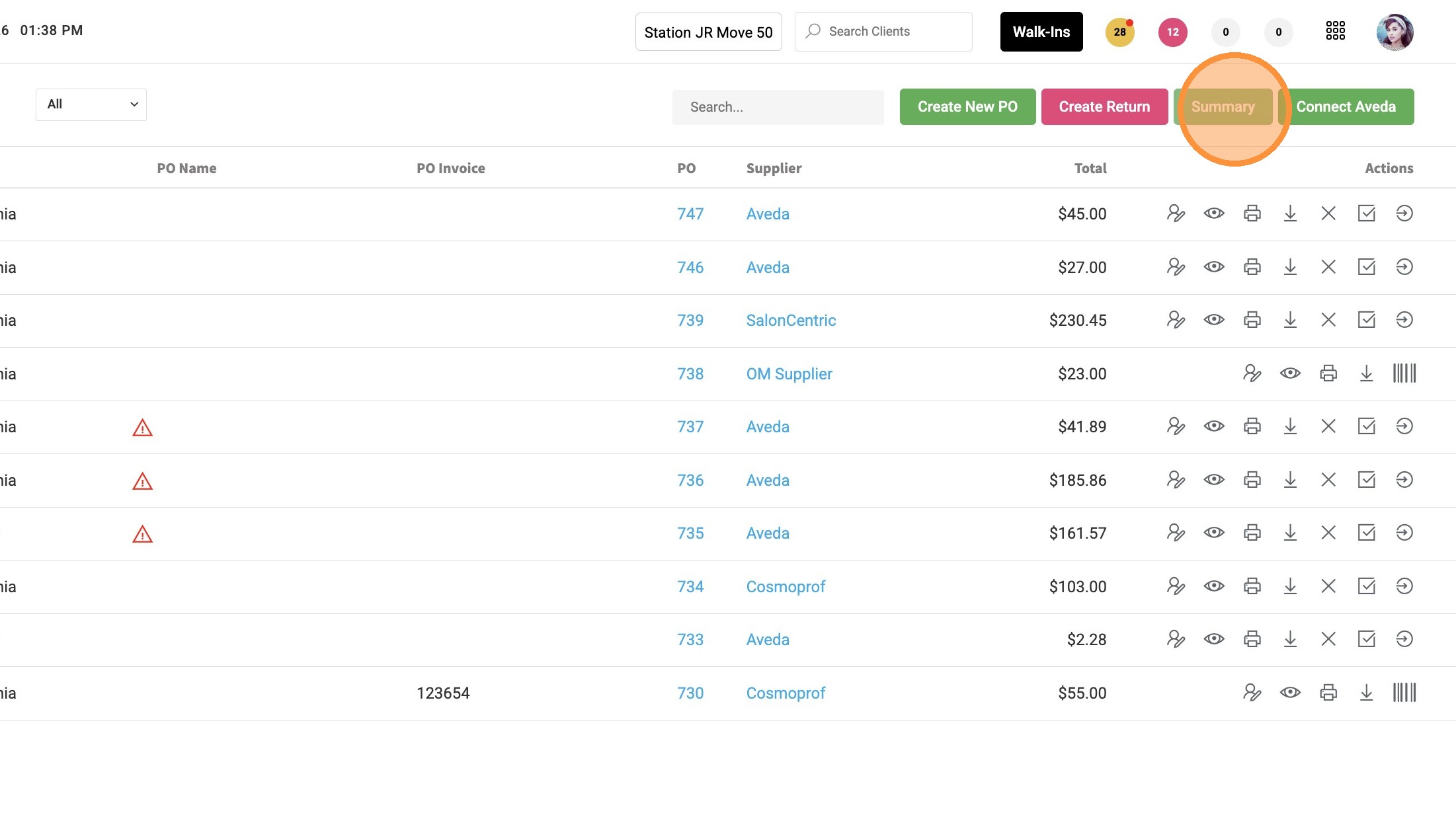
9. Click "Summary" to navigate to the purchase order reporting area.
10. Filter the report results to show suppliers, brands, all types, all catagory, all lines, and all statuses

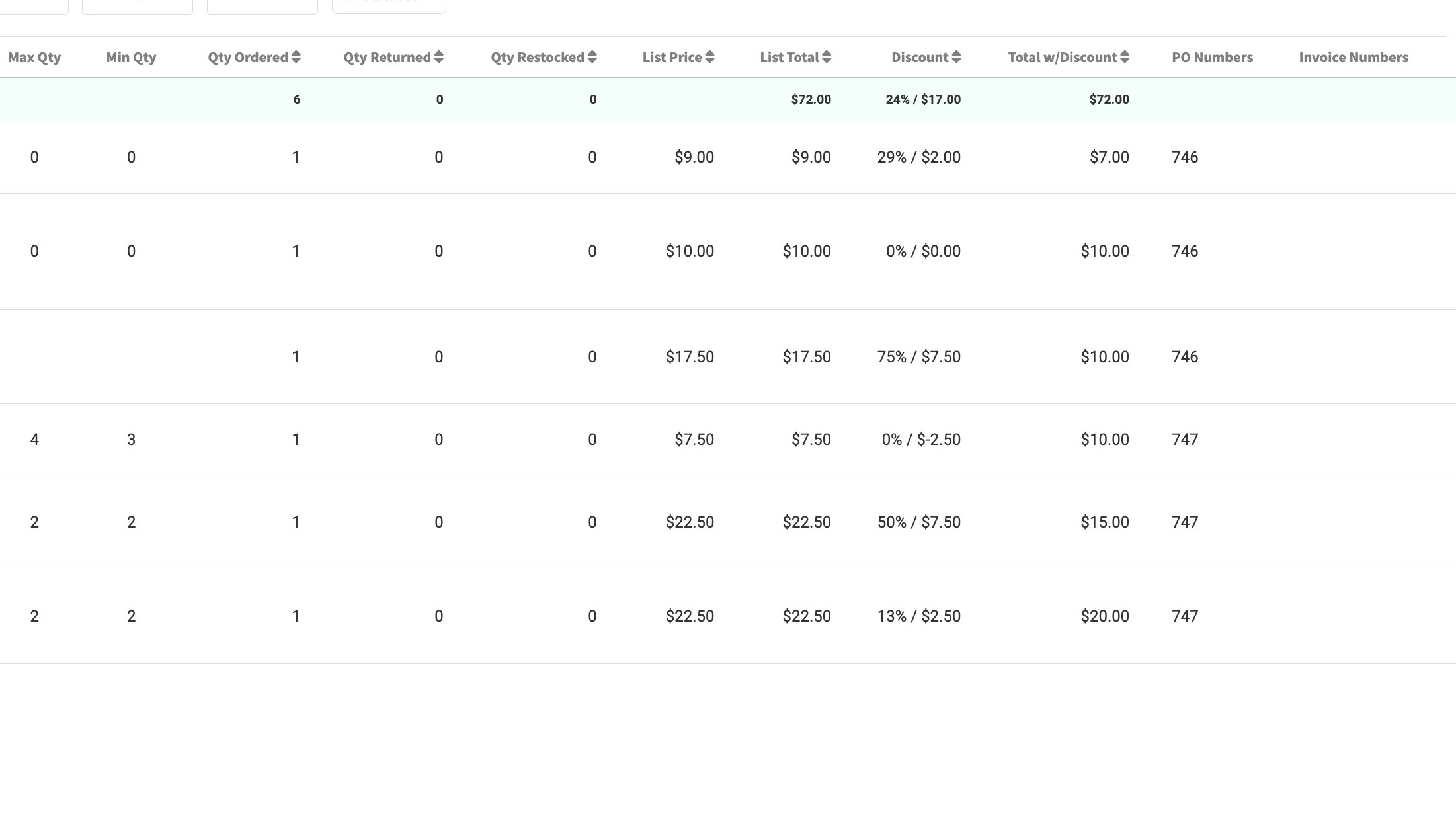
11. The Total w/ Discount field displays the total cost to the salon after discounts have been applied to the item(s). This reflects the discounted amount based on the pricing entered on the purchase order.