Creating/Editing a Ticket Fee
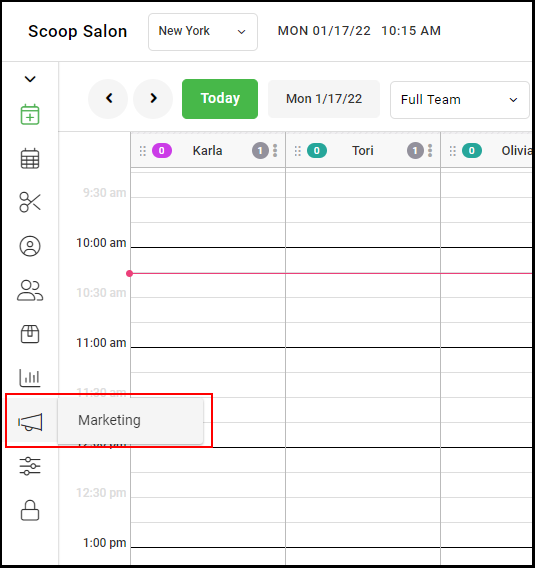
1. To create/edit a Ticket Fee, navigate to "Marketing".
2. Select "Ticket Fees".
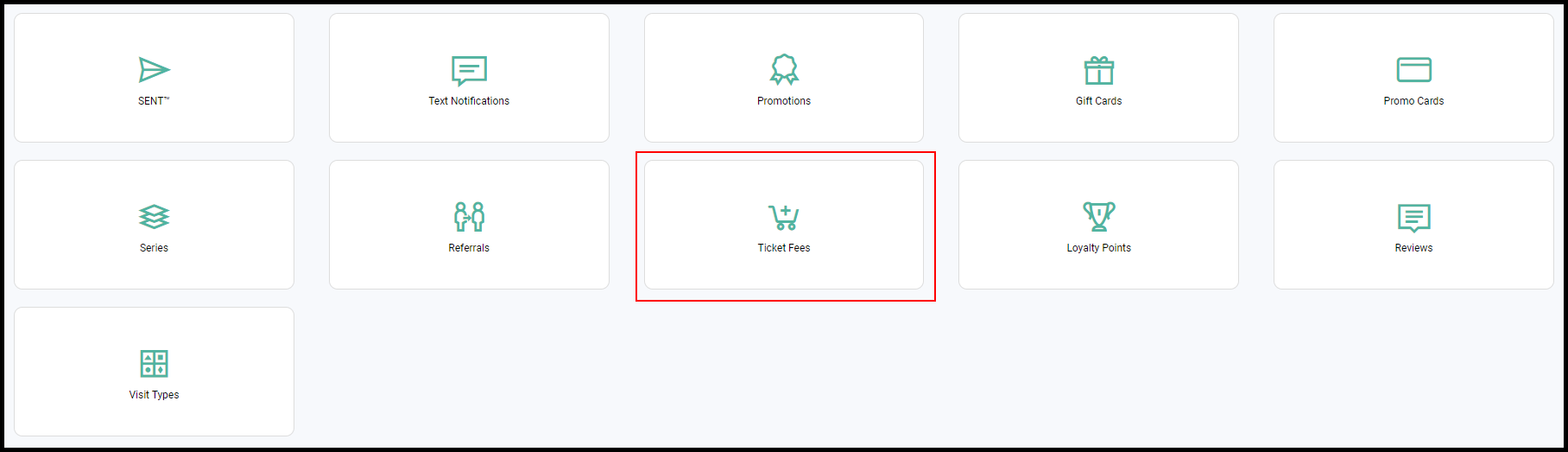
3. Any existing Ticket Fees will be displayed. To delete an existing Ticket Fee, select "X". To edit, type directly into the fields, then click "Save".

4. To add a new Ticket Fee, select "+".

5. A new line item will appear. Type directly into the fields the name of your Ticket Fee, the Amount, and check the "Collect at Booking" box if you wish to collect the deposit at the time of booking. Click "Save".
NOTE: The "Amount" can be a dollar amount or percentage. If percentage is chosen, the Ticket Fee amount will be your designated percentage of the total service cost.

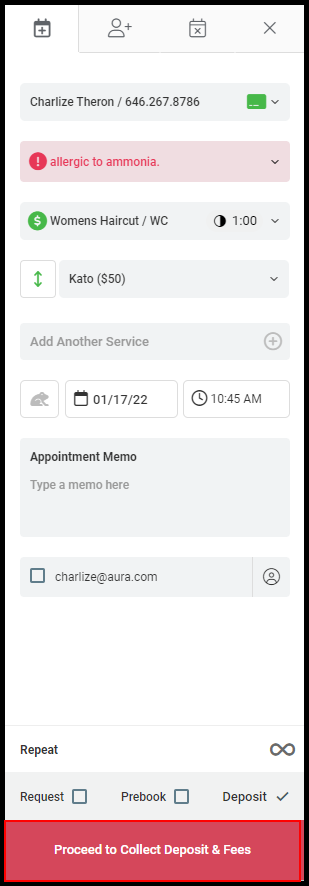
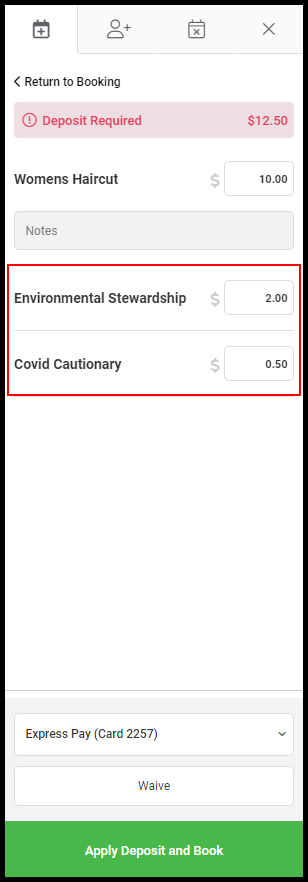
6. When booking a new appointment, you will be prompted to Collect Deposit & Fees prior to the appointment being booked.
 '
'
Deposit Report
Once an appointment with established Ticked Fees has been booked, the ticket fees at booking will be reflecting on the Sales Report under the specific pay type on the day it was collected.
1. Navigate to "Reports".
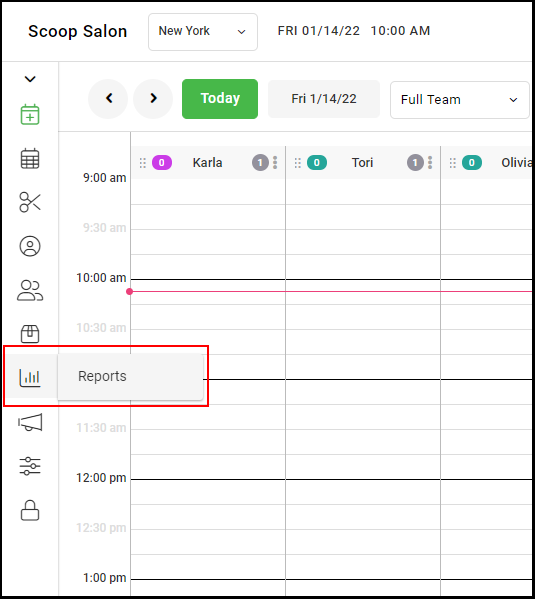
2. Select "Deposits".
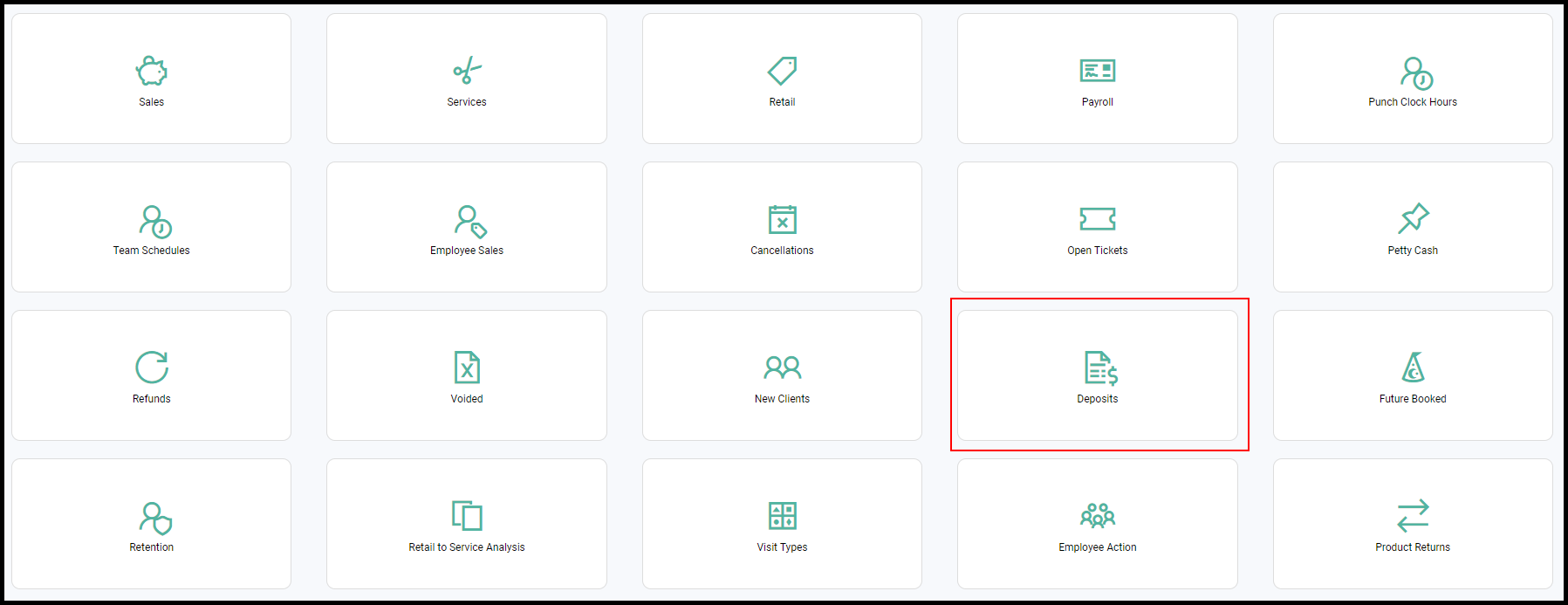
3. All Deposits for your chosen calendar period are shown.

Sales Report
1. Navigate to "Reports".
2. Select "Sales".
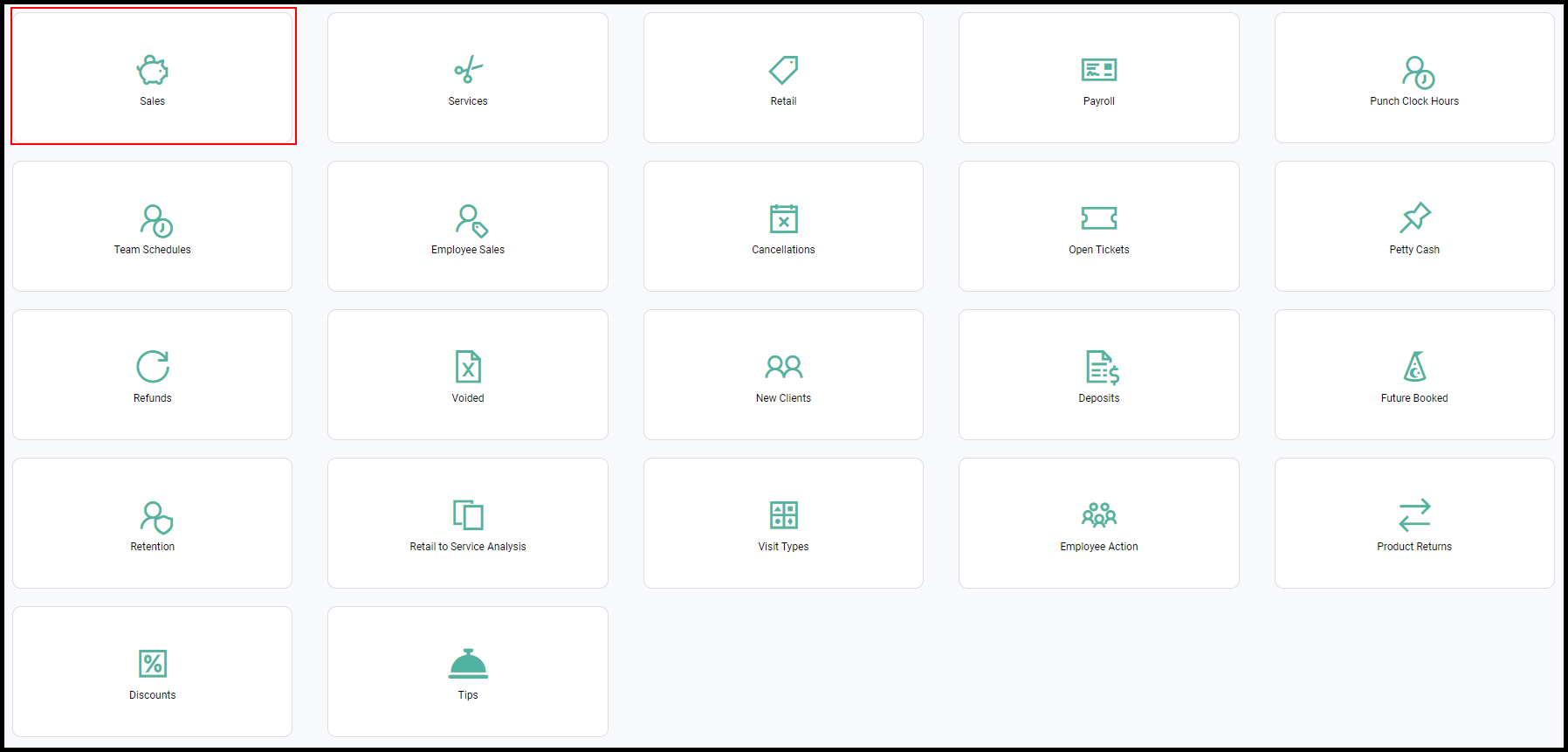
3. Scroll to "Custom Fees" to view all custom fees/ticket fees for the chosen calendar dates.
NOTE: If a booking ticket fee is refunded, it will be reflected on the sales report under the specific pay type on the day it was refunded
