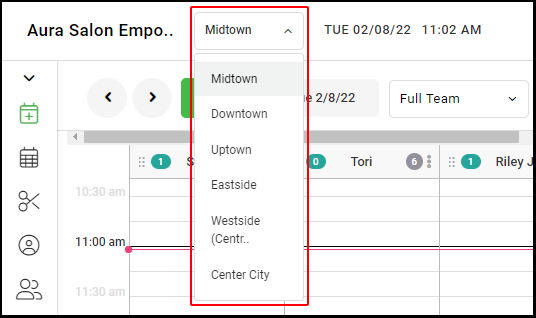
1. If your Salon has multiple locations, select the location on the top of the screen.
NOTE: If your salon only has one location, skip this step and proceed to Step #2.
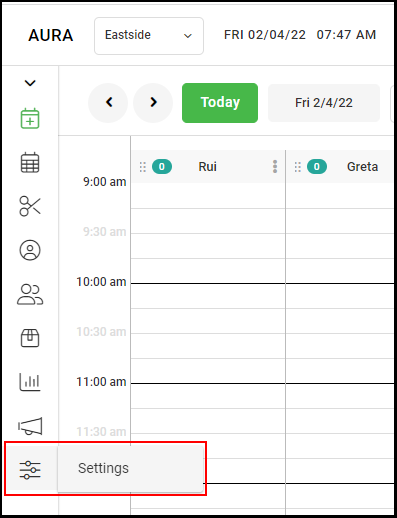
2. Go to "Settings" on the left side menu.
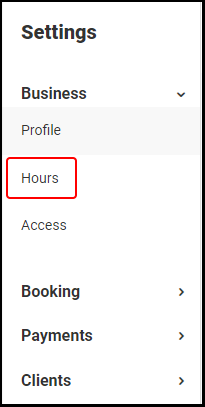
3. Select "Hours" from the Settings menu.
4. Locate the "Remove Days" portal.
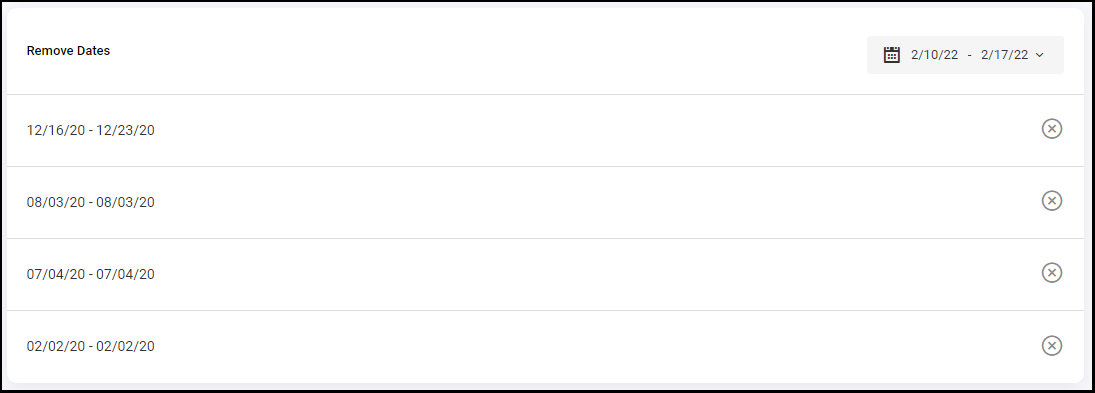
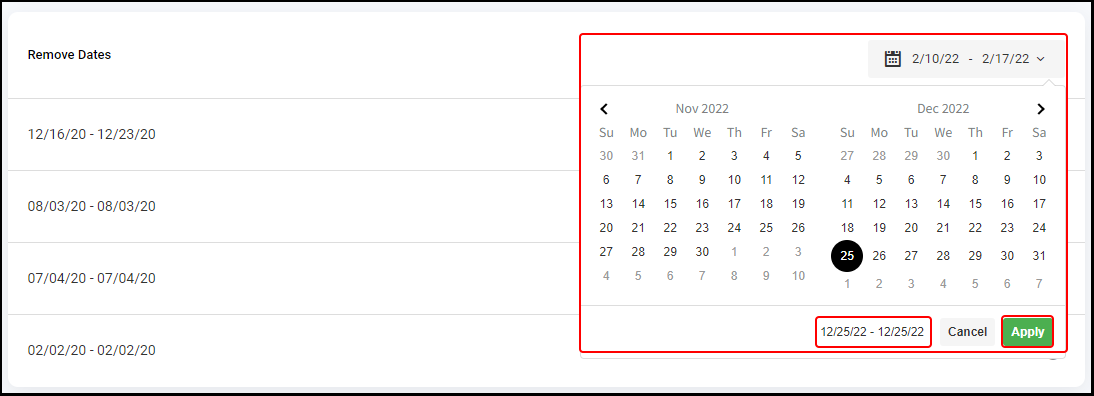
5. Select the date range when your salon will be closed using the calendar icon and then click "Apply" to remove the dates from your salon's calendar.
NOTE: If you are closed for one day (i.e. Christmas) then select that date twice (i.e. December 25, 20XX - December 25, 20XX) on the calendar before clicking "Apply".
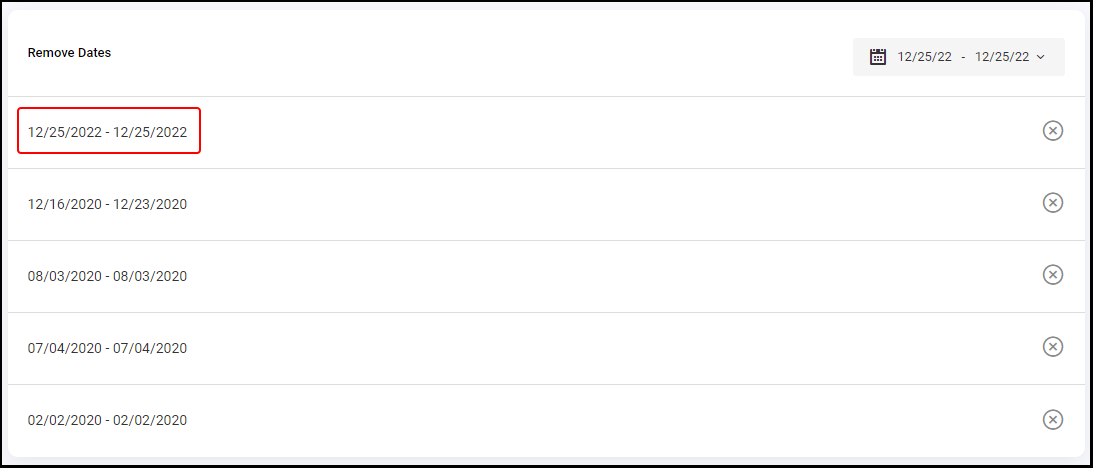
6. Upon clicking "Apply", the selected days will be removed from your calendar and will display as a list under the "Removed Days" heading.
NOTE: Once applied, clients will not be able to book appointments on the selected dates for the location you identified in Step #1.
7. If you have multiple locations where the scheduling change applies, repeat steps 1-5 for each location.