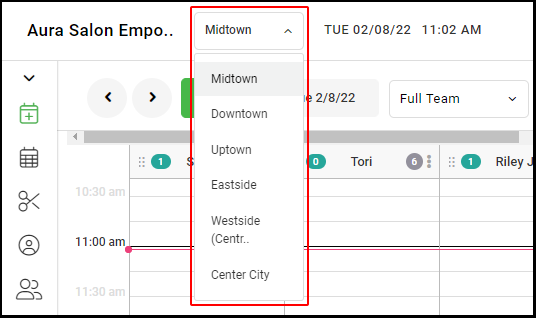
1. If your Salon has multiple locations, select the location on the top of the screen.
NOTE: If your salon only has one location, skip this step and proceed to Step #2.
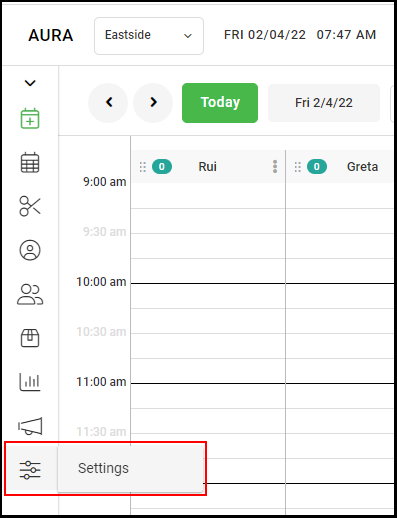
2. Go to "Salon Settings" on the left side menu.
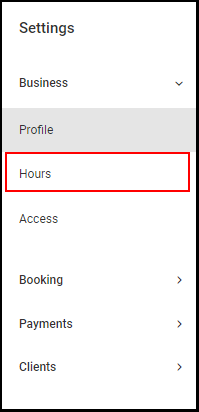
3. Select "Hours" from the Settings menu
4. Locate the "Add/Change Salon Daily Hours" portal.
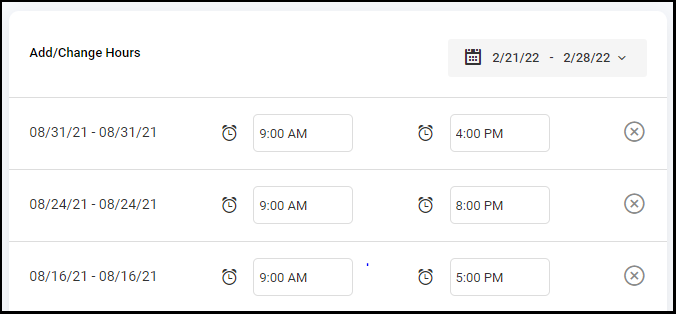
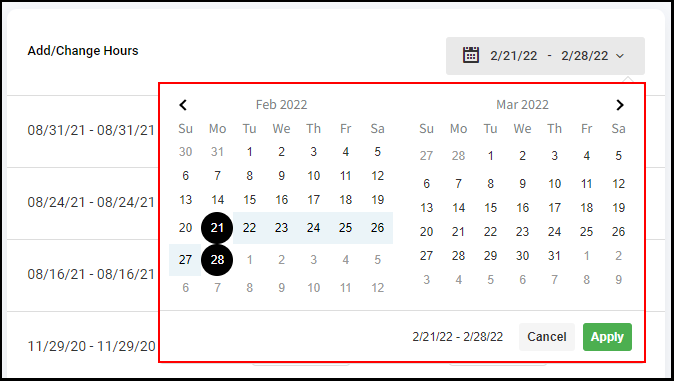
5. To add dates to your calendar when your salon would be normally closed, select the date(s) using the calendar icon and then click "Apply".
NOTE: To add one date rather than a range of dates, simply click the same date twice prior to clicking "Apply".
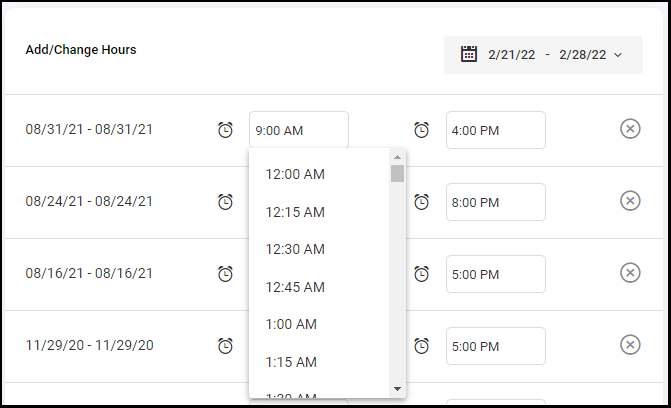
6. To set the hours for the added date(s), select the opening and closing times using the drop-down menus located next to the clock icon.
NOTE: If you selected a date range, the opening and closing times will be applied to all days within that range.
7. If you have multiple locations and this change needs to be added for each location, repeat steps 1-5 for each location