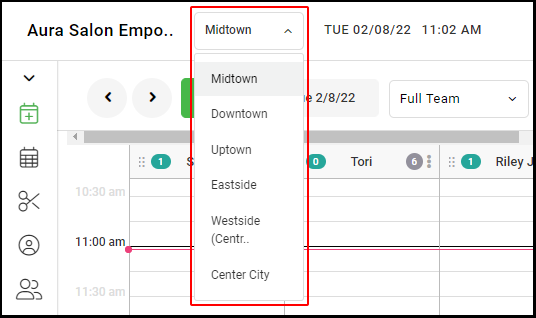
1. If your Salon has multiple locations, select the location using the drop-down menu on the top left of the screen upon logging in.
NOTE: If your salon only has one location, skip this step and proceed to Step #2.
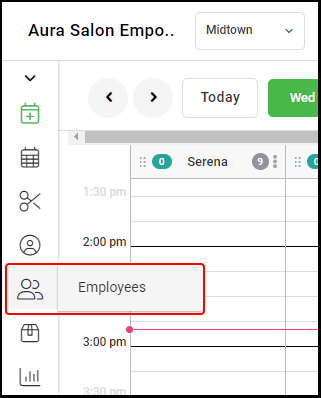
2. Select "Employees" from the left side navigation menun
3. Select the name of the employee.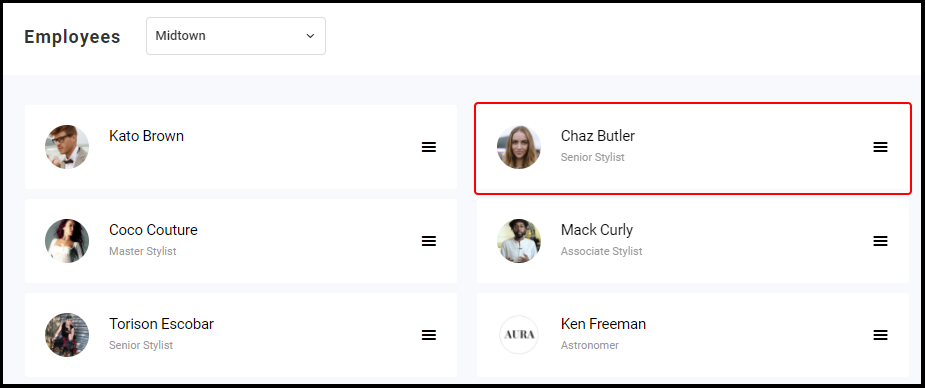
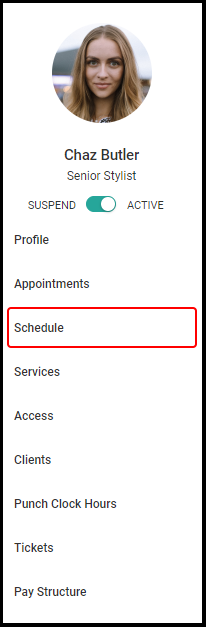
4. Once the employee's profile displays, select "Schedule" ( ) on the navigation menu under the employee's profile picture
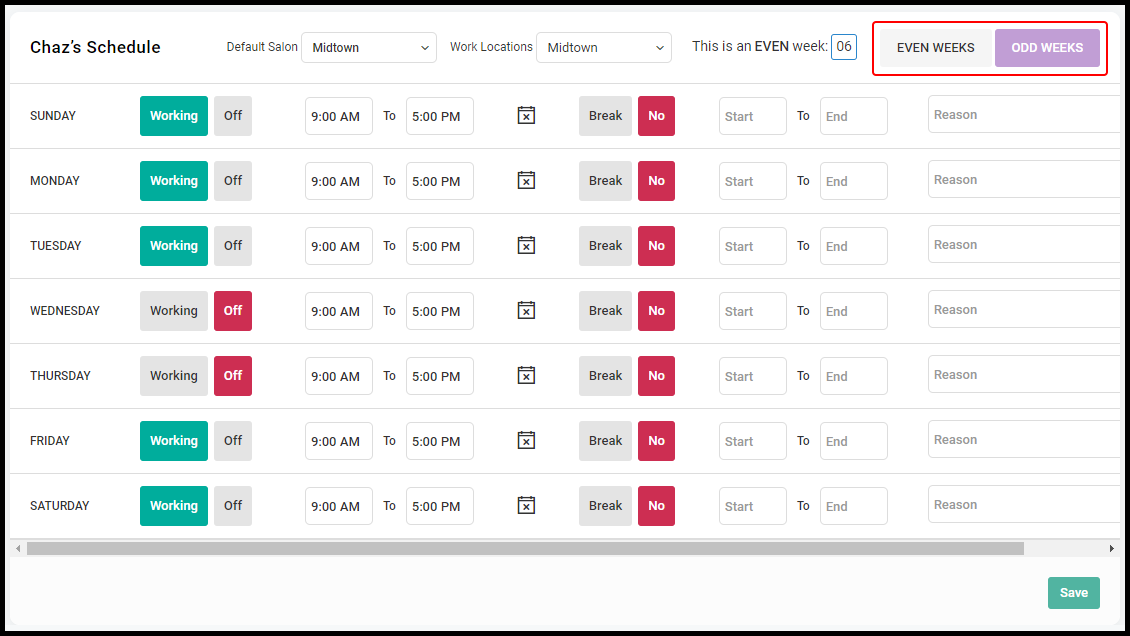
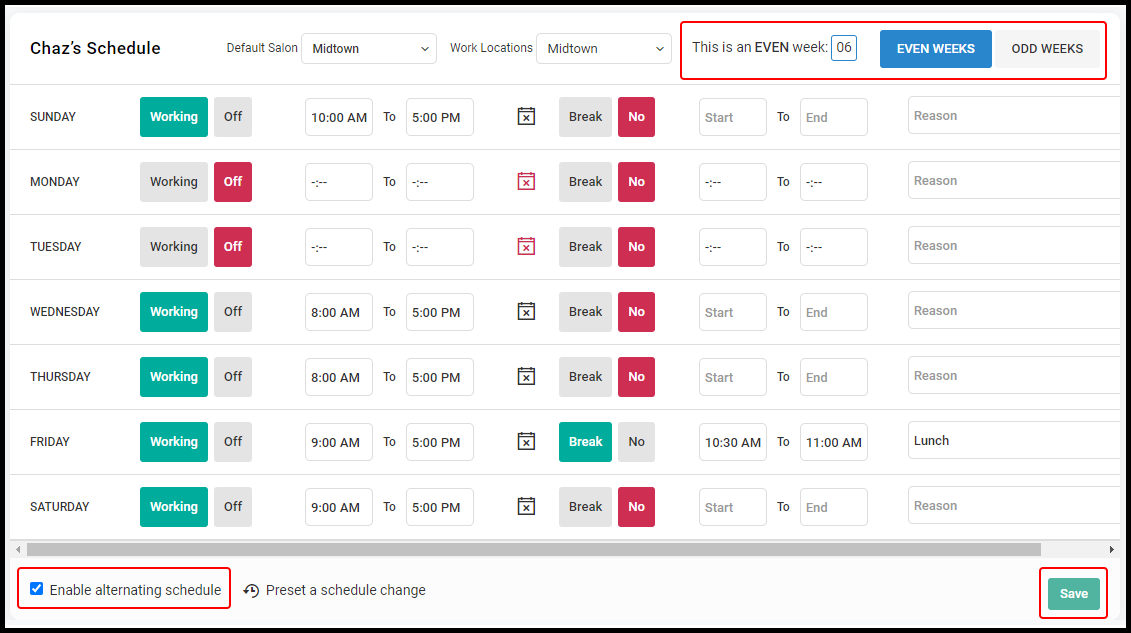
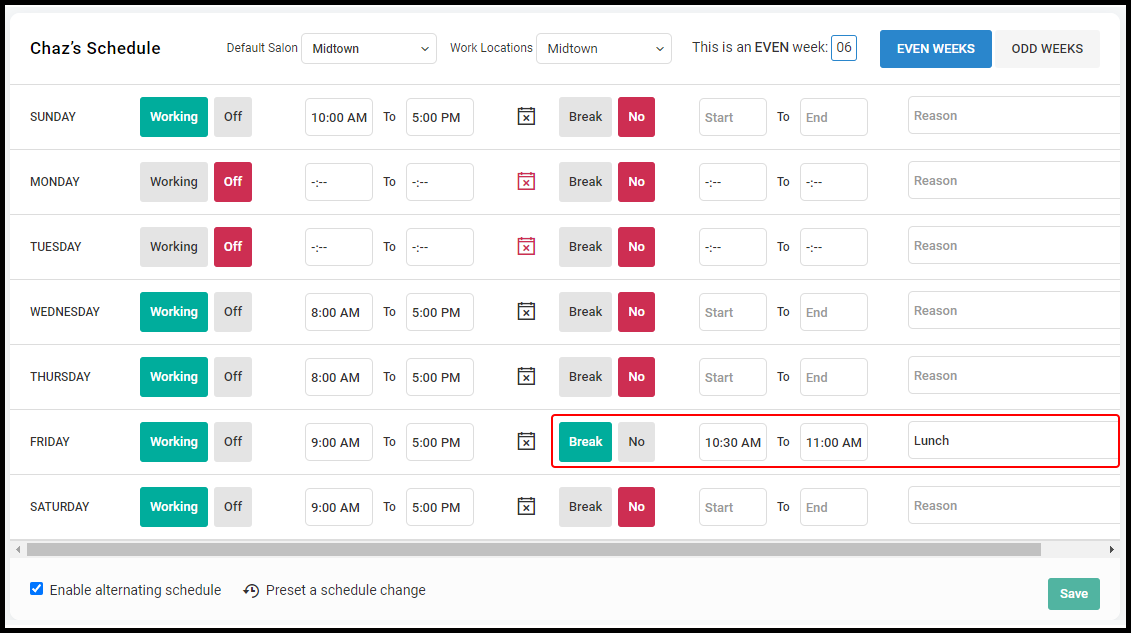
5. If the provider has alternating weekly schedules, select the "Enable Alternating Schedule" check box and click "Save."
Once saved, "Even Weeks" and "Odd Weeks" buttons will display on the top right of the screen and will be defaulted to "Even Weeks". It will also tell you whether the current week is an even or odd week.
NOTE: If the employee's schedule does not have alternating weekly schedules, skip to Step #6.
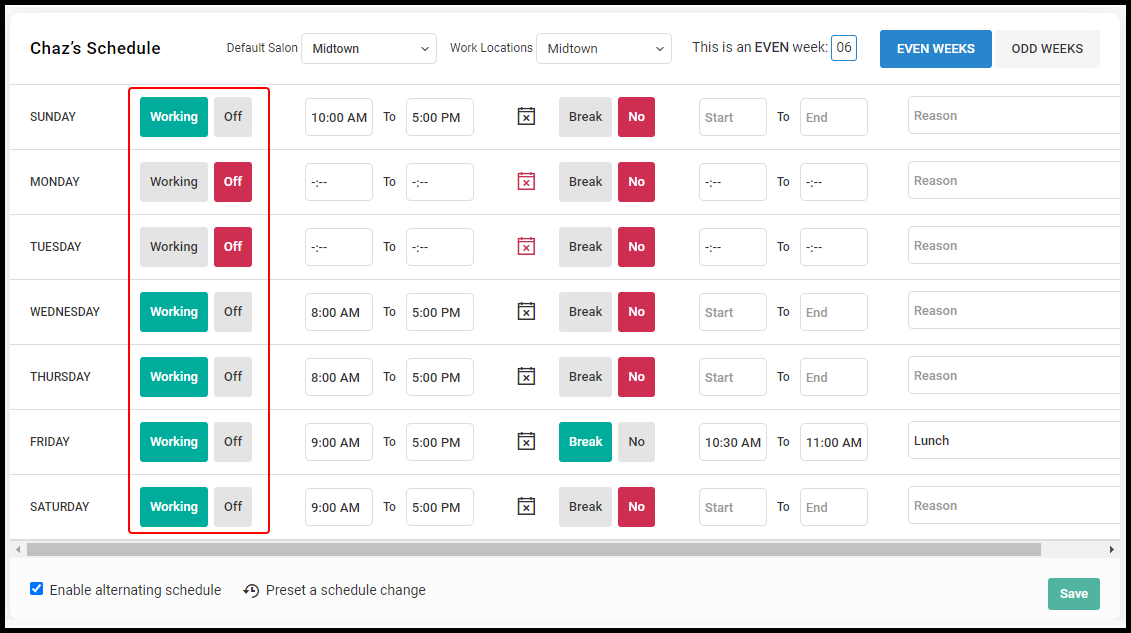
6. Indicate which days the employee will be working by selecting the "Working" or "Off" button for each day of the week.
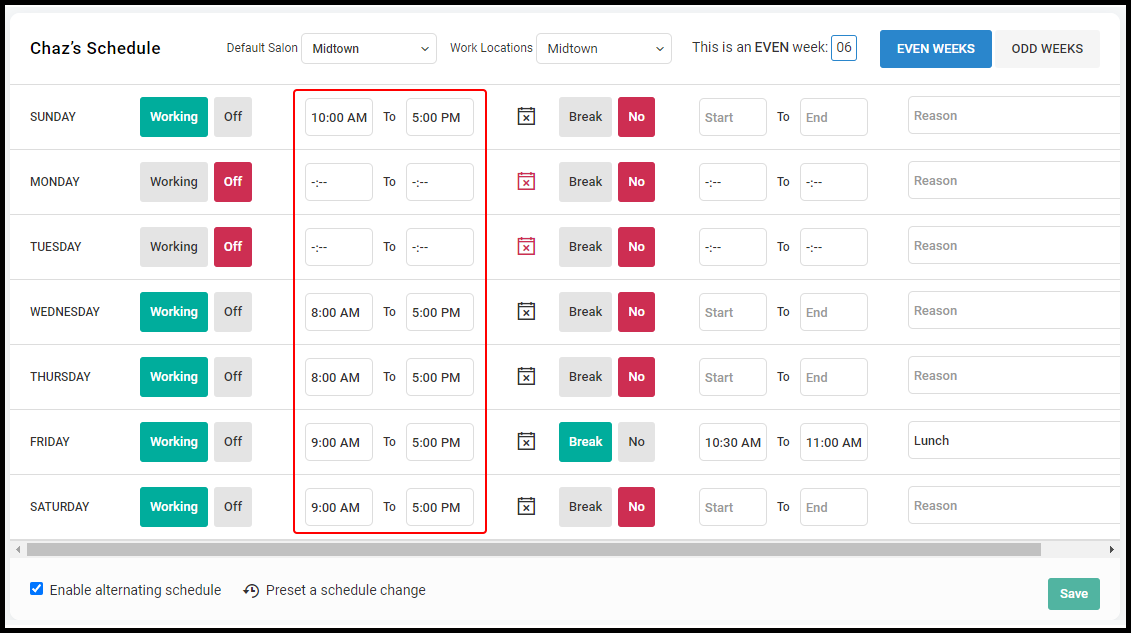
7. For the days that the employee is working, set the "Start" and "End" time of their work day.
8. If the employee has a re-occurring break on a specific day, select the "Break" button for the corresponding day. Then set the break's "Start" and "End" time, as well as, the reason.
9. Click "Save"
10. If the employee has alternating weekly schedules, select "Odd Weeks" on the top right and repeat steps 6-9.