These instructions are for employees. Click here for instructions in the Client App.
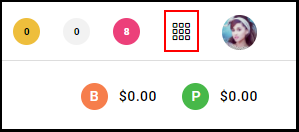
1. Upon logging in, click the "Menu" icon on the top right.
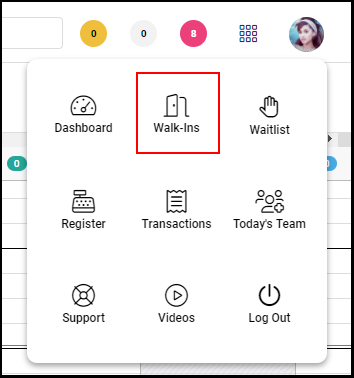
2. Select "Walk-Ins" from the menu.
3. Click the green "New Walk-In" button located on the top right of the screen

4. If the customer has already visited the salon, search for the client's name using the "Select Customer" drop down menu and then click "Open Ticket."
If the customer is new to the salon, enter the customer's First Name, Last Name, Mobile Number and Email in the respective fields and then click "Add Client."
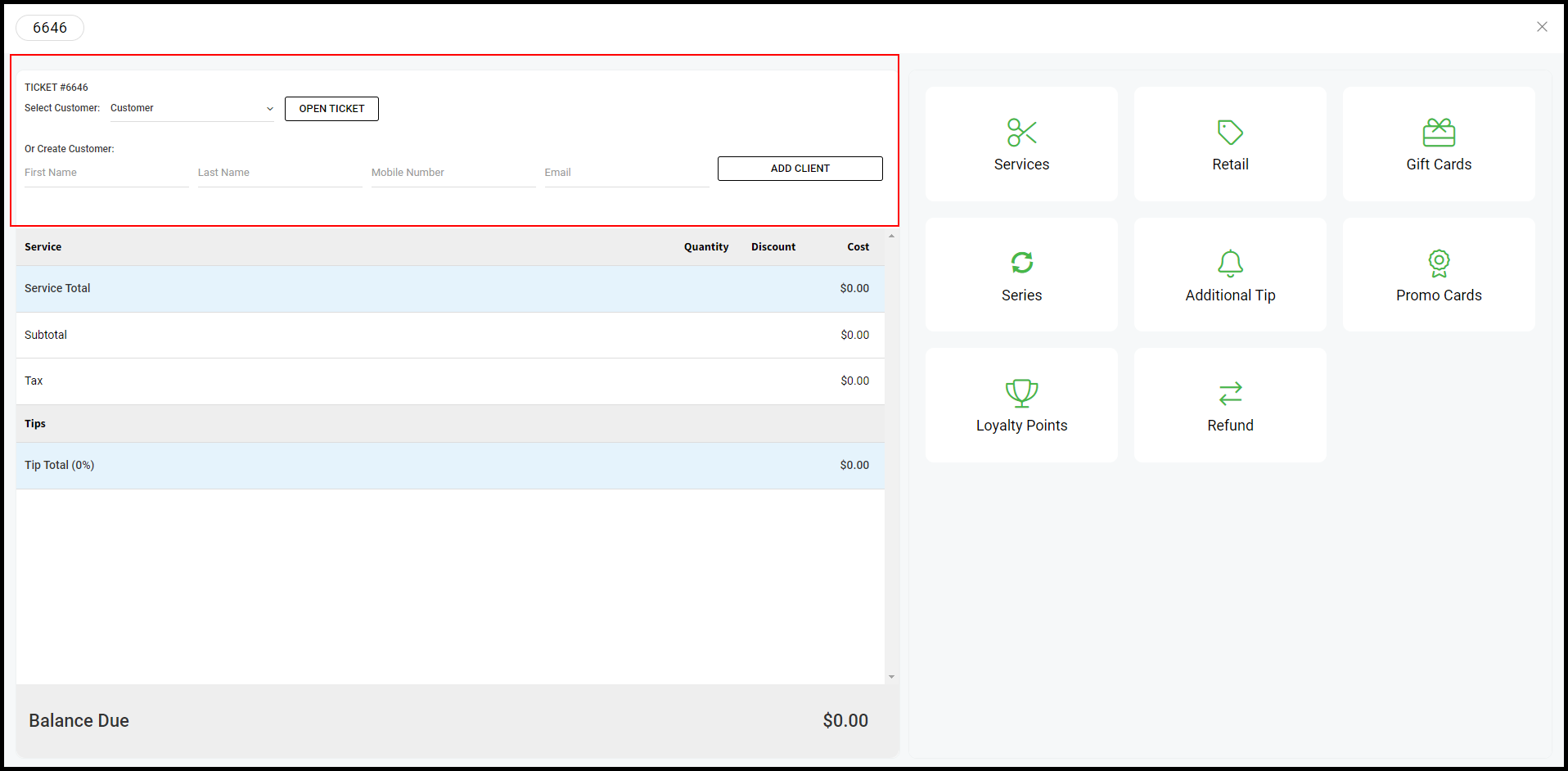
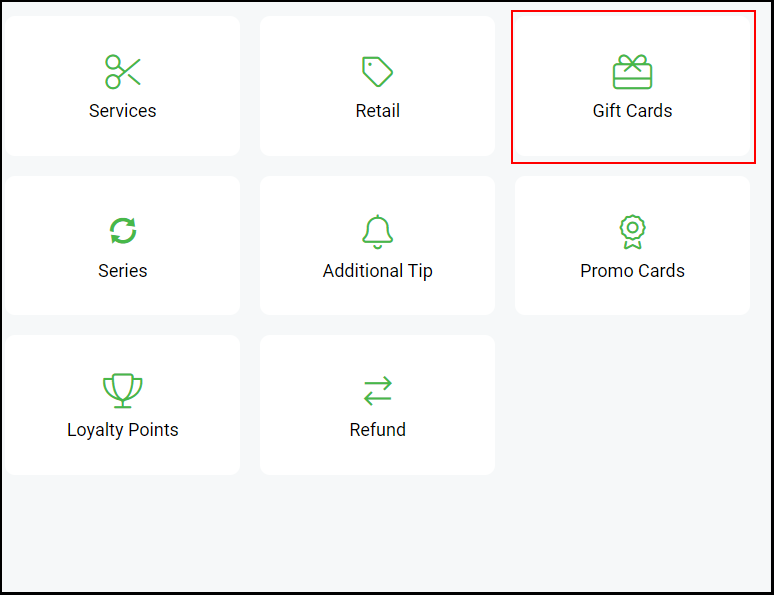
5. Select "Gift Card".
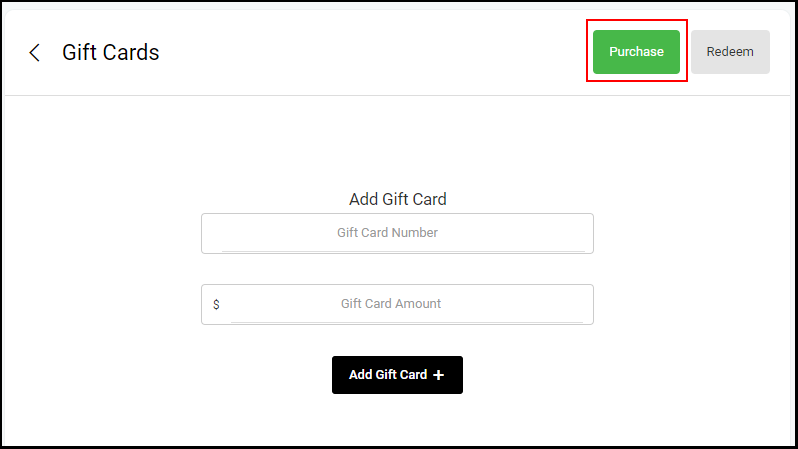
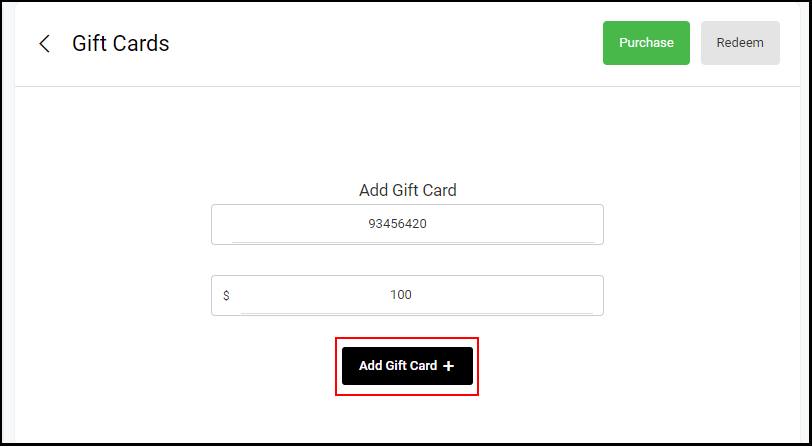
6. Verify “Purchase” is selected on the top right corner .
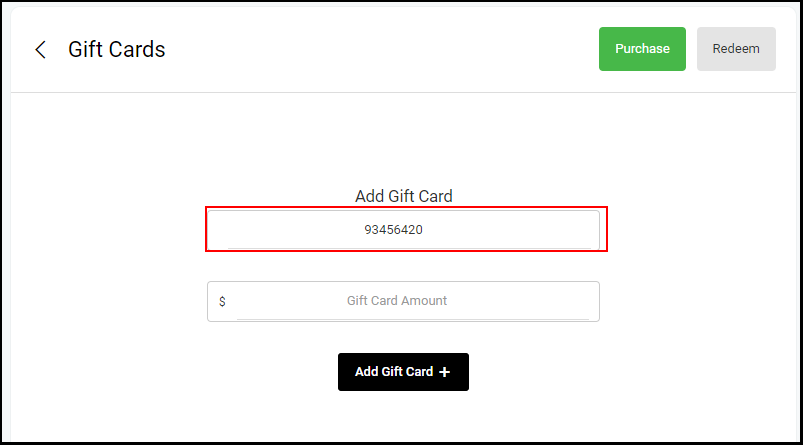
7. Scan or enter Gift Card Number in the “Gift Card Number” field.
NOTE: If scanning, simply place the cursor in the “Gift Card Number” field prior to scanning so that the barcode scanner knows where to input the number.
8. Enter the desired Gift Card Amount.
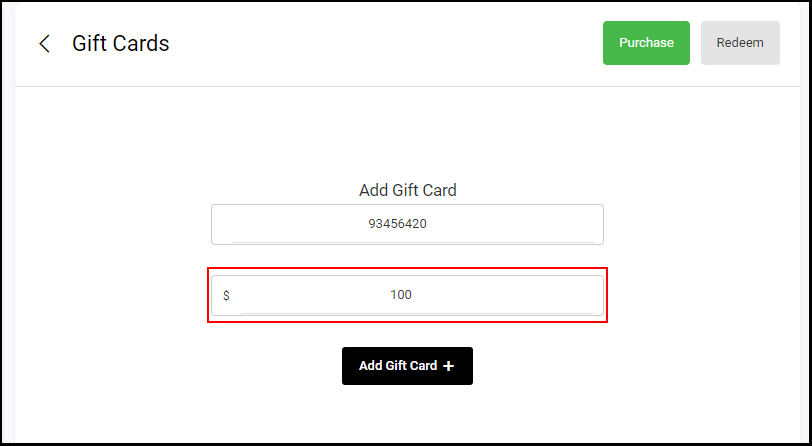
9. Click “Add Gift Card +”.
10. Proceed with the check-out process.
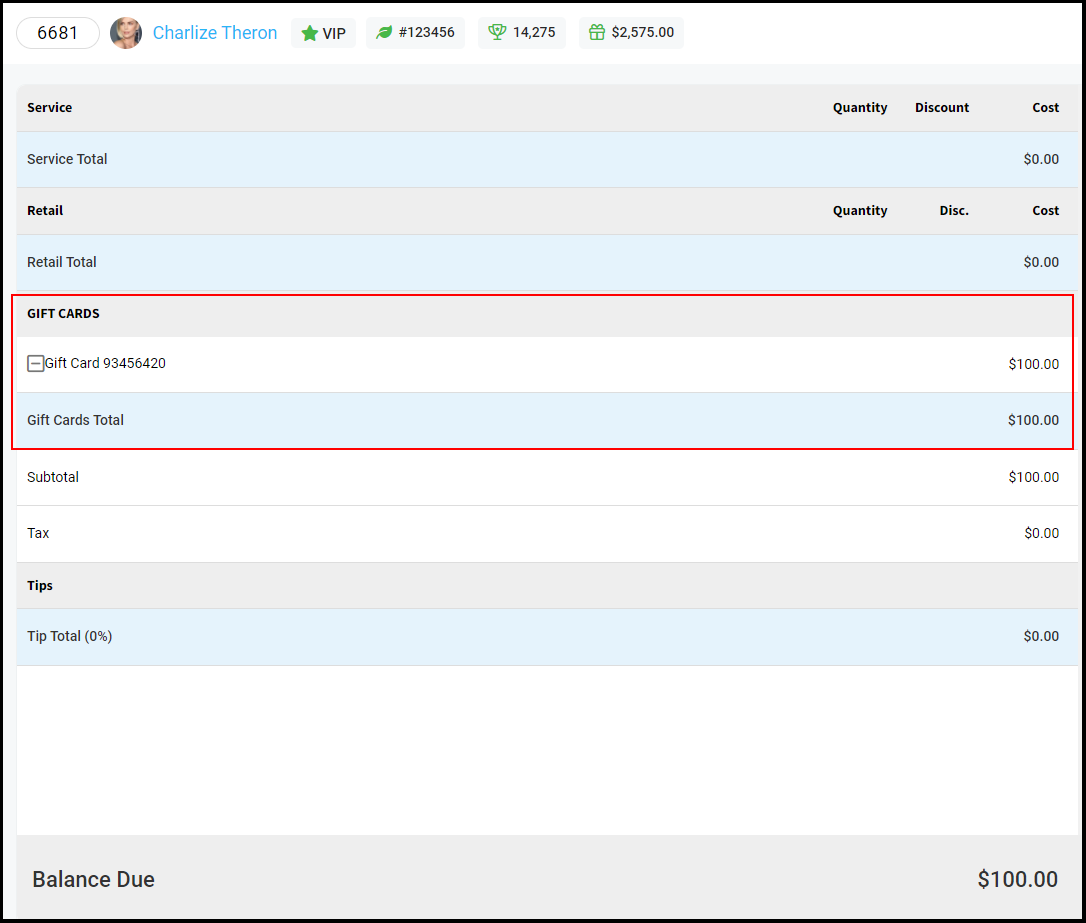
NOTE: A “Gift Cards” section will display on the ticket and the total will be adjusted to include the addition of the gift card.