Promo Cards can be thought of as store credit. This document describes how to issue one via a Walk-In ticket, though the process is similar for an existing ticket.
Click here to watch the video.
1. Select Walk-Ins
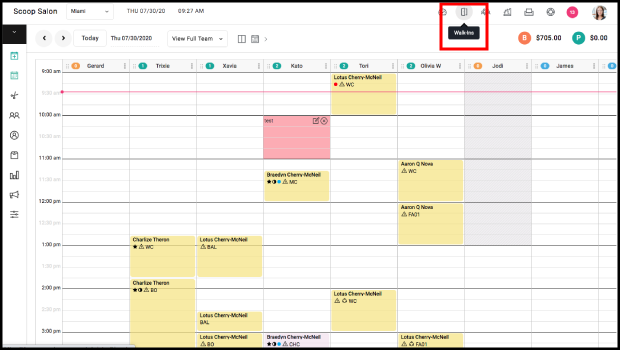
2. Select "New Walk-In".
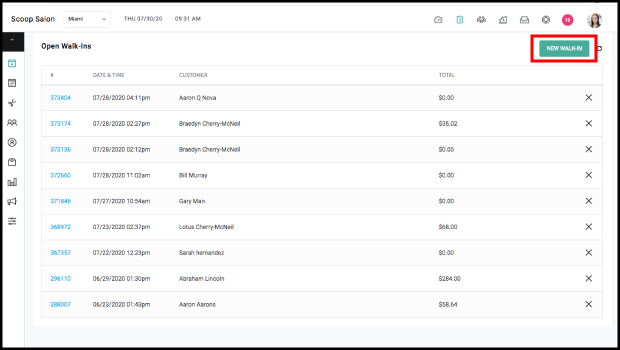
3. Select an Existing Client or Add a New Client.
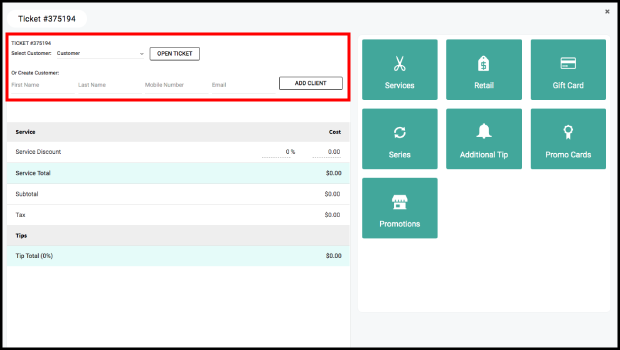
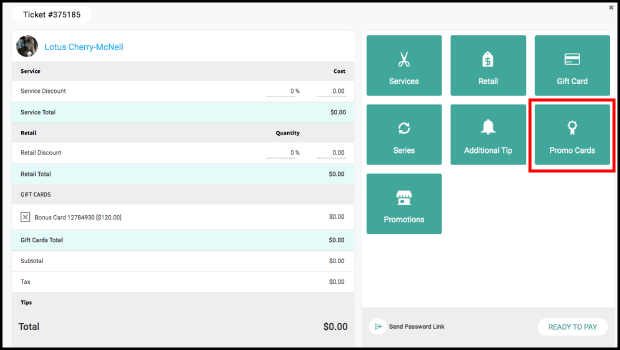
4. Select "Promo Cards".
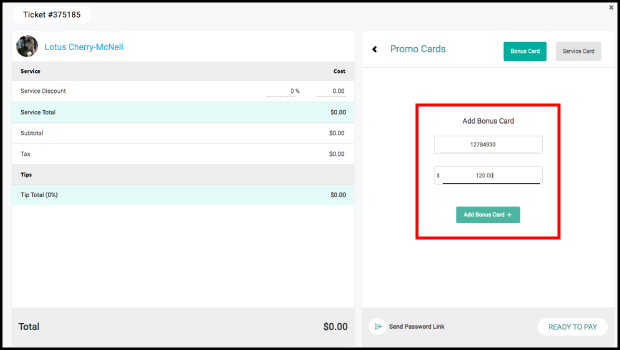
5. Enter or swipe in a card number. The number must be 6 or more digits and may contain letters. Then select Add Bonus Card +.
NOTE: Service Cards operate in the same fashion as Bonus Cards for issuing, redeeming, and in reporting and financial matters.
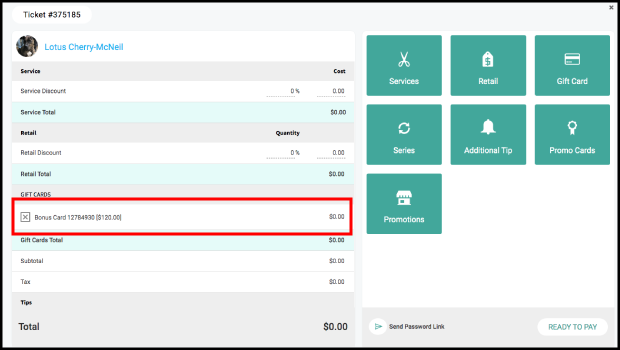
6. The Promo Card is added to the ticket. Note that the ticket total is $0.
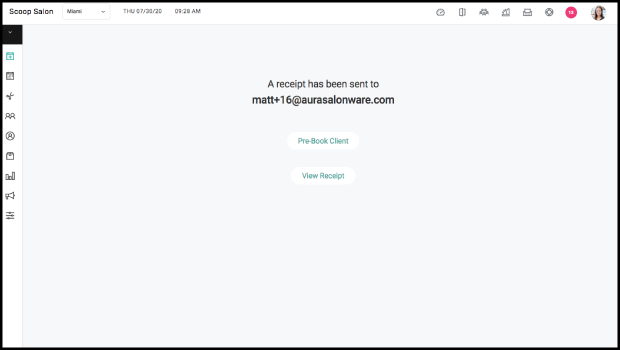
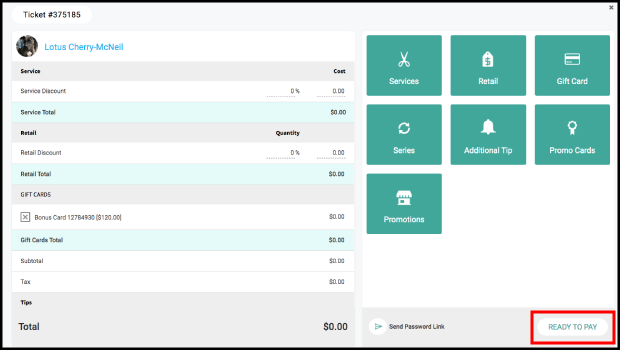
7. Select "Ready To Pay".
8. Select Cash as the payment type. When a ticket has a $0 total, cash is the best payment method to use.
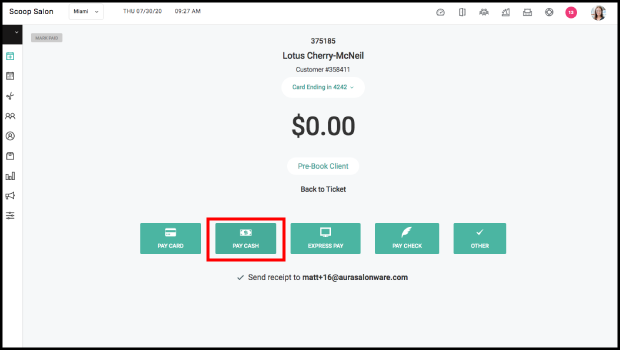
9. The ticket is paid for. Now is the point at which the Promo Card is in AURA. It can be viewed on the Promo Card Report and in the Client File.