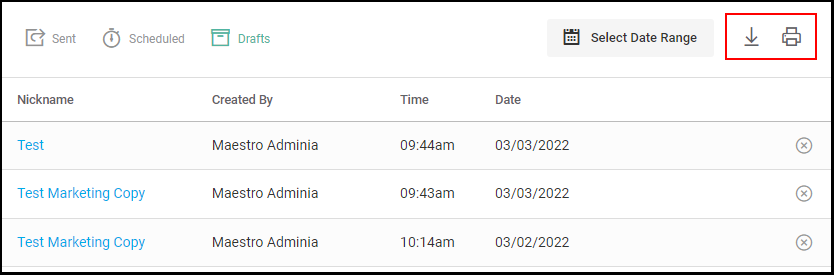
The Campaign Log shows the campaign history, scheduled future campaigns, and drafts of saved campaigns. The campaigns may be duplicated, edited, printed, and exported.
Access Level Required: Owner and Manager
Navigating to Campaign Log
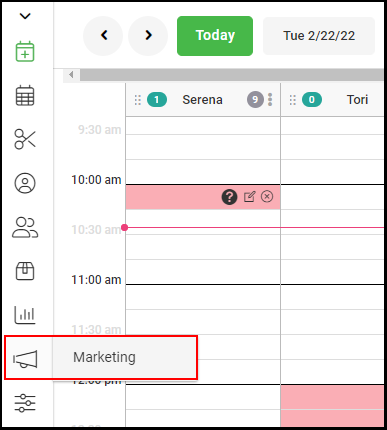
1. Select "Marketing" from the left navigation menu.
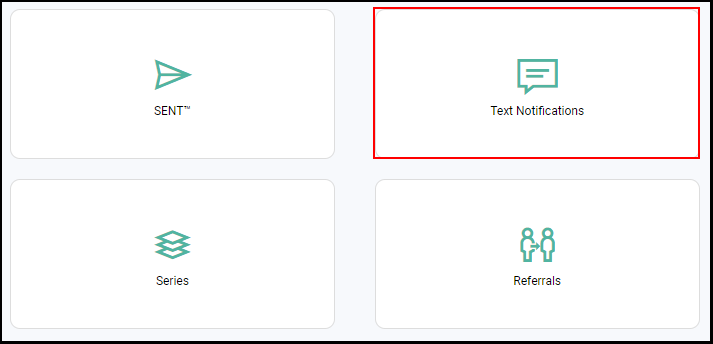
2. Select "Text Notifications".
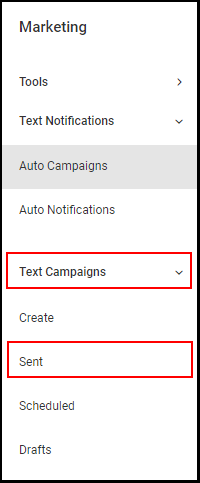
3. Select "Sent" from the "Text Campaigns" drop down on the left side menu.
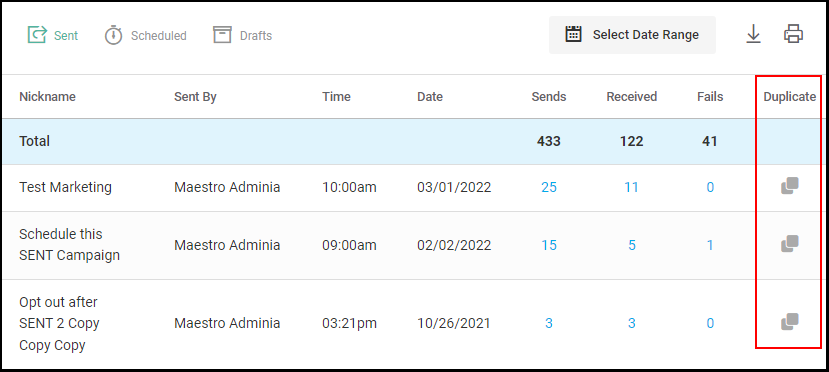
4. Sent Campaigns are shown first. Select "Duplicate" to make a copy of the campaign.
NOTE: The copy is added to the Drafts tab.
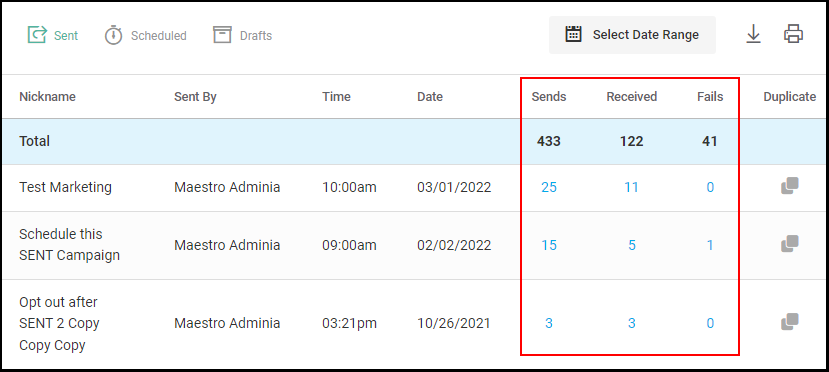
5. View the number of campaign notifications that have been Sent, Received, or Failed.
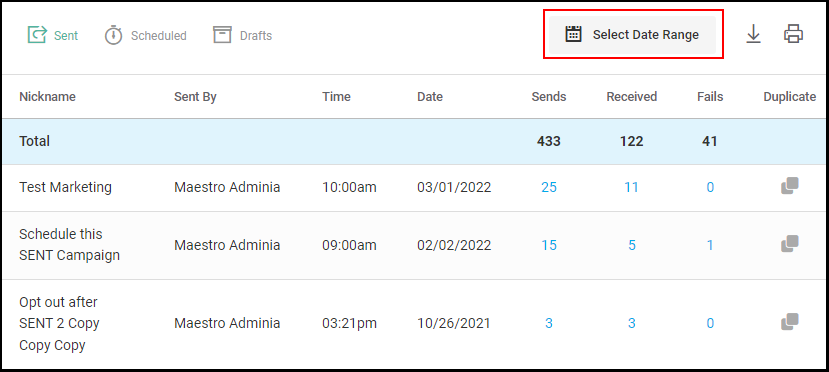
6. Use "Select Date Range" to filter the sent list by a specific date range.
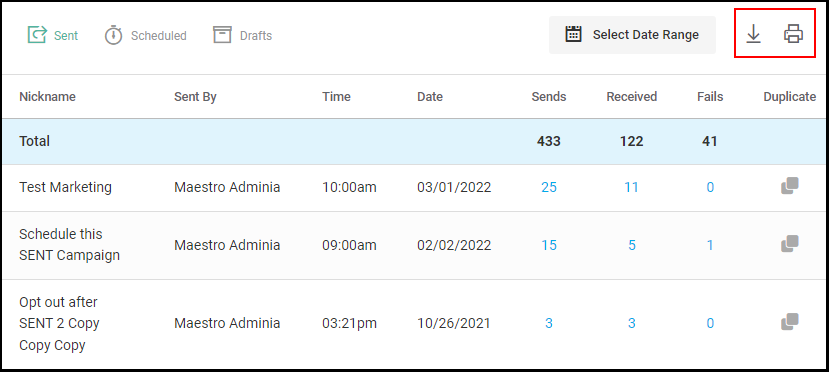
7. "Download" or "Print" the sent list by selecting the applicable icon.
8. Scheduled campaigns are shown in "Scheduled". 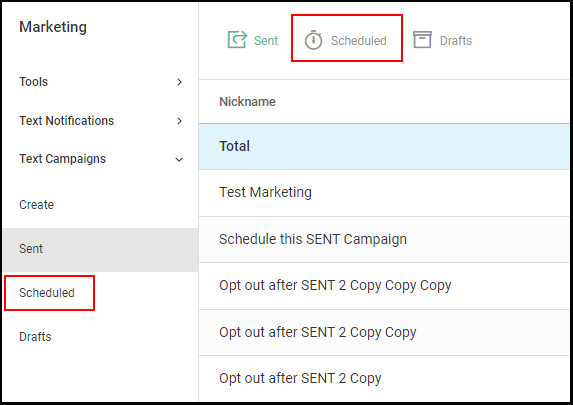
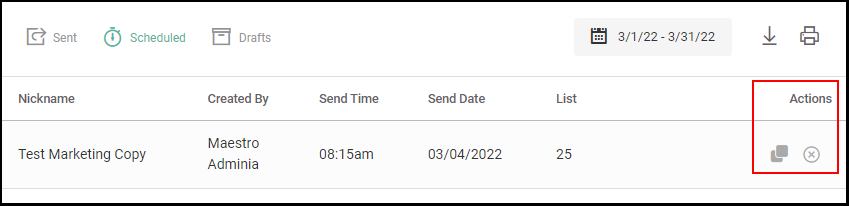
9. If desired, "Delete" the campaign or duplicate the scheduled campaign.
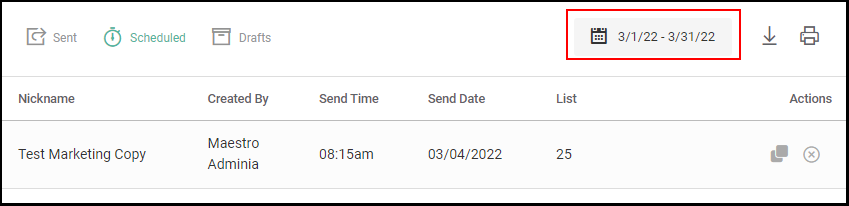
10. Use the "Date Picker" to filter the sent list by a specific date range.
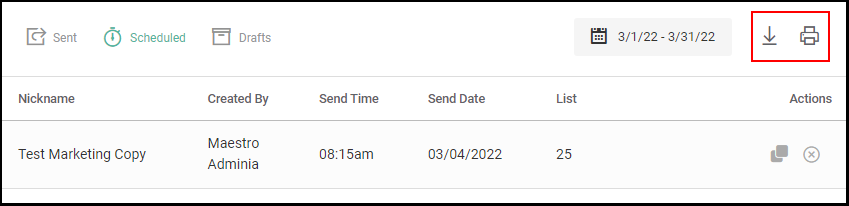
11. "Download" or "Print" the sent list by selecting the applicable icon.
12. Drafts campaigns display in the Drafts tab.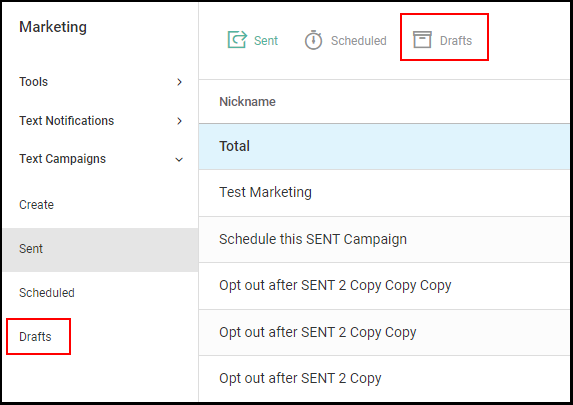
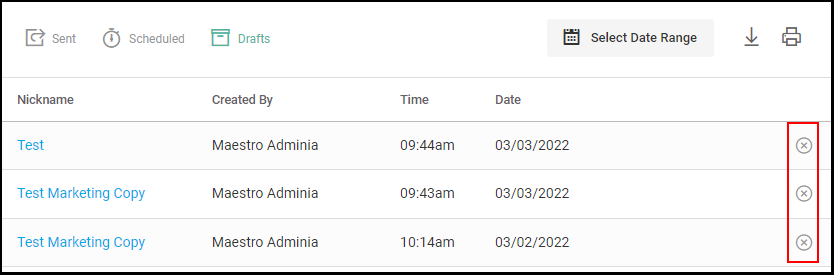
13. Delete the draft by selecting the "X" icon.
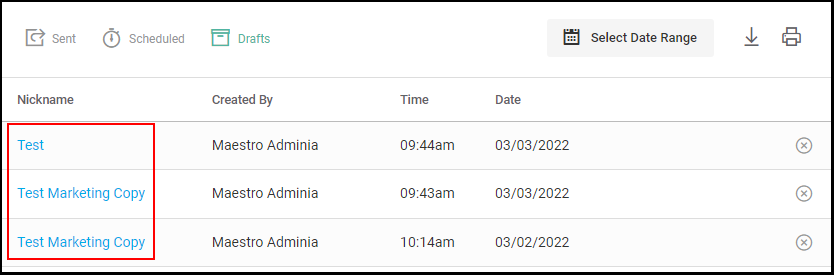
14. Select the draft name to begin building the campaign for that draft.
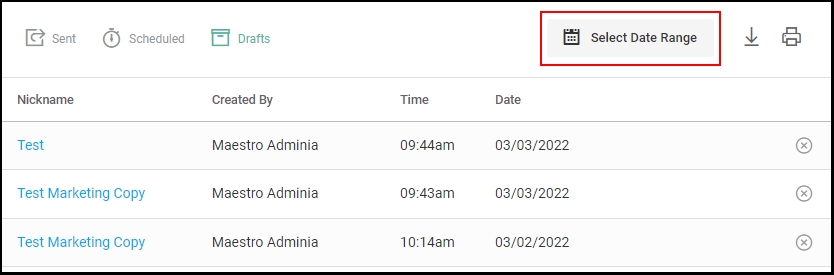
15. Use "Select Date Range" to filter the sent list by a specific date range.
16. "Download" or "Print" the sent list by selecting the applicable icon.