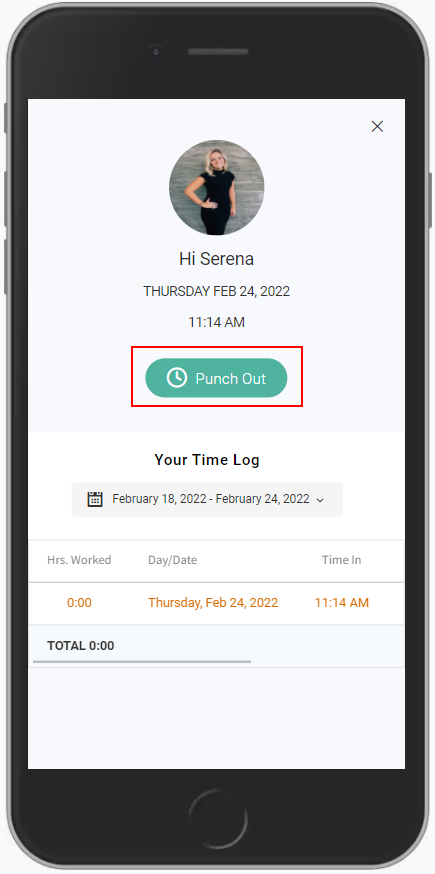
*Note: If Restrict Punch Clock is enabled, Providers, Reception, Booth Renters and Alt Providers must be connected to the IP Address of the business to clock in or out.
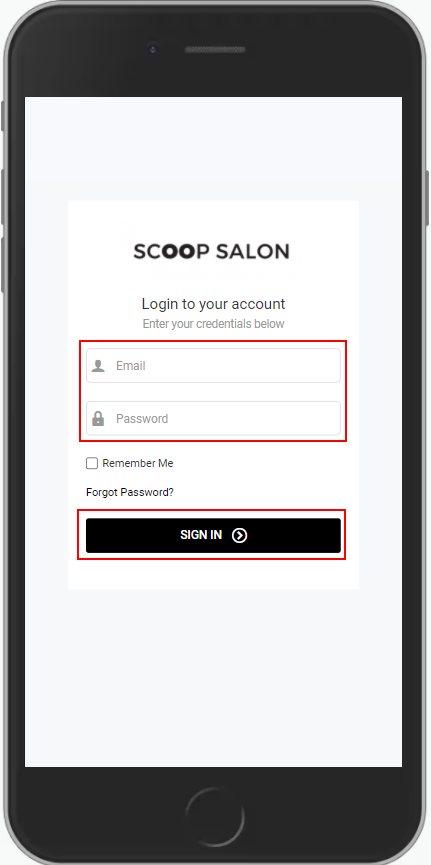
1. Go to [Salon Code].aurasalonware.com/admin using Safari on your mobile device and sign into the account.
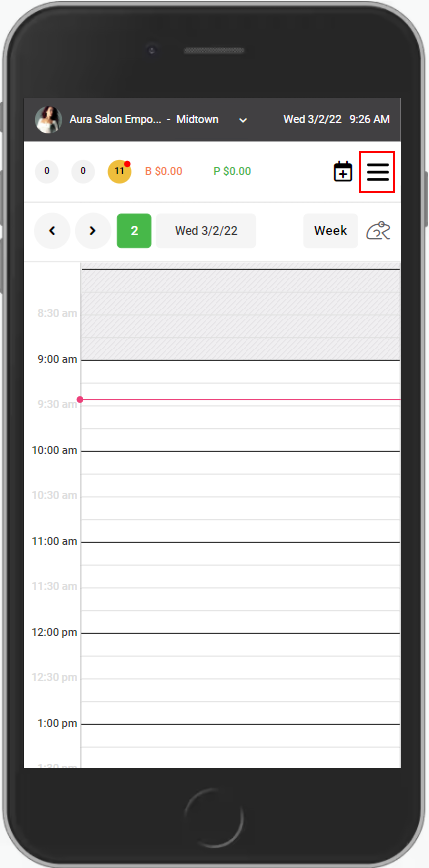
2. Select the "Menu" in the top right corner.
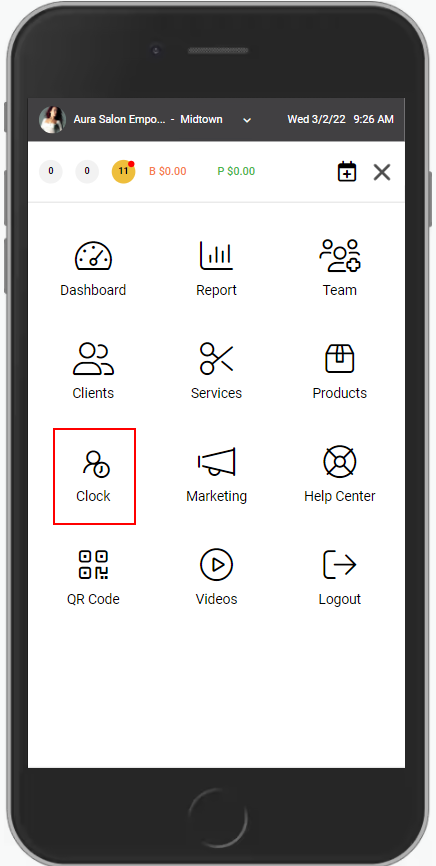
3. Select "Clock".
4. Select "Punch In".
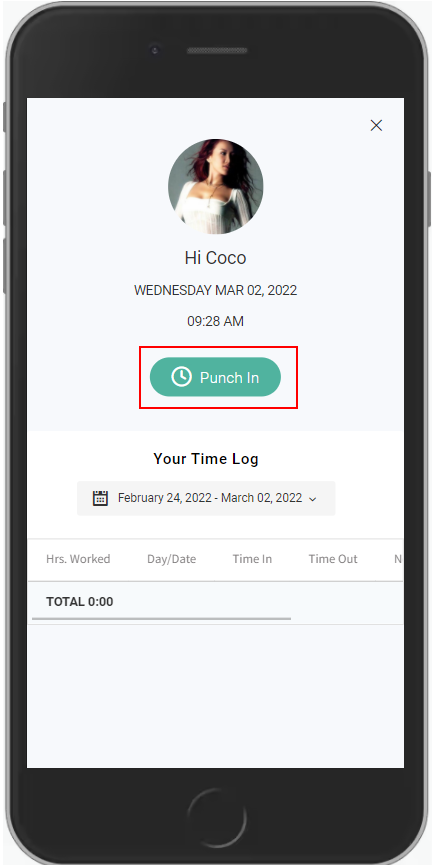
5. When the shift is finished, select "Punch Out".
NOTE: If idle for a period of time, any website on a phone will log out automatically. If Punch Out is selected and it then goes to the log in screen, you must log in and Punch Out again. You can also test to see if you are logged in by refreshing the page.