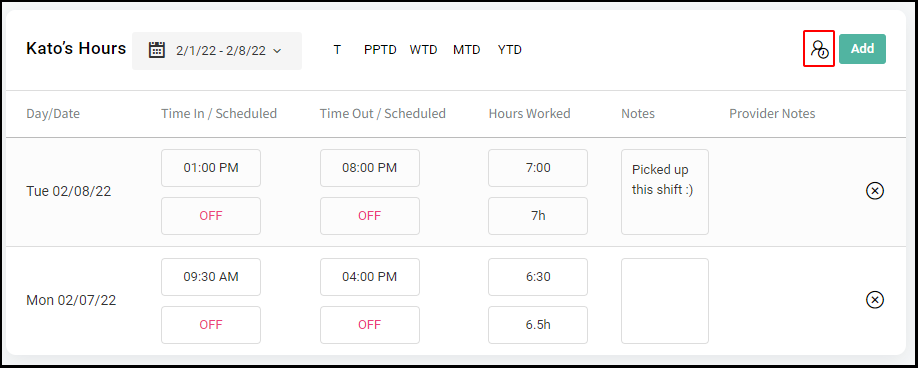
Owners and Manager may add or edit an employee's hours via desktop.
Note: if the employee works at multiple locations, ensure their file is accessed at the location you wish to edit.
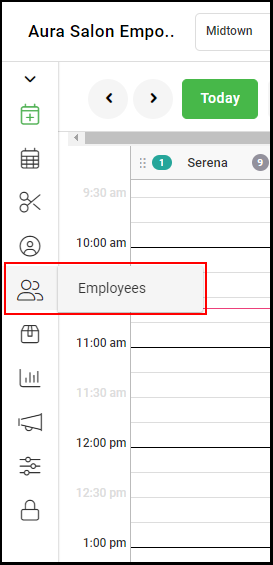
1. Select "Employees".
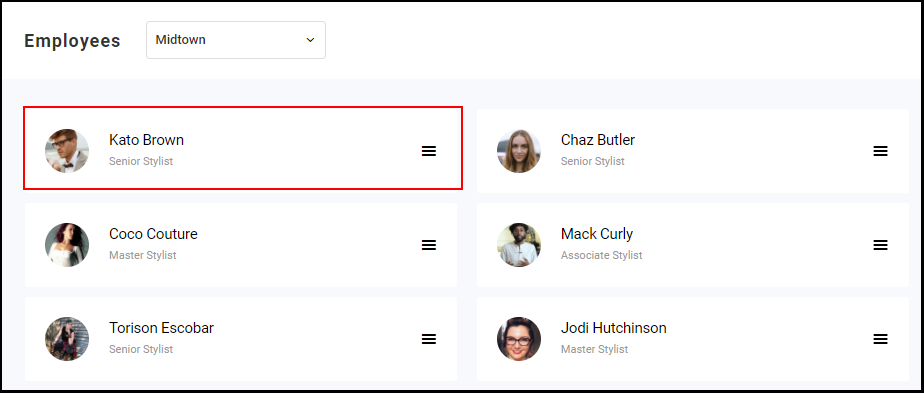
2. Select the Employee.
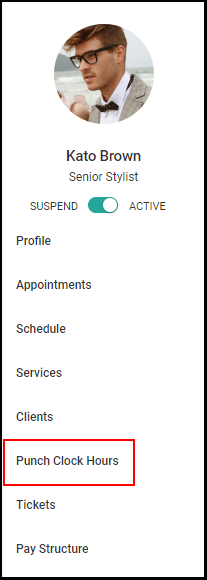
3. Select "Punch Clock Hours".
4. Select the date or dates to display.

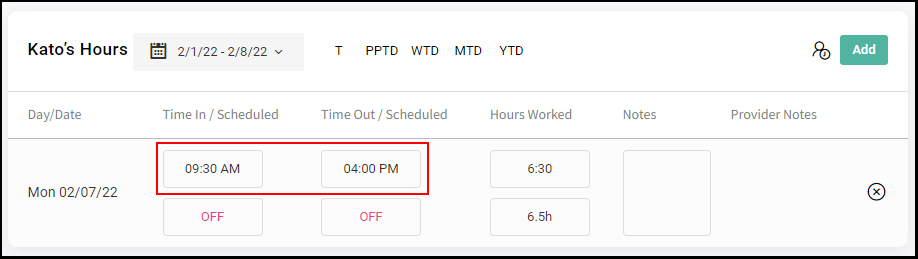
5. To Edit existing hours, enter the correct Time In or Time Out and then press enter
NOTE: The "Hours Worked" column will reflect any changes.
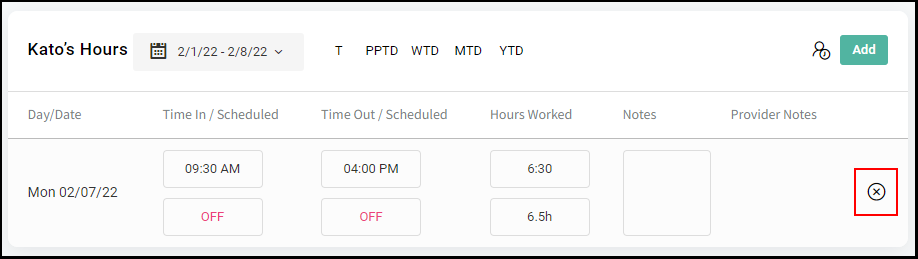
6. To delete any Punch Clock Hours, click "X" adjacent to the hours you wish to delete.
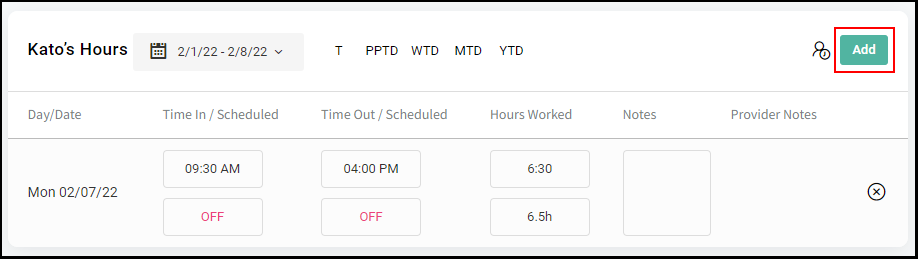
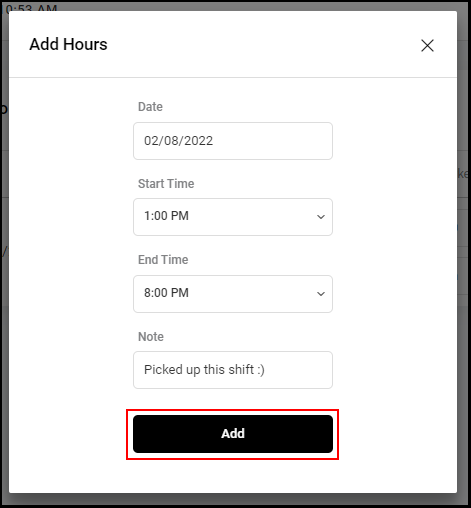
7. To add a shift, select "Add".
8. Enter the "Date", "Start Time", and any "Notes".
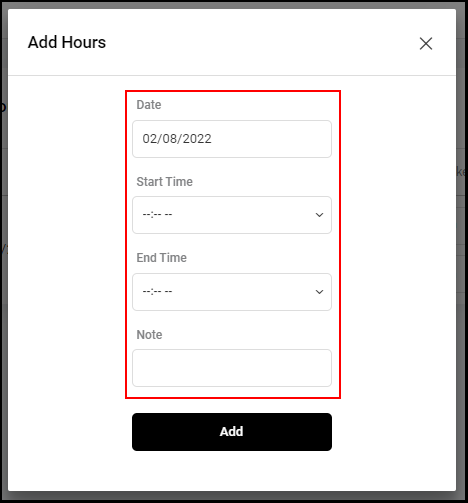
9. Select "Add".
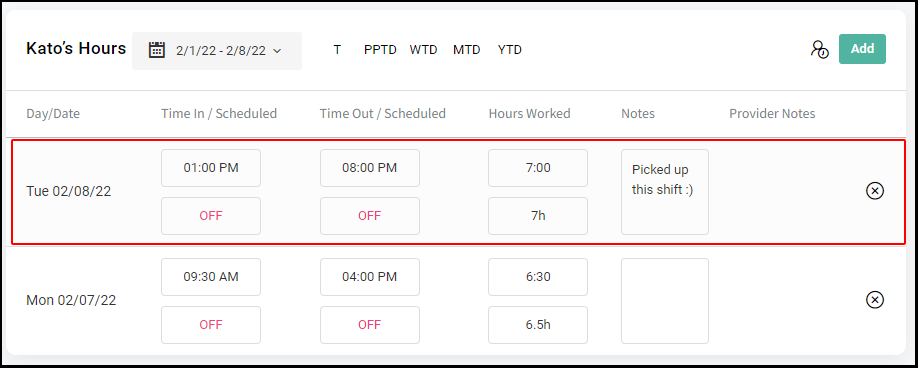
10. The shift is added.
Quick Tip: Select the below icon to view all employees Punch Clock Hours and Scheduled Hours.