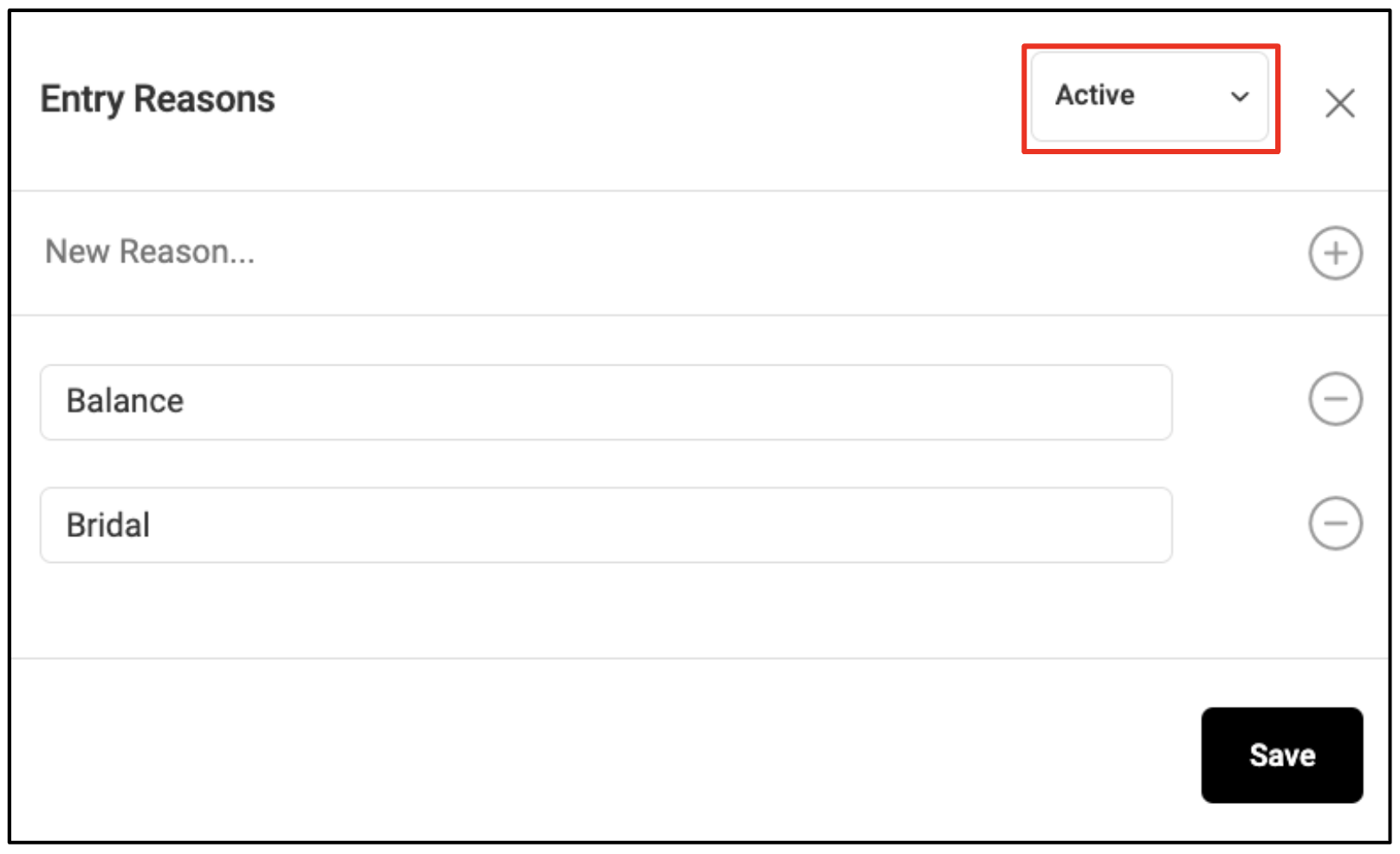
Note: Only Owners and Managers can create and edit drawer entry reasons.
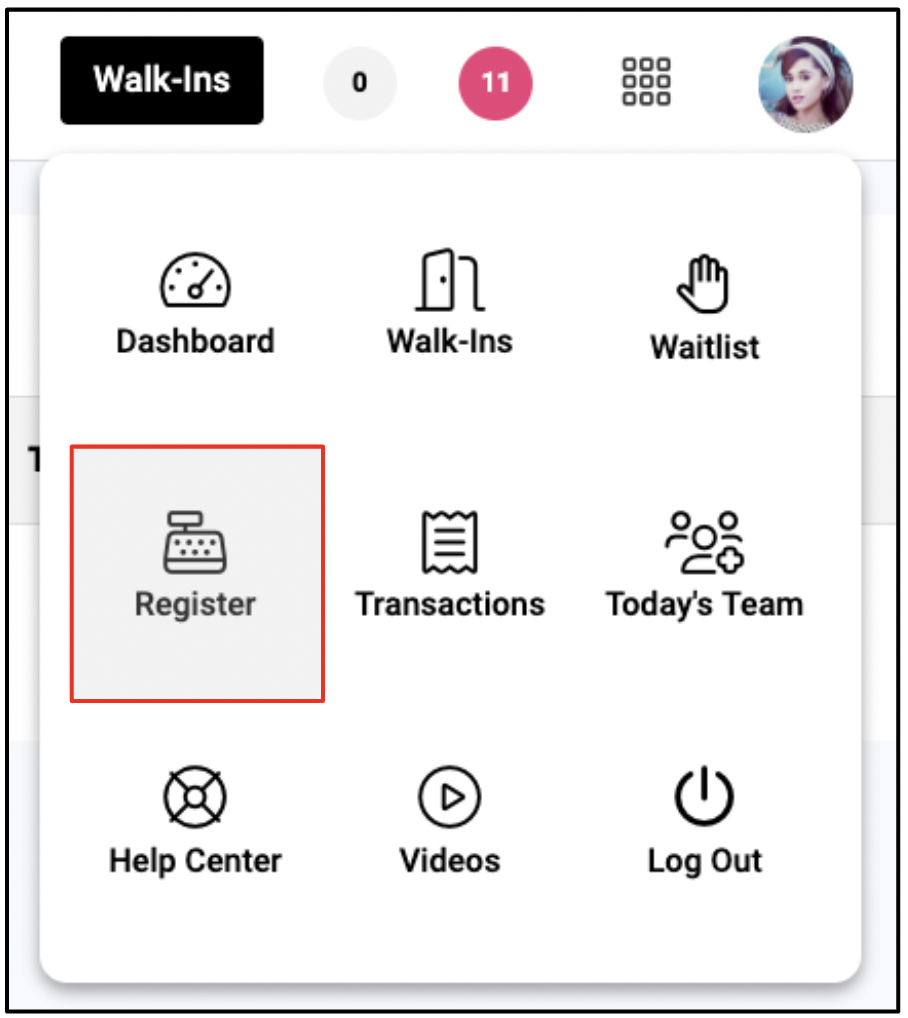
1. Go to the Register Report
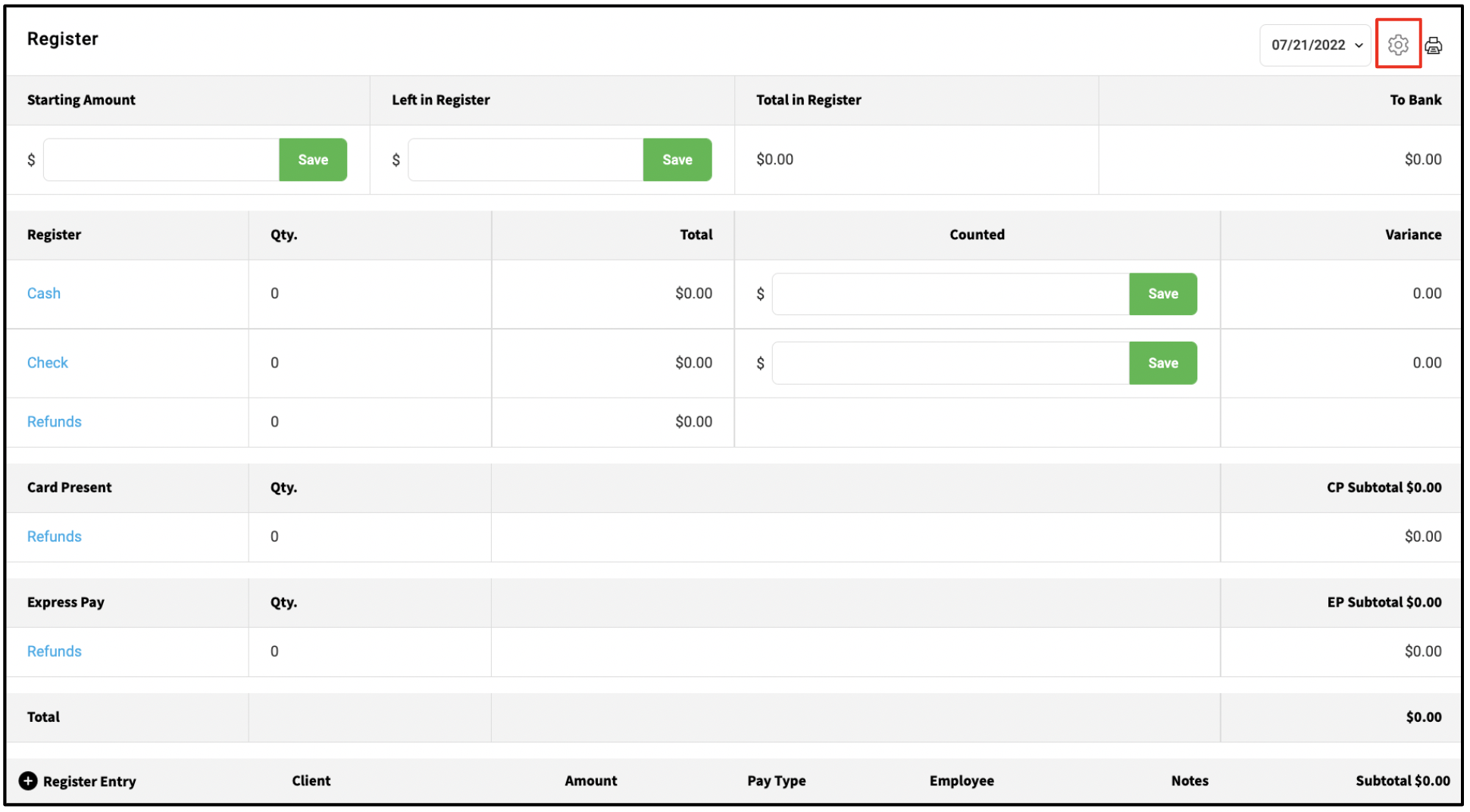
2. Click the gear icon
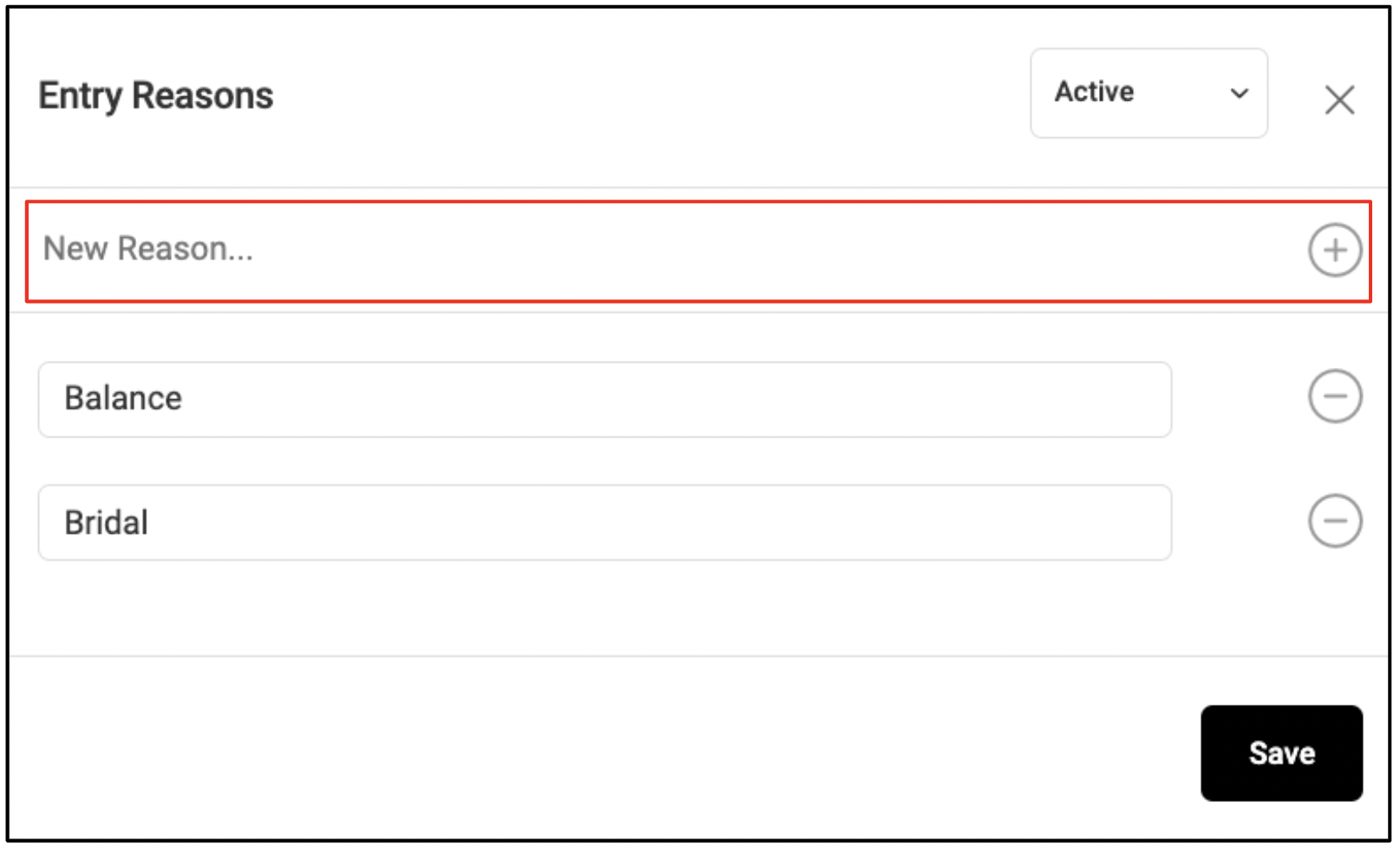
Add a Reason
3. Enter a reason and click the + button.
These reasons will later be used to categorize drawer entry payments.
To learn more about adding a drawer entry, click here.
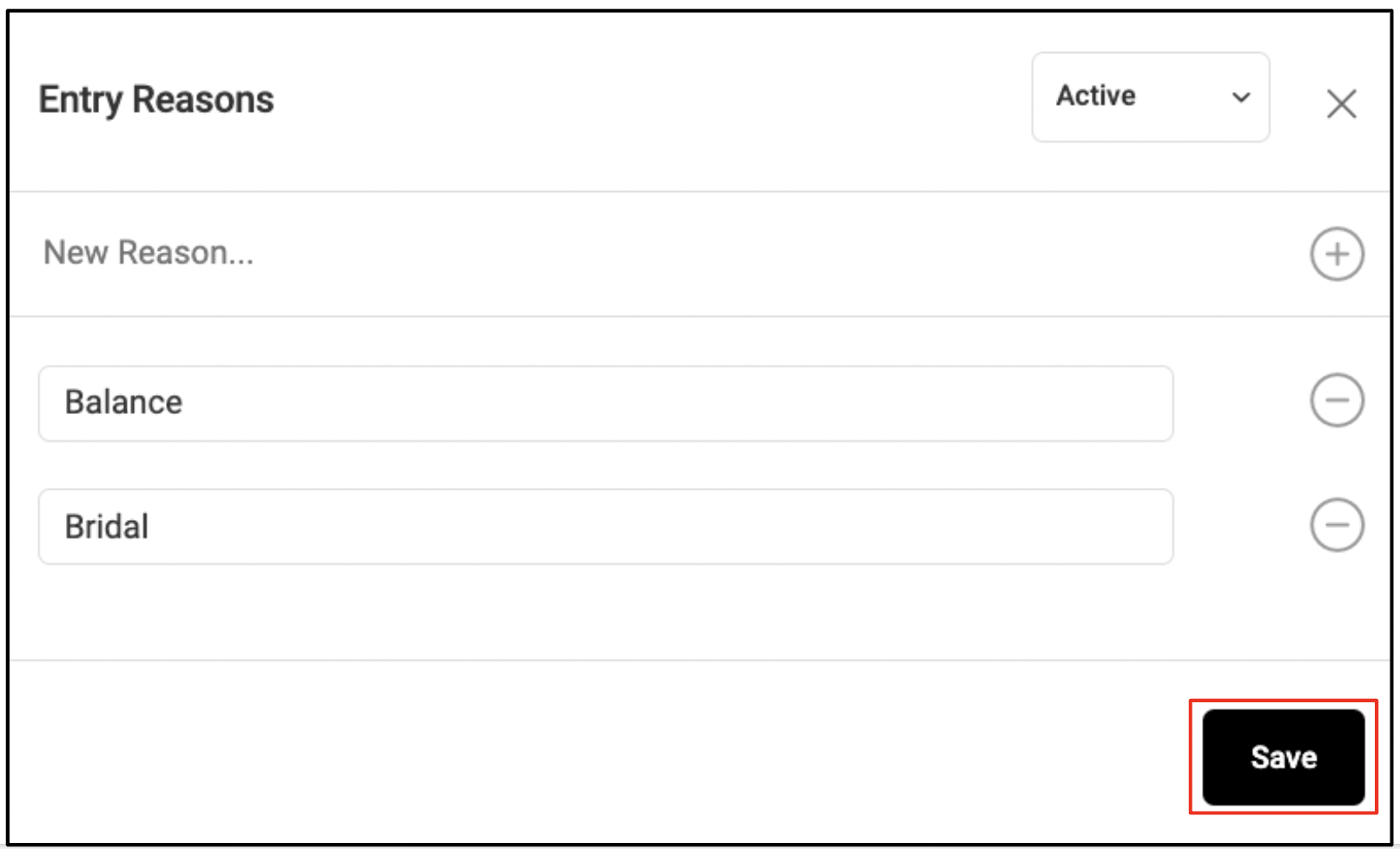
3. Click Save
De-activate Drawer Entry Reasons
4. To de-activate a reason, click the minus sign
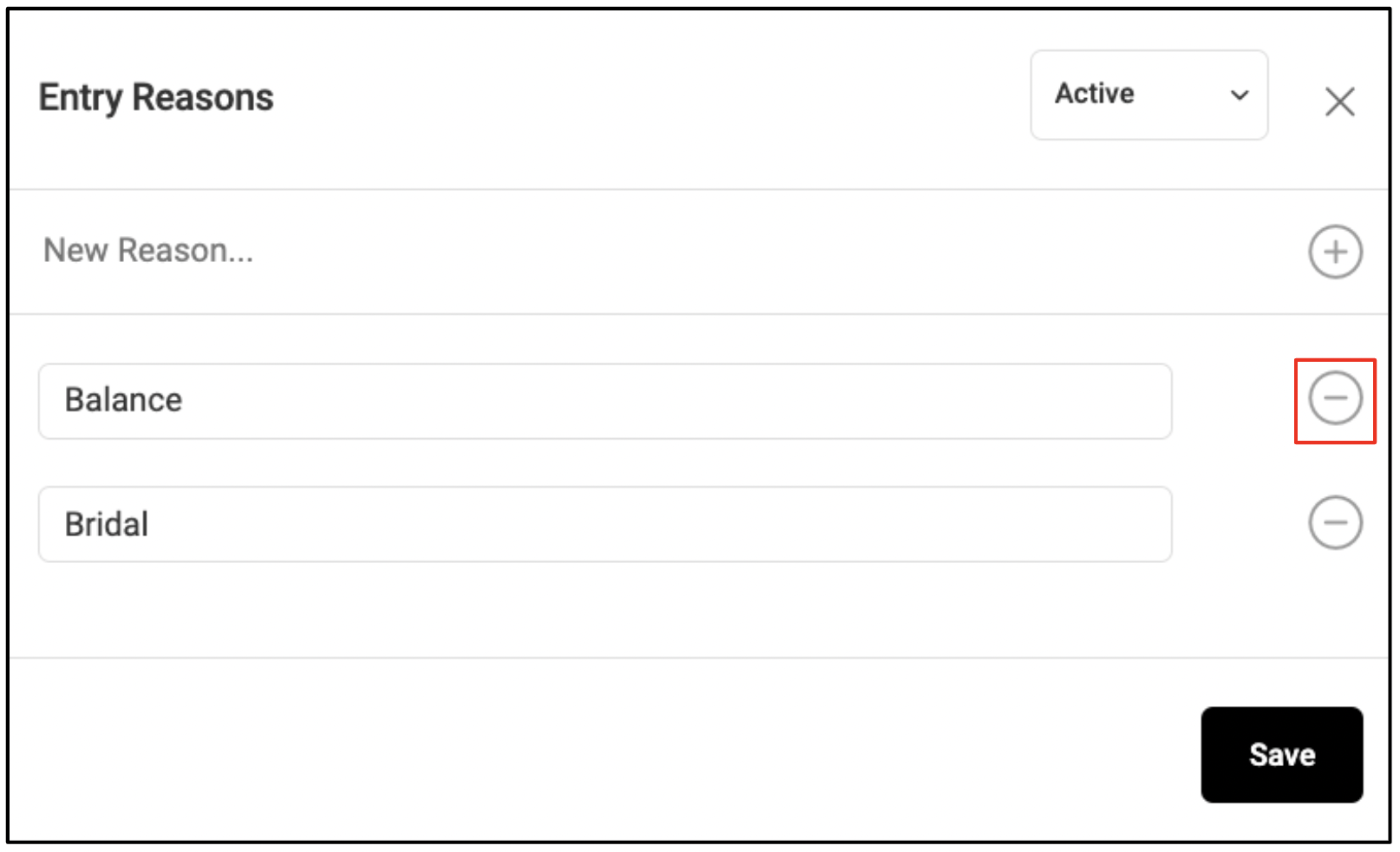
De-activated reasons are still visible on report and can be accessed from the status dropdown by selecting "All" or "Inactive"