Owners and Managers can turn on COVID Waiver SMS to their clients. Record of the waiver is recorded in PDF and available to the salon.
Part 1: How to turn on COVID Waiver SMS
1. With a Manager or an Owner log in, navigate to your URL and sign in
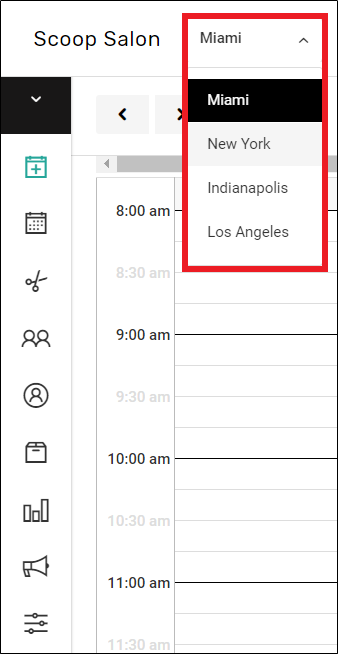
2. This setting is done on a per-location basis for multi-location businesses. If applicable, choose the location you are turning the COVID Waiver on for
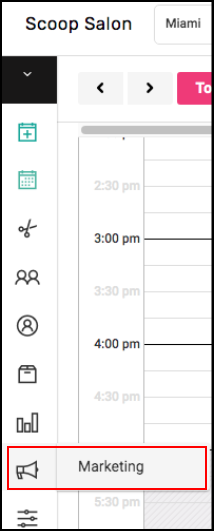
4. Select Marketing
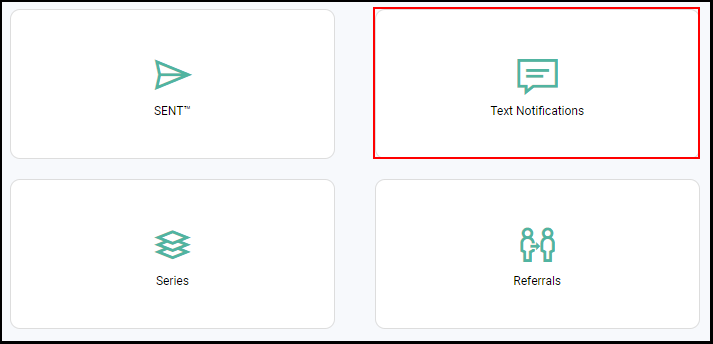
2. Select "Text Notifications".
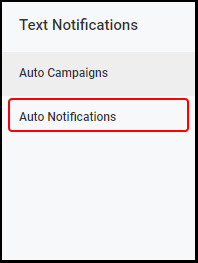
3. Select "Auto Notifications".
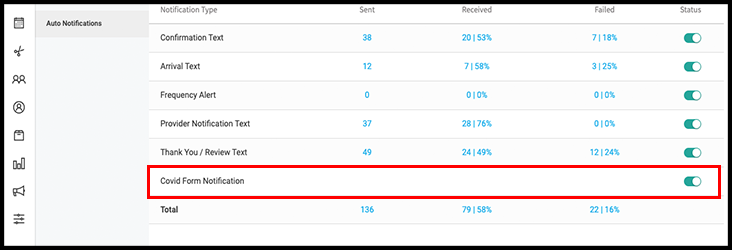
4. Turn the switch adjacent to "Covid Form Notification" to green to turn on notifications.
Part 2: Settings and Overview of the COVID Waiver SMS
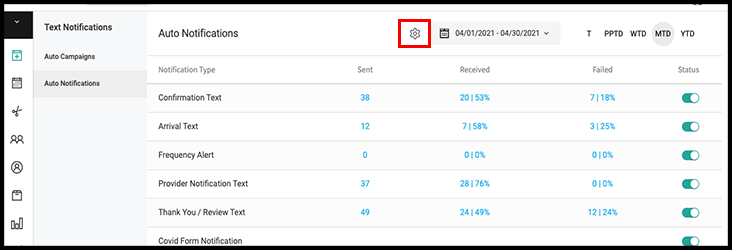
1. COVID Waiver SMS settings are accessed via the gear at the top of the auto-notifications page
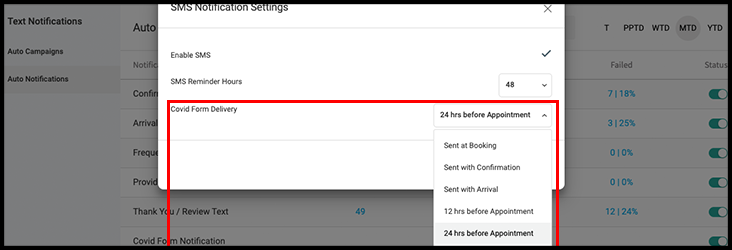
2. The SMS can be automatically sent: at the time of booking, with the confirmation text, with the arrival text, 12 hours before the appointment, or 24 hours before the appointment. Note that Auto-notifications cannot be delivered overnight as commercial SMS are only allowed during daytime hours and this can influence the exact timing of the "12 hours before the appointment" and "24 hours before the appointment" setting. The message will be delivered during the closest daytime hours.
3. The SMS looks like this.

4. Upon following the link, the client signs into their account and fills out the form.

4. Covid Waiver SMS are sent based on the client having an appointment on the books. Note that if the client fills out a waiver and then an appointment is then moved to a future date or time, they will not be sent a waiver again. The waivers are tied to individual appointments
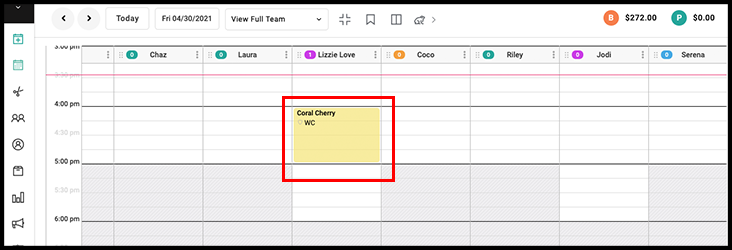
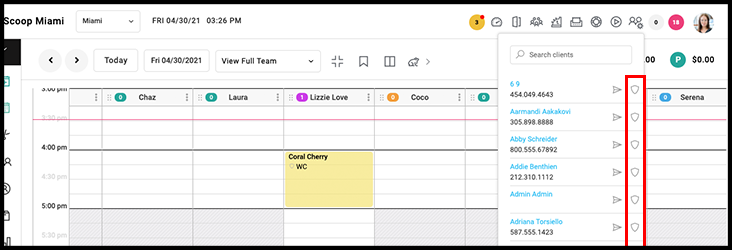
and are sent via the auto-notification settings shown above or can be triggered by selecting the shield symbol within the Waiver Client Search as long as the client has an upcoming appointment and has not yet been sent a waiver. The paper airplane symbol sends the client a password reset email. Select the clients name to be linked to their account
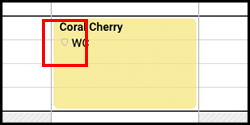
5. A gray shield on the appointment means that the client has not yet signed a waiver.
6. A green shield means that the client has signed a waiver.
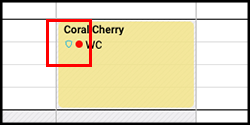
7. Select the green shield to view the signed waiver

8. A record of waiver status is also shown within the client's upcoming appointments in their client file. If the shield is red, a waiver has been sent but has not been filled out.
- If the shield is gray, a waiver has not been sent
- If the shield is blue, a waiver has been sent and filled out

9. Select the blue shield in the client list to view all completed COVID forms.

10. Here you can view forms by location, date range, and search the form by client name, phone number, or email. Select the blue form symbol to view the form.
