Two Way Texting can be done with a client responding to an Auto Notification, or with the salon initiating the Two Way Text conversation
Clients can respond to the SMS auto-notifications they receive or they can text the salon at that same number on their own. Two Way Texting can be accessed by Owner and Manager level log-ins on a computer by default. This access can be expanded to Reception employees.
NOTES:
- An additional fee is associated with this feature, it is separate from SENT because it utilizes a unique phone number
- The unique phone number for Two Way texting can be found
- For multi-location business, each location has it's own phone number, and messages are independent per location
- The phone number is assigned by AURA
- Replies such as "1" to confirm an appointment are not shown
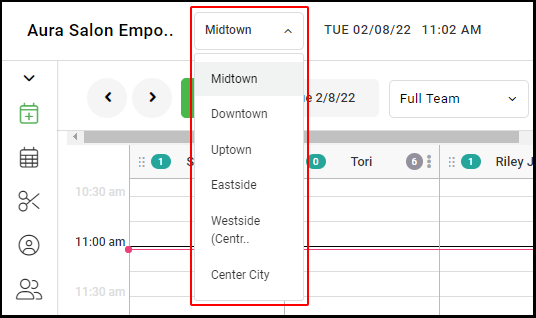
1. If your Salon has multiple locations, select the location using the drop-down menu on the top left of the screen upon logging in.
NOTE: If your salon only has one location, skip this step and proceed to Step #2.
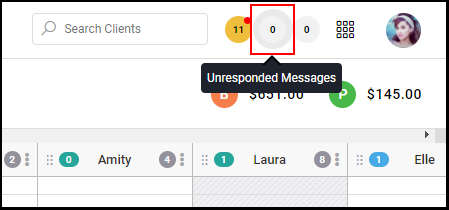
2. If the circle is gray there are no unread messages.
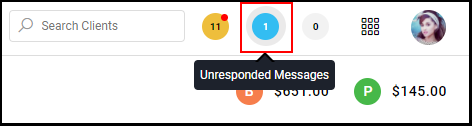
3. If the circle is blue there are unread messages. The number shows how many messages are unread.
4. Two Way Texting is accessible on the Desktop via clicking the button on the top right.
5. Start a message conversation by clicking the message icon.
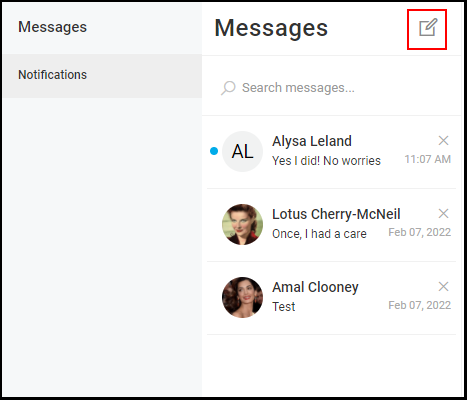
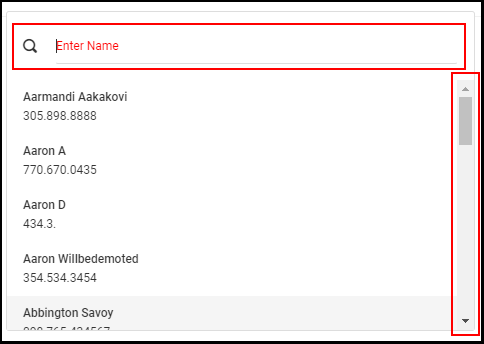
6. Scroll to search for the client name or type in the client's name
7. Type in the message that will be sent to the client

8. Click the send icon to send your message to the client.
