Learn how to set up your Supplier Profiles and how to add or adjust inventory on your Product List.
Click here for the video.
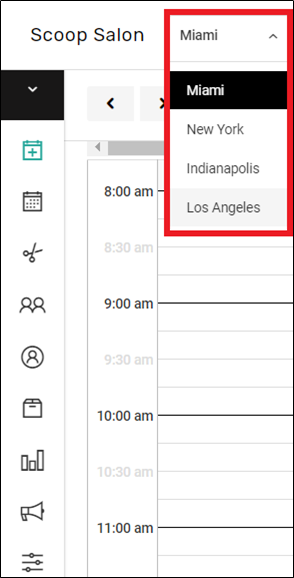
1. If your Salon has multiple locations, select the location on the top of the screen.
NOTE: If your salon only has one location, skip this step and proceed to step 2.
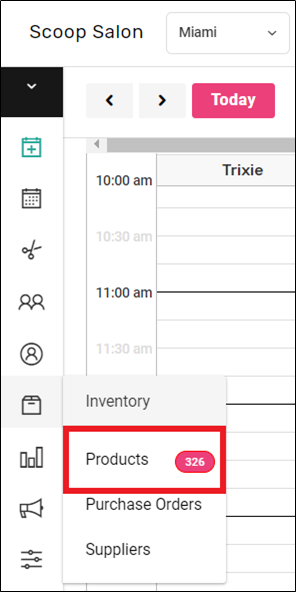
2. Select "Inventory" > "Products" on the left side menu.
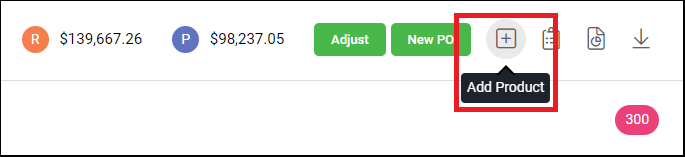
3. Select the grey '+' button on the top right of the "Products" screen.
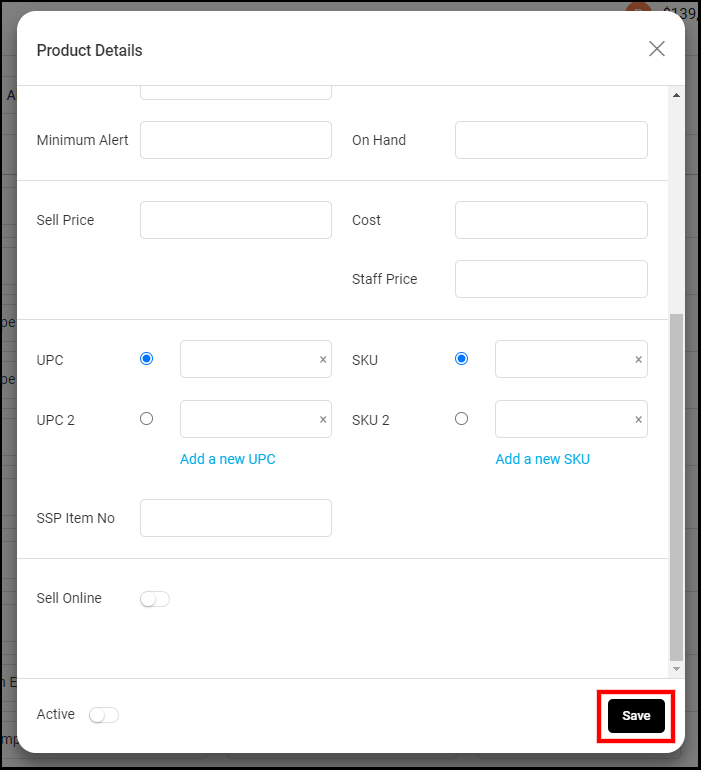
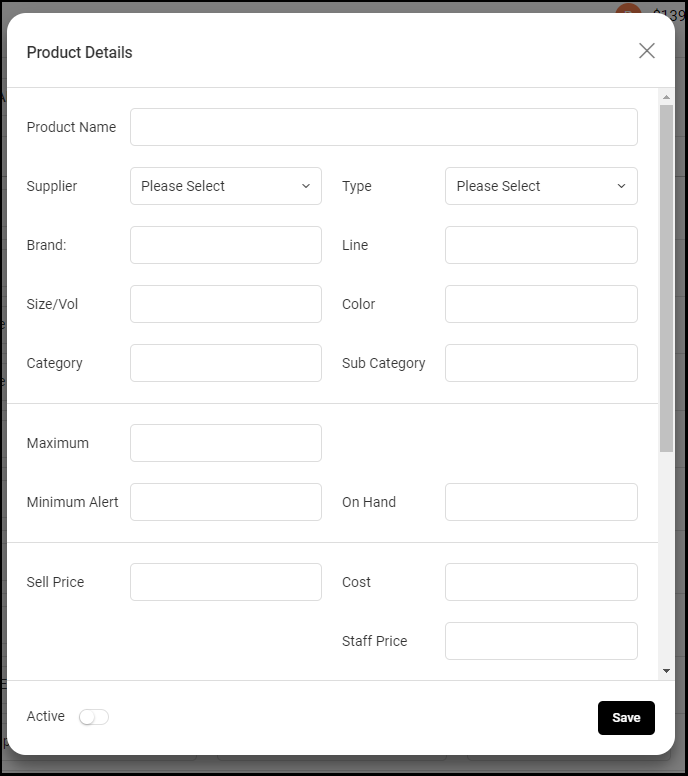
4. Fill out the New Product Form.
a. Product name is the name that can be used to search for the product and what is displayed on the ticket. It may be a good idea to include Size/Vol in the product name field, so the Size/Vol will display on the ticket as well
b. Supplier is chosen from the existing list of Suppliers. If there are none present, one must be added before adding the product
c. Type is either retail or professional. Professional products cannot be sold on a ticket
d. Brand can be searched for within a ticket. So, one could type "Aveda", and all the products with the brand "Aveda" would display on the ticket
e. Line refers to the different lines within a brand
f. Size/Vol will display in Purchase Orders and other inventory processes, but not a ticket
g. Color may be used to denote whichever information is preferred
h. Category and Sub Category may be used to denote whichever information is preferred
i. Maximum: this primarily affects Purchase Orders. If a product's maximum is 10, then the system will automatically suggest ordering the correct amount of that product to get the On Hand back to a quantity of 10
j. Minimum Alert: Once the product is at or below this number, it will be marked as low by the system
k. Sell Price is the price that clients pay for the product
l. Cost is the internal, ordering, cost of the product. The cost of the product from the Supplier
m. On Hand is the current quantity of the product that is in stock
n. Staff Price is the discounted price that is available for staff members
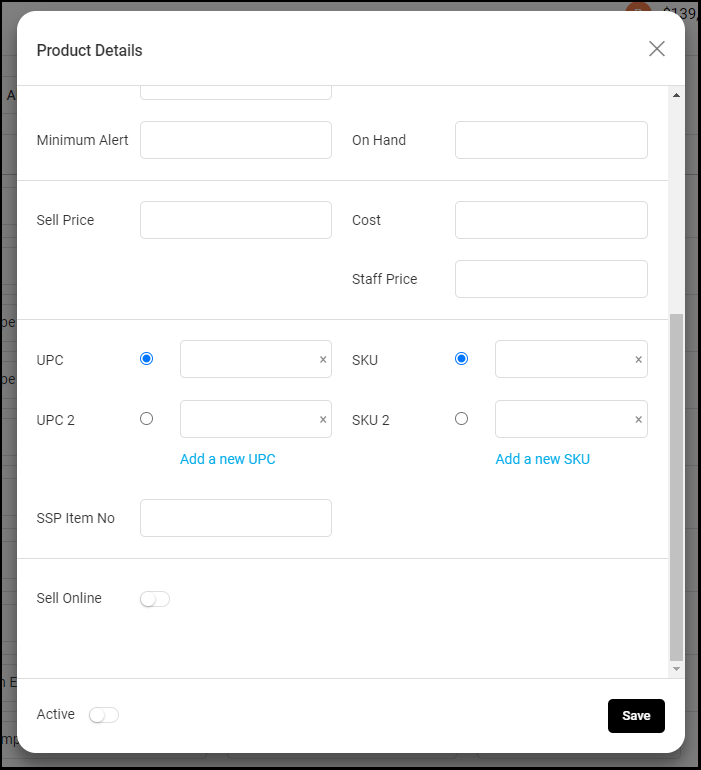
o. The barcode for the product goes in the UPC Field
p. The SKU field will be included in any Purchase Order CSVs that are sent to the Supplier
q. When 'Sell Online' is enabled, that product can be purchased via the client app and picked up via Curbside
r. The 'Active' button determines if you carry the product and that it is available for purchase
5. Click "Save".