Aura users can add multiple SKUs and UPC codes for individual products in their inventory. When more than one SKU or UPC code is listed for a product, scanning the primary code or the alternate codes will recognize the product for Purchase Orders, Inventory Adjustments, Valuation Reports and Client Ticket Purchases.
1. Set up your initial product SKU and UPCs by following our guide to Adding Products to Aura.
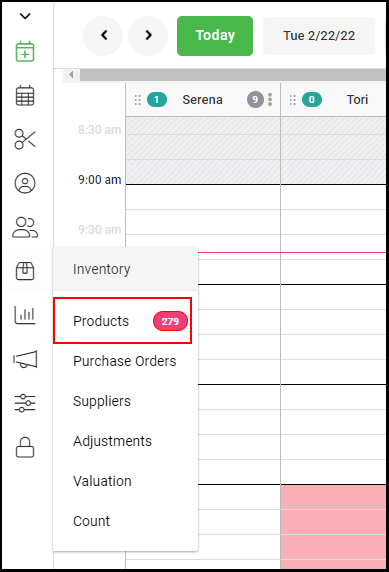
2. Navigate to Inventory > Products.
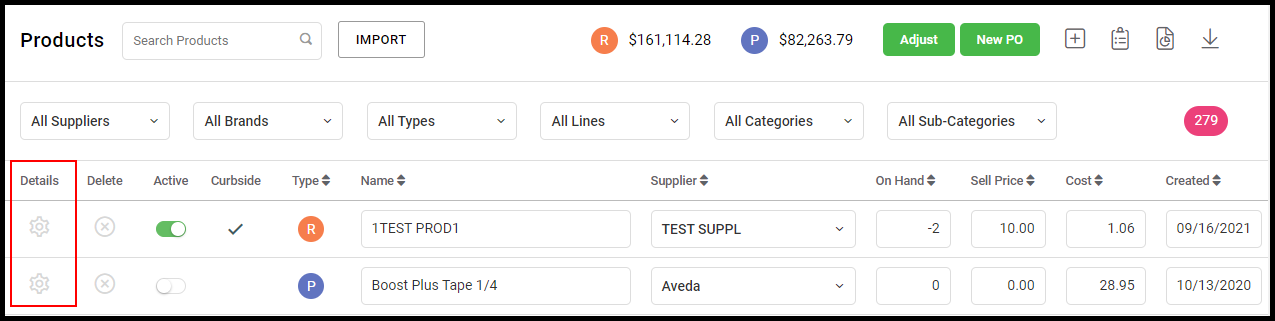
3. Select the "Details" gear adjacent to the product you wish to add an alternate SKU or UPC to.
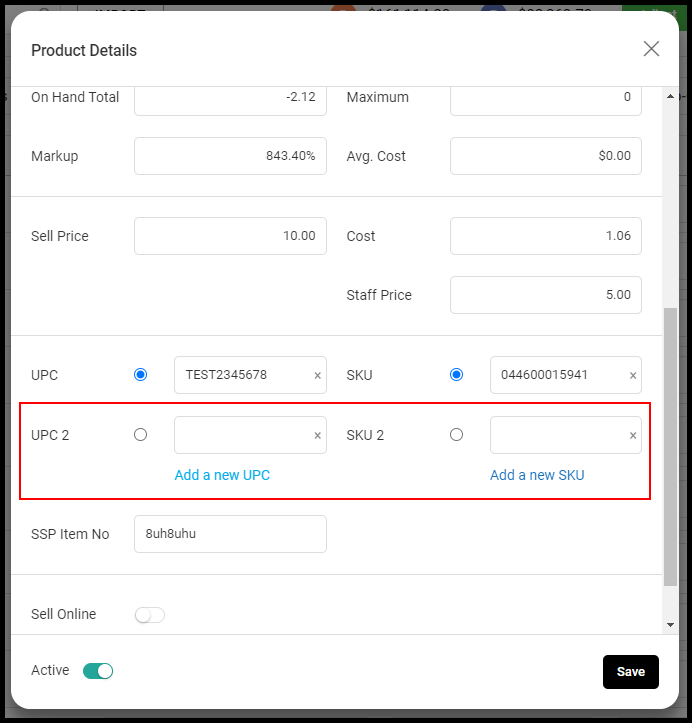
3. To edit, select "Add UPC" or "Add SKU". An additional line will display where users can either manually enter or scan a new code for the product. Select save when done adding new UPC or SKU.
NOTE: Selecting the blue circle will set the associated line item as the primary SKU or UPC for that product.
4. Now the product will scan for Inventory counts, Purchase Orders and on Client Tickets by any of the SKU/UPC codes set up for that product.
Notes:
- Only one SKU and one UPC is considered the primary.
- Any SKU or UPC can be scanned or entered into a ticket.
- For Adjustments, any SKU or UPC will scan but it must be scanned into the correct field. (UPC or SKU)
- For Inventory Counts, any UPC may be scanned. SKU may not be used.