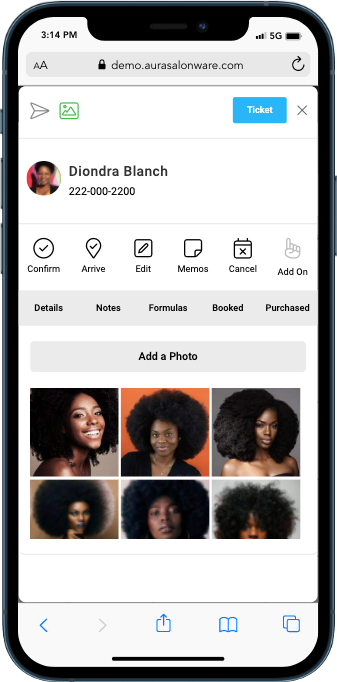
Please note that photos added by the business to an appointment show alongside photos added to the appointment by the client, called Virtual Preconsultation
The images in this article are from Mobile, but the process is similar on desktop. Photos can be viewed and added for past appointment on Mobile.
Adding photos to an Appointment
Select an Appointment from the Calendar, then tap the photo symbol along the top of the modal. Note that this symbol will be green if photos already exist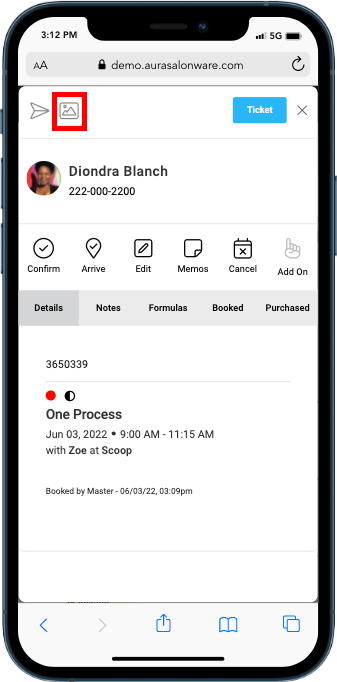
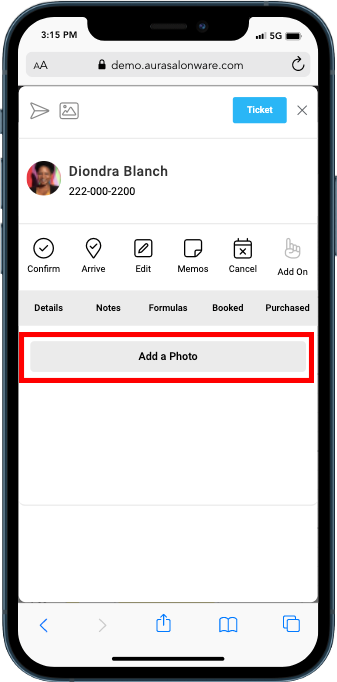
Select Add a Photo to Add a Photo, and then select the Photo within you device's album or take a new photo
Photos display within the Appointment modal and clients cannot see the photos that have been added