The Client App is the client's one stop shop to do anything from booking appointments, to purchasing gift cards, to even checking out without having to pay through a terminal. This article will illustrate all the things that are possible in the Client App.
1. When a client logs into their account on the client app, the Home Page will show all "Upcoming" appointments if there are any. Upcoming appointments can also be accessed by selecting the Upcoming icon at the bottom of the screen.

2. The client can add their appointment to their Google Calendar, change their appointment, cancel or add a virtual pre-consultation picture by selecting the three dots next to an appointment.
NOTE: Learn more on how to change or cancel an appointment HERE.

3. Appointment history can be accessed by selecting "History" next to Upcoming, or selecting "History" at the bottom of the screen

4. When the client selects History there should be an option to rebook appointments by selecting "Rebook".

5. Once "Rebook" is selected, the client should verify their desired location (if it's a multi-location salon), Service, and Provider for the appointment are correct. If so, the client can select their desired Date and Time. The client can also add another service by selecting "Add a Service".
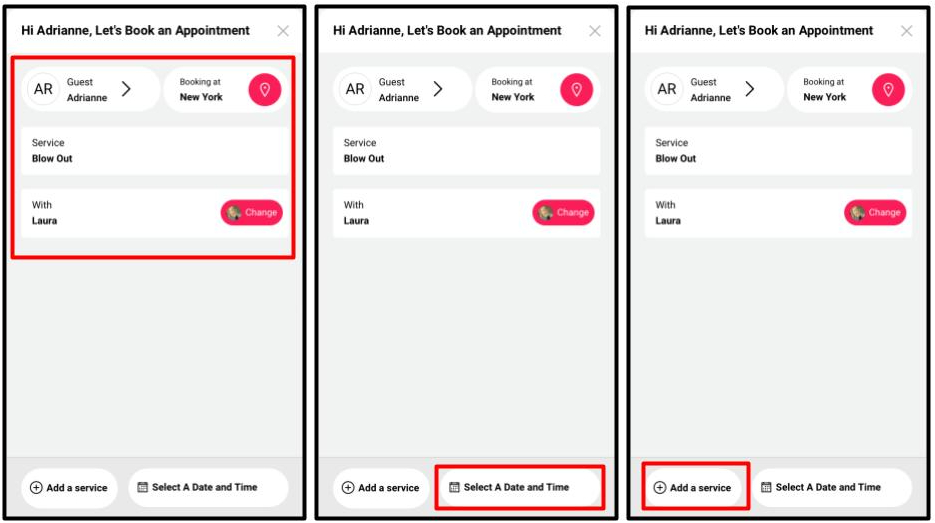

6. If the client needs to book a new appointment they can do so by selecting "Book A New Appointment" or by selecting the "Book" icon at the bottom of the screen.
NOTE: Learn more about booking an appointment is HERE

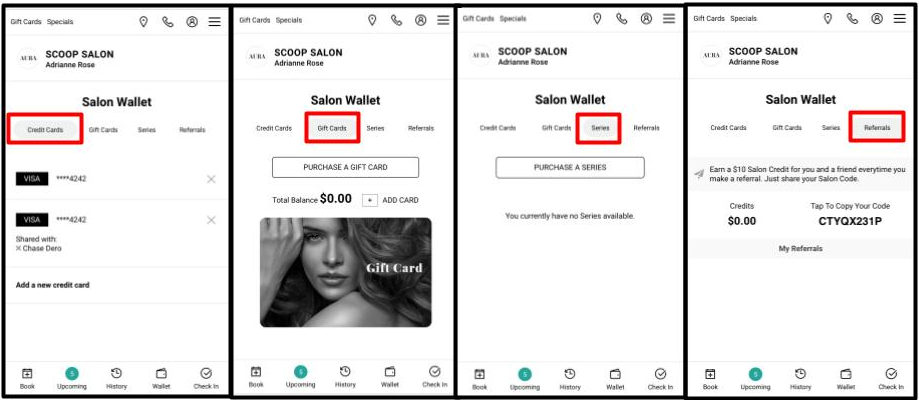
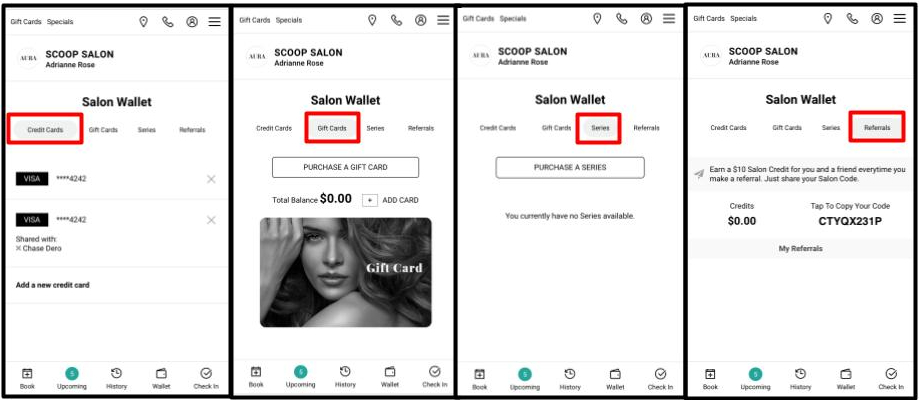
7. Selecting "Wallet" will allow the client to add any cards to their file, purchase or add a gift card, purchase a series, and access their referral code along with viewing their referral credits.
8. The client can select "Check In" when they are ready to check in for their appointment.
NOTE: Check In is only available 15 minutes before a scheduled appointment.

9. Clients can checkout on their own by selecting "Checkout", and then select "Pay Now" if they have a payment method already on file. They can also add a tip, or redeem a promo code, or add a card to pay for the appointment.
NOTE: Clients can only check out within the app when an employee on the salon side has selected their ticket as "Ready to Pay".


10. Clients can purchase gift cards by selecting "Gift Cards" at the top of the screen.

11. Clients can see any specials happening at the salon by selecting "Specials" > "Current Promotions".

12. Clients can purchase Series from the Specials tab as well.

13. Clients can purchase Gift Cards from the Specials tab as well.

14. Clients can get directions to the salon and learn about the salon's hours, address and contact information by selecting the "Location" icon.

15. Clients can select the "Phone" icon to call the salon.

16. Clients can add information to their client profile here.
17. At the top right corner of the screen, clients can select the three bars to have access to the following:
- Contact Us: Provides the client with basic salon information based on the client's “preferred” salon location.

- Account: Provides clients with their basic account information and the ability to update their email, birthday, phone numbers and password.

- Profile: Provides clients with the ability to set their preferred location, preferred stylist, their hair type, how many weeks they would like between their visits, their favorite brands, and they can upload a picture.

- Appointments: Shows all of the upcoming appointments that the client has.

- History: Shows all the appointments that the client has had.

- Salon Wallet: Provides clients the ability to update their credit/debit card information, purchase or add gift cards, purchase series, and access their referral code and referral credits.

- Services: Provides the client with a list of the current service menu.

- Team: Shows all of the salon's team members/employees.

- Log Out: Sllows the client to exit their account

- Policies: Displays all of the salon's current cancellation and refund policies for services and retail.
