To book an appointment online, you will need to have an account. Learn how to create an account HERE
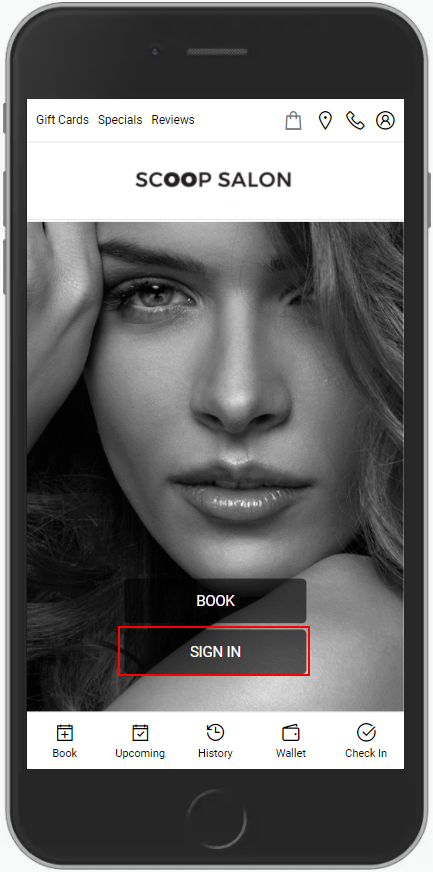
1. Go to [Salon Code].aurasalonware.com using Google Chrome on the mobile device and select "Sign In".
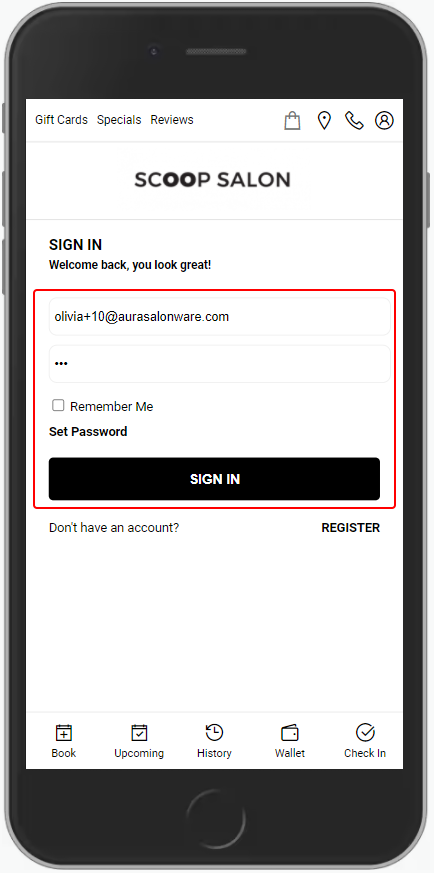
2. Sign in using the email and password provided.
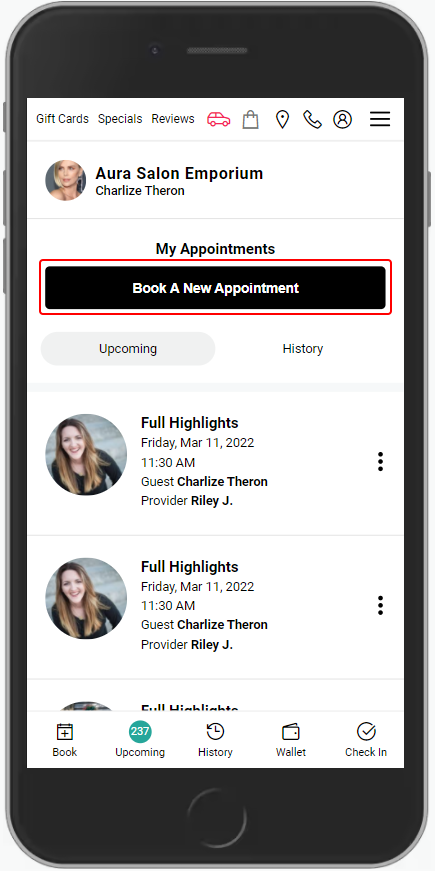
3. Select "Book New Appointment".
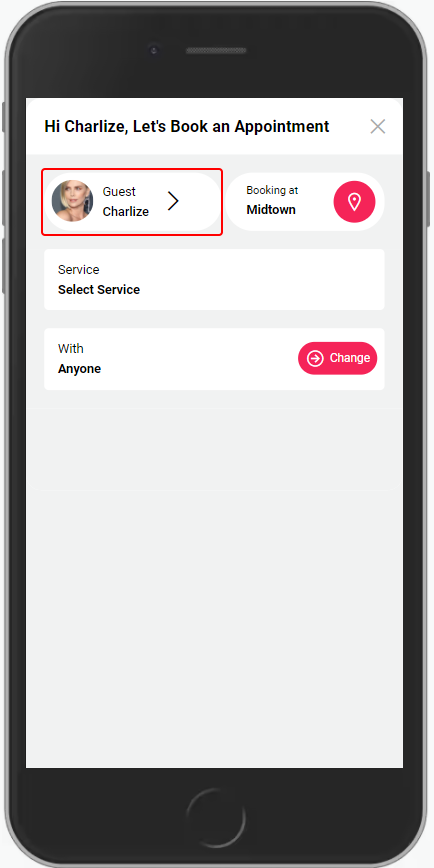
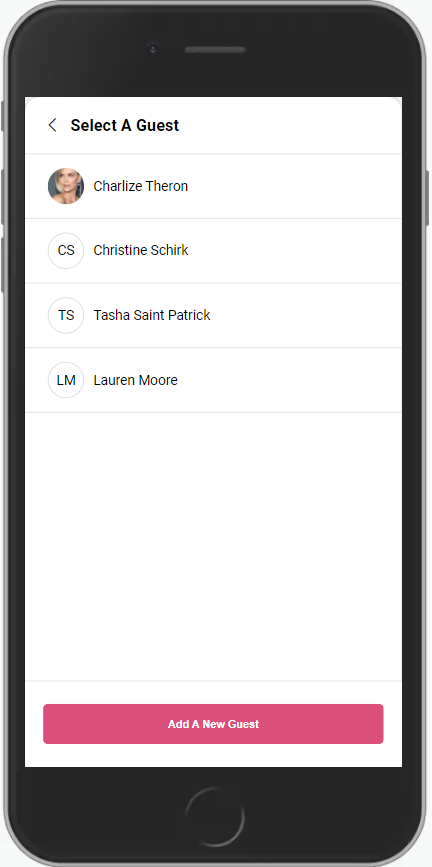
4. Selecting "Guest" allows for the client to book for a guest within their client profile. If the client is booking the appointment for themselves, go to Step #5.
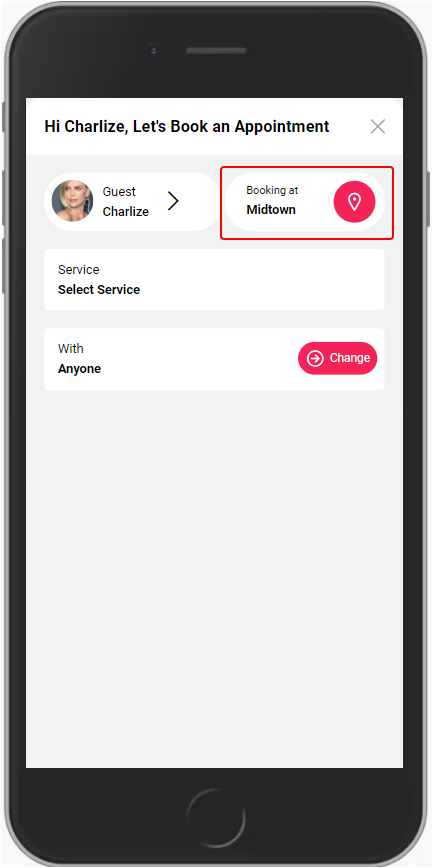
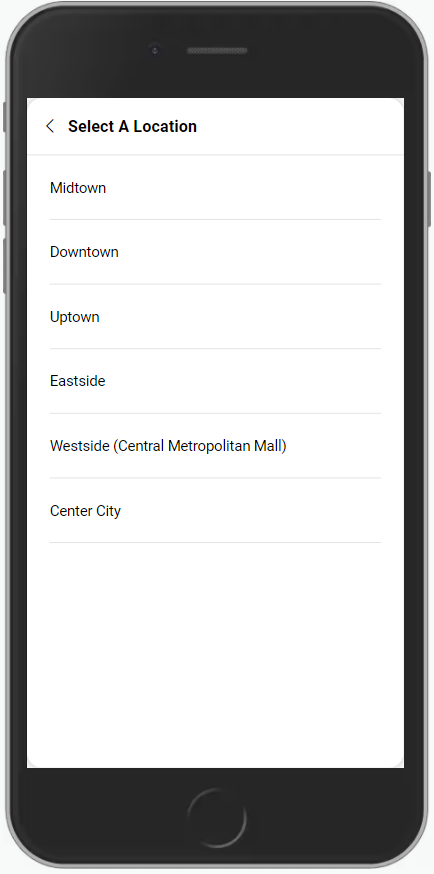
5. If the salon has multiple locations then select a location.
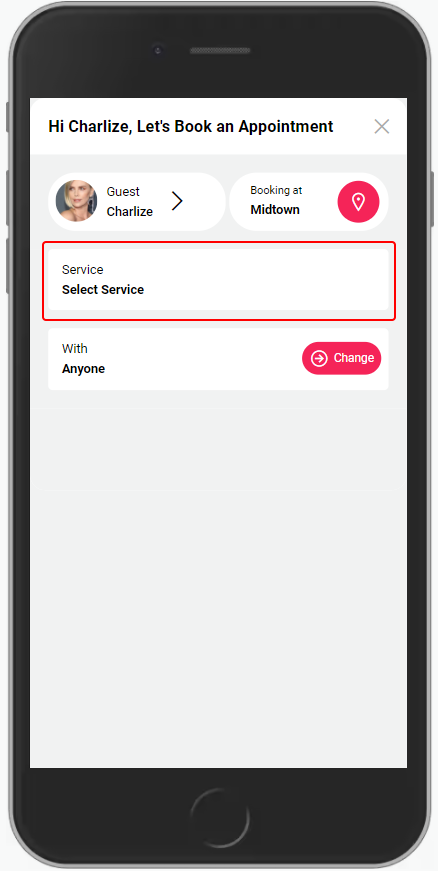
6. Click "Select Service".
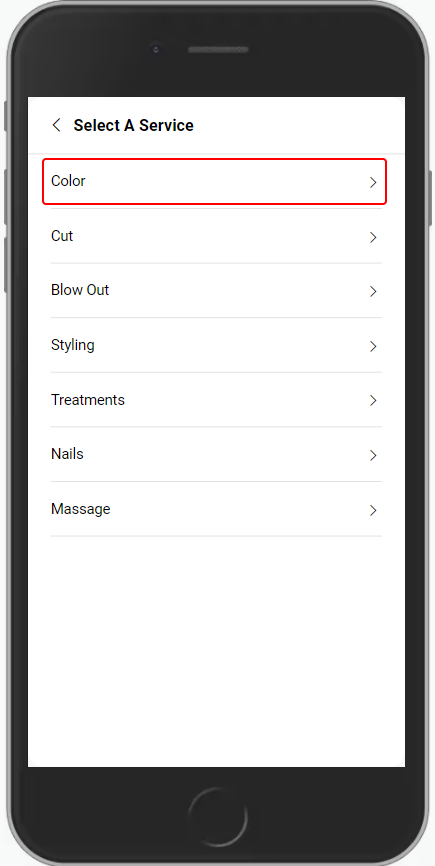
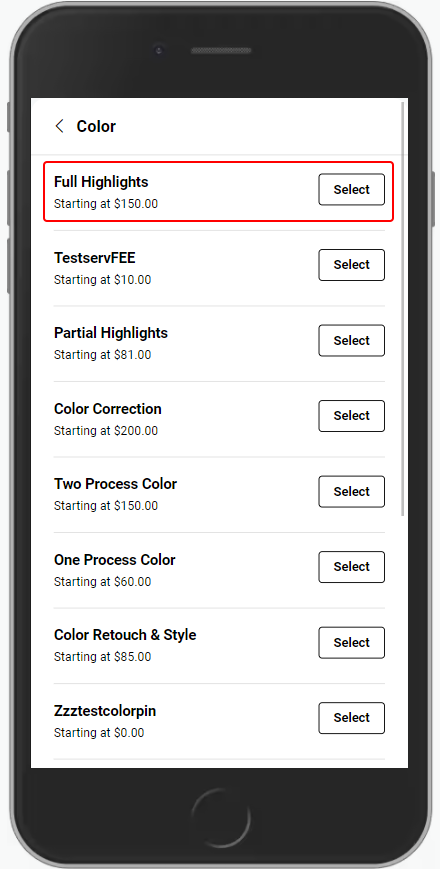
7. Select the "Service Category", then choose the "Service".
NOTE: Services that require a deposit will denote the deposit amount after selecting the service. Select "Continue".
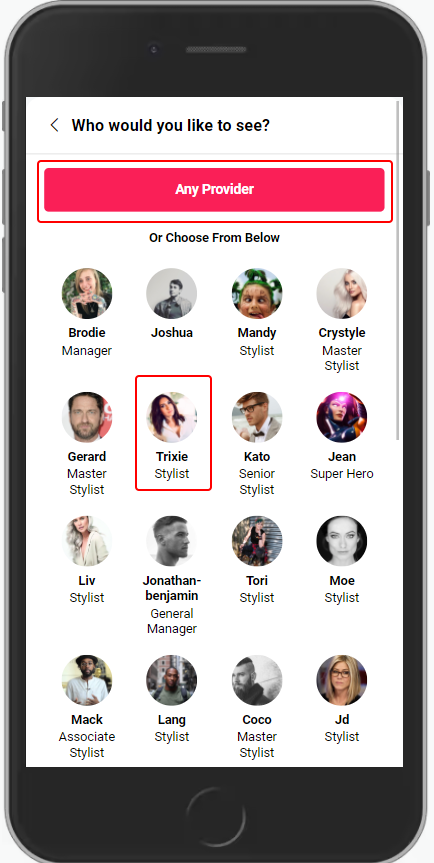
8. Select a "Provider". The Client can select a specific provider from the provider list, or choose "Any Provider".
NOTE: If the client has a preferred provider within their preferences, the appointment will default to booking with that provider.
NOTE: Once a provider is selected, their pricing for the chosen service will be shown, select "Continue".
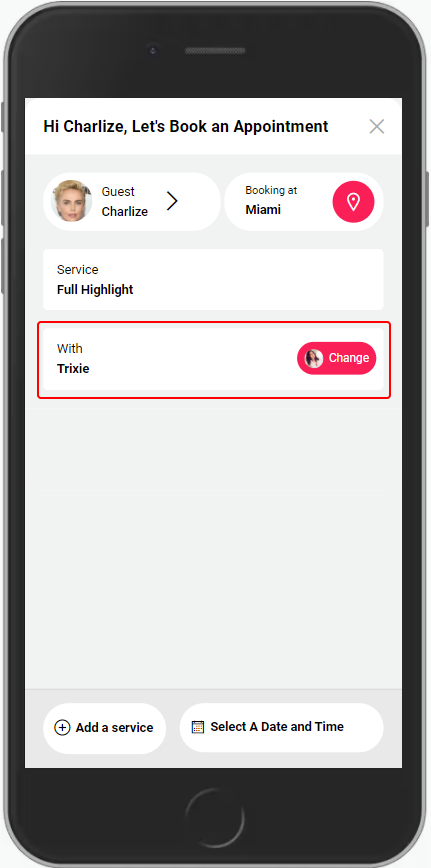
9. An additional service can be added by selecting "Add a Service", and then selecting a specific provider or Any Provider for that service as well.
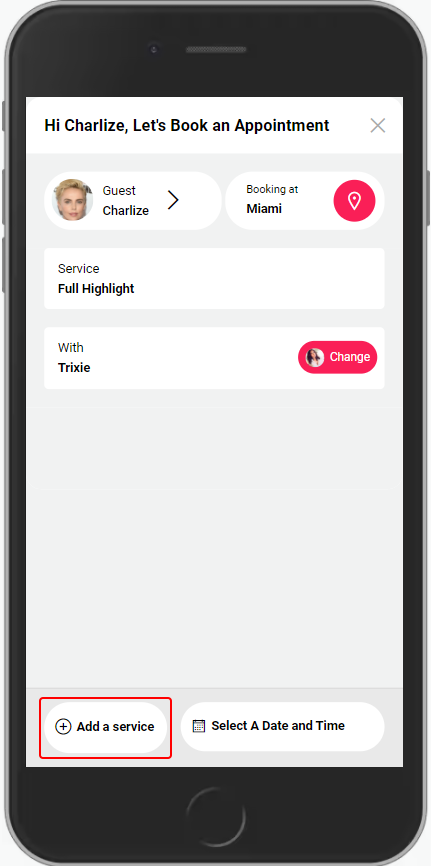
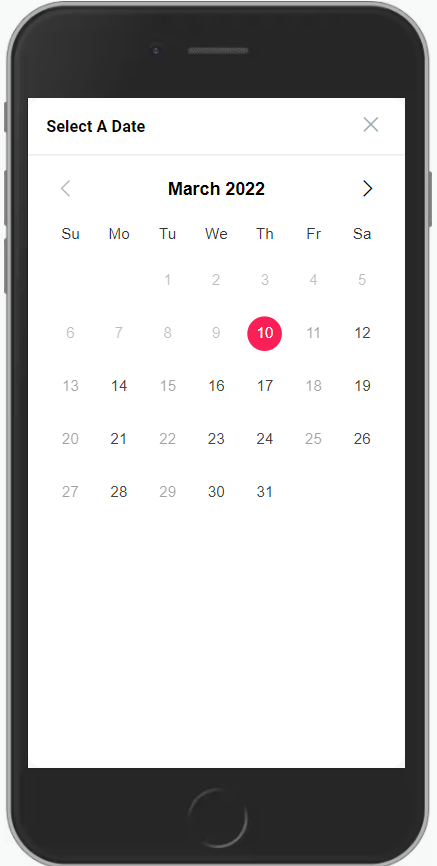
10. Select a date and time for the appointment.
NOTE: Any dates that are grayed out either mean that does dates are not available for a that provider, or that the salon is closed (if the client selected any provider).
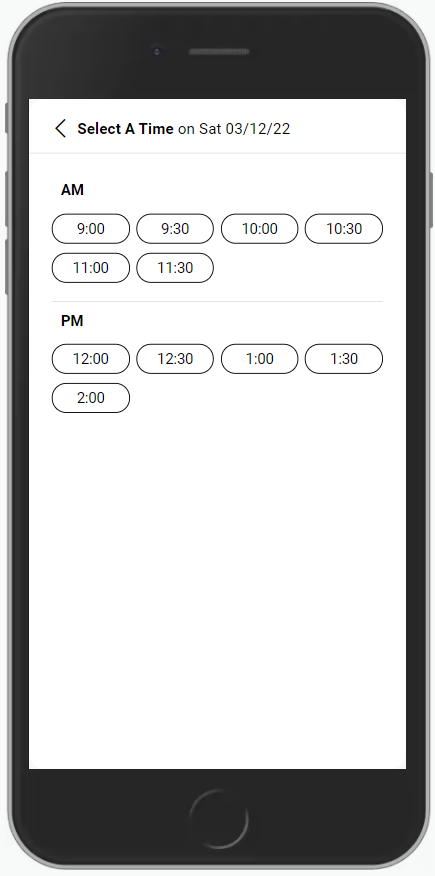
11. Once a date and time is selected for the appointment, a review page will shown allowing for any changes to be made to the appointment before completing booking.
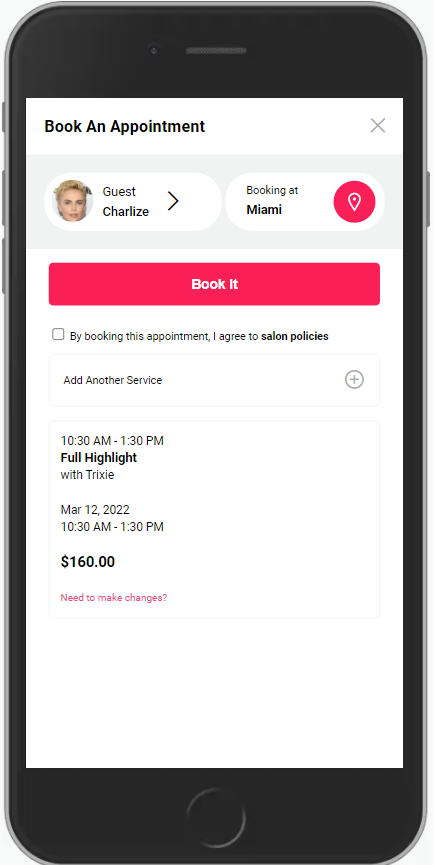
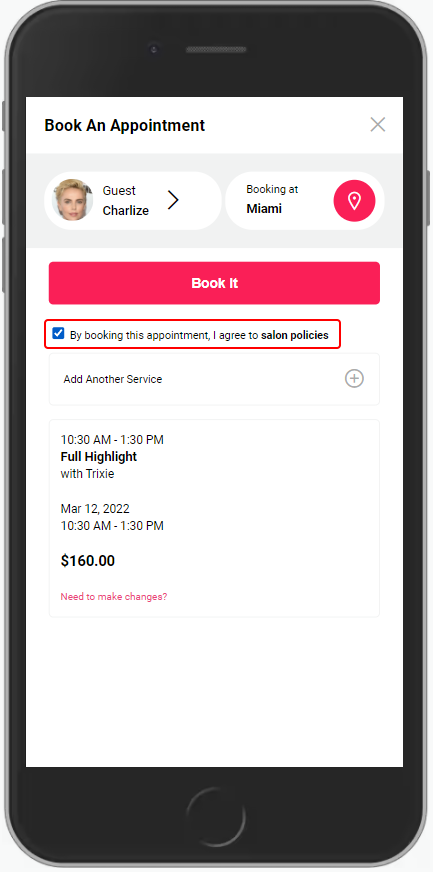
12. If the client is satisfied with their selection on the review page, they must select the checkbox agreeing to the "Salon Policies".
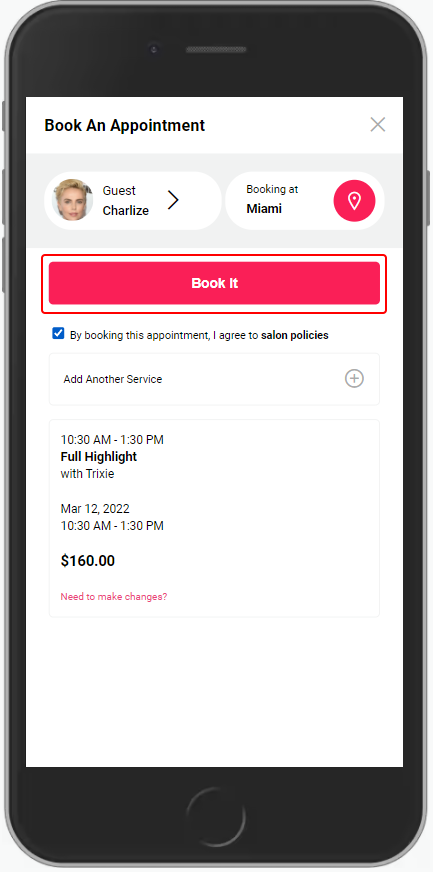
13. Select "Book It".
NOTE: If an existing card is not on file, the client will be required to add a card on file prior to booking the appointment, and pay for any appointment deposits.
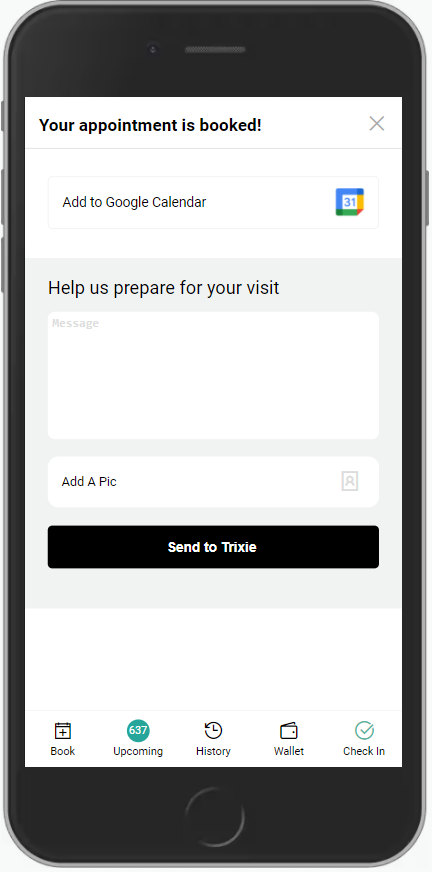
14. The client can select "Add to Google Calendar", as well as adding a Virtual Pre Consultation message and picture to be sent to their provider.