Aura Salonware will be releasing the following system updates on September 24th, 2025
System updates include, but are not limited to...
Appointment Copy & Paste
Users can now copy and paste an existing appointment to streamline the booking process.
Here's how:

1. Click on the appointment you would like to copy

2. In the appointment pop-up, select the "copy" icon and click "OK"
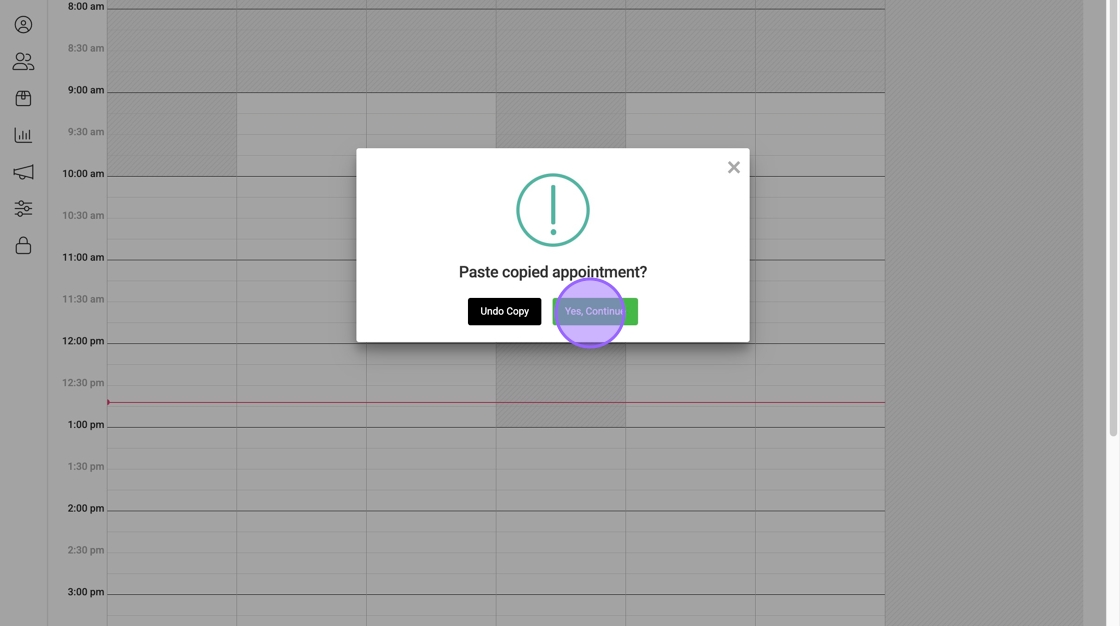
3. Navigate to the day you want to book the copied appointment, and double click on the time you want to schedule the appointment

4. Click "Yes, Continue"

5. Make any necessary edits, and then click "Book It"
Need to undo your appointment copy?
1. Double-click anywhere on the schedule
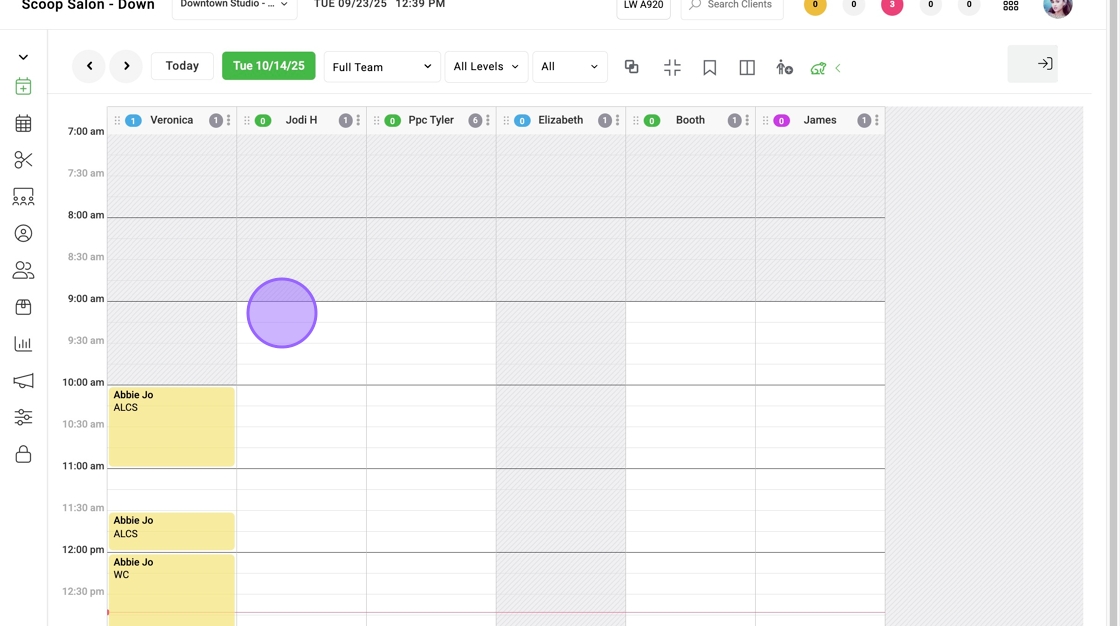
2. Select "Undo Copy"

The original appointment will remain unchanged, only a copy is created.
Display Referrals in the Client App
When enabled, clients will now be able to view their referrals and total credits earned from their wallet.
Here's how to set it up:
1. Select settings from the left-hand sidebar

2. Click "Clients" and select "Client App"


3. Check the box next to "Display Referrals in Wallet" and then click "Save"
*please note that if you have multiple locations, you will need to enable this for all of them!
Here's how your clients can view their referrals:
1. After logging into the client app, select the "Wallet" icon in the bottom toolbar

2. Select "Referrals"

3. From here they will be able to see their referral history, as well as the total credits they have earned

Referral Credits Filter
Users with reporting access will now be able to filter referral discounts in the discount report.
Here's how:
1. Navigate to the discount report and select the "Discount Type" dropdown

2. Select "Referral"

3. All referral credits will be displayed for the time period selected

Custom Pay Type Enhancements
Users can now add a "reason" when using a custom pay type created by the salon.
Here's how:
While in the ready to pay screen, type a reason in the provided text box.
To reference "reason" history, navigate to the sales report and select the custom pay type.
Here you will find a detailed breakdown of the ticket number (that will direct you to the ticket itself via hyperlink), the client name, the employee that completed the transaction, the reason entered, the amount paid with the custom pay type, and the ticket total: