System updates include, but are not limited to:
NEW: Self Check-In for Walk-In Clients
Overview
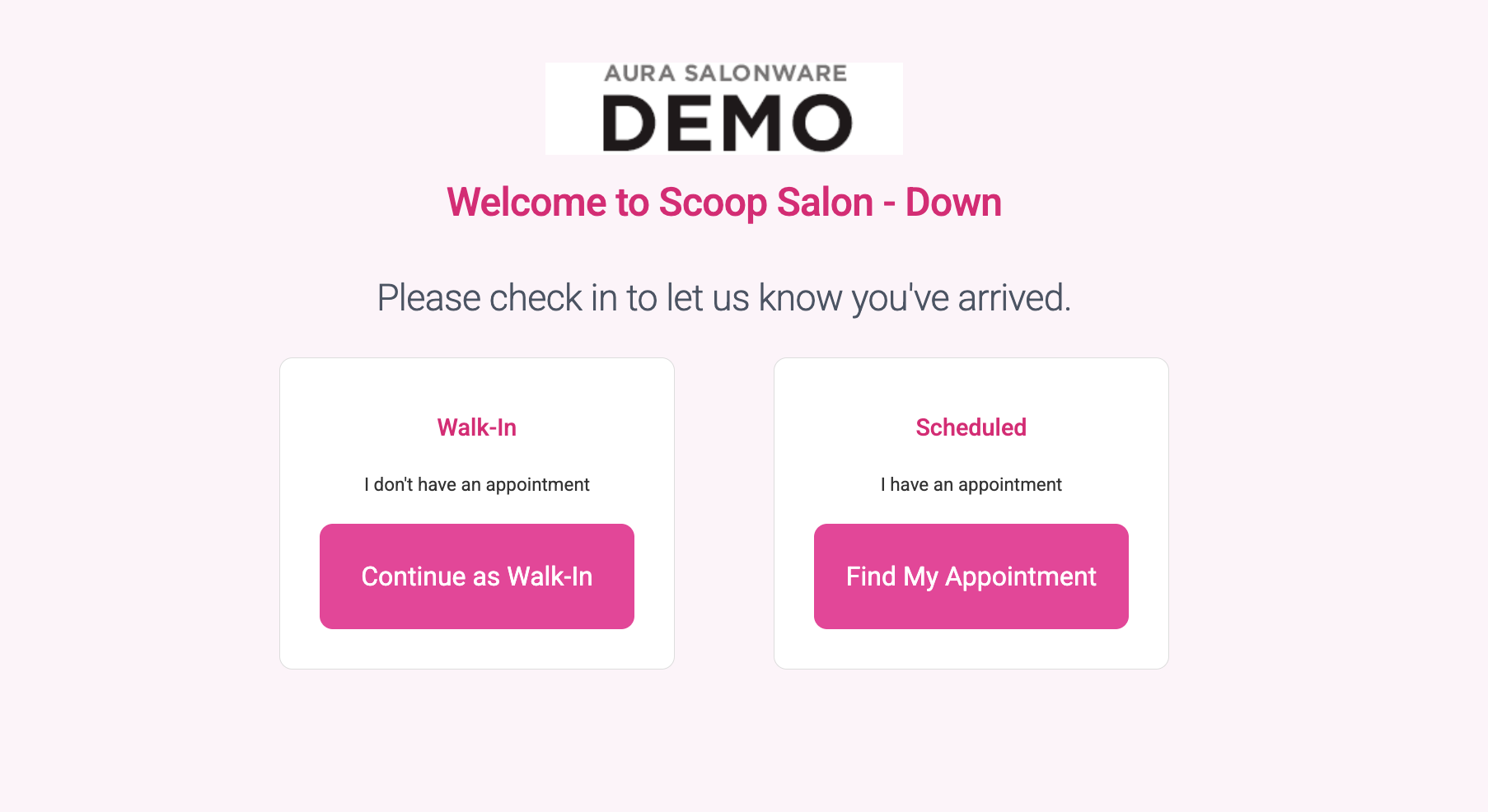
We’re excited to introduce a smarter way to manage walk-in clients. With self check-in and an intelligent waitlist, clients can join the queue on their own—while providers gain more flexibility in managing their next appointment.
What’s New
Self Check-In for Walk-Ins
Walk-in clients can quickly check themselves in by entering:
- Name
- Phone number
- Requested service
Provider Self-Assignment
When ready, providers can:
- Assign themselves to the next client on the waitlist
- Control when they take their next appointment
- Work more efficiently without front desk coordination
Automatic Appointment Creation
Once a provider selects a client:
- The waitlist ticket becomes a scheduled appointment
- Client details and services carry over automatically
- The schedule updates instantly, once assigned to the provider
Why This Matters
Streamlined Front Desk Operations
Reduce manual check-ins and free up staff timeFlexible Provider Workflow
Let providers choose when to take their next clientAccurate Scheduling
Ensure every walk-in is tracked and converted into an appointment
How It Works
- Enable self check-in for walk-in clients
- Clients enter their phone number
- Clients confirm to join the waitlist
- Providers assign themselves to the next client when ready
- The system automatically creates the appointment
To learn more about how to use Self Check-In for walk-in clients, click here.
NEW: COF Expiration Alerts
Overview
We’ve added a new feature to help make sure your clients always have an up-to-date card on file when booking appointments.
How It Works
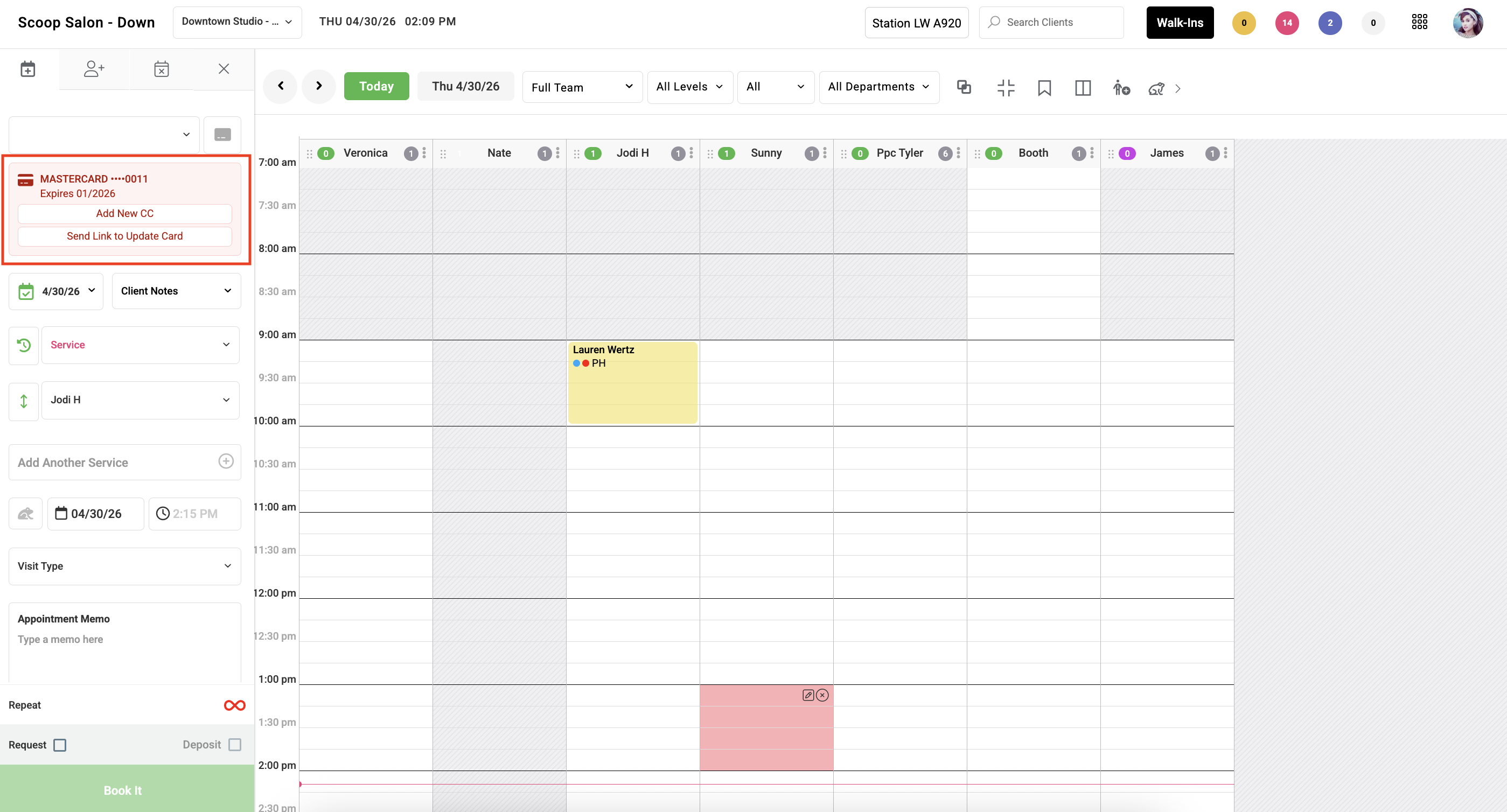
When booking an appointment, the system will automatically check if the client’s card on file is expired.
If the card is expired:
- You’ll see an alert right away during booking
- You can send the client a secure link to update their card
- The client can quickly update their card through their online account
- You can also update the card in the salon if needed
- Or, you can choose to continue booking without updating (based on your salon’s policies)
For Online Booking
If your salon requires a card for online booking:
- Clients will be prompted to update their card if it’s expired before they can complete their booking or booking request.
Why This Matters
- Avoid surprises at checkout by keeping cards up to date
- Save time at the front desk by catching issues early
- Make it easy for clients to update their info on their own
- Stay flexible with the option to continue booking if needed
Good to Know
- Alerts only show when a card is already expired (not close to expiring)
- You’re always in control and can choose to move forward without updating the card
To learn more about how to use Card on File Expiration Alerts, click here.
NEW: Provider Dashboard Commission Report Enhancement
Overview
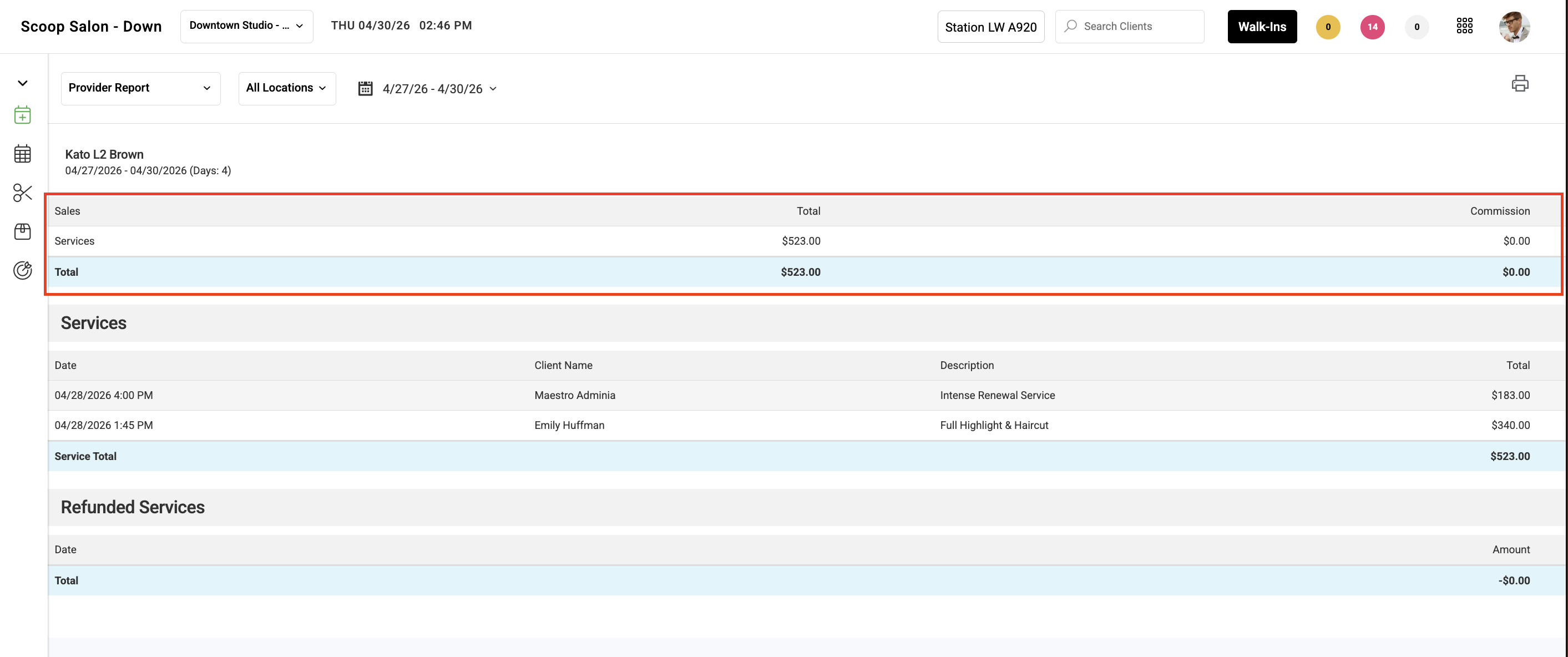
We’ve added a new setting to give salons more control over how commission data is displayed in the Provider Dashboard. This allows you to customize your reporting view to better match your business needs.
What’s New
Show/Hide Product Commissions Setting
You can now choose whether to display product commissions:
- Toggle product commissions on or off in Access Settings
- Customize the dashboard to match your reporting preferences
Updated Dashboard View
When turned on:
- The “PRODUCTS” row is removed from the Details view
- The dashboard displays a cleaner, simplified layout
Why This Matters
Cleaner Reporting
Reduce clutter and focus on the most relevant dataGreater Flexibility
Adjust visibility based on how your salon tracks commissionsImproved Clarity
Help providers better understand their commission totals
How It Works
Navigate to Access Settings
Locate Hide Products Row On Provider Report
Toggle setting on or off, click save
View updates instantly in the Provider Dashboard
Good to Know
This setting can be updated at any time
Changes take effect immediately
To learn more about this new enchantment to the Provider Report, click here.
Resolved: Provider Schedule Printing Order
Overview
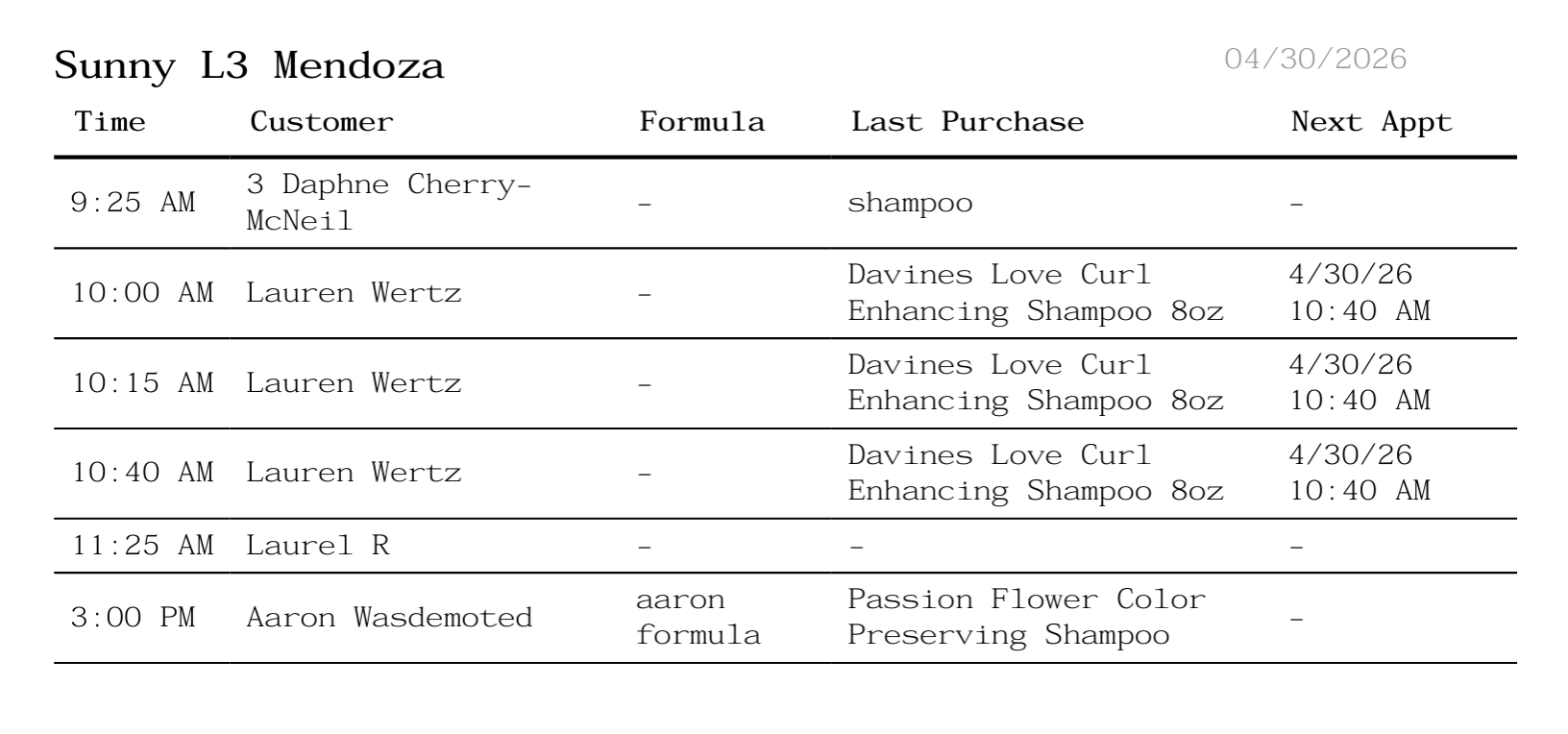
We’ve resolved an issue with provider schedule printing to ensure appointments display in the correct chronological order. Printed schedules now accurately reflect the provider’s daily schedule.
What’s Been Resolved
Provider Schedule Printing Order
- Appointments now display in time-based (chronological) order when printed
- The printout matches the order shown in the appointment book calendar view