Appointment Book: Expired Credit Card Notifications
1. Navigate to the appointment page, click on the desired appointment time, and select the client.
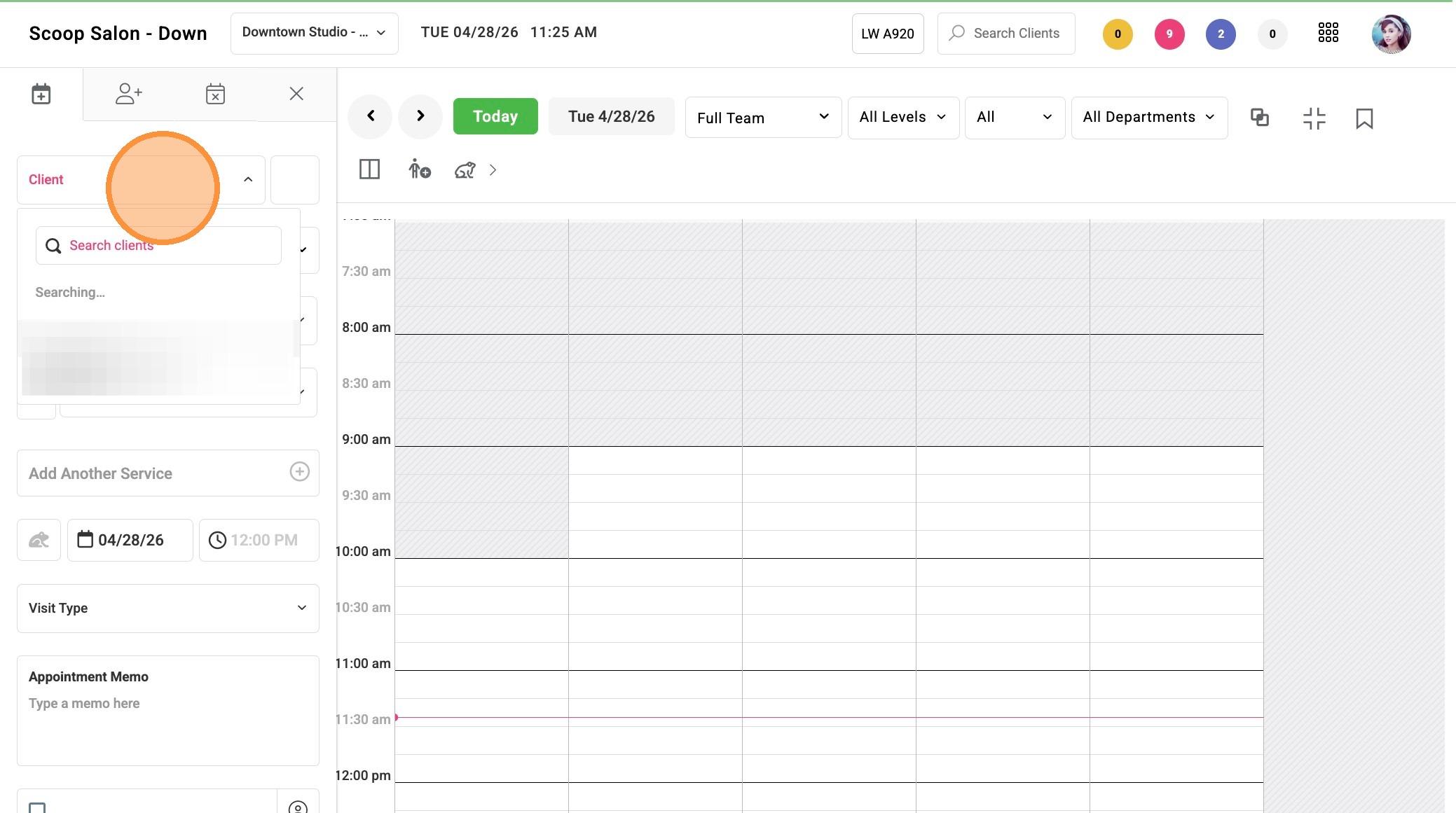
2. To add a new credit card at the salon, click “Add New CC.”
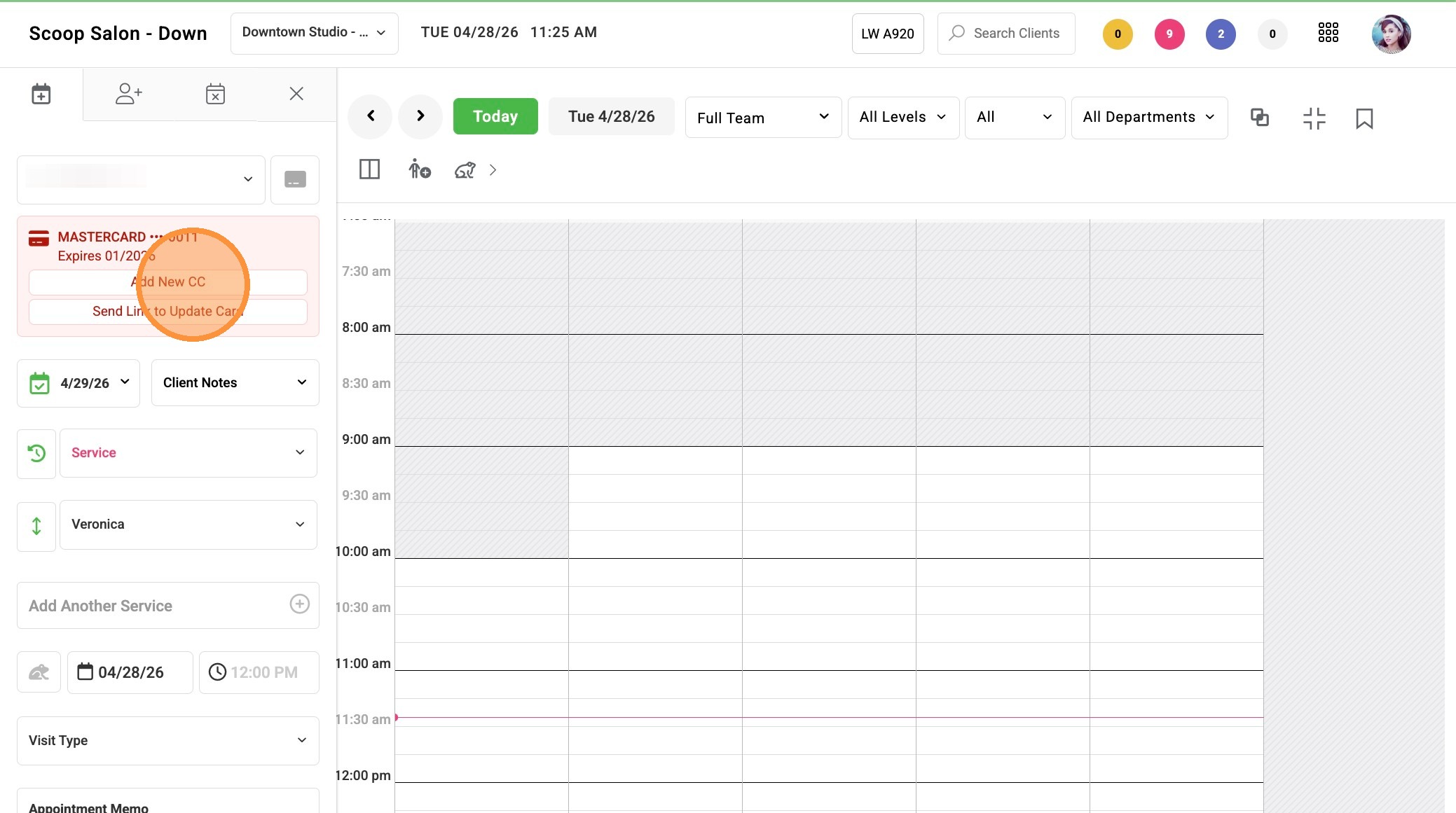
3. For a client to add a credit card via a link sent by email, click “Send Link to Update Card.”
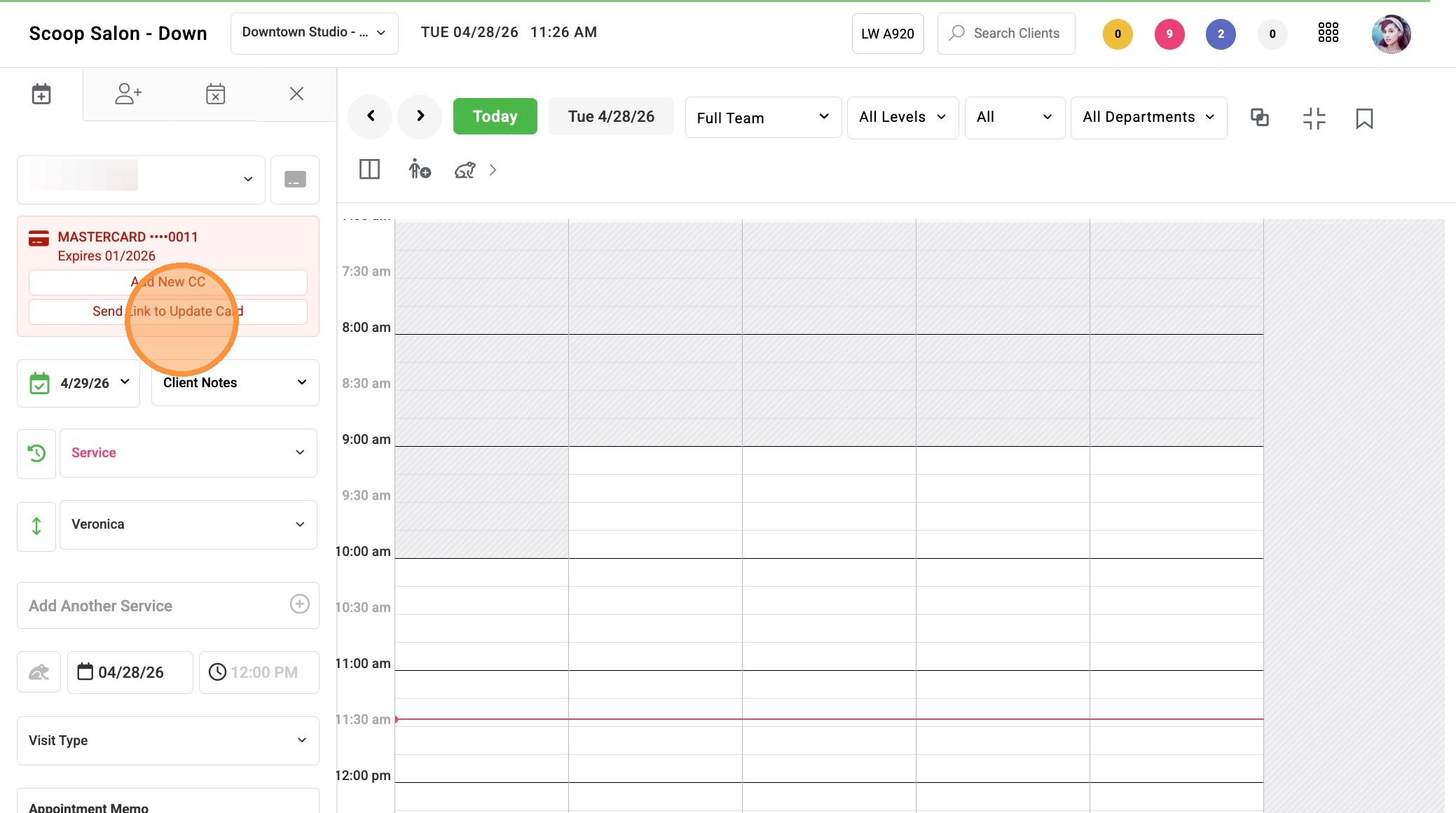
4. Click “OK” to dismiss the success notification.
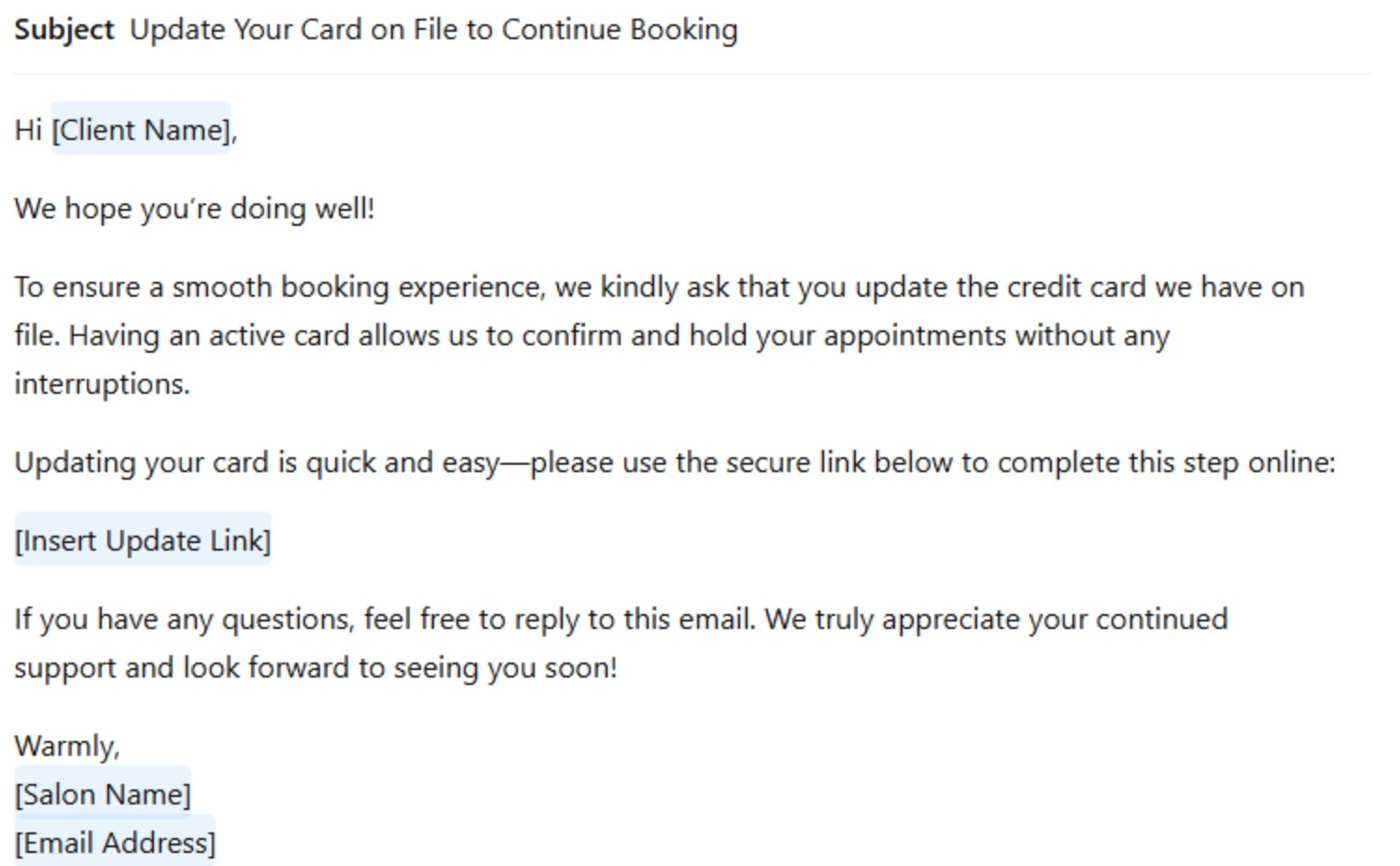
5. Sample of email to client for updating the card on file.
Tip: You can complete the booking without adding the card if the client is waiting on the link.
Once they receive the email and submit their card through the “Send Link to Update Card” option, it will update on their profile automatically.
Online Booking: Expired Credit Card Notifications
Tip: To require a card on file for online booking, go to Settings > Clients > Client App and check the box next to “Require Card on File for Online Booking.”
1. After selecting their online booking options, the client will receive an error indicating that the card on file is expired.
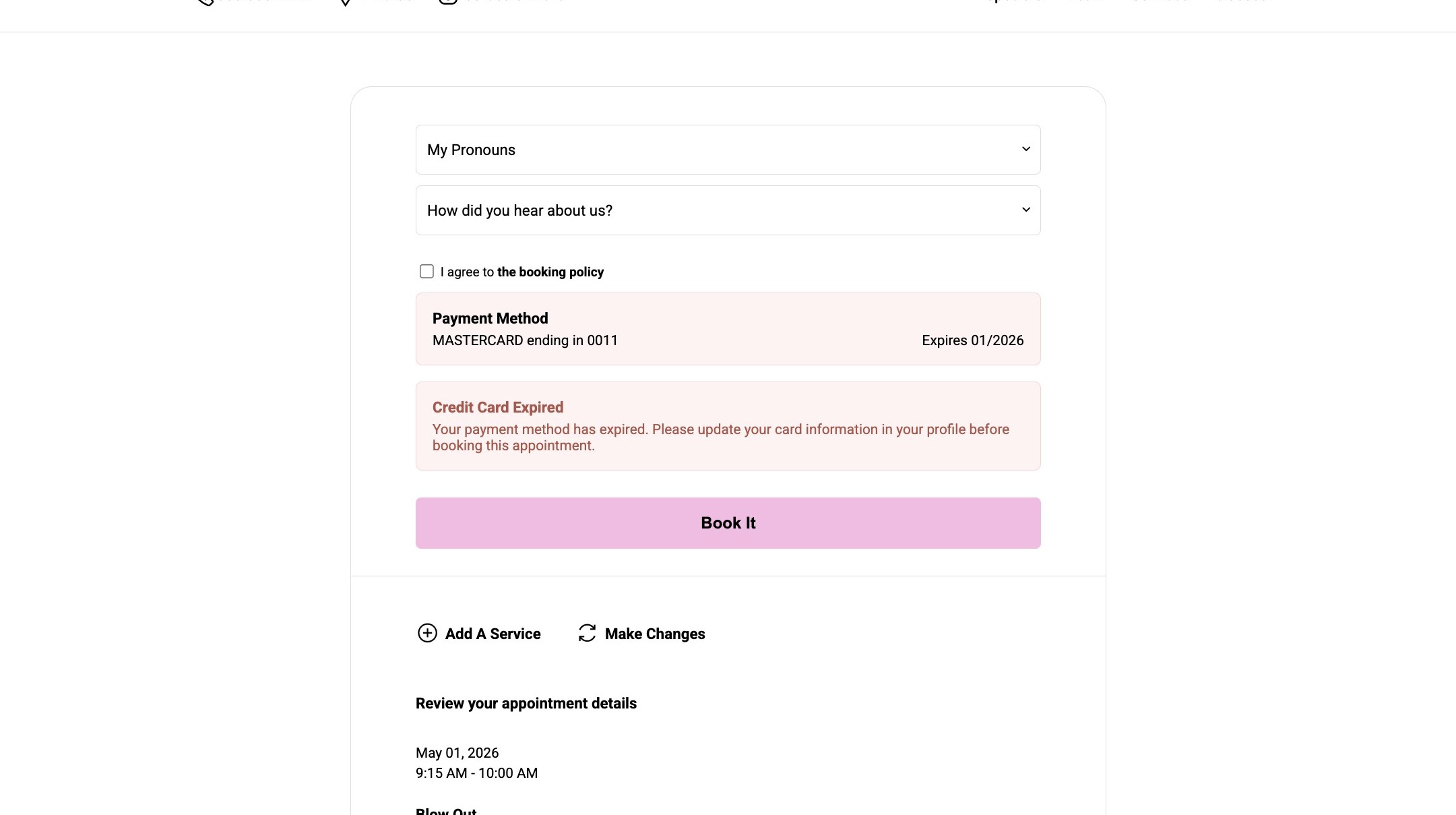
2. After selecting “I agree to the booking policy,” click “Book It” to proceed.
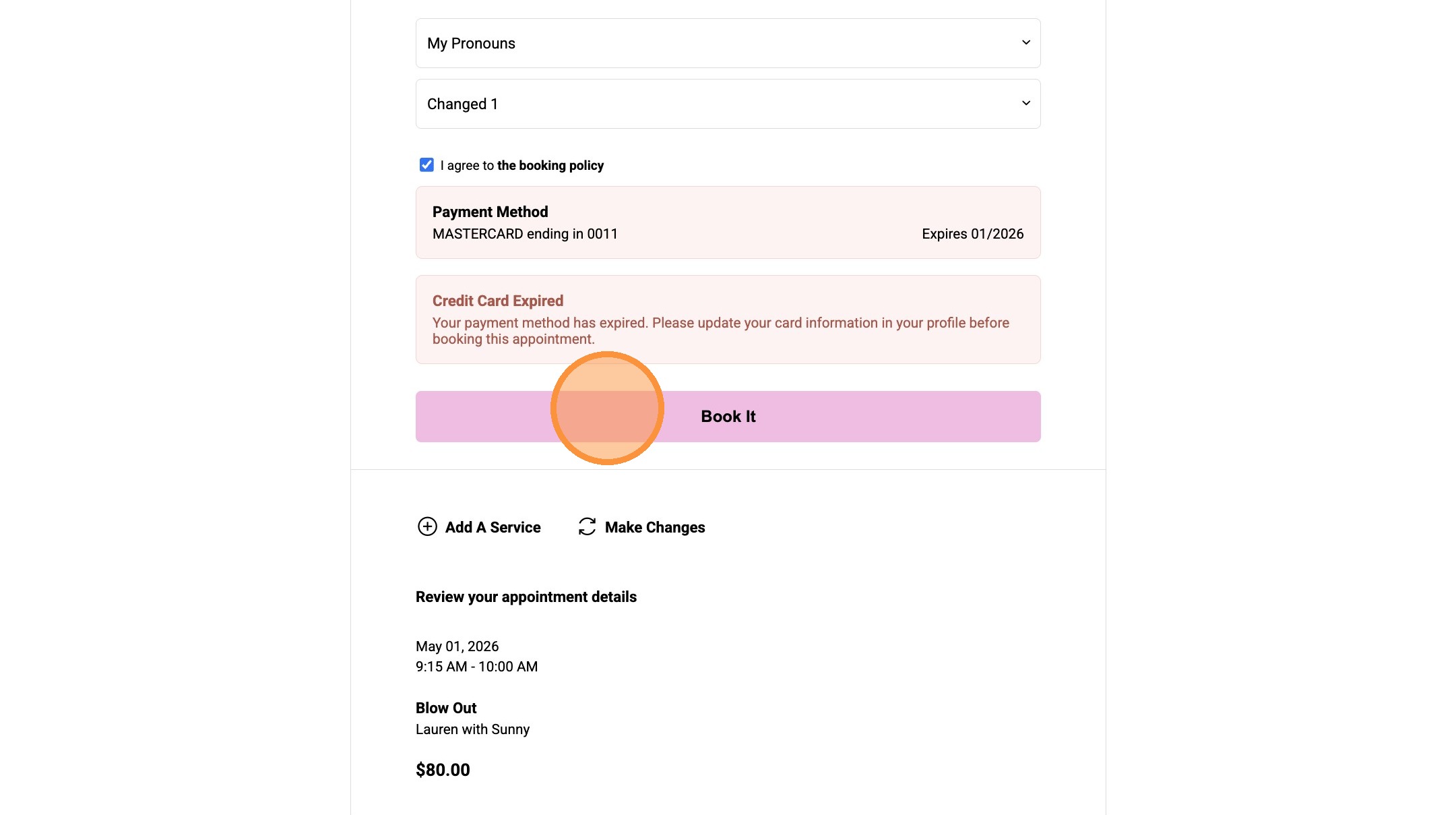
3. The client will be prompted to enter a new card since the card on file is expired. Once all information is entered, click “Add Card” to complete the booking.
