In-Store Appointment Deposits - Automatic
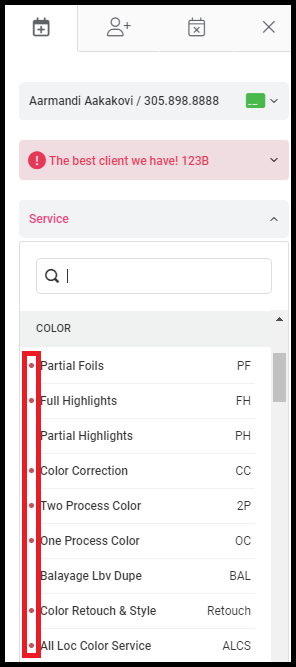
1. When booking a new appointment, services that require a deposit will be denoted with a red dot to the left of the service name.
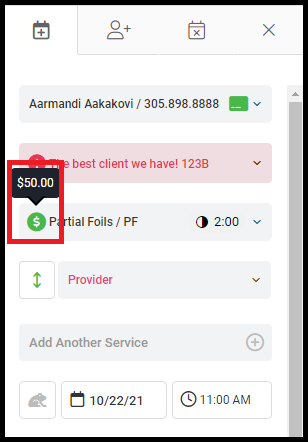
2. Once your service is chosen, hover over the $ within the green circle to view the cost of the deposit.
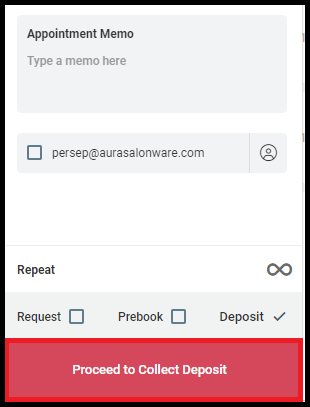
3. Complete booking details and click "1Proceed to Collect Deposit".
NOTE: If you want to collect a deposit on a service that usually doesn't require one, click the 'Deposit' box when creating the appointment.
4. Edit the deposit amount if needed by clicking into the deposit box and typing in the new $ amount.
Note: If you wish to disable the ability to edit the deposit amount, see step 10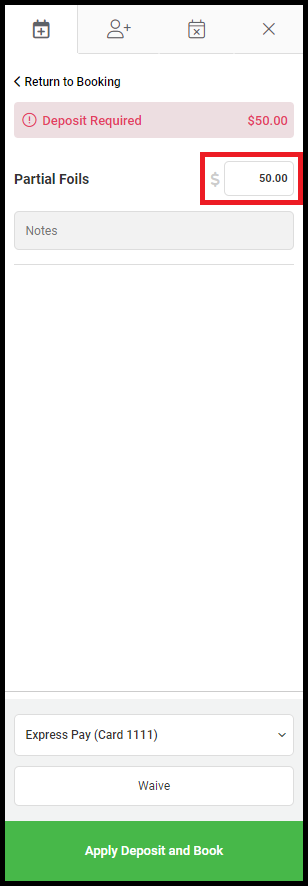
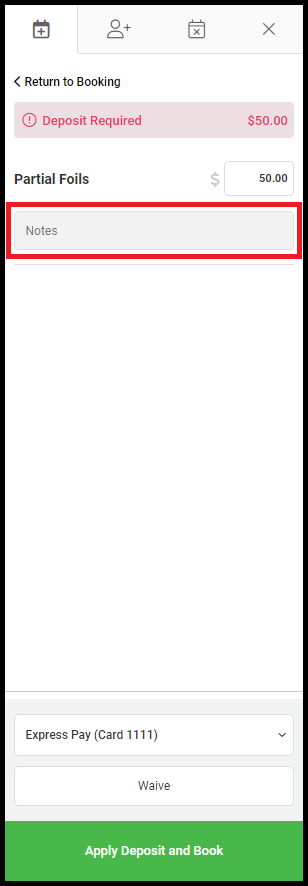
5. Add any necessary notes.
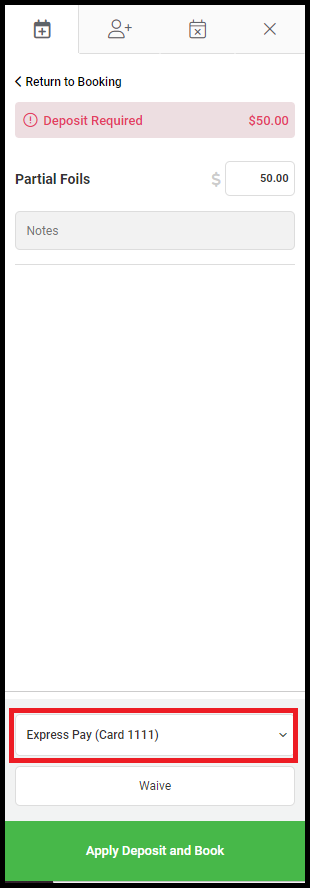
6. Select the card you would like to use to pay the deposit by using the drop-down. If they are not paying via card, go to step 7.
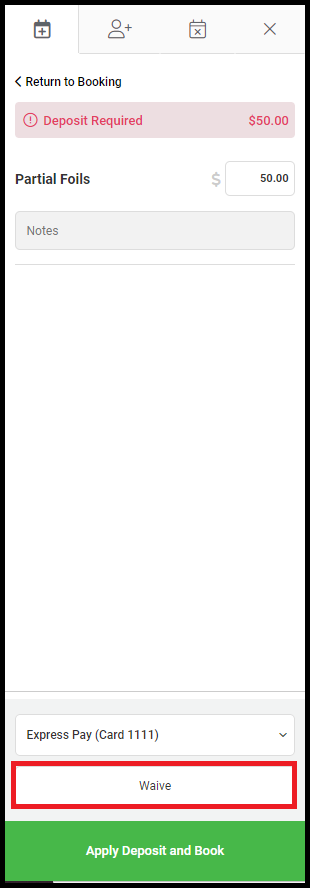
7. IF you need to waive the deposit, click "Waive".
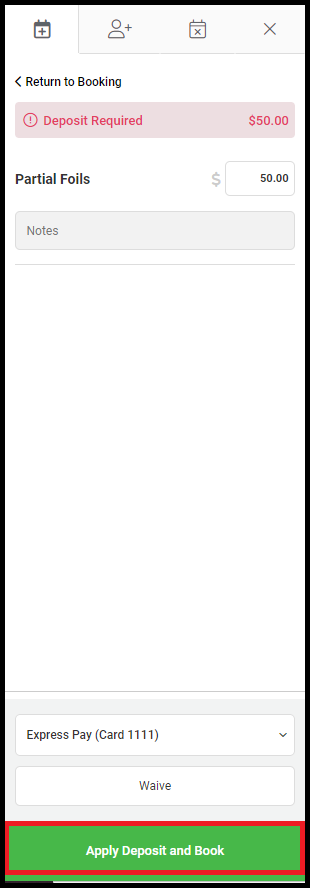
8. Upon all the deposit details being completed, click "Apply Payment and Book" to pay the deposit and book the appointment.
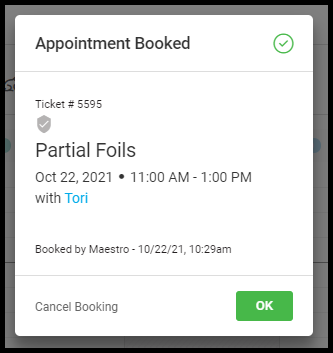
9. A pop-up will appear to inform you that the appointment has been booked, along with the appointment details.
10. To disable/enable the option to edit/waive the deposit amount go to Salon Settings > Access > Reception Access > Allow Reception to Edit/Waive deposit amount. By checking the box, reception will be able to edit/waive deposits.
