Owners, Managers, Receptionist and Providers can book standing appointments for clients needing a recurring appointment for a service or services. To learn how to book standing appointments click HERE
Cancel a Standing Appointment
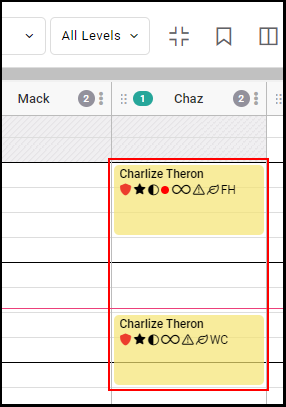
1. Find the appointment for the client on the appointment calendar and select it to see the appointment modal.
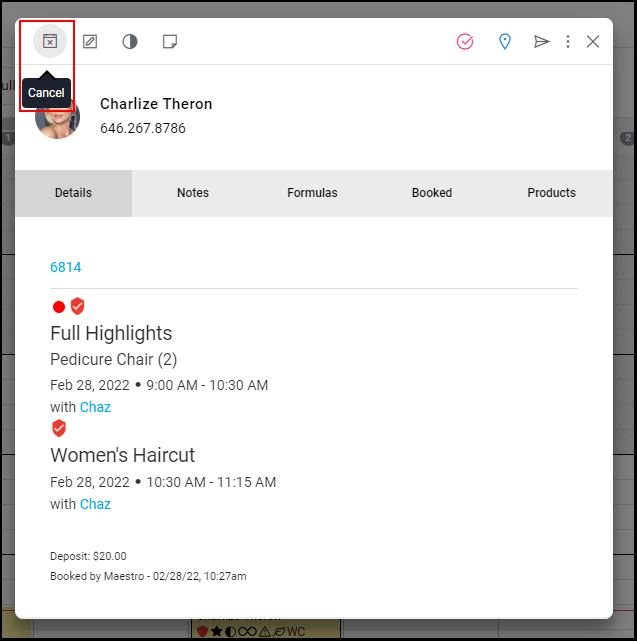
2. Select "Cancel" on the appointment modal.
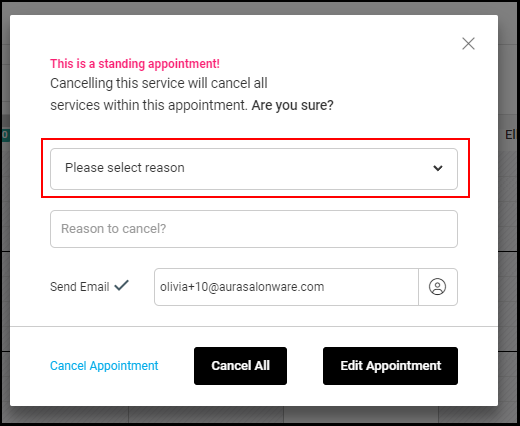
3. Select the reason why the appointment needs to be cancelled from the drop-down.
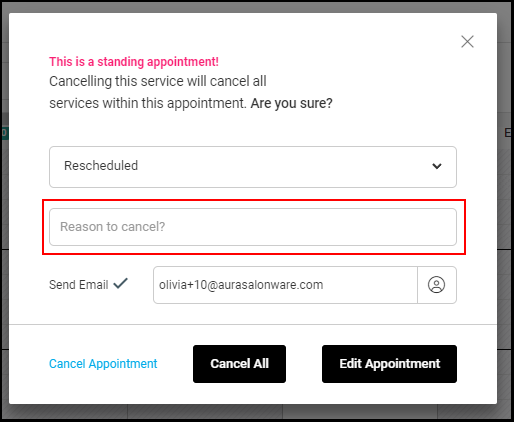
4. Type in the reason the client is cancelling the appointment if there is a reason.
5. Select the "Send Cancellation Email" checkbox if the client should receive an email confirming their cancellation. De-Select the Send Cancellation Email checkbox if the client shouldn't receive an email confirming their cancellation.
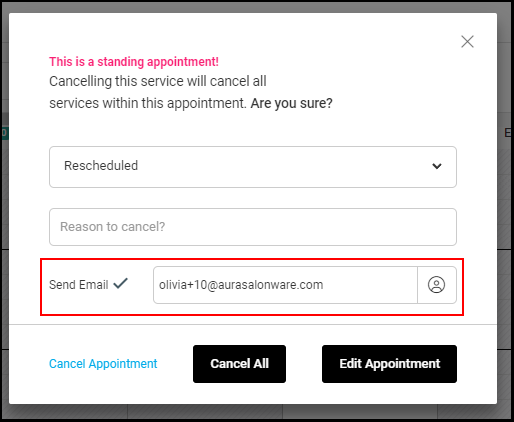
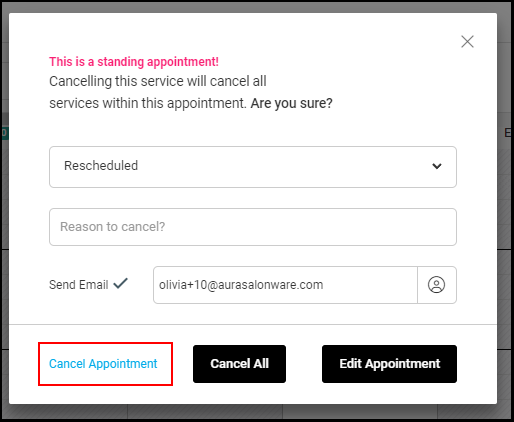
6. Select "Cancel Appointment" if only this one appointment needs to be cancelled.
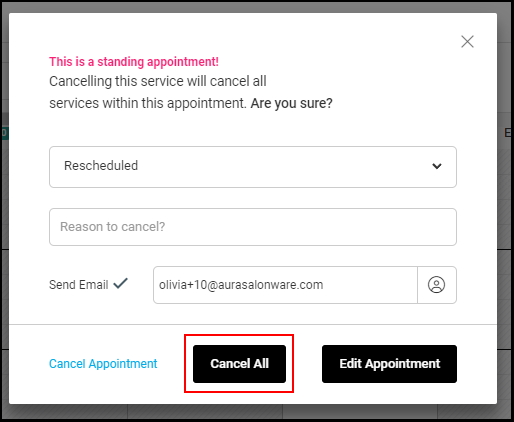
7. Select "Cancel All" if all of the standing appointments need to be cancelled.
Edit a Standing Appointment
1. Find the appointment for the client on the appointment calendar and select it to see the appointment modal.
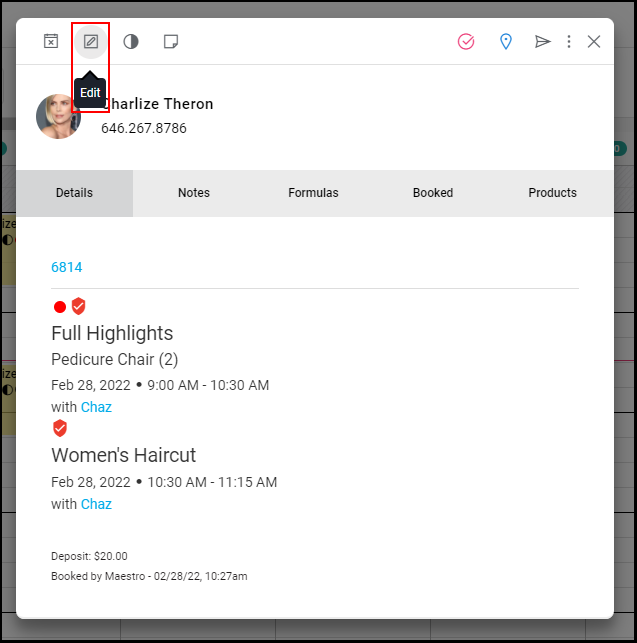
2. Select "Edit" to bring back the booking form to allow for edits to be made to the appointment
3. Make any necessary changes to the appointment within the booking form.
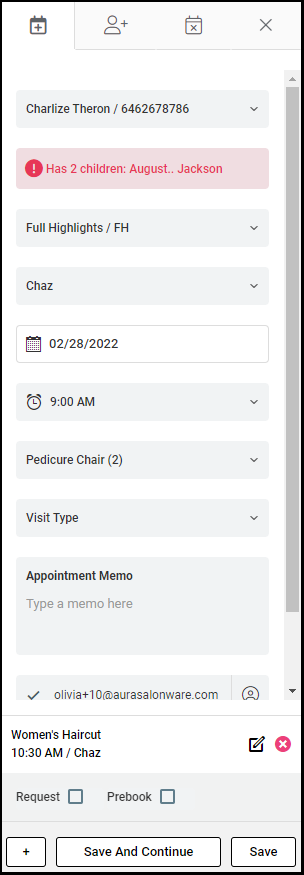
4. If it is a multiservice appointment, select "Save And Continue" to edit the next service.
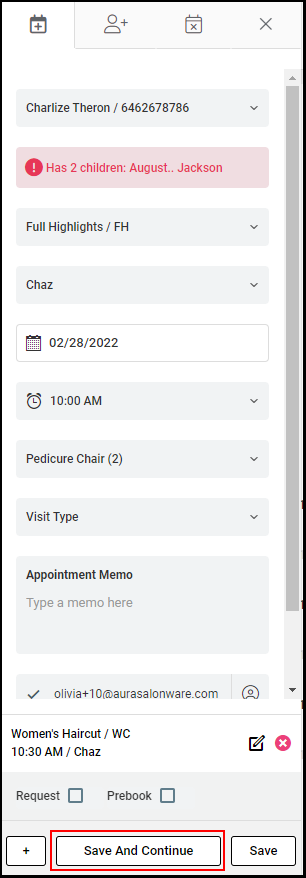
5. Once all edits have been made, select "Save".