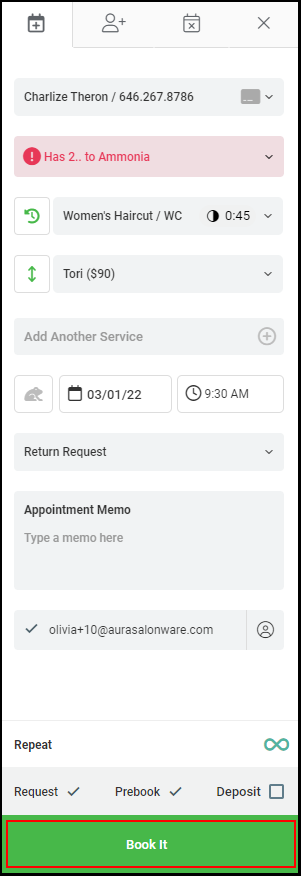
Standing appointments are perfect to use when booking appointments for clients that want to book a recurring appointment for a service or services.
Owners or Managers must enable the Advanced Booking Form in order to be able to book Standing Appointments. The Advanced Booking Form can be enabled by turning on the access in the Salon Settings tab under Access. If it is turned on it is enabled for ALL employees.

Click here to watch the video.
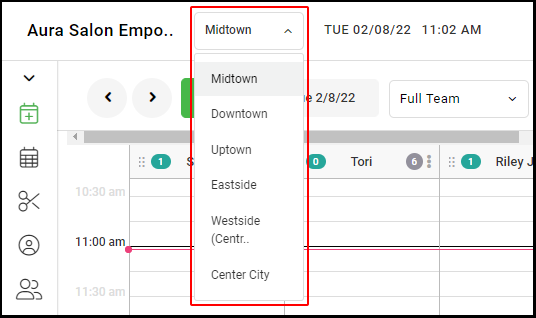
1. If your Salon has multiple locations, select the location at the top left of the screen.
NOTE: If your salon only has one location, skip this step and proceed to step 2
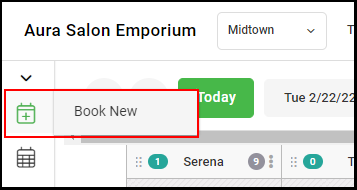
2. Select "Book New".
3. Complete the booking form as usual.
NOTE: For more information on booking an appointment, click HERE.
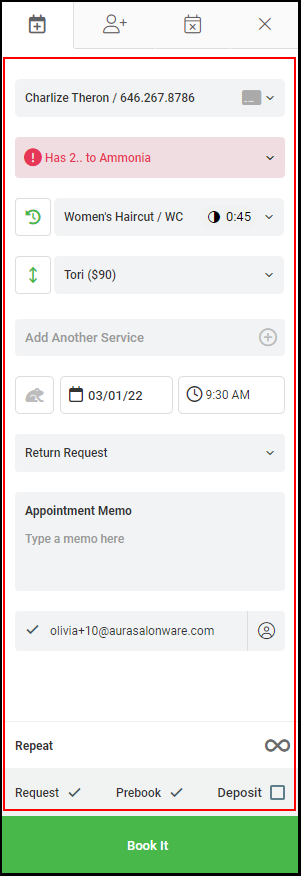
4. Click the "Repeat" infinity icon.
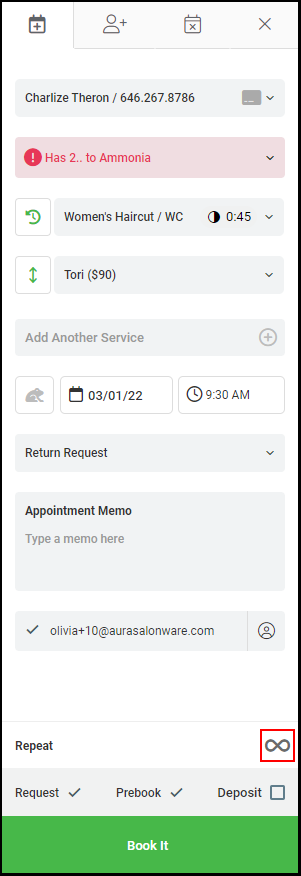
5. Confirm the client name and service and then select the frequency at which the appointments will be booked.
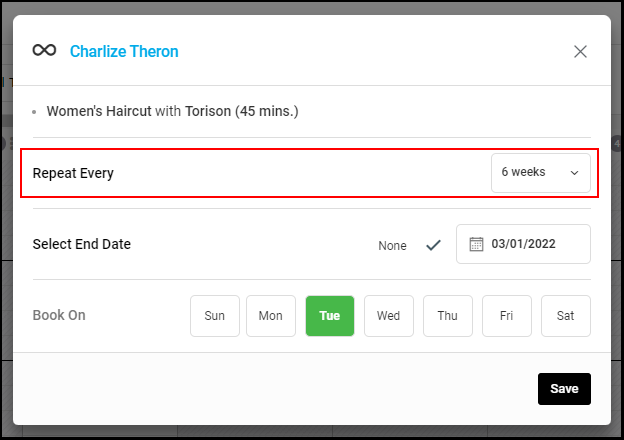
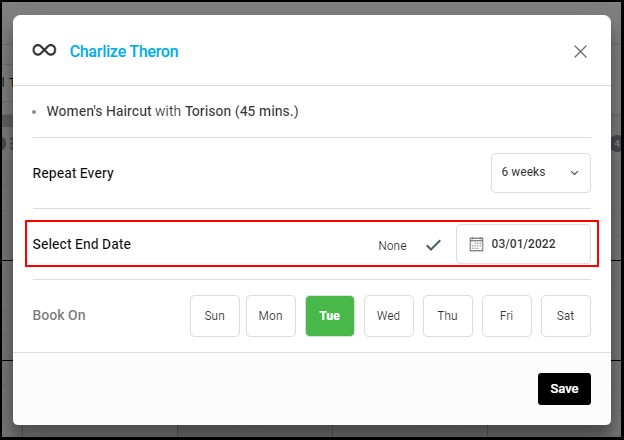
6. Select an end date if there is a day that the standing appointments will end
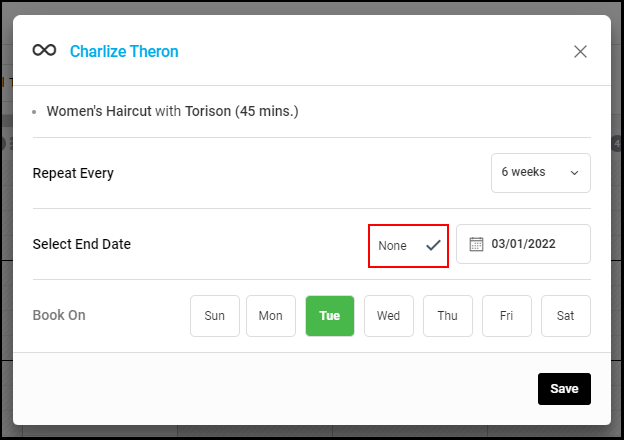
7. If there is no end date and the appointments will be ongoing then select None
8. Select the day that the appointments will be booked on.
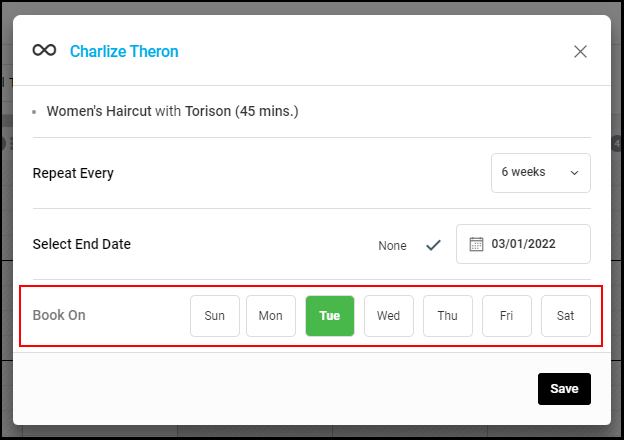
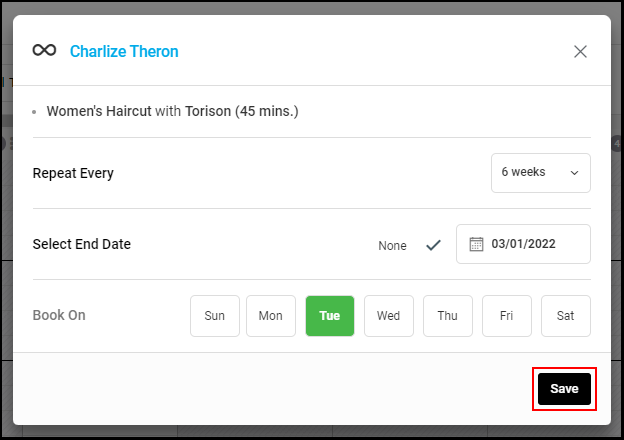
9. Select "Save".
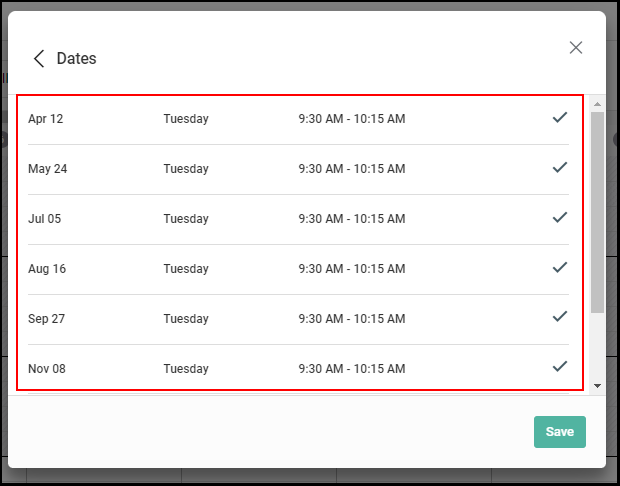
10. All dates, days, and times being scheduled will appear in a pop-up.
NOTE: If there are any scheduling conflicts with the appointment dates chosen a warning will pop up showing all of the conflicting days. The appointment can still be booked with the conflicts and then edited to adjust the conflicts if necessary.
NOTE: Deselect the check box if the client is unavailable for a specific date or time.
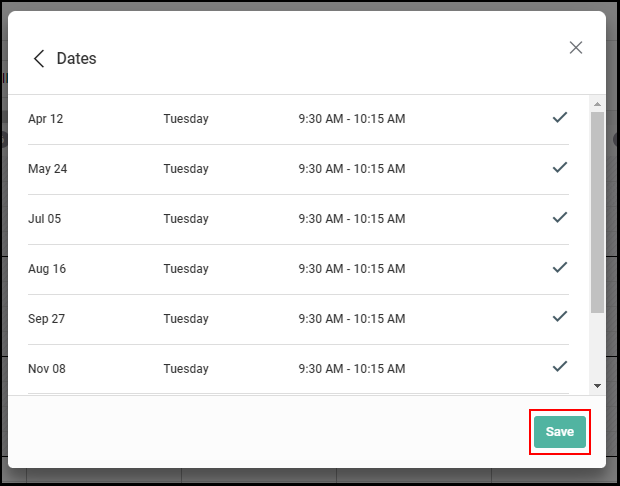
11. If there are no scheduling conflicts then select "Save".
19. Select "Book It" within the booking form to complete appointment booking.
NOTE: The standing appointment "Infinity" icon should now be green to indicate it is a standing appointment.