Click here to watch the video. /
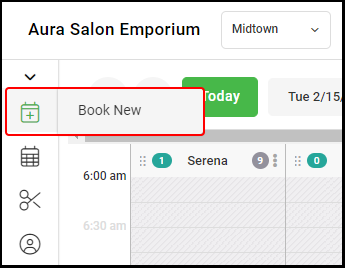
1. Select "Book New" from the left side navigation menu
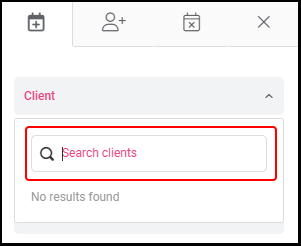
2. Select "Client".
NOTE: Clients can be selected by scrolling, typing client name or typing the last four digits of the cell phone number.
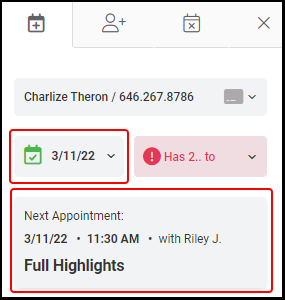
3. Any future appointments booked for the client will be shown. Click on the drop down to view appointment details.
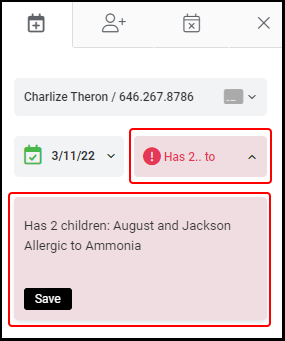
4. Enter or review any existing "Client Notes" to prepare for their visit by selectin the drop down.
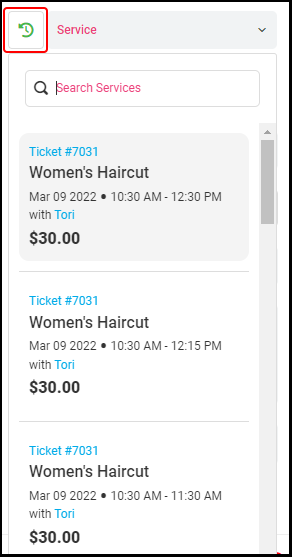
5. To book an appointment from the Client's History, select the "Book from History" icon to the left of "Service". If the client wishes to book a new appointment not within their history,
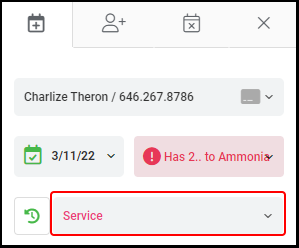
6. Select "Service".
NOTE: Services can be selected by: scrolling, typing the service name, typing the service code
7. To book by "Level", select the up and down arrow, then select the level.
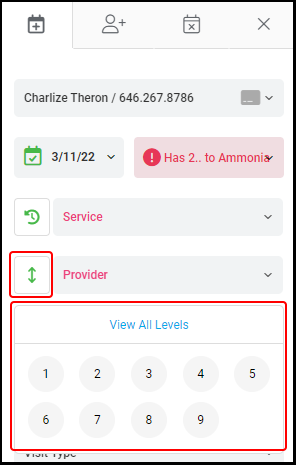
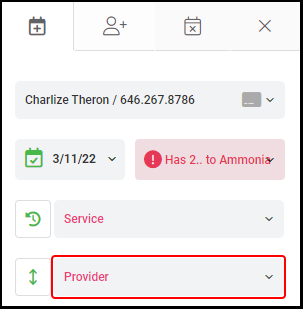
8. Select "Provider", the provider can be selected by scrolling or typing the provider's name
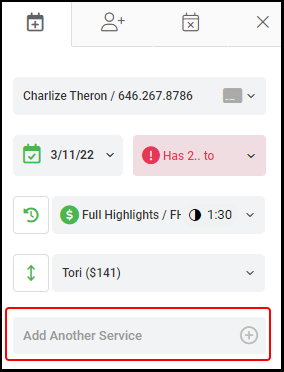
9. Select "Add Another Service" to book a multi-service appointment. Repeat steps #7 and #8 for the additional service.
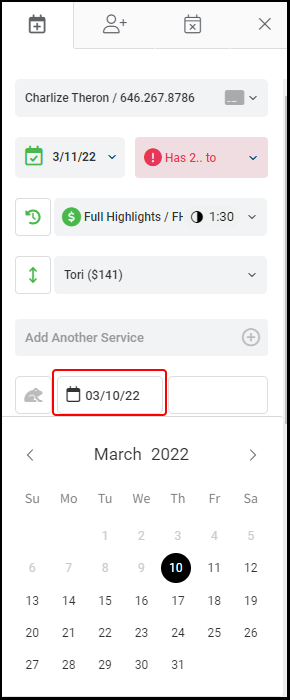
10. Select the "Date" of the service from the calendar.
NOTE: To jump ahead weeks, use the "Week Hopper" tool to the left of the date picker.
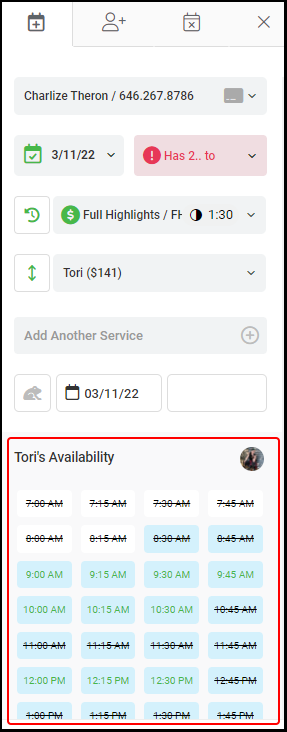
11. The providers availability for the service and date will be shown. Choose from an open time which is denoted by a blue box with green text.
12. Select the "Visit Type" from the drop down.
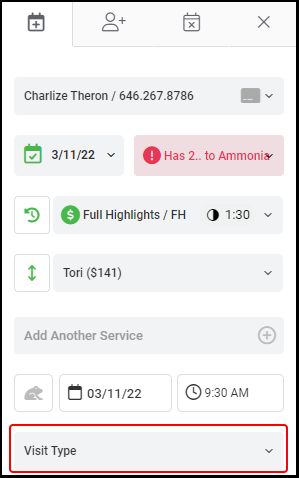
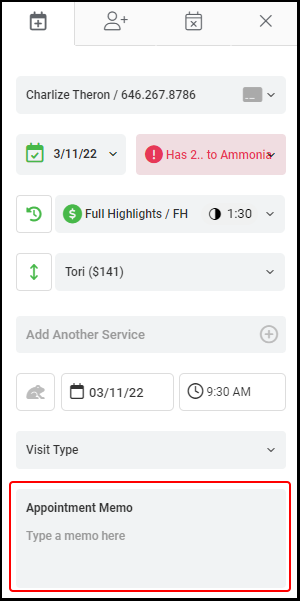
13. Enter any "Appointment Memos".
NOTE: Appointment memos are for specific appointments, where as Client Notes live within their client profile and appear on every appointment.
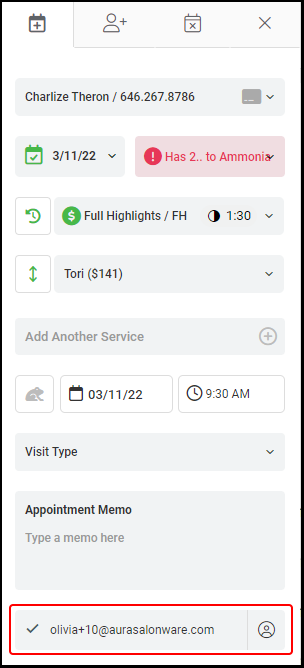
14. Check the box adjacent to the Client's email to send appointment details to the client via email.
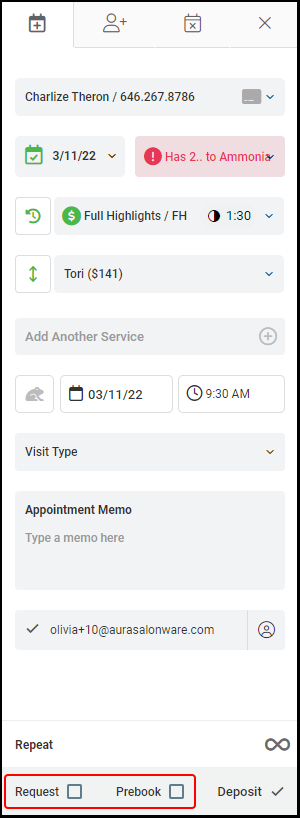
15. Select the checkbox adjacent to "Request" and "Prebook" if applicable.
16. Select "Book It" or "Proceed to Collect Deposit" if the appointment requires a deposit.
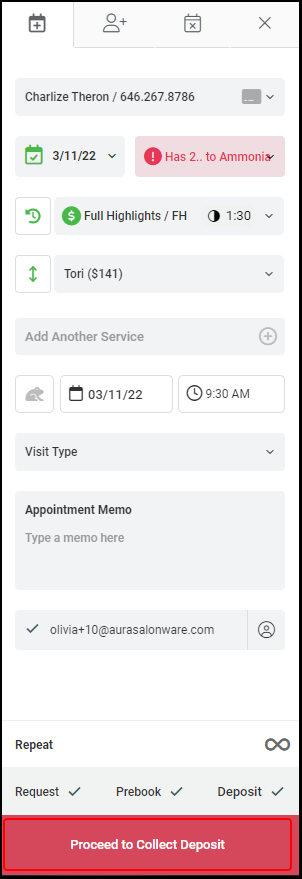
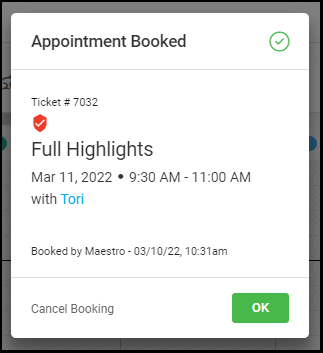
17. If the appointment does not require a deposit, a booking confirmation pop up will appear and the appointment is booked.
If the appointment does require a deposit, select how the client will be paying for the deposit, then select "Apply Deposit and Book".
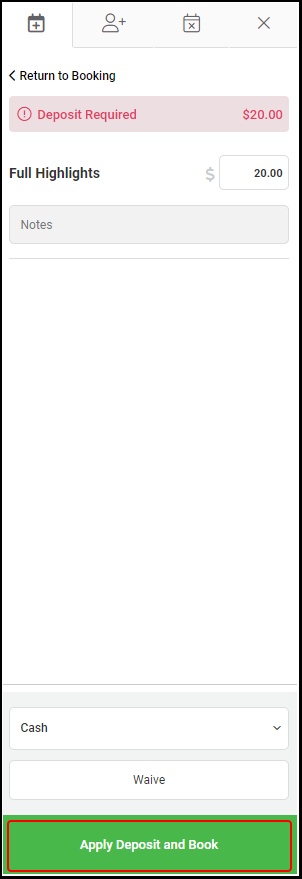
18. The appointment is now booked.