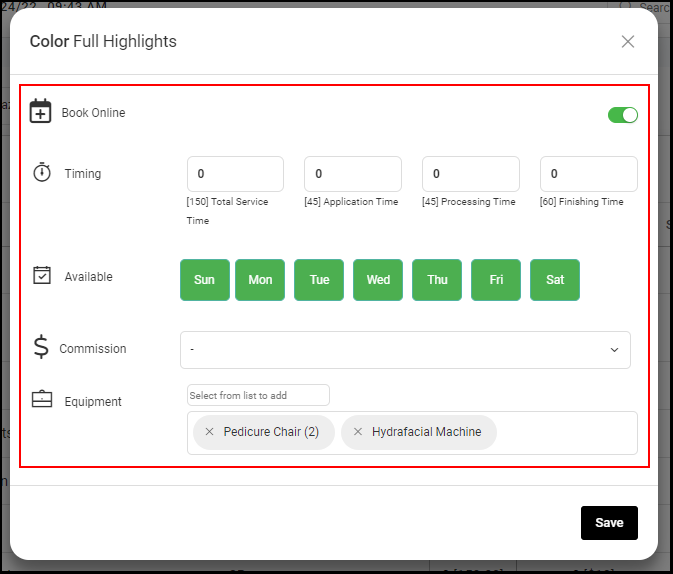
*Note: Total Service Time must = Application + Process + Finish time, always. Not doing so will cause an erroneous message stating that an appointment conflicts with an existing appointment.
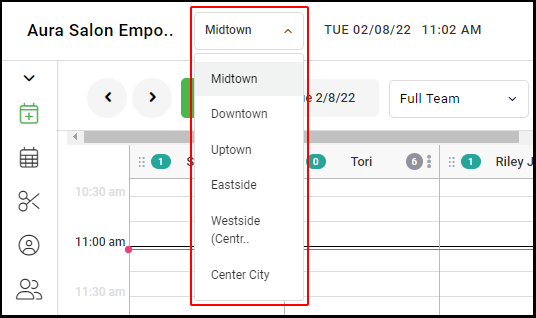
1. If your Salon has multiple locations, select the location using the drop-down menu on the top left of the screen upon logging in.
NOTE: If your salon only has one location, skip this step and proceed to step 2
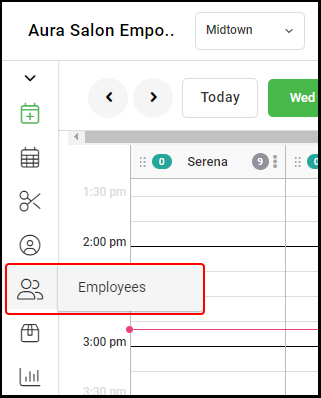
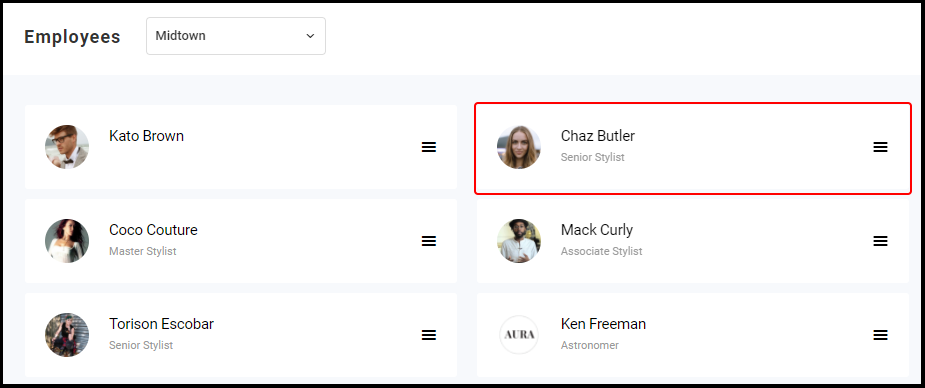
2. Select "Employees" from the left side navigation menu
3. Select the name of the employee.
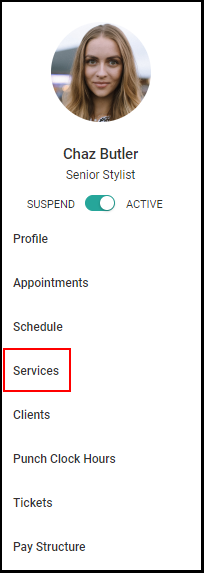
4. Select "Services" on the navigation menu under the employee's profile picture.
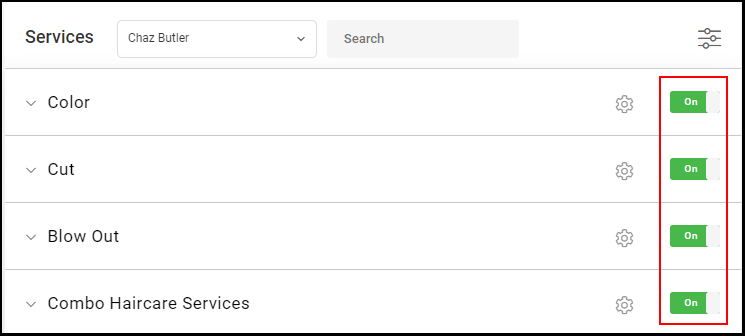
5. All Service Categories will be defaulted to "ON." This indicates that the employee provides services within the category. To disable a service category for an employee, switch the toggle to "OFF."
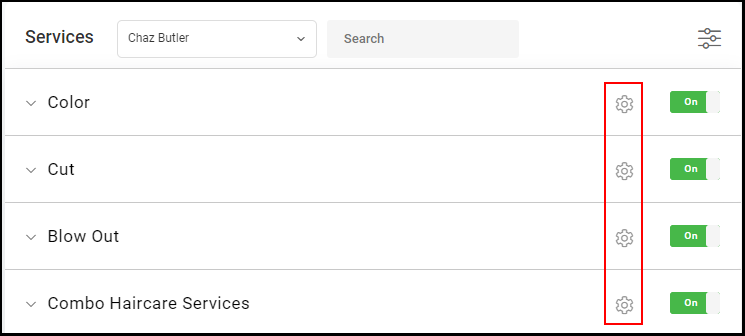
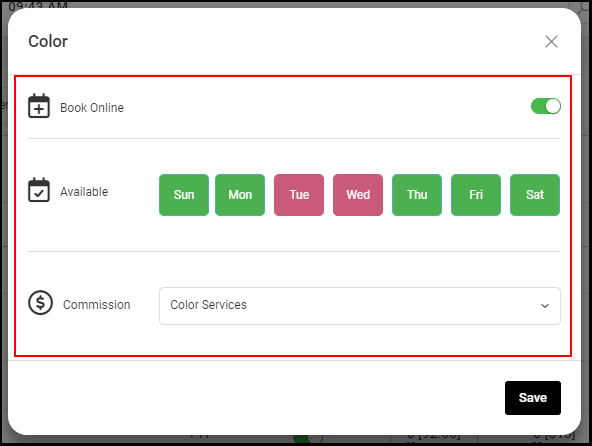
6. By selecting the "Settings" dial to the far right of the service category, users can customize the employee's Book Online availability, Availability, and Commission for each service category.
NOTE: Any settings within the service category will overwrite the settings of the individual services.
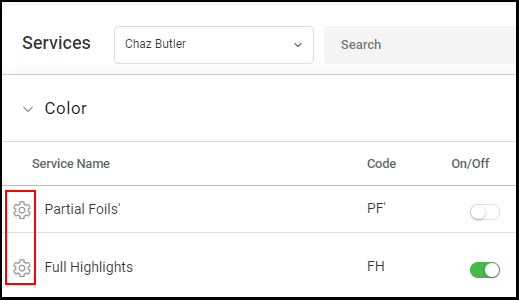
6. Within each category, you can disable a specific service by switching the ON/OFF toggle to "OFF" on the specific service line so that it changes from green to white.
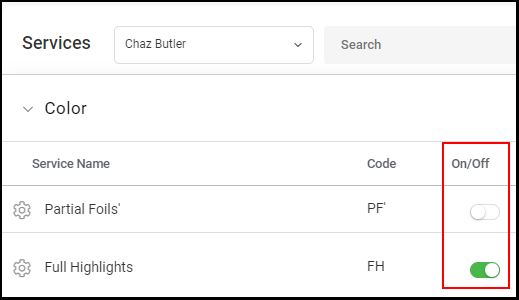
7. By selecting the "Settings" dial to the left of the service name, users can customize the employee's Book Online availability, Service Timing, Availability, Commission, and Equipment for each individual service.
NOTE: The Salon's Default Service Settings can be found in the brackets. If the stylist's setting match the salon's default settings then no updates are needed.
NOTE: Time should be entered in increments of 15 minutes (i.e. 75 minutes).