Aura Salonware will be releasing the following system updates on February 23, 2022
Watch the Aura Academy Release Preview recording HERE.
Upcoming Releases:
System updates include, but are not limited to...
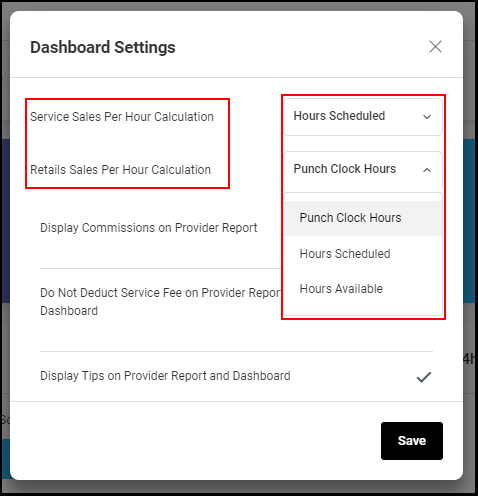
Service Sales Per Hour and Retail Sales Per Hour in Dashboard Settings
Select how you would like your Aura dashboard to calculate the Service and the Retail Sales Per Hour. For each one, you have the choice of calculating based upon the following:
a. Punch Clock Hours: The time that employees are clocked into Aura using the punch clock feature
b. Hours Scheduled: Total hours scheduled
c. Hours Available: Total hours scheduled minus blocks
Learn more here.
Forms
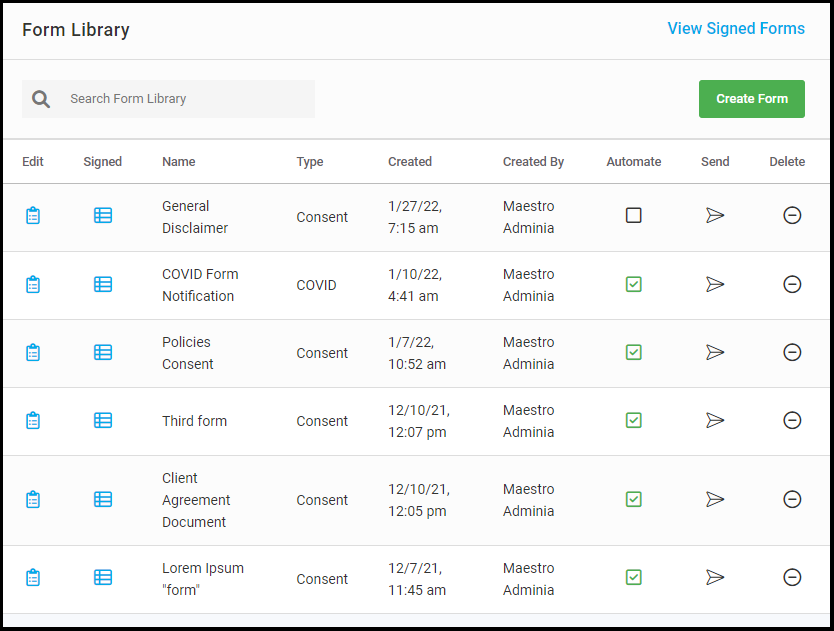
Aura’s form builder empowers businesses to create and store custom consent forms with electronic signatures directly in their site. Forms can be automatically sent with each booking via SMS, manually sent out by a team member, or displayed on a tablet for in person signings.
Aura Salonware is releasing the form builder in phases and there will be no additional cost associated with enabling the form builder at this time. When all phases of the form builder are complete, Aura’s forms feature will be an optional power up with an associated fee. All fees will be communicated to business owners prior to implementation.
Please note that any forms sent to guest via SMS will be counted toward your monthly SMS allotment. Please email support@aurasalonware.com if you have any questions regarding your current SMS plan.
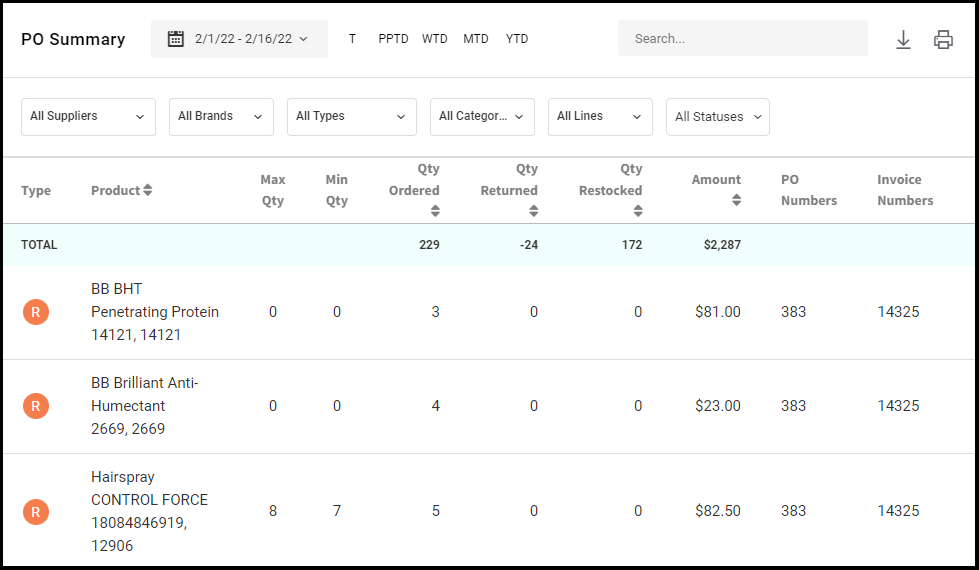
Purchase Order Summary
To access the Purchase Order Report, navigate to Marketing > Purchase Orders > Select the “Summary” button on the top right. The PO Summary shows a detail view of all the products that have been added to a purchase order for any custom date range.
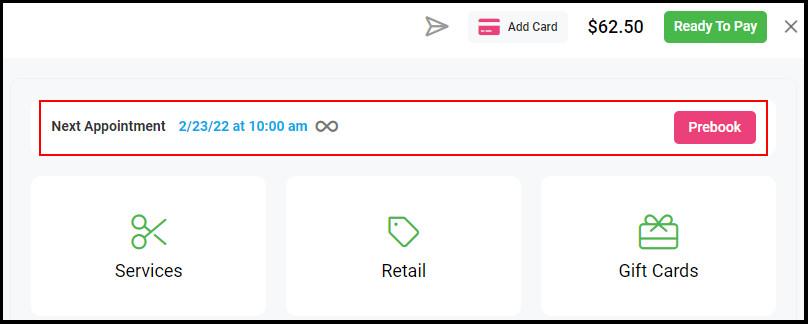
Next Appointment & Pre-Booking on Ticket
If a client has their next appointment scheduled it will be displayed within the ticket screen. Salons also have the option to pre-book client’s directly from the ticket.
User Specific Permissions
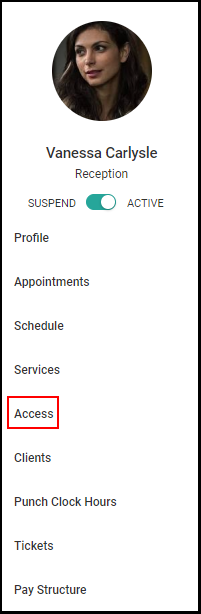
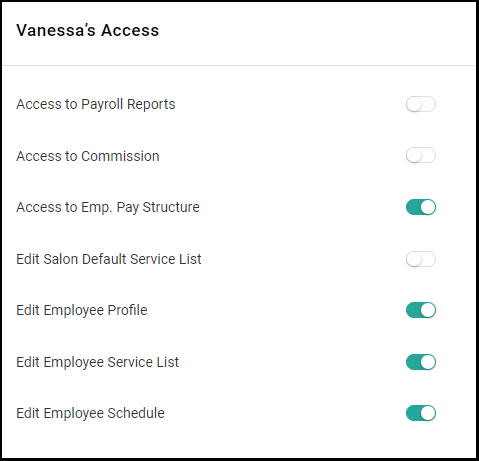
Reception and management personnel now have "Access" settings within their employee profile. Navigate to the designated employee, and select "Access" from the side menu to view or make edits.
NOTE: Management cannot edit other managers' access.