We are excited to announce the following AURA Salonware System updates!
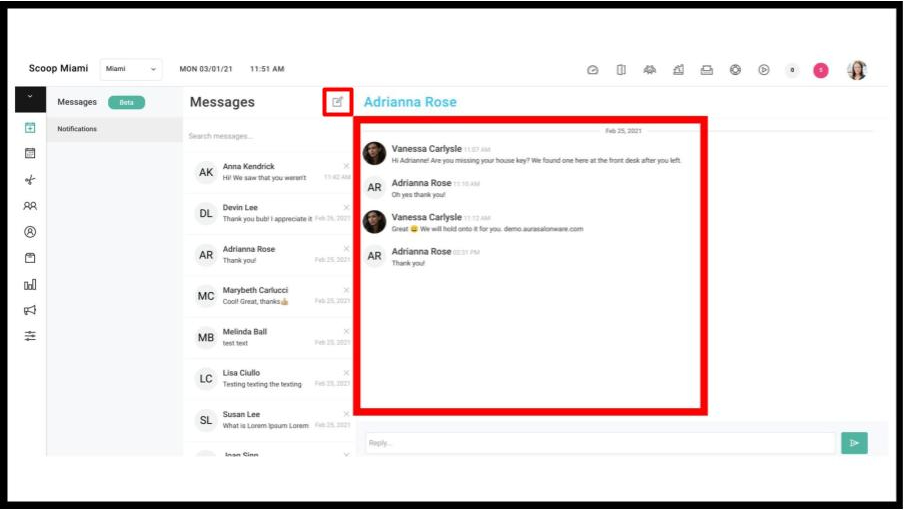
Initiate Text Messaging in Two Way Text Messaging
Owners and Managers can initiate a text message conversation with clients using two way text messaging. Reception access can be enabled from the Access tab under Salon Settings.
Arrival Text Customization
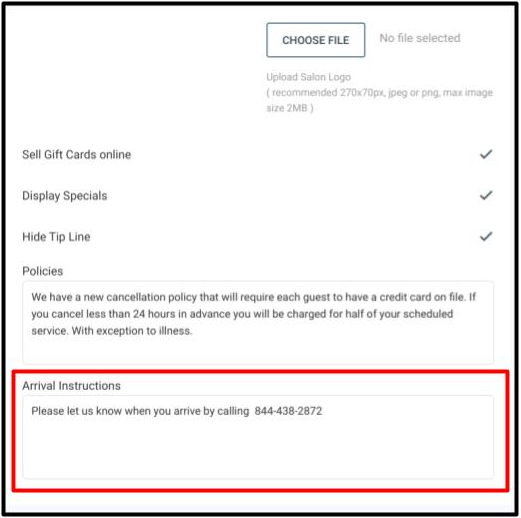
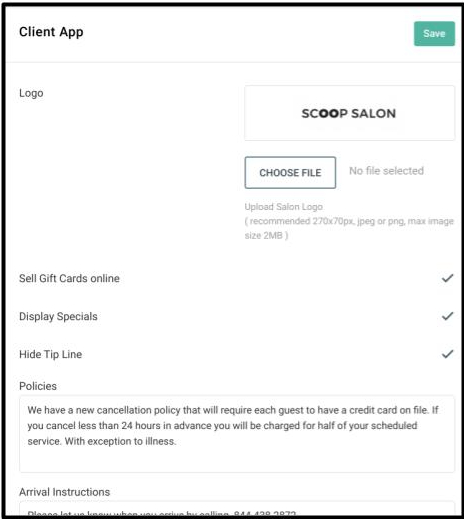
Owners and Managers can customize part of Arrival Texts to include arrival instructions. An Arrival Instructions field has been added to the Client App Settings so customized instructions can be created for clients to use when they arrive at the salon.
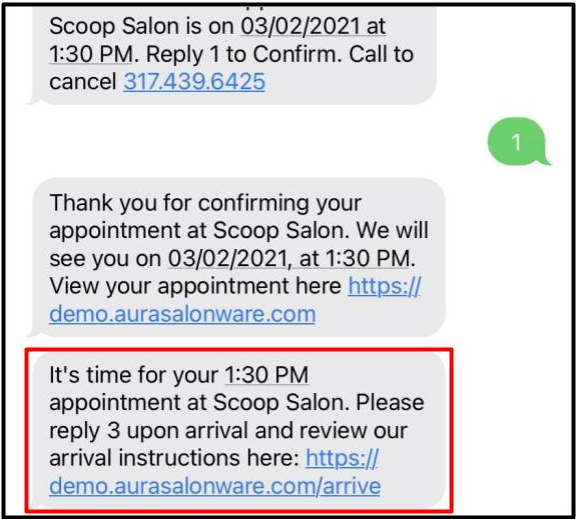
The language of Arrival Texts has been changed from “It’s almost time for your (appt start time) at (salon name). Reply 3 when you arrived” to “It’s time for your (appt start time) appointment at (salon name). Please reply 3 upon arrival and review our arrival instructions here: [Salon Code].aurasalonware.com/arrive”
When a client receives an Arrival Text, the salon's URL [Salon Code].aurasalonware.com/arrive with arrival instructions will be included.
Punch Clock Hours Report Update
Owners and Managers can download the Punch Clock Hours report to a .csv file
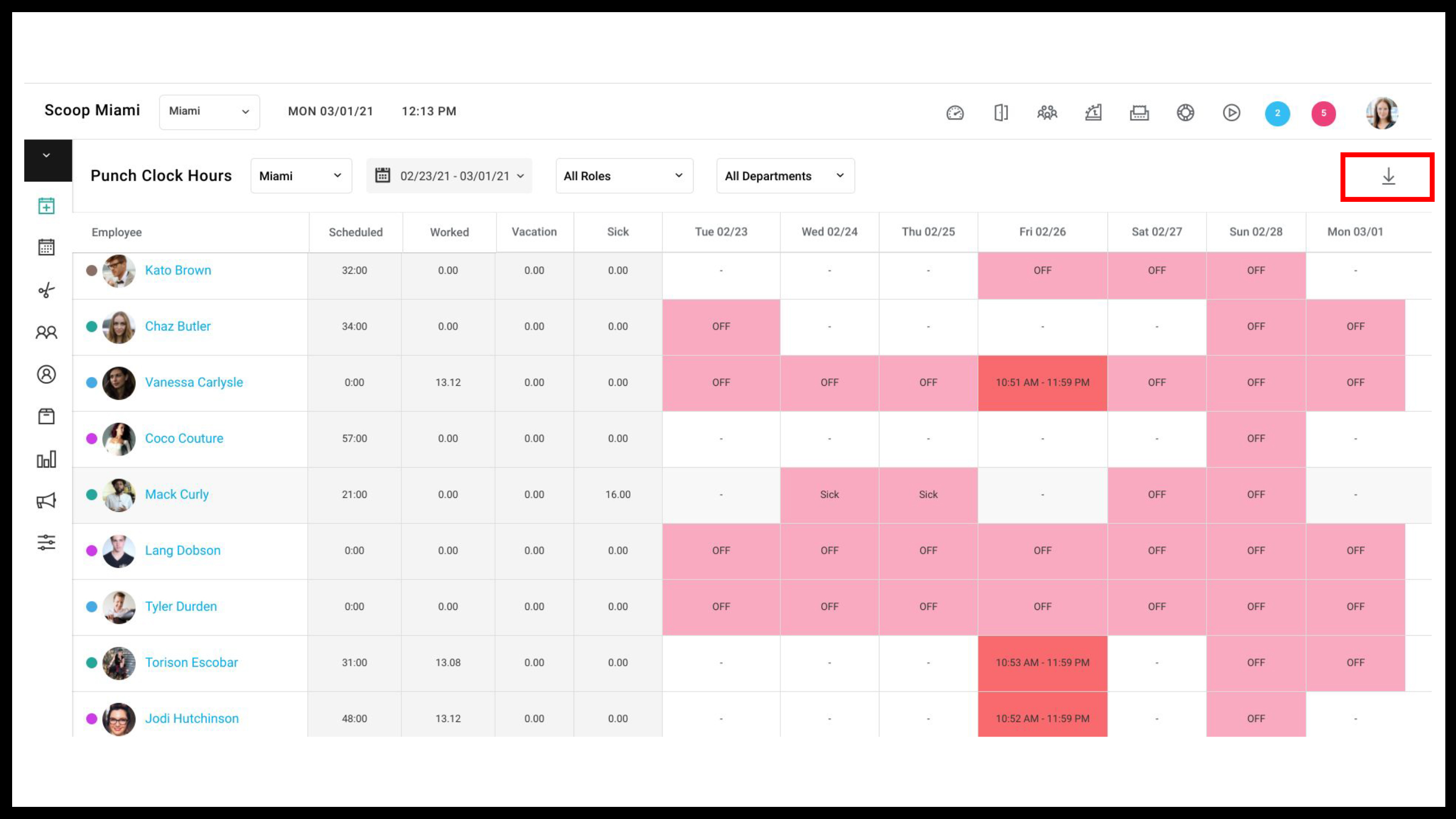
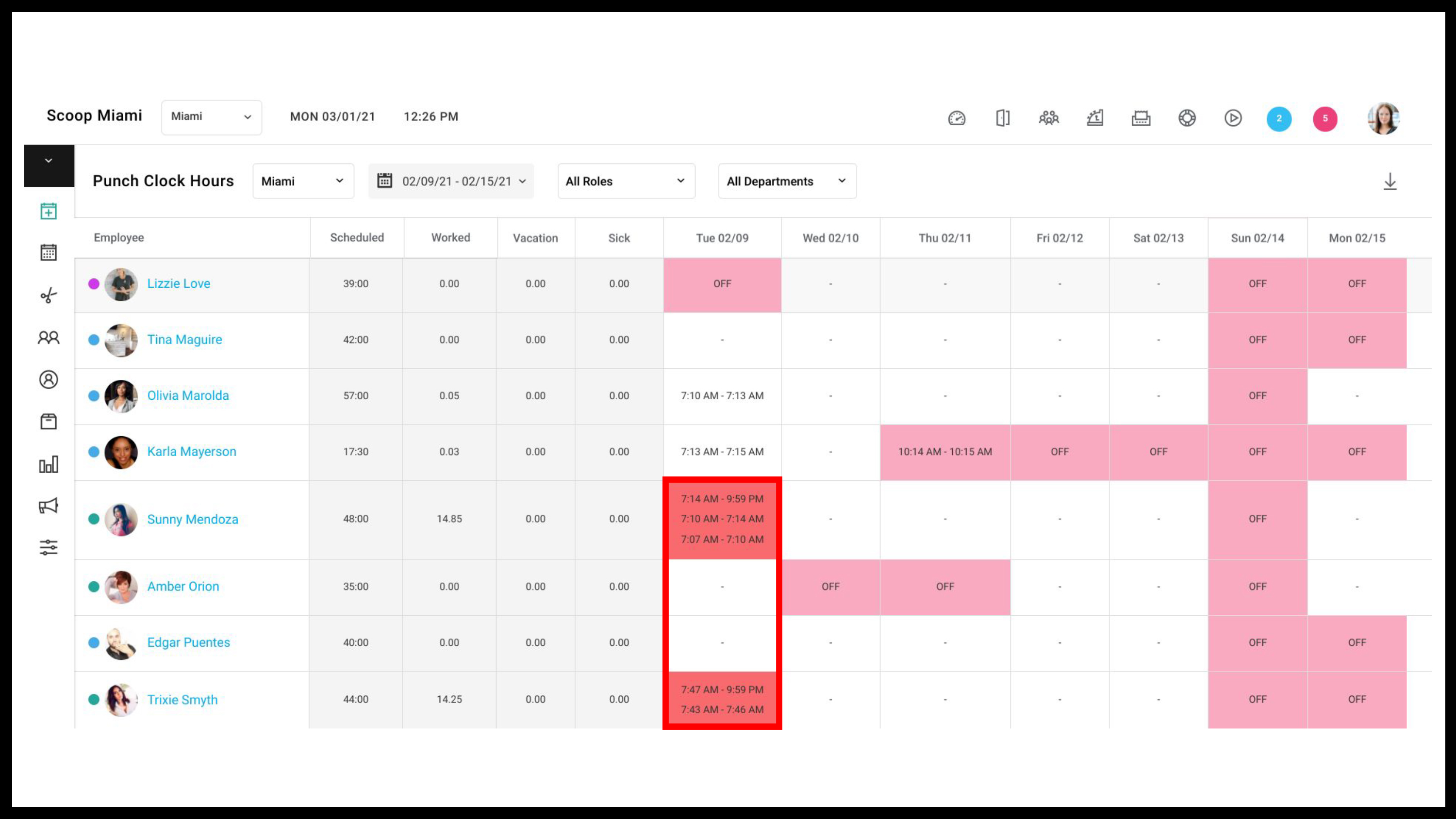
Owners and Managers can now view each clock in and clock out for the day
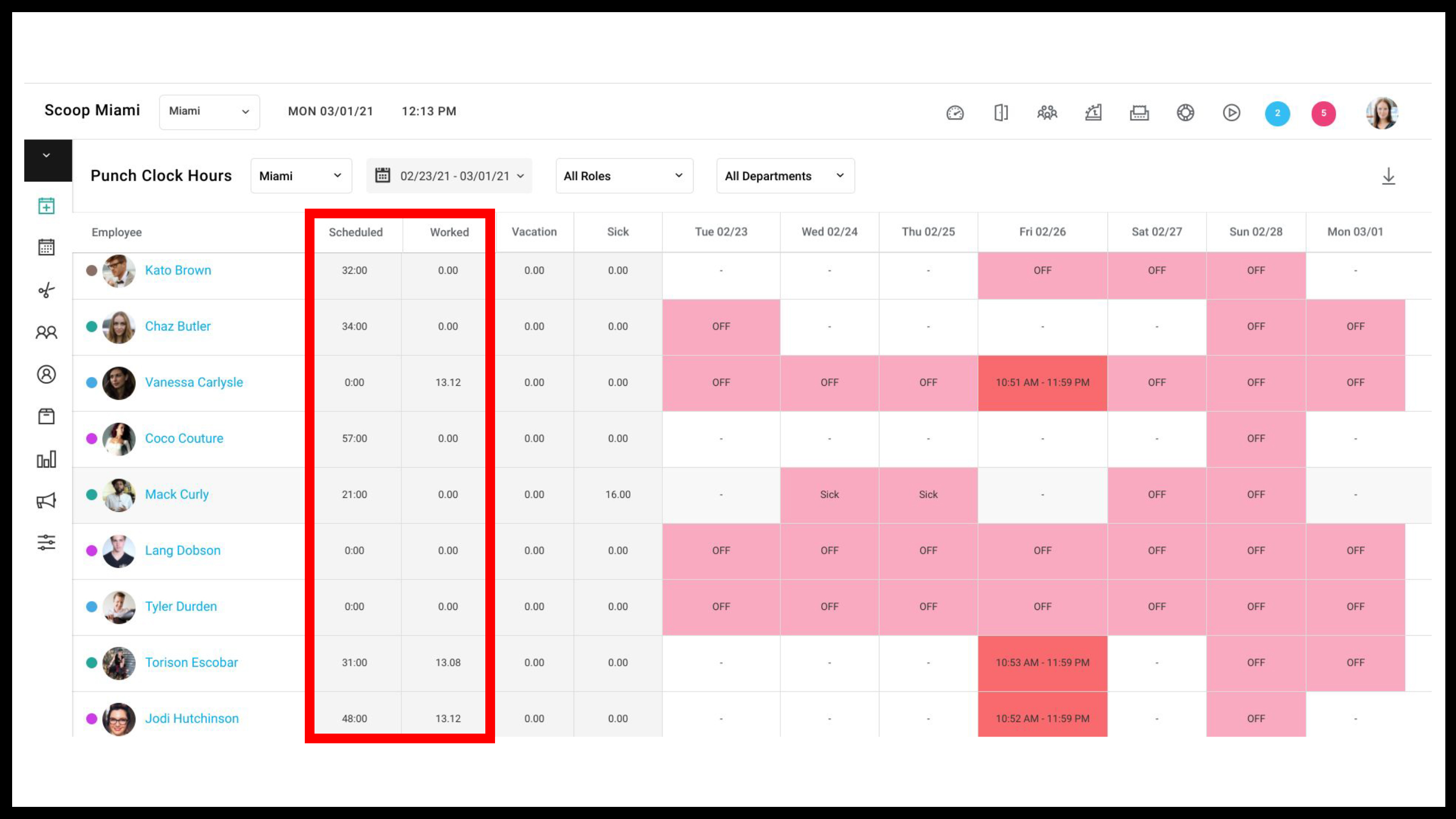
Total Hours Scheduled and Total Hours Worked are next to an Employee's name
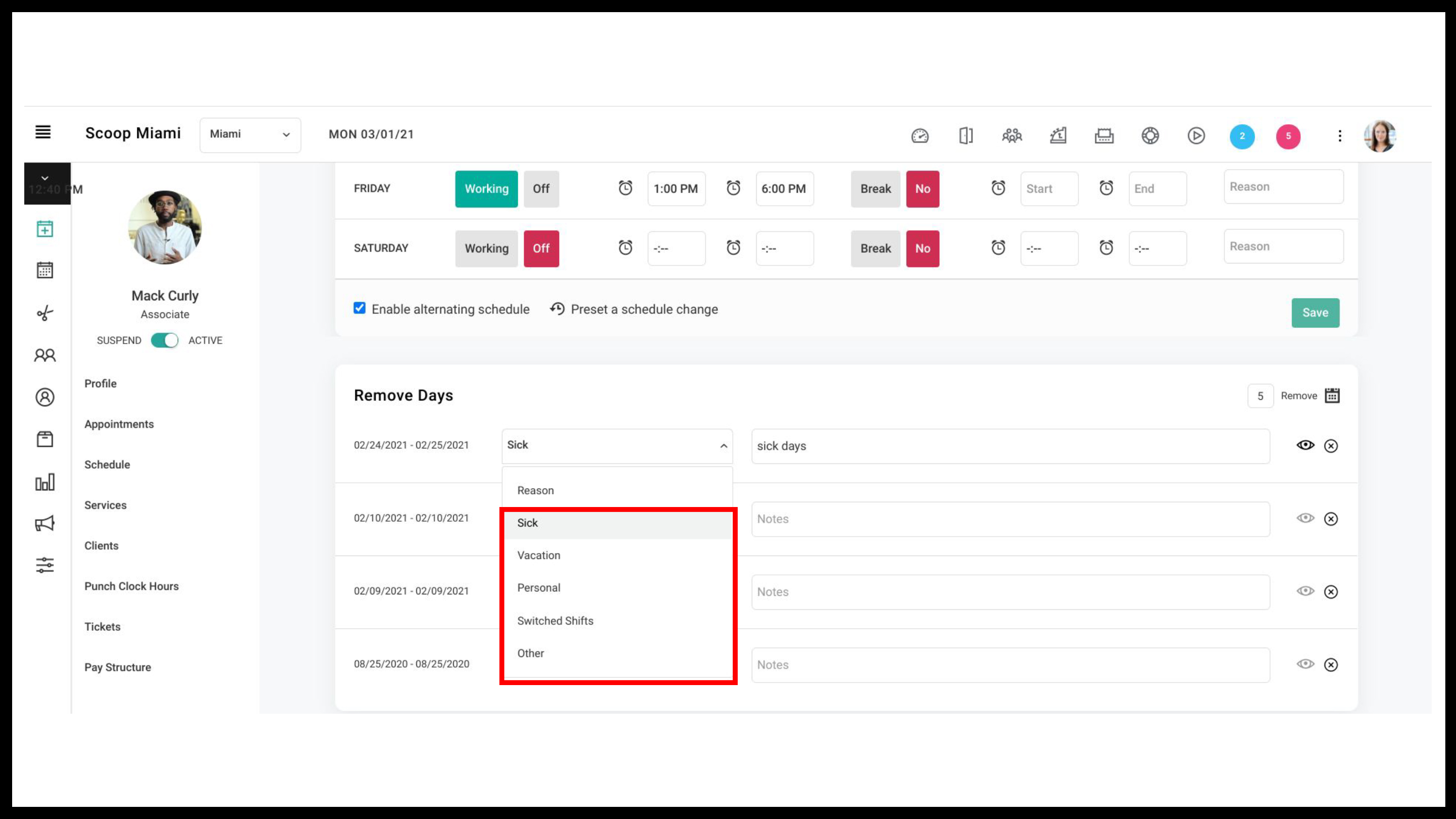
Tracking Sick and Vacation Days
Owners and Managers can track sick and vacation days by selecting the applicable reason on the drop down menu under “Remove Days” in an Employee’s schedule in their profile
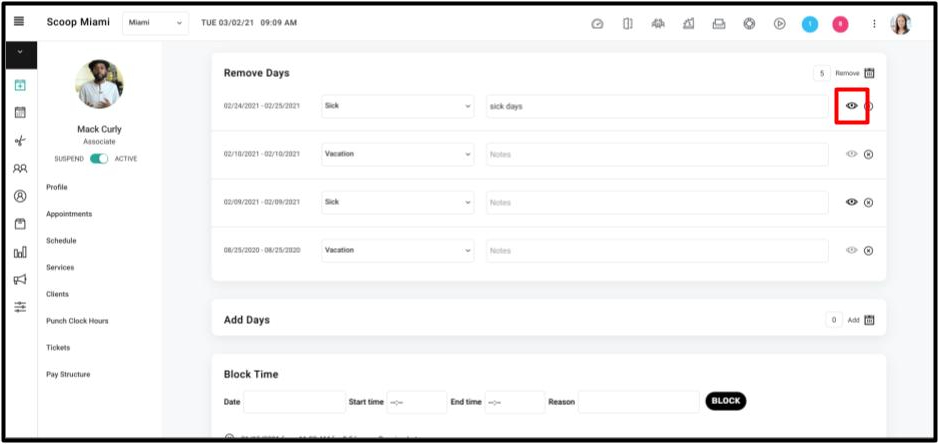
Removed days can also be viewed or hidden on the calendar by selecting the View icon
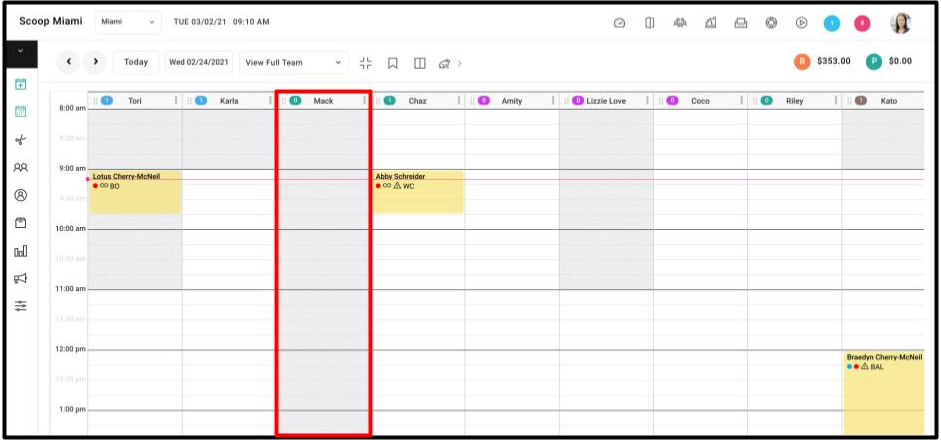
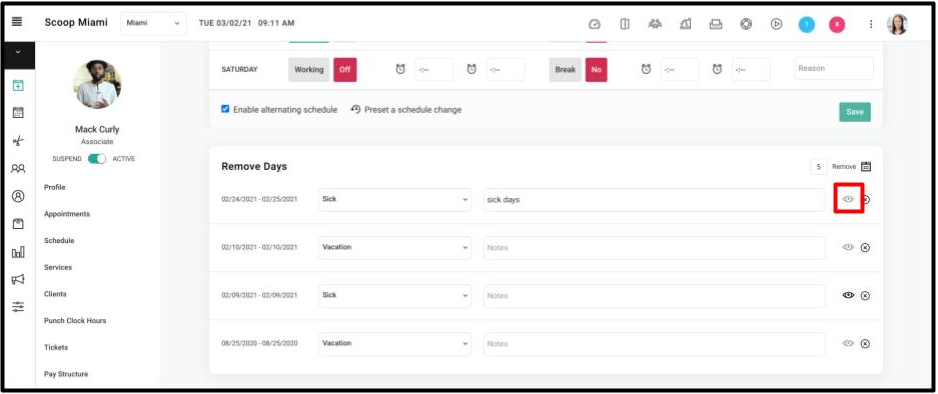
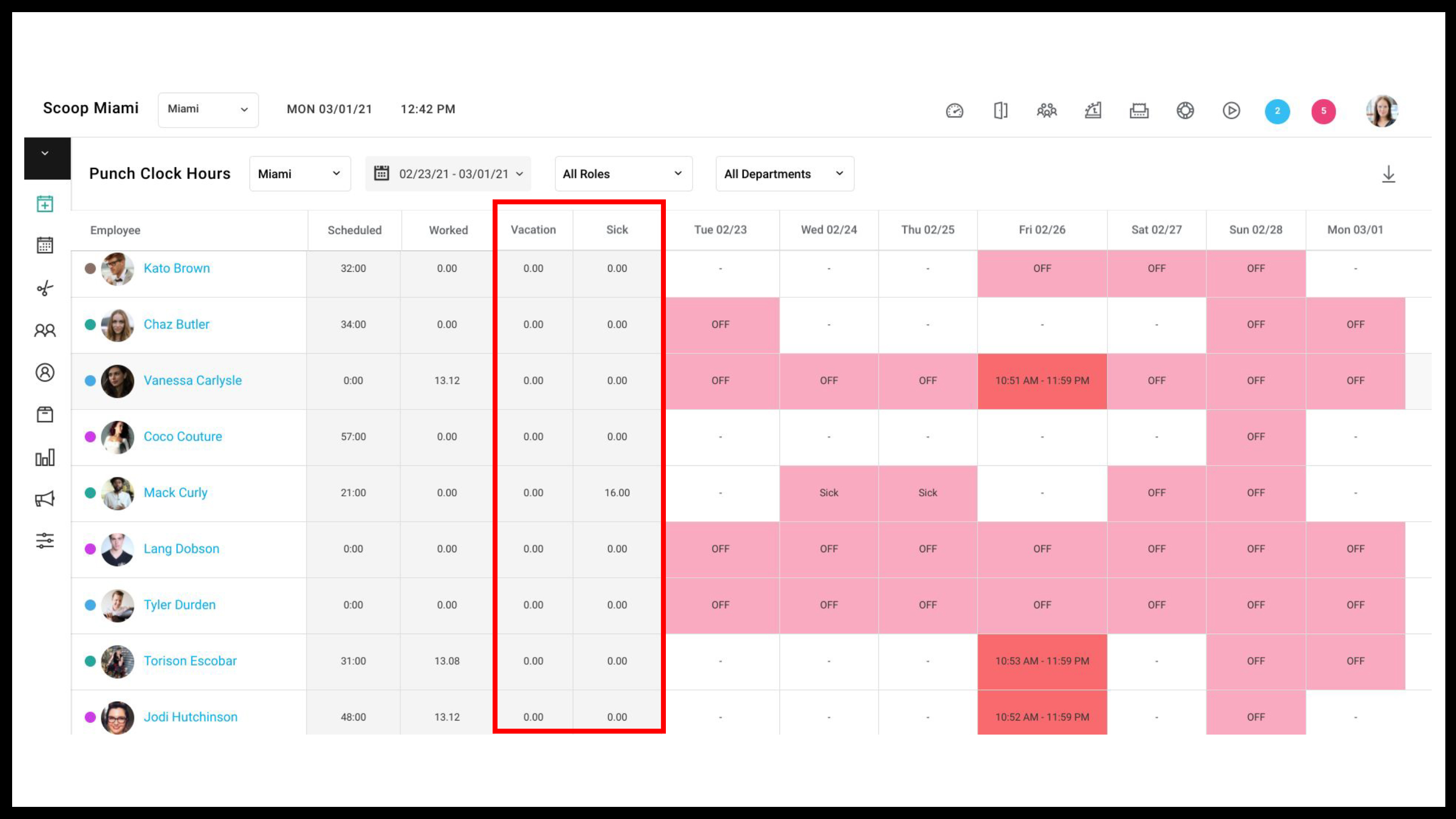
The total hours associated with sick and vacation days will be reflected in the Punch Clock Hours Report
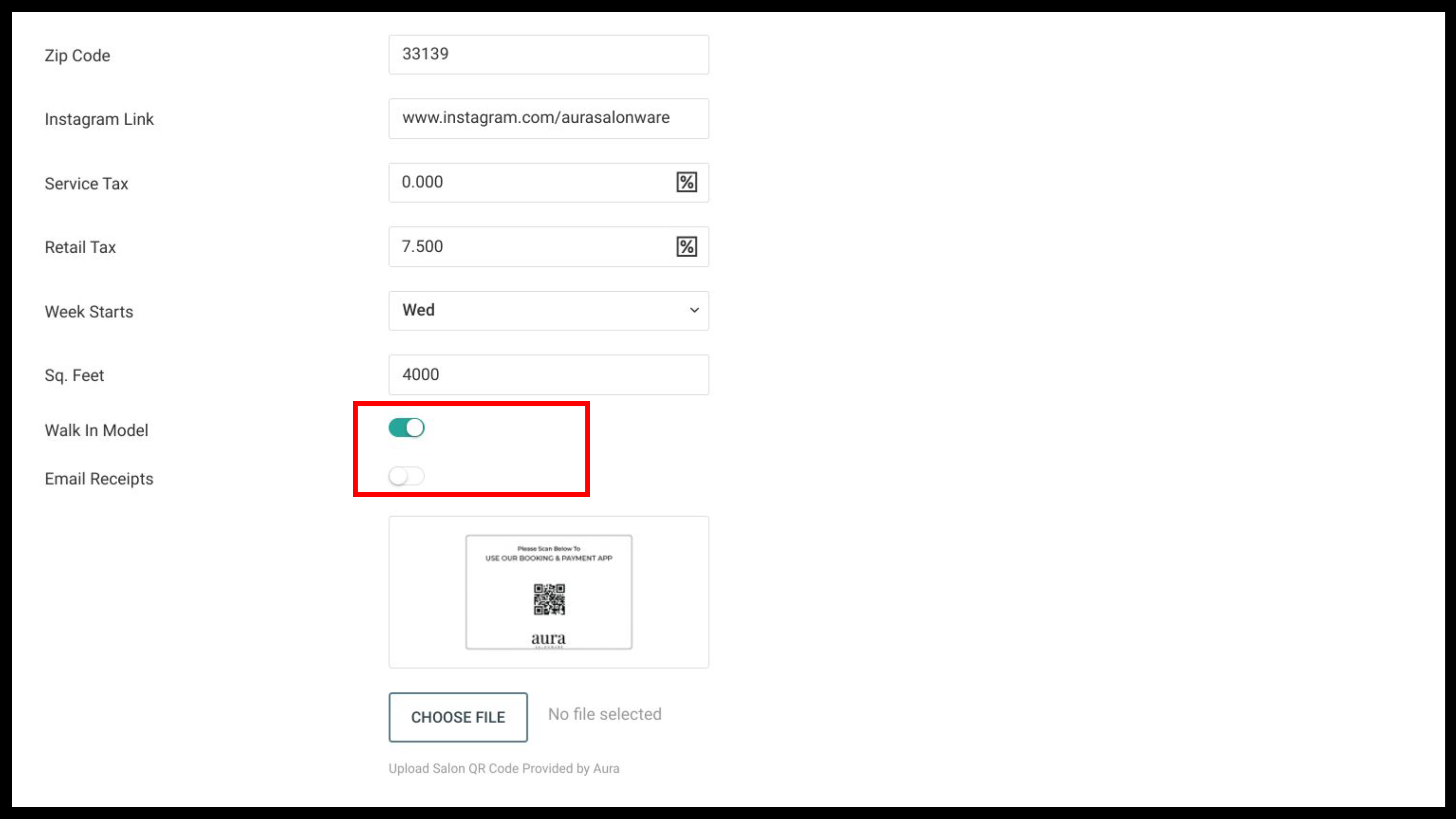
Email Receipts Toggle
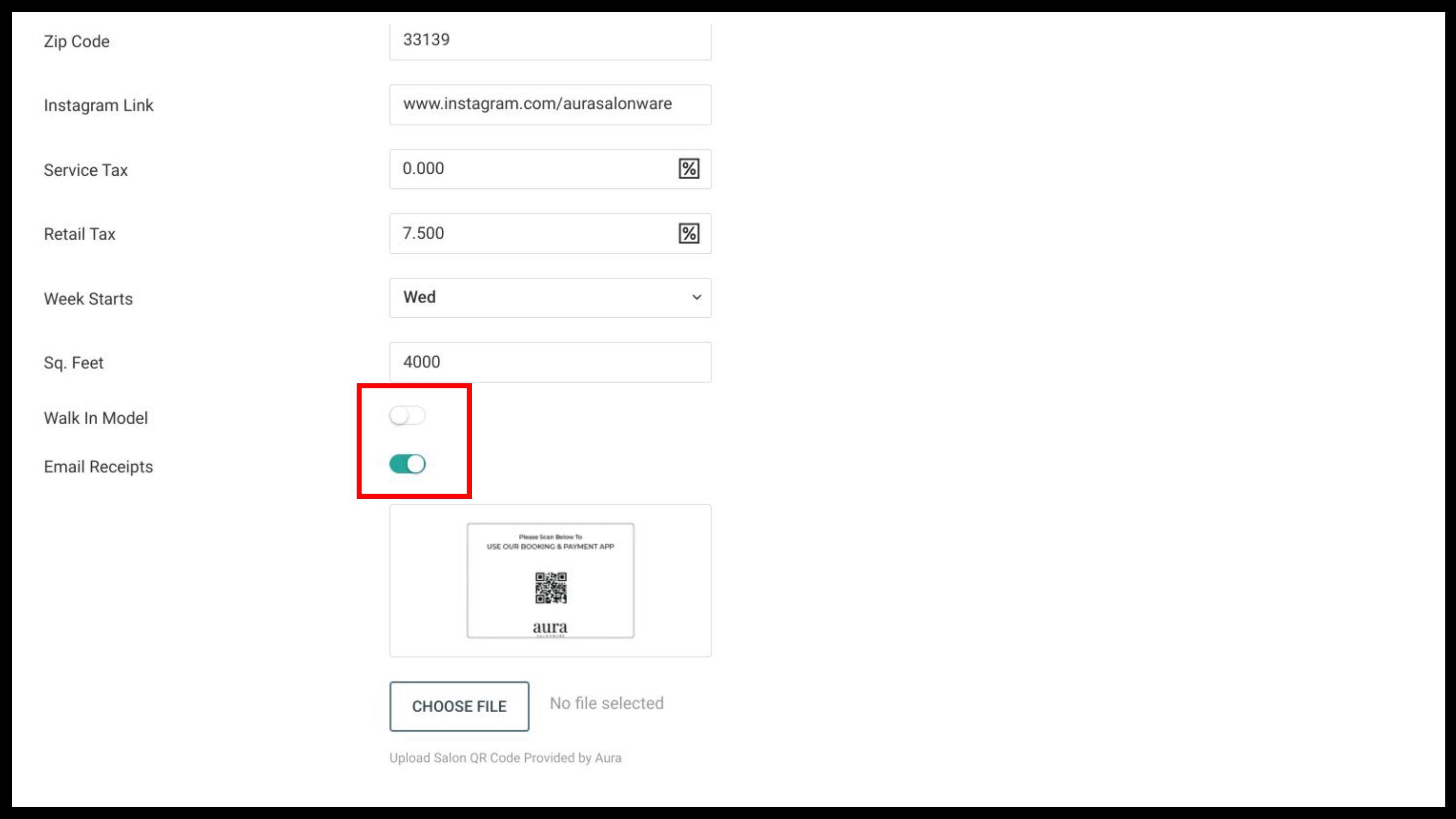
Owners and Managers can enable the email receipt checkbox on the ready to pay screen to be checked by default by selecting the Email Receipts toggle under Profile in the Salon Settings tab
If enabled, the email receipt checkbox on the Ready to Pay screen will be checked by default. If disabled, the email receipt will be unchecked on the Ready to Pay screen for all tickets by default.This setting will be enabled by default.
Walk In Process
Owners and Managers can turn on the Walk in Model in the Profile tab of Salon Settings
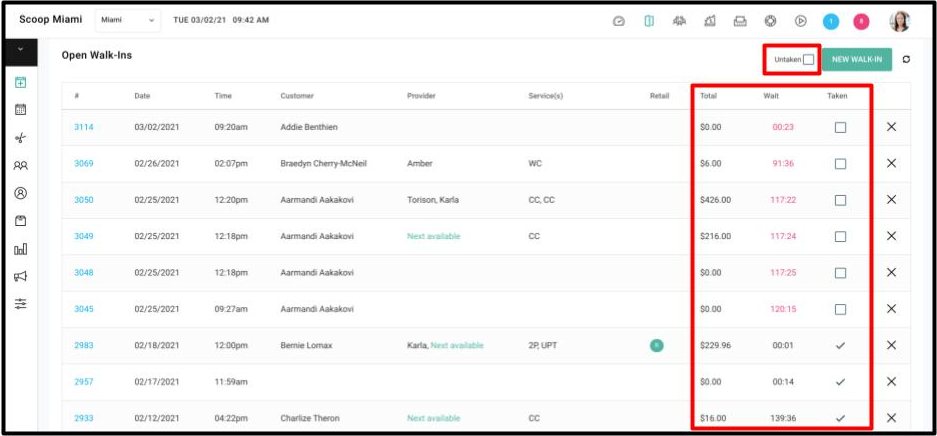
If this feature is enabled, then the following columns will display on the open walk in page: Wait Column, Taken Column, and an Untaken Checkbox column. If this feature is disabled, then the Wait column, Taken column, and Untaken Checkbox column will be hidden from the open walk in page. The “Wait Time” reflects the time the client has been waiting since the ticket was created.
Add Service to All Locations
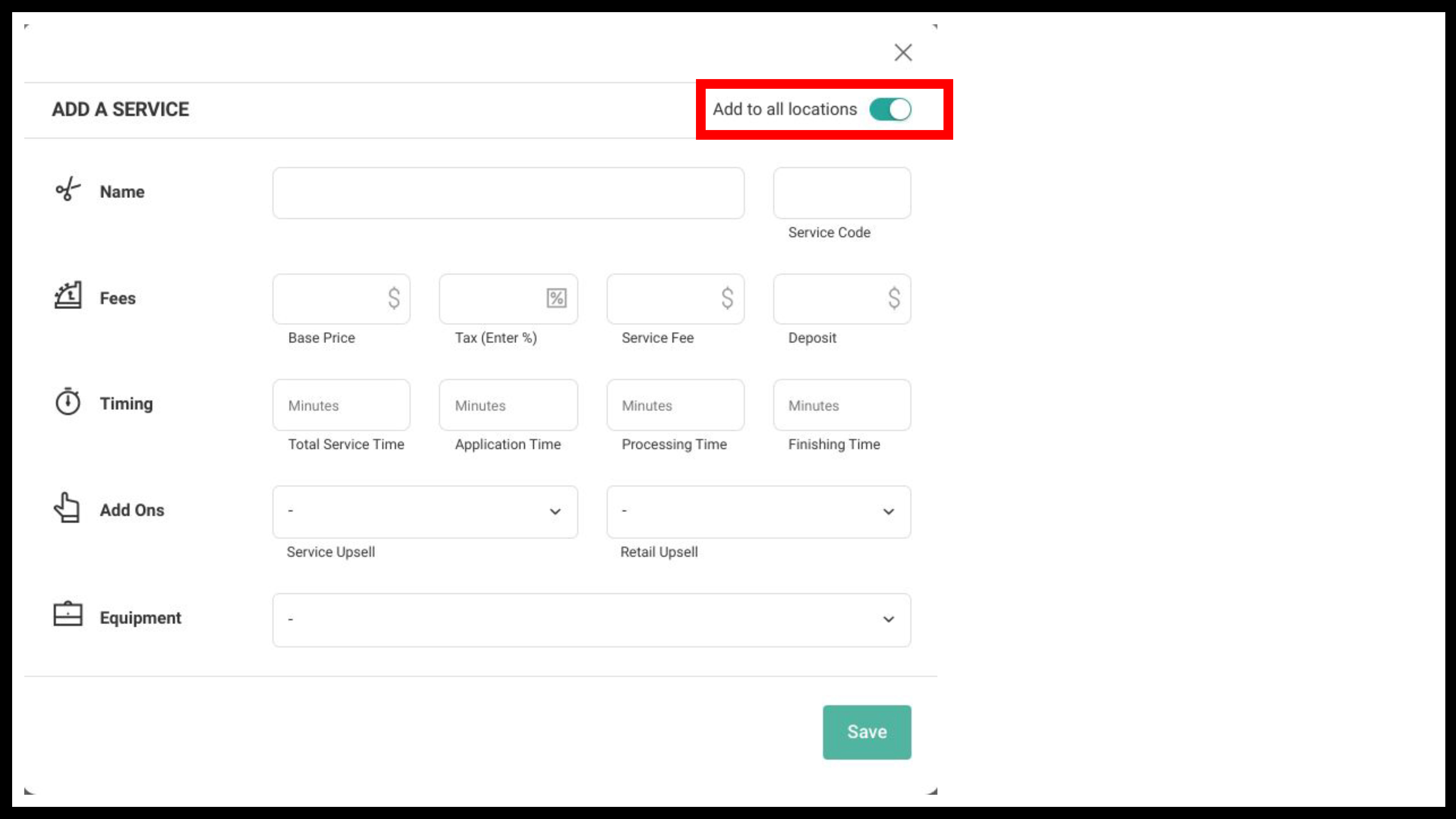
Owners and Managers can add services to all salon locations when the “Add to All Locations” toggle is selected when creating a new service
If equipment or upsells do not exist at the other location, then equipment/upsells are not added to that service at the other location. If the upsells or equipment exist at other locations they are attached to the service.
Display 'Other' Payment Method Access Item
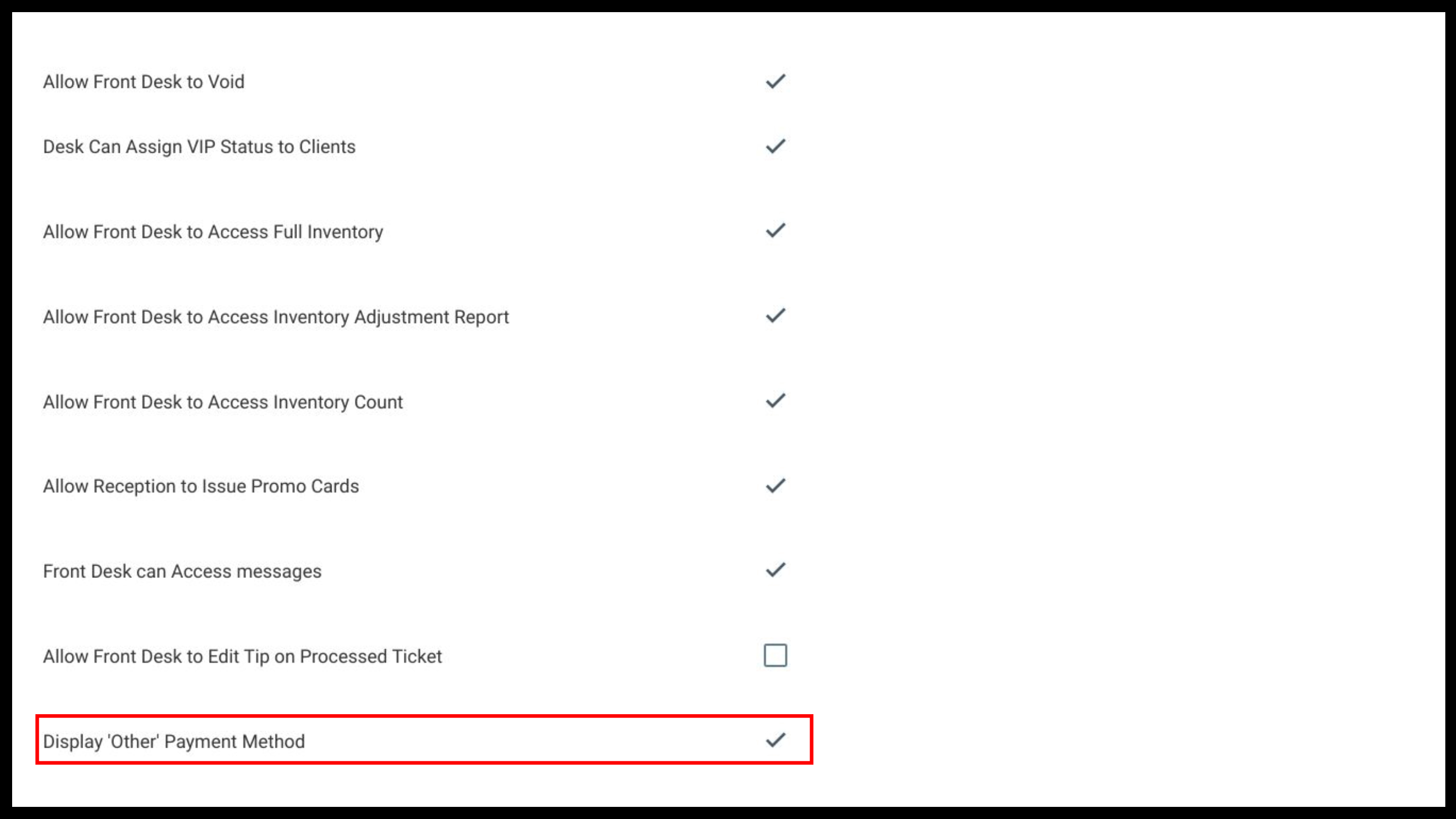
Owners and Managers can allow the Front Desk/Reception to access “Other” as a payment option during checkout by selecting Display 'Other' Payment Method in Access under the Salon Settings tab.
If Display 'Other' Payment Method is enabled, then the Front Desk will have access to the 'Other' option at checkout. If “Display 'Other' Payment Method” is disabled then only the Owner and Manager will have access to the “Other” option at checkout.
Purchase Order Email Language
The Salon and location name are included in the subject line of the Purchase Order email that is sent to a supplier.
Count Form Updates
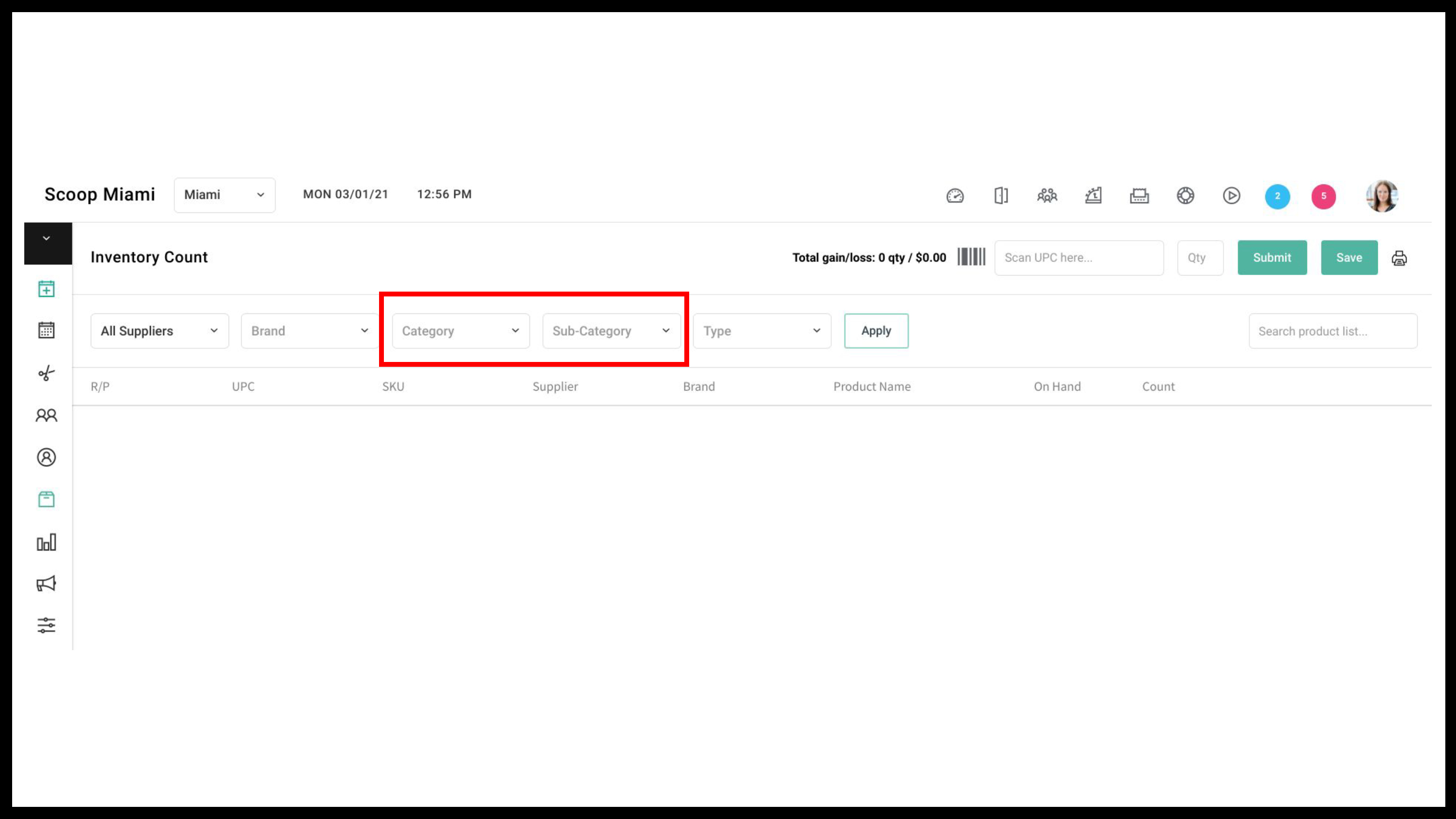
A category and sub category filter have been added to the inventory count form.
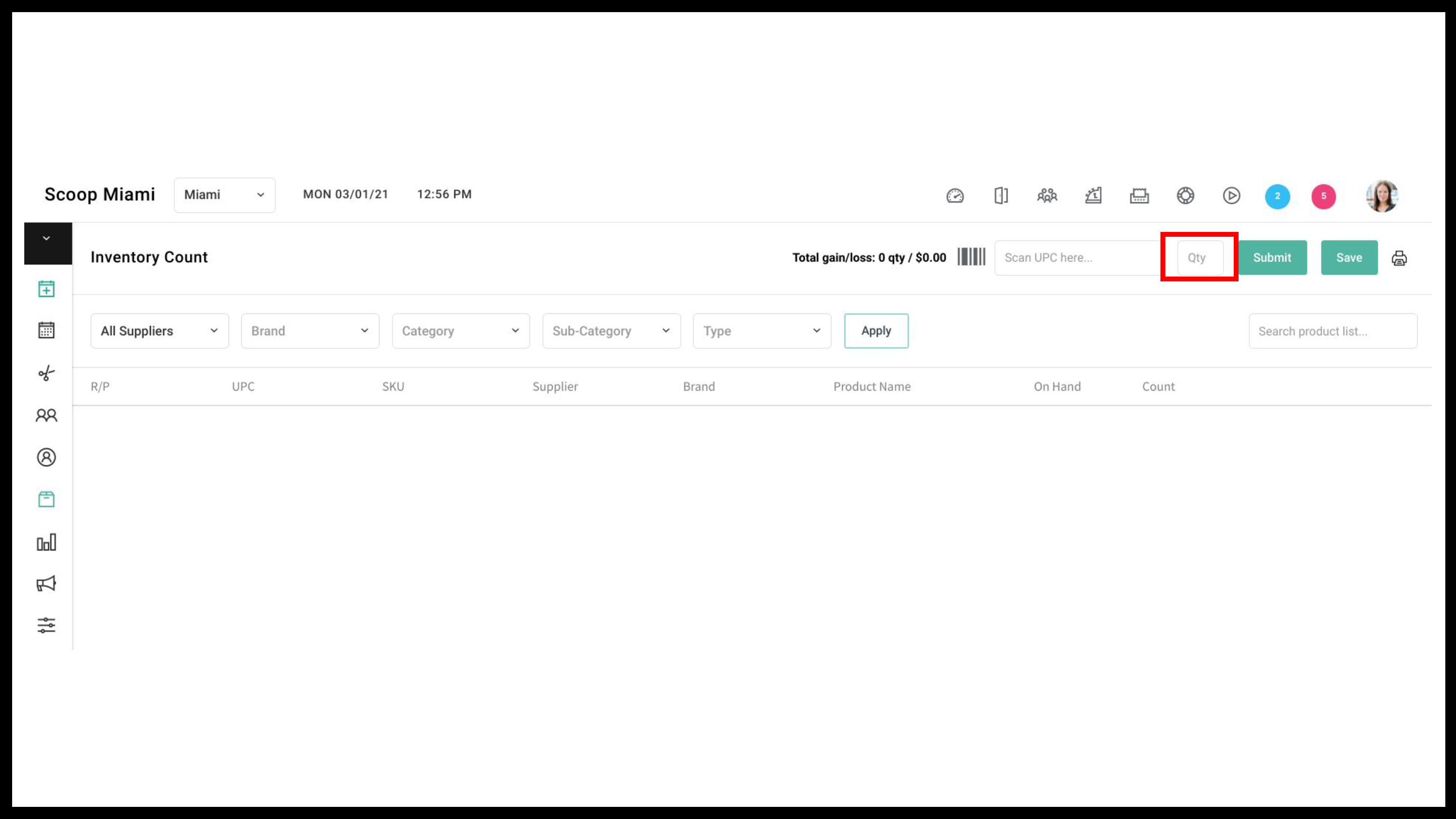
In addition, a quantity field is now available at the top of the page to assist with counts that are done with a bar code scanner.
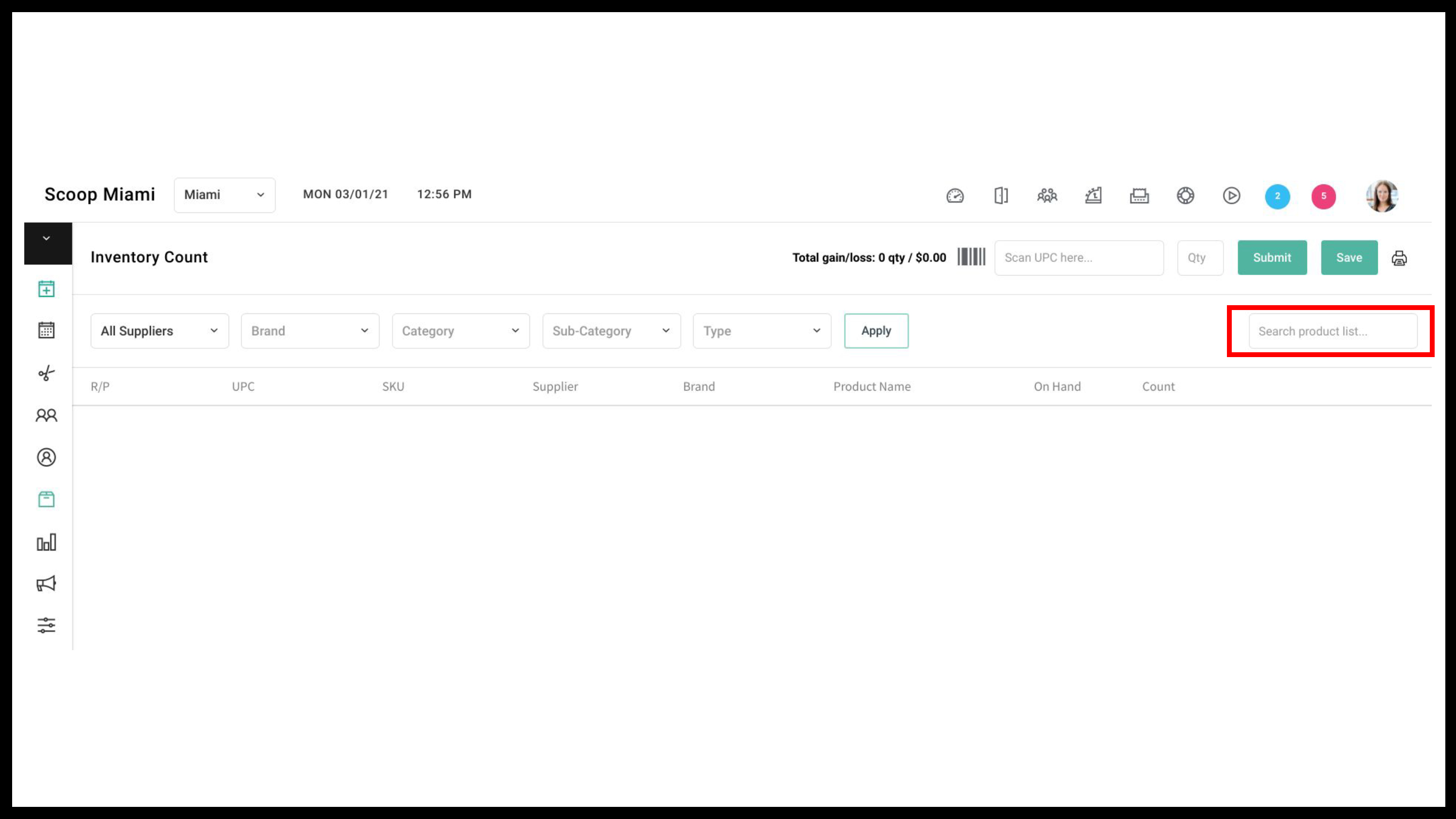
Users can now also use the search bar to search the inventory list for a specific product by name.
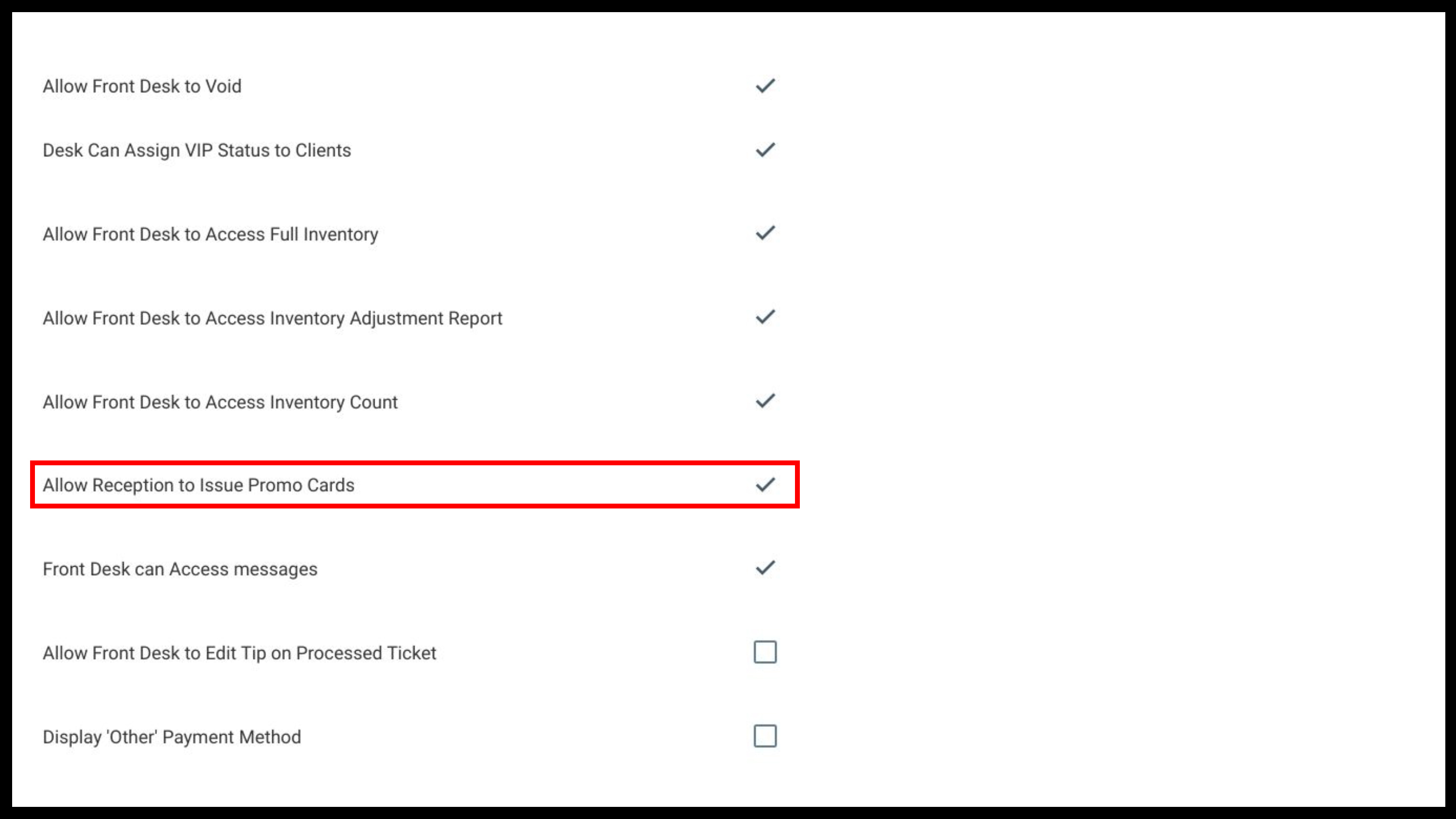
Reception Access to Promo Card Access Item
Owners and Managers can allow Receptionists to issue promo cards by selecting Allow Reception to Issue Promo Cards in access under the Salon Settings tab.
If checked, then Receptionists can see, create and issue promo cards from the Promo Card option in an open ticket. If unchecked, the Promo Card option will be hidden in an open ticket. This access item will be enabled by default.
Allow Providers to Access Open Ticket List
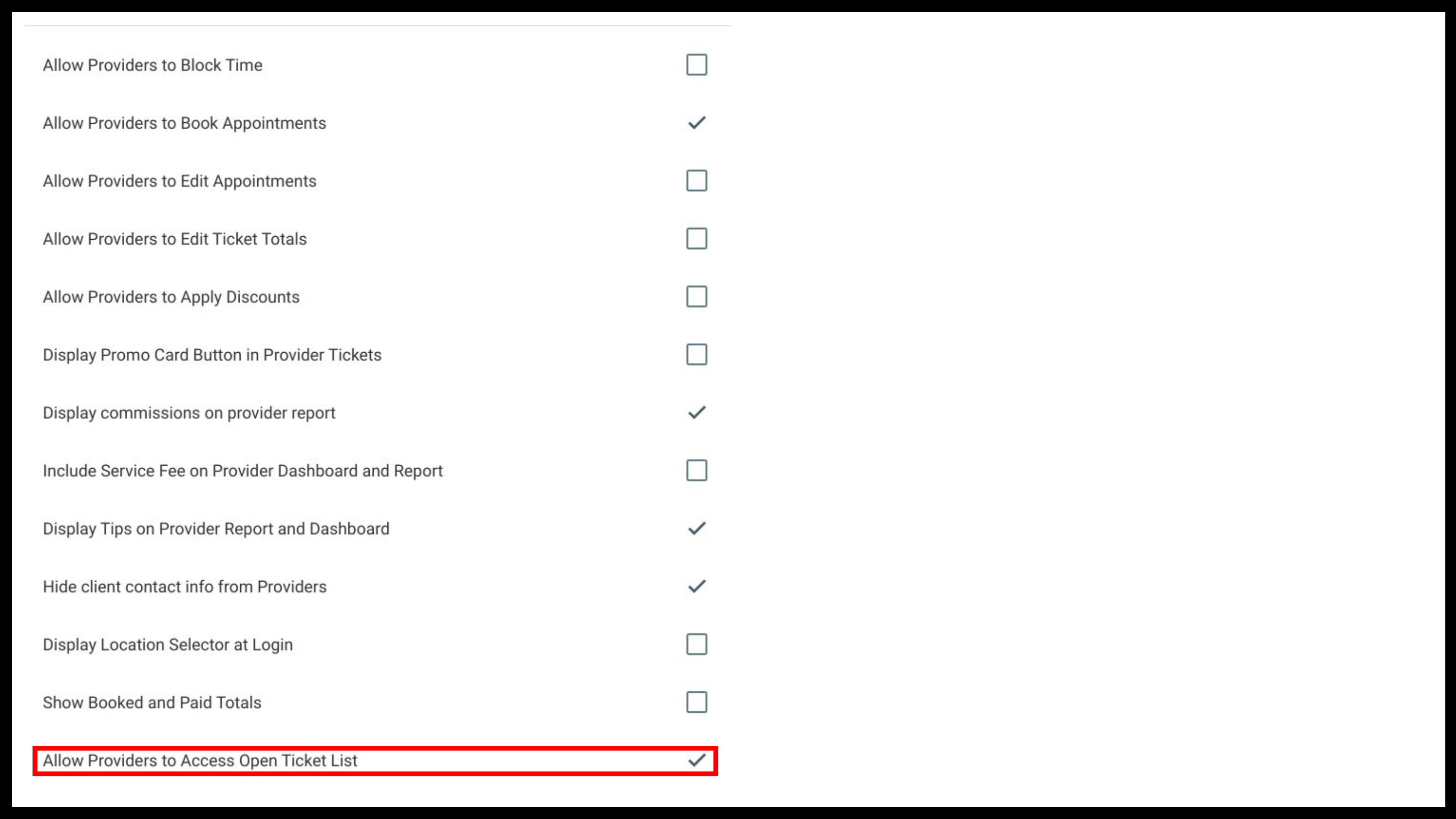
Owners and Managers can allow Providers to access Open Tickets by selecting Allow Providers to Access Open Ticket List in Access under the Salon Settings tab.
If checked, then Providers can access the Open Ticket List. If unchecked, then Providers will not be able to access the Open Ticket List. This access item will be disabled by default.
Walk In Tickets Are Included in Open Tickets
Walk In tickets are included in the Open Ticket List and can be merged.
Card on File Indicator on Booking Form
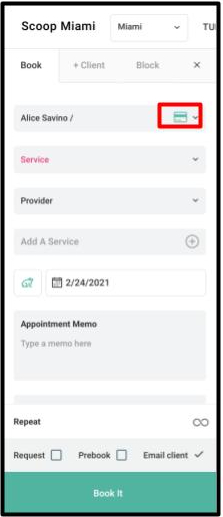
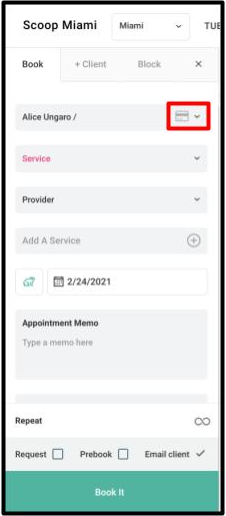
If a client has a card on file, it will be indicated with a green card icon next to the client’s name. If a client does not have a card on file, it will be indicated with a gray card icon next to the client’s name.
Gift Card Settings Moved From Salon Settings to Marketing
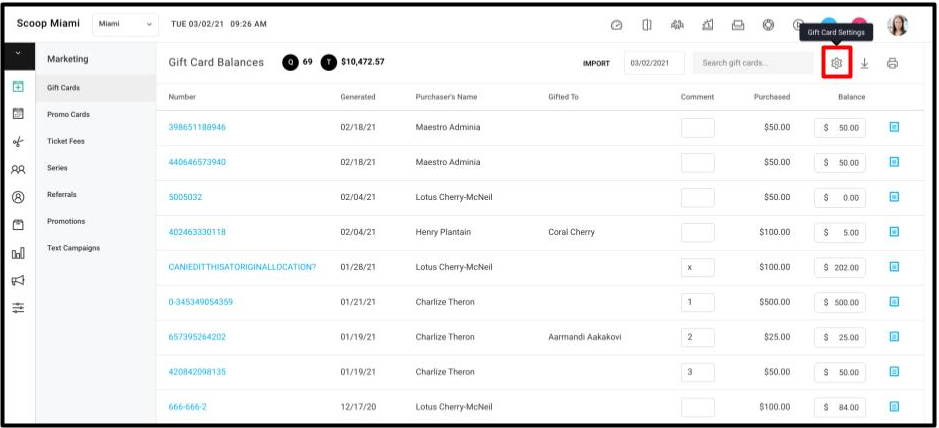
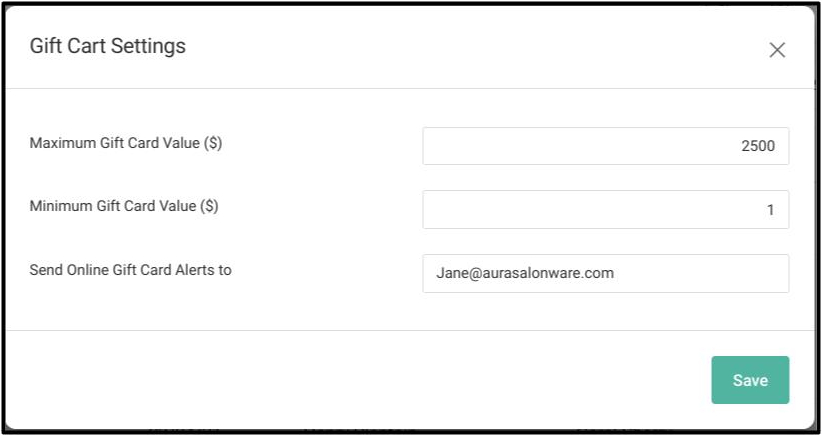
Settings for gift cards can be viewed and edited in Gift Cards under the Marketing tab. The settings gear icon next to the gift card search bar is where a gift card’s maximum $$, minimum $$, and email for online gift card alerts can be set.
Enable SMS and Confirmation Texts Timing Settings Moved From Salon Settings to Marketing
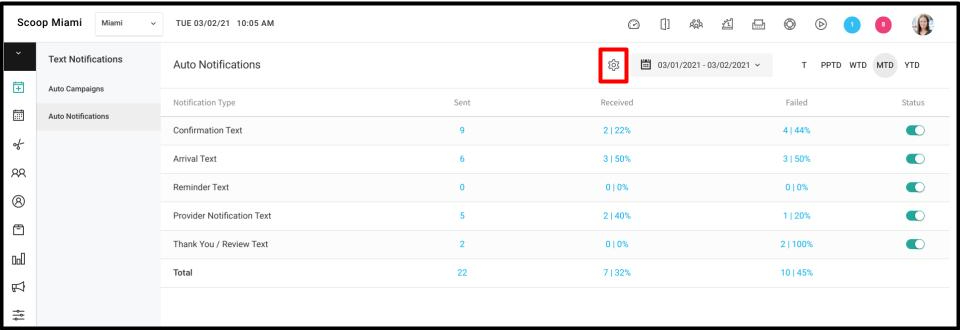
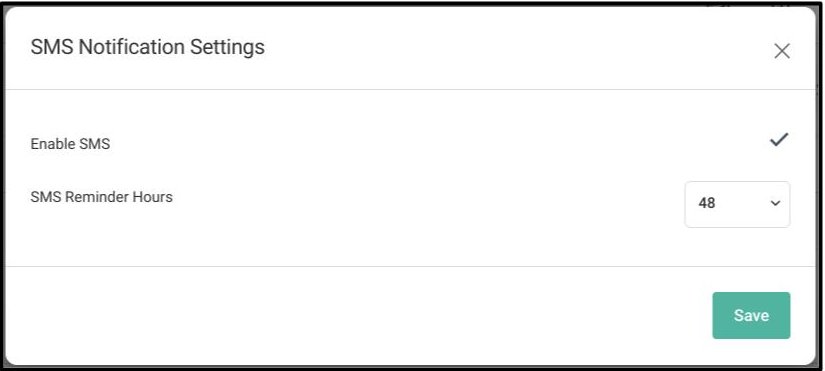
Settings for enabling or disabling SMS, and setting Confirmation Texts timing can be viewed and edited in Auto Notifications in Text Notifications under the Marketing tab. There is a settings gear icon next to the date range picker.
Client App Added to Salon Settings
Client App has been added to the Salon Settings tab to manage all settings that apply to the Client App.
For more information regarding these new features or live support, contact support@aurasalonware.com