Clients can place orders online through the Client App that can be picked up curbside from their salon. Owners, Managers, Receptionists and Providers can access the list of all curbside orders from the Curbside Orders icon on a computer or tablet.
NOTE: Curbside Pickup is a paid add on, so the Curbside Orders icon will only appear when this feature is turned on by the Aura Onboarding Team.
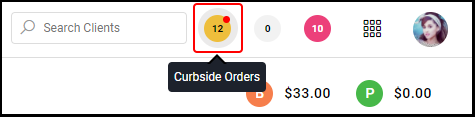
1. Select the "Curbside Orders" icon
NOTE: An Arrival Indicator (red dot) will show when a client has arrived to the salon for pickup.
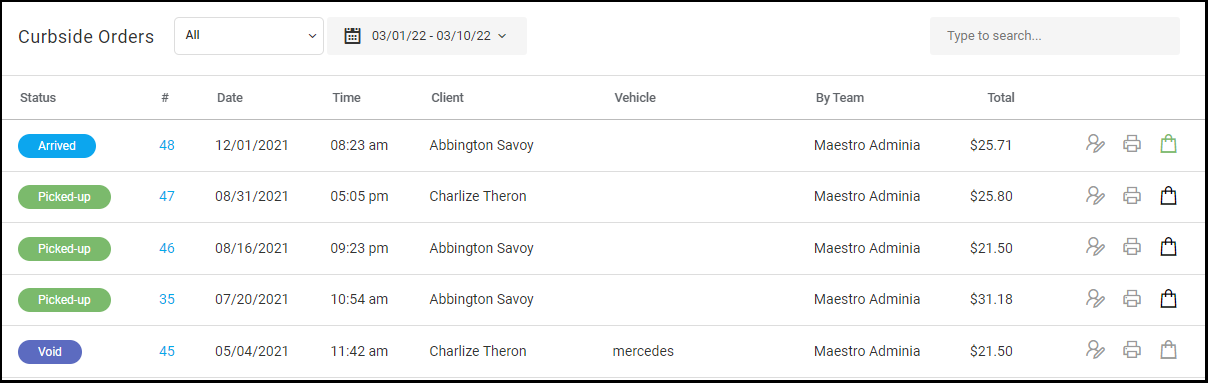
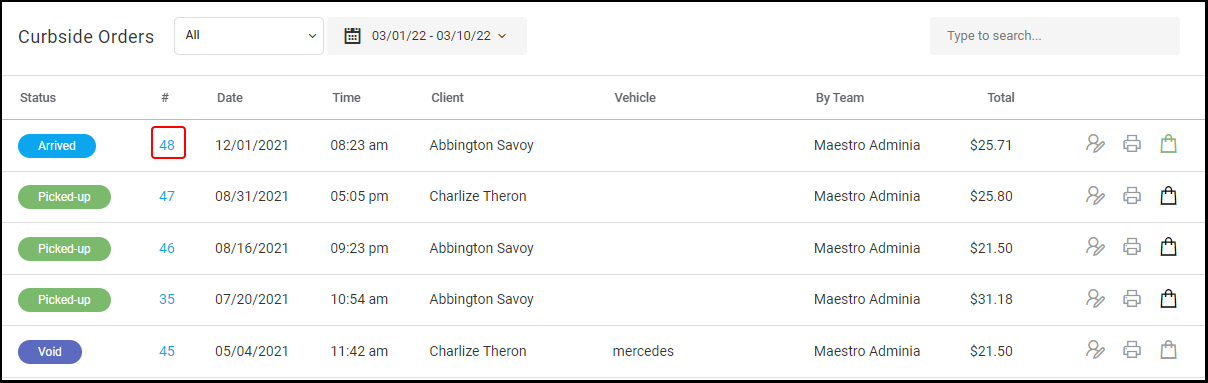
2. The list of all orders will display.
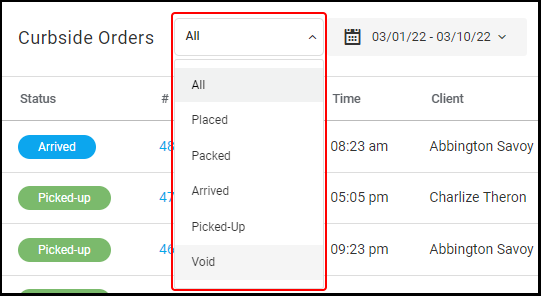
4. The "Curbside Orders" list can can be filtered by Status: All, Placed, Packed, Arrived, and Picked Up.
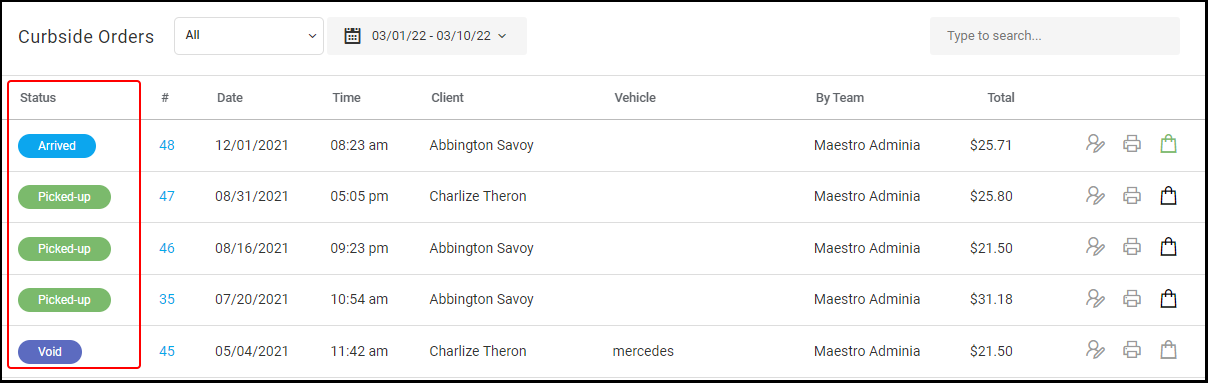
5. The "Status" of all orders are displayed on the left column.
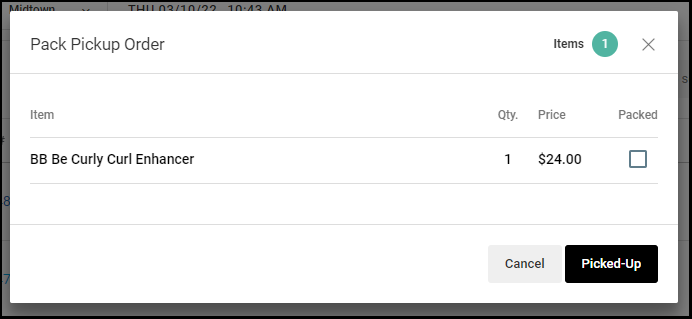
6. Selecting the "Order Number" will open a modal with more information about the order, and display whether the order is packed or not.
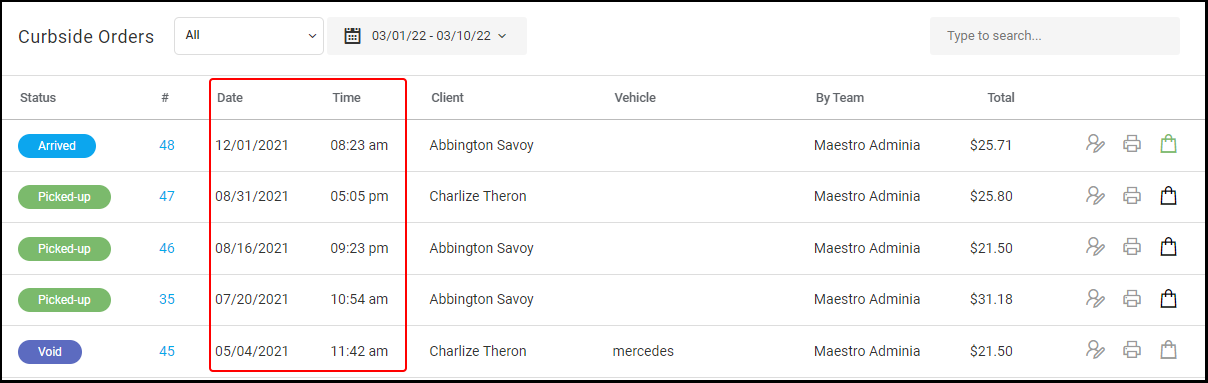
7. The "Date" and "Time" the order was placed is displayed in the third and fourth columns.
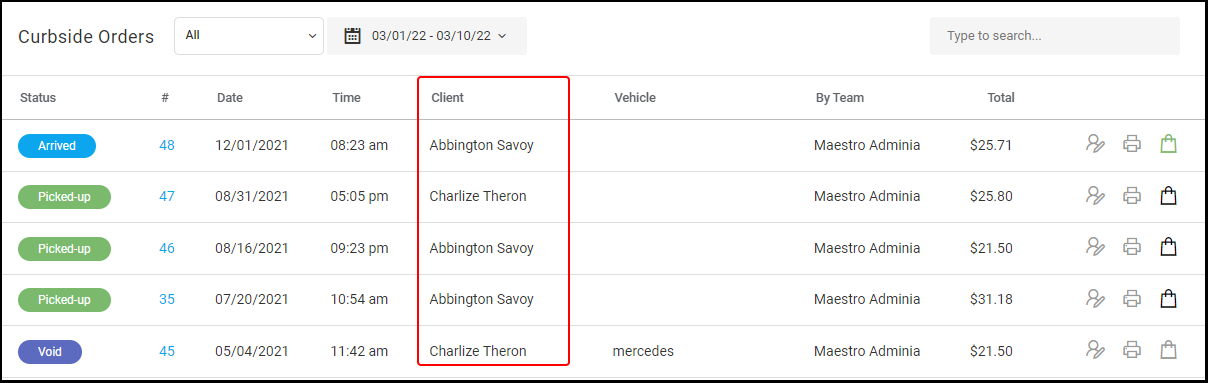
8. The "Client" name for the order is displayed within the fifth column.
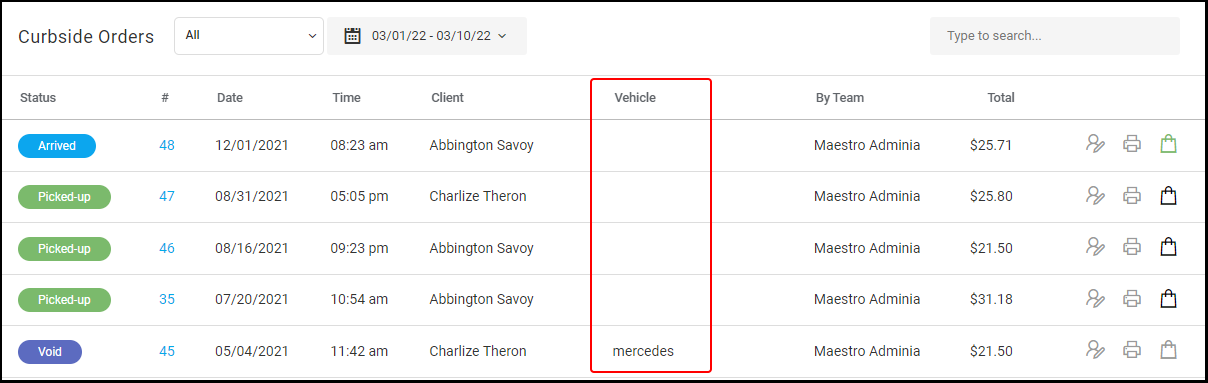
9. The client's "Vehicle" description will be displayed here if added by the client.
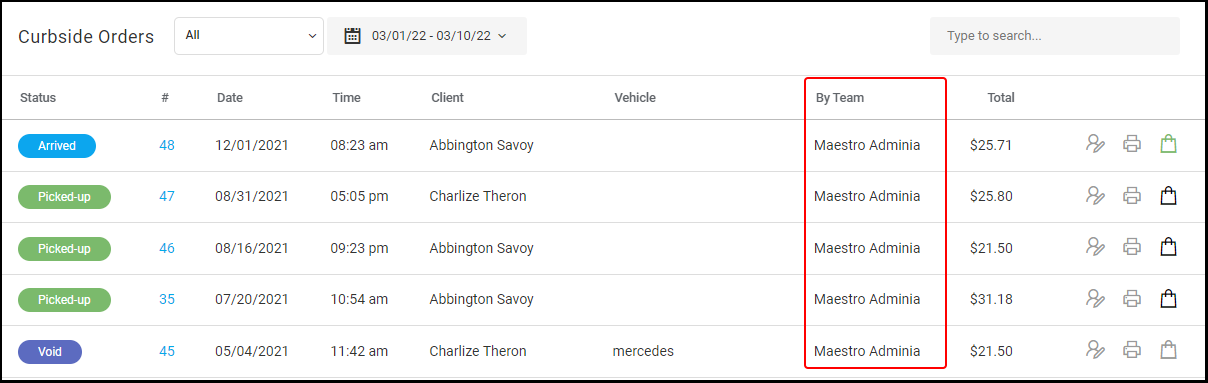
10. "By Team" is displayed.
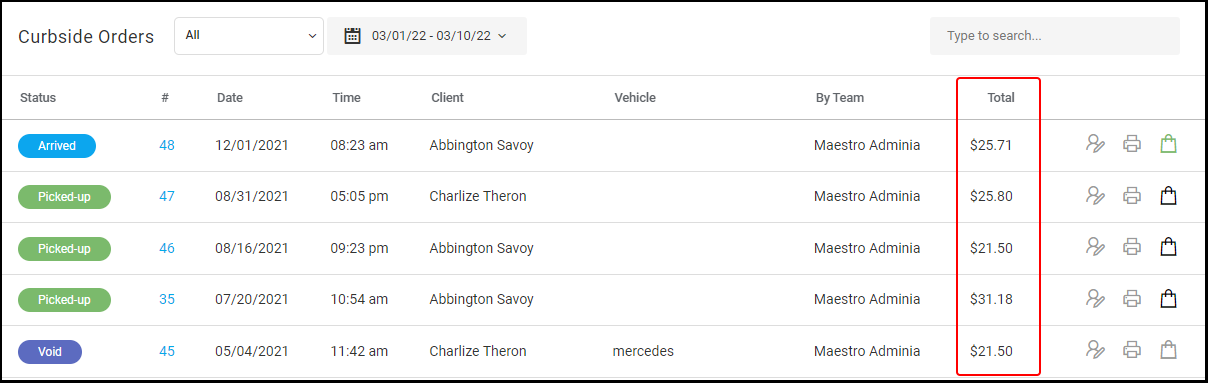
11. The order "Total" is displayed.
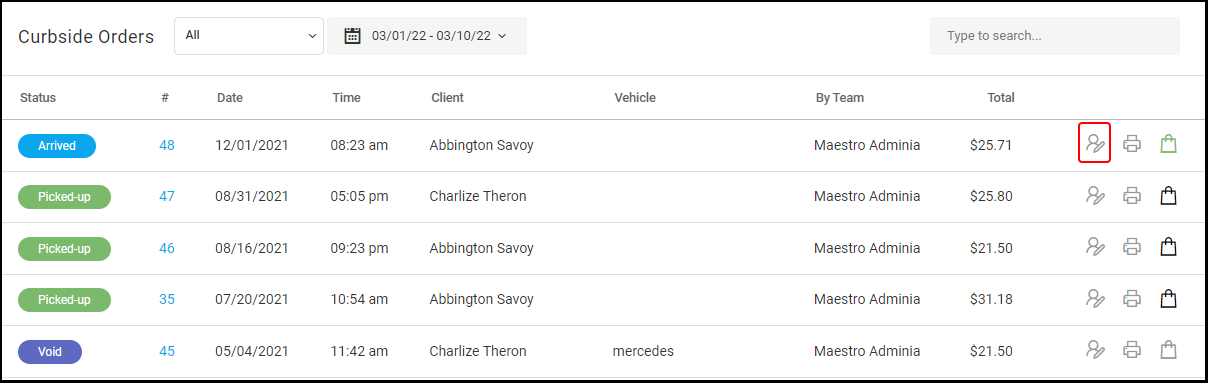
12. Selecting the "Tracker" icon will show the order information as well as who placed the order, who packed the order and who marked the order as picked up.
13. Select the "Print" icon to print the receipt for the order.
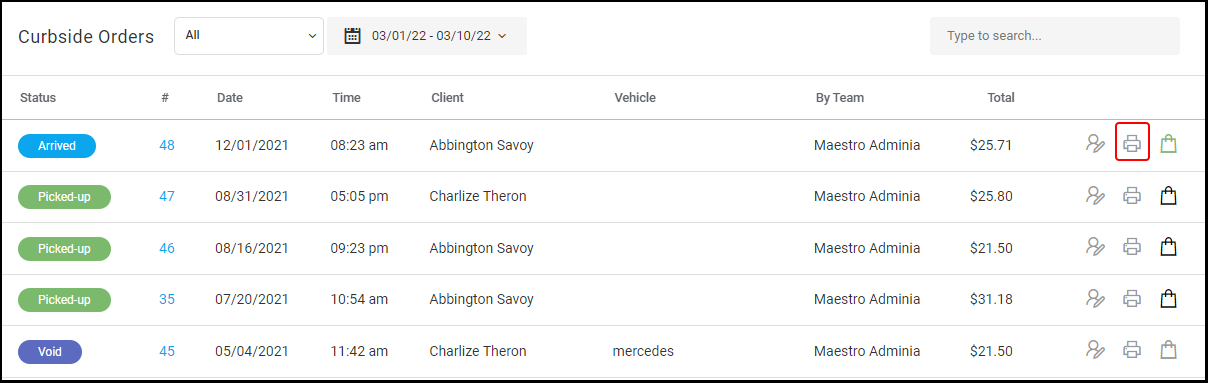
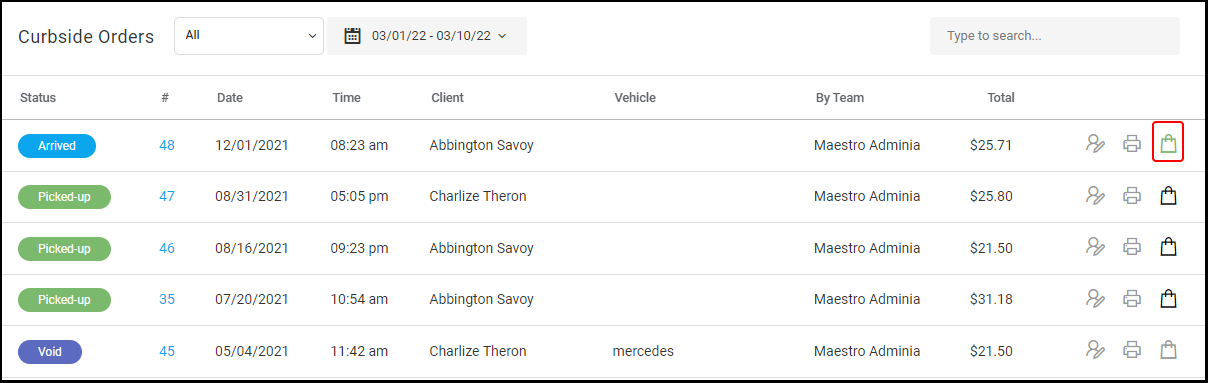
14a. Select the "Bag" icon to view the status of the packing of the order.
NOTE: When the client has arrived for their order, the shopping bag will update from black to green as shown below.
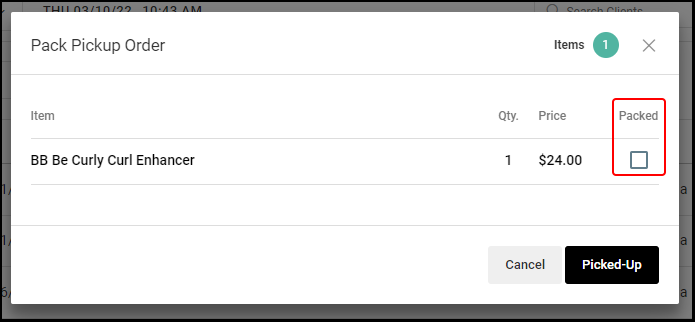
14b. When the curbside order is packed, select the "Packed" checkbox.
14c. Select "Picked-Up" when the customer has picked up their order.
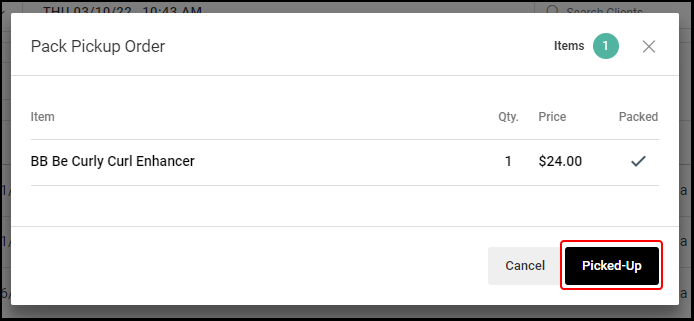
14d. Once the order has been picked up, the status will changed to "Picked-Up".