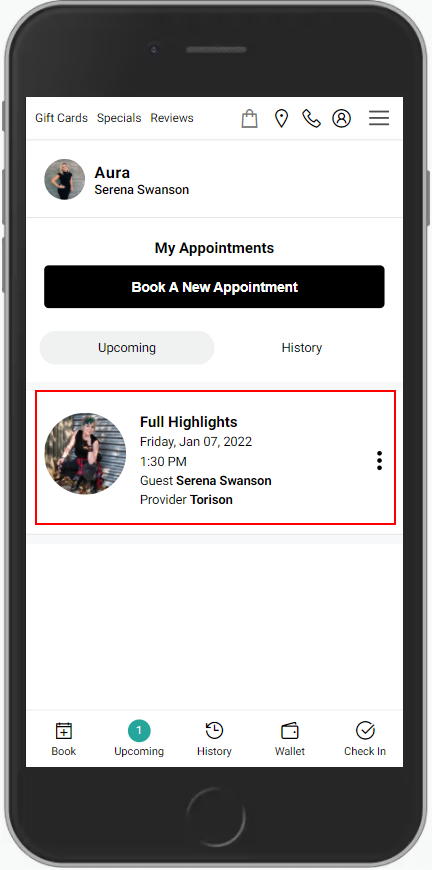
NOTE: Clients can book an appointment and then sign in, or they may sign in and then book an appointment. Details for each are included within the below steps.
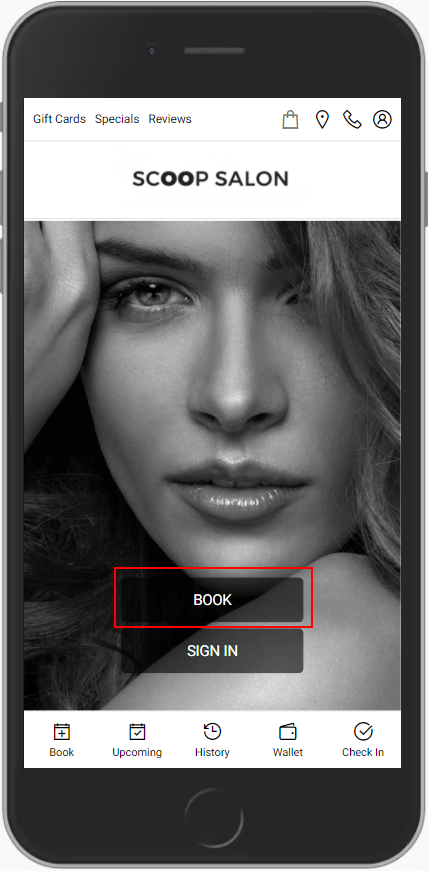
1. WITHOUT LOGGING IN: Navigate to [Salon Code].aurasalonware.com and select "Book". Proceed to Step #2.
WHEN LOGGED IN: Navigate to [Salon Code].aurasalonware.com and select "Sign In". Once signed in select "Book a New Appointment". Proceed to Step #2.
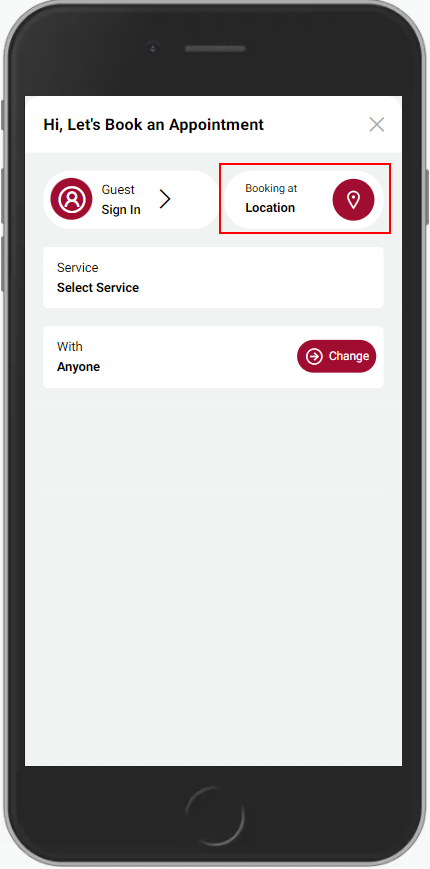
2. If the business has multiple locations, select "Location".
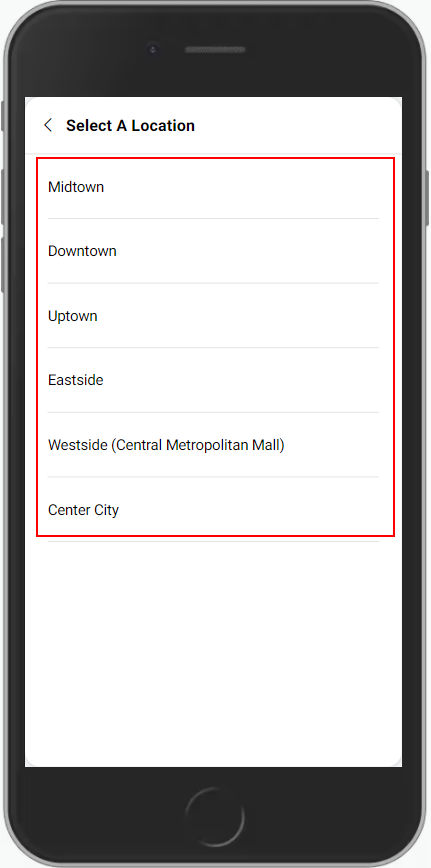
3. Choose the location.
4. Select "Service".
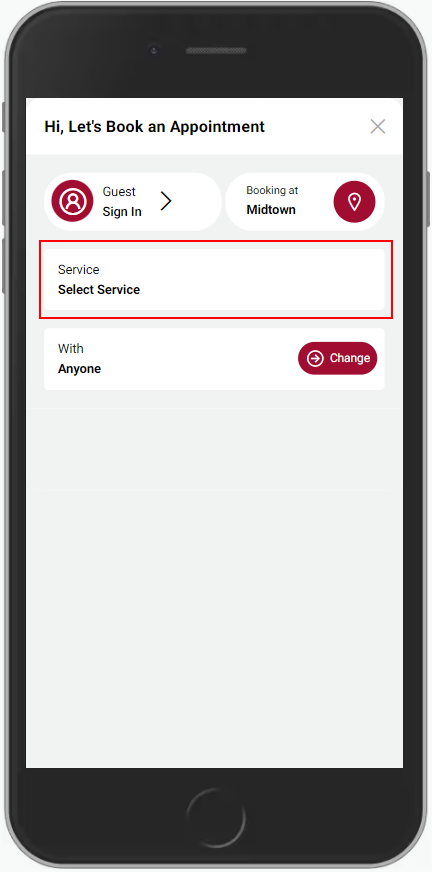
5. Select the Service Category.
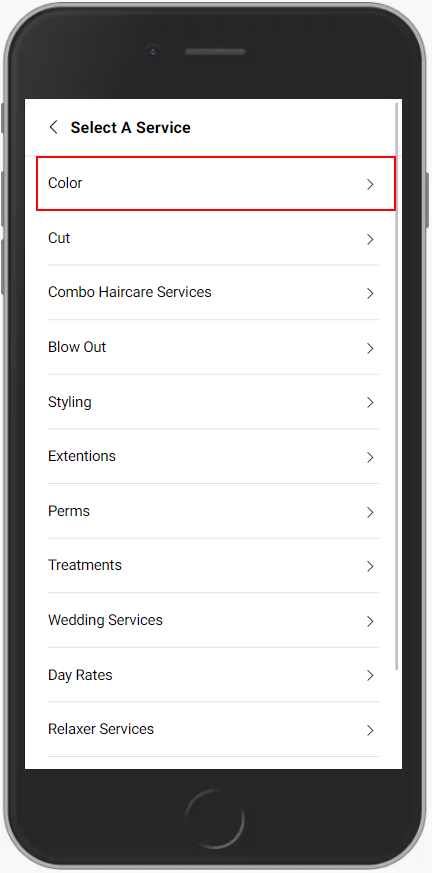
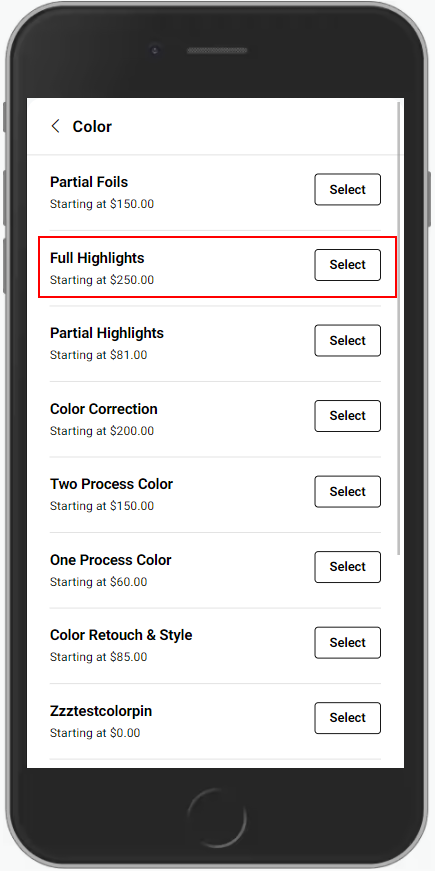
6. The starting price for services is displayed. Select the Service.
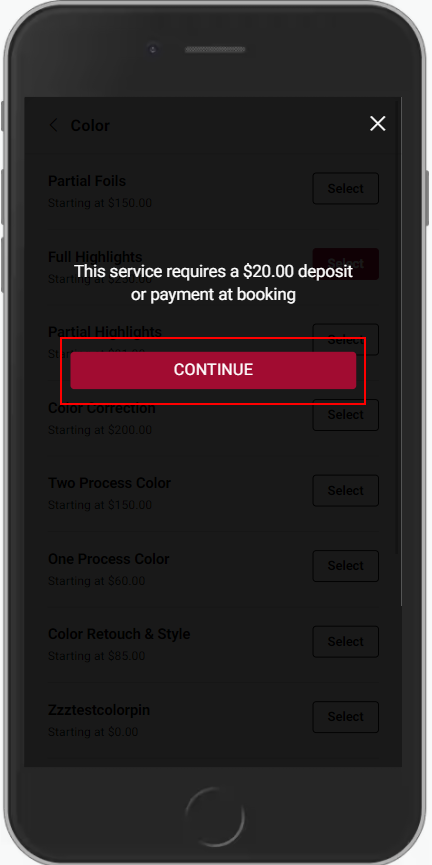
7. Services that require a deposit will notify the client. Click "Continue" to continue booking.
8. If you wish to book with a specific provider, click "Change".
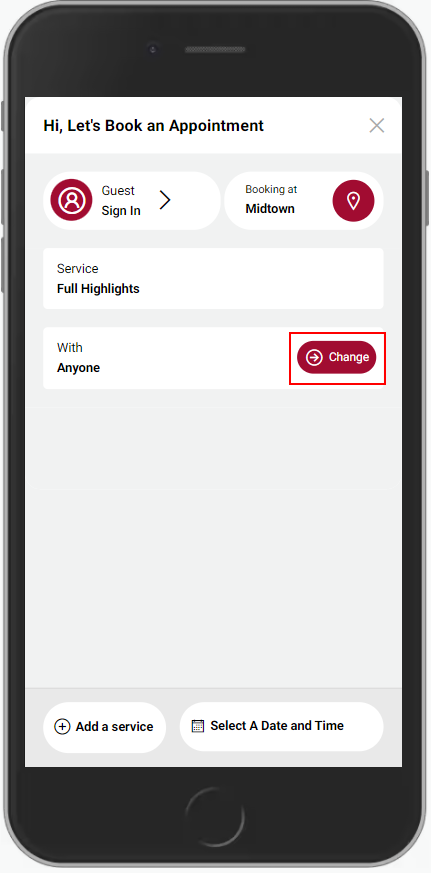
9. Select the Provider.
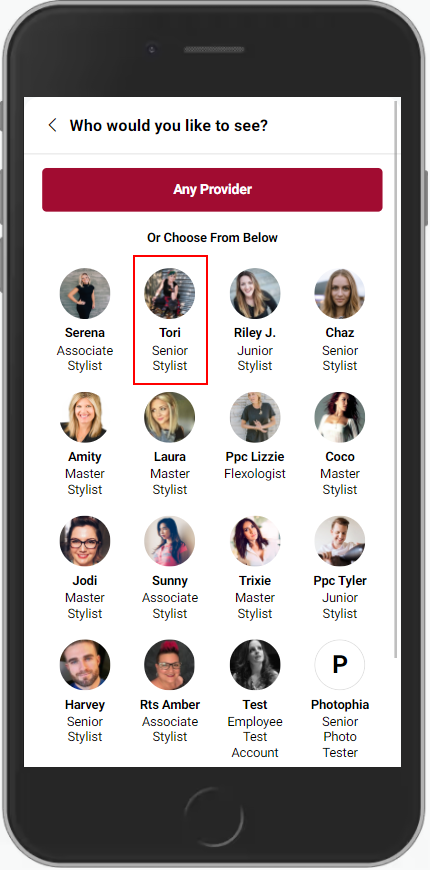
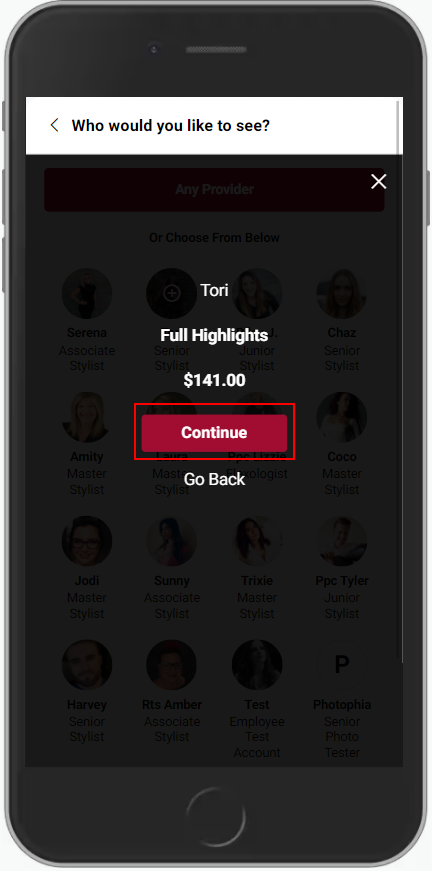
10. The Provider's price is displayed if it differs from the starting service price. Select "Continue".
11. Navigate to "Select A Date and Time".
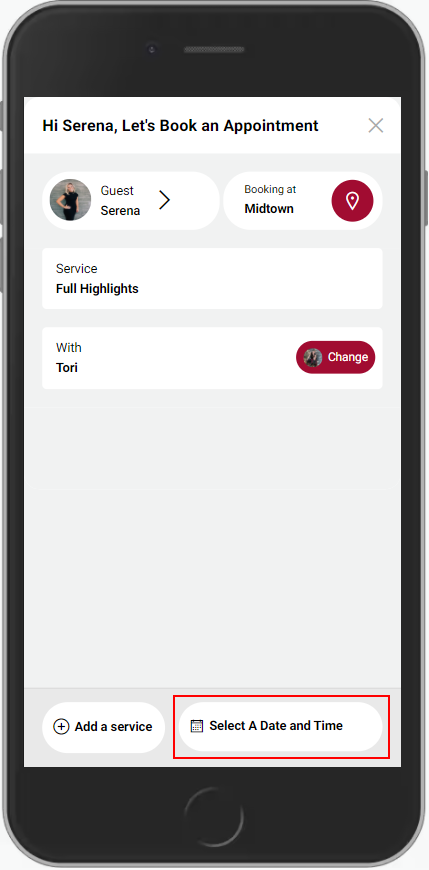
12. Select the Date.
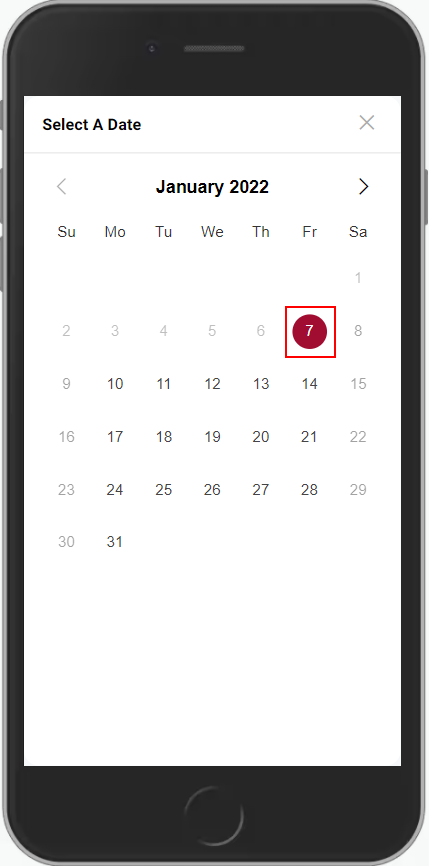
13. Select Time.
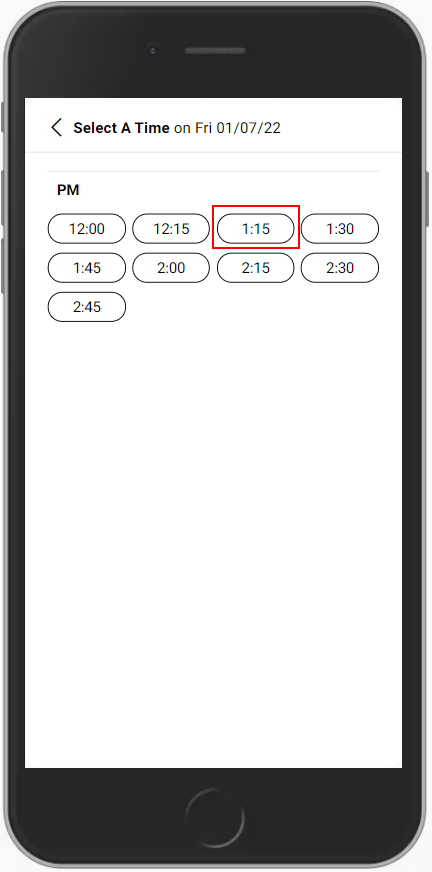
14. An additional service can be added to the appointment if needed. Click "Add Another Service" then follow steps 5 to 12.
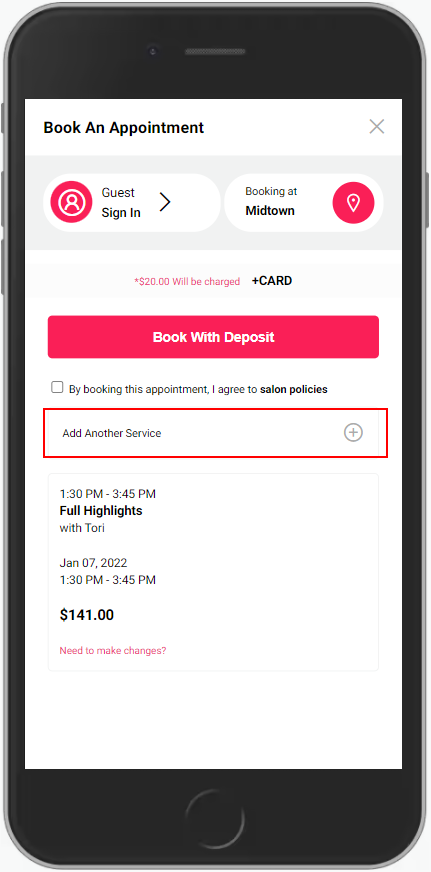
15. Select "I agree to salon policies" then "Book with Deposit".
NOTE: If you signed in within Step #1, proceed to Step #17.
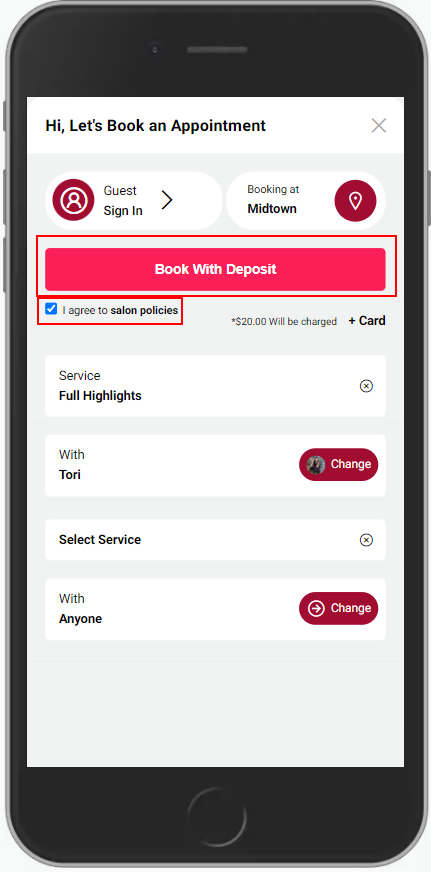
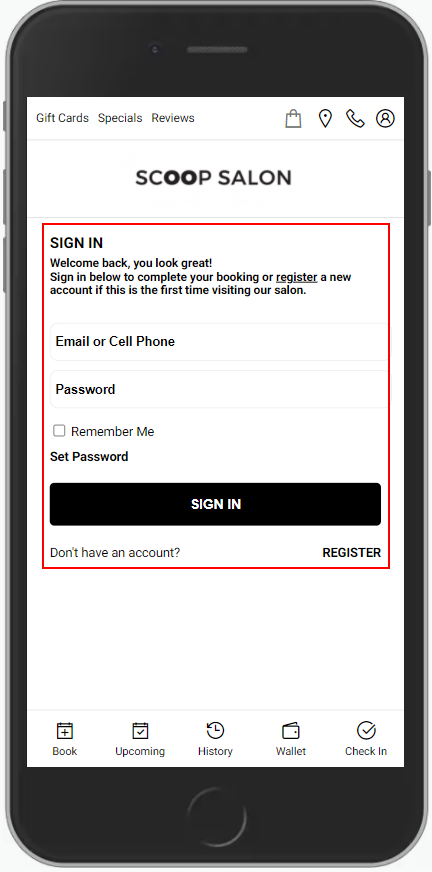
16. If an account exists, enter the Email or Phone Number and Password associated with it. or
Select Register to create an account if one does not exist. or
Select Forgot Password if the business has an email on file but the client is new to AURA.
NOTE: If you signed in within Step #1, proceed to Step #17.
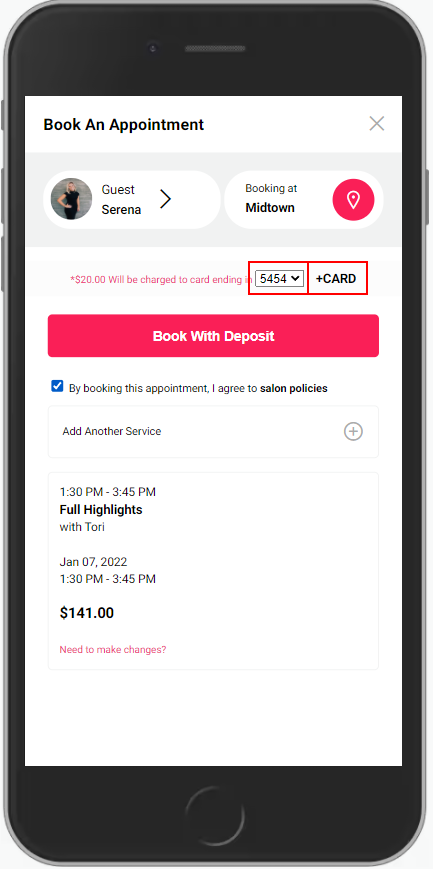
17. When logged in, any cards on file will appear. If there is no card on file, click "+ Card" to add a new card. Add card details.
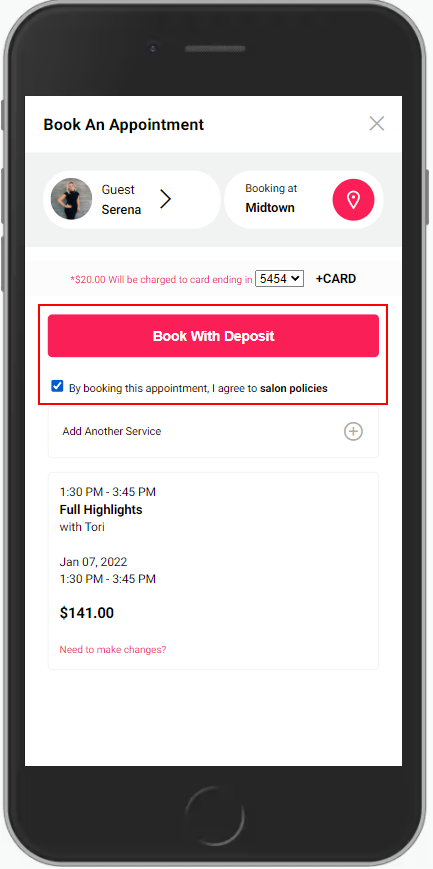
18. Select the check box next to "By booking this appointment, I agree to salon policies", then select "Book with Deposit".
19. You have the option to add the appointment to your Google Calendar, send a message to your provider with details of the expectations of your appointment, and upload a photo. Once information is completed, click "Send to *PROVIDER NAME*".
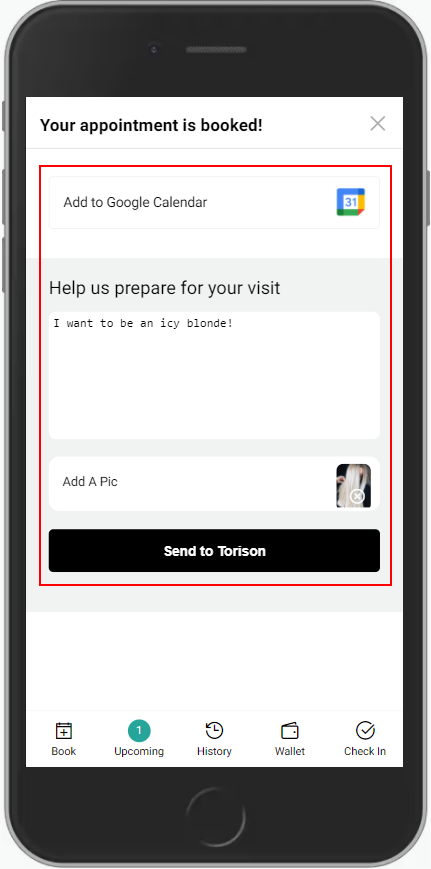
20. Your appointment is now booked and will appear within your "Upcoming" appointments within the Client App.