We are excited to announce the following AURA Salonware System updates!
Family Accounts
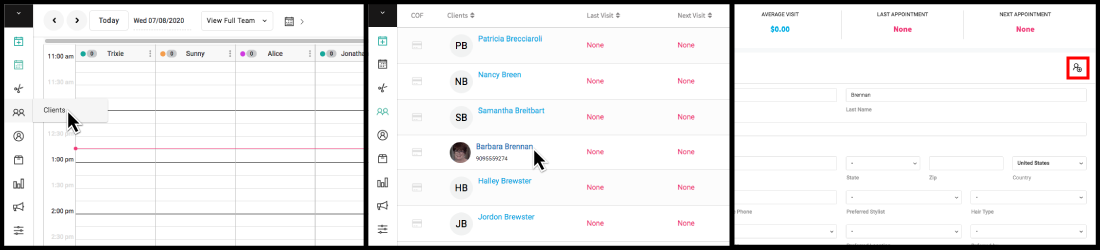
Owners, Managers and Reception staff can add a guest as a sub-account to another client account on a computer. A Provider may also add a sub-account depending on the owner's "Access" settings. SMS and email messages associated with the sub-account will be sent to the main account holder if there is no email or phone number data listed on the sub-account. Learn more here.
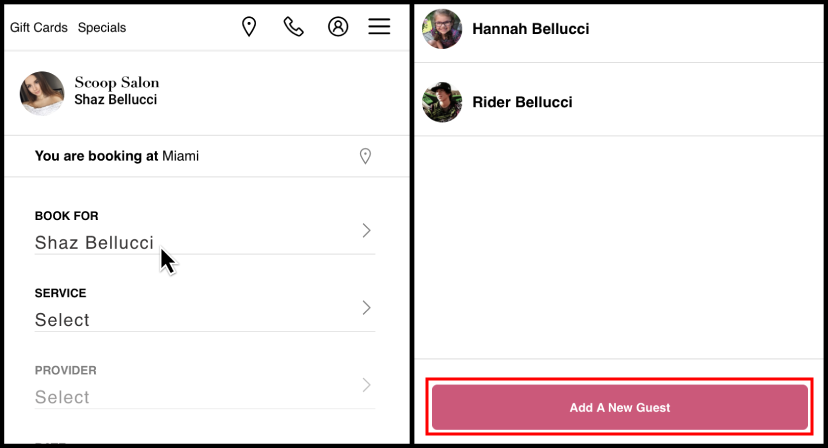
Clients may create a sub-account when they book an appointment.
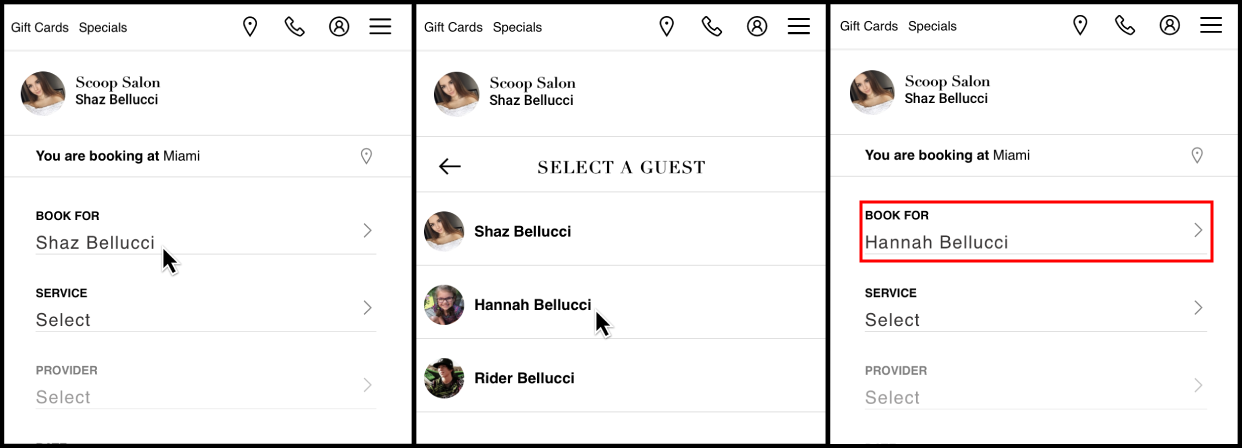
Clients may book for existing sub-accounts. Learn more here.
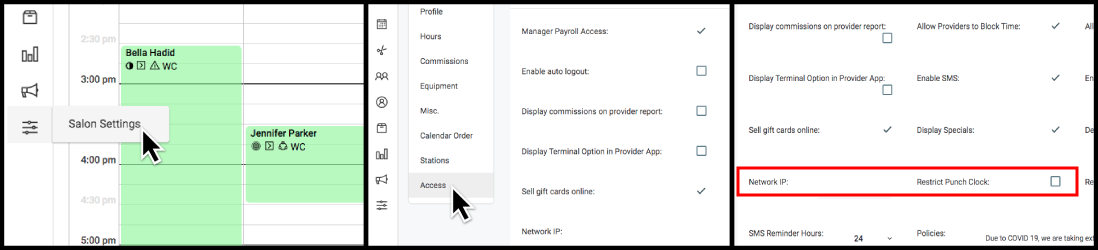
Restrict Punch Clock to Business Network
Owners can restrict punch clock access for Reception and Providers to a single IPv4 address per location. Navigate to the "Access" tab within Salon Settings using an Owner level account. To identify your IPv4 address, please click here or here while being connected to the business wifi.
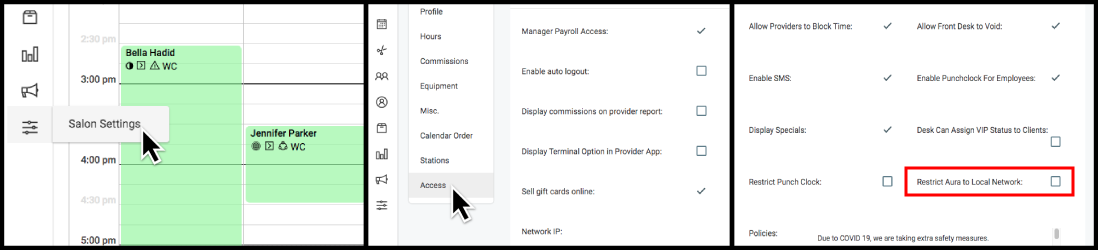
Restrict AURA to Business Network
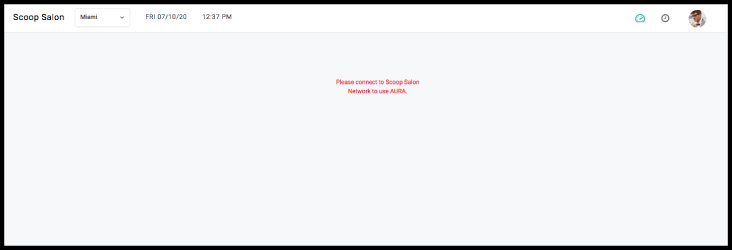
Owners can restrict their employees' AURA access to a single IPv4 address. Navigate to the "Access" tab within Salon Settings using an Owner level account. Managers and Owners are exempt from this requirement and may access AURA via any IP address. To identify your IPv4 address, please click here or here while being connected to the business wifi.
Change Service Type in a Ticket
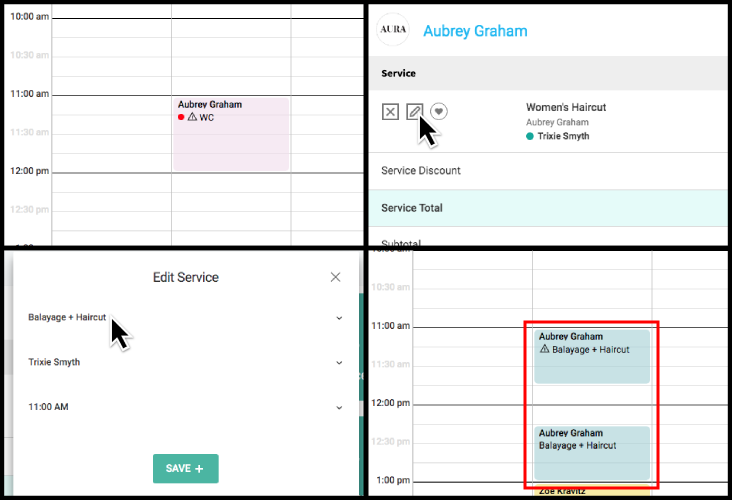
Select the Pencil icon on an open ticket to edit the service type. This will change the service on the open ticket and the appointment book.
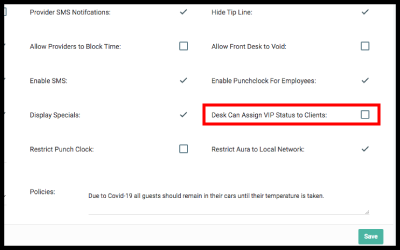
Front Desk Can Assign VIP Status
Owners can enable or disable a Reception staff's ability to assign VIP status to a client. Clients that are marked as VIP status are exempt from your cancellation policy.
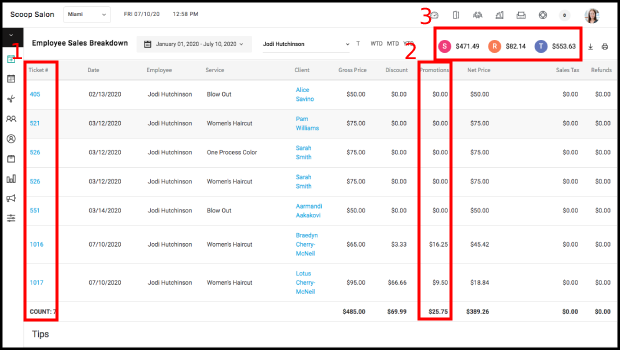
Employee Sales Breakdown Report
The following modifications have been made to the Employee Sales Breakdown Report:
- The ticket number has been added for each transaction.
- Manual and Promotional discounts values are listed separately.
- Service, Retail and Total discount values are displayed above the report.
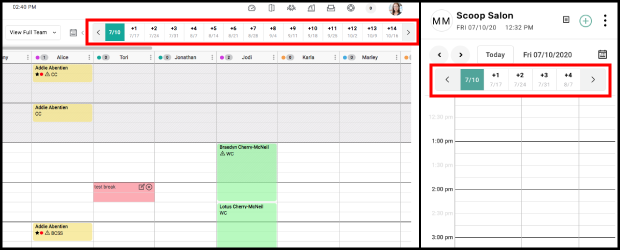
Weeks Out
A weeks out shortcut displays above the calendar on desktop and mobile.
Time Indicator
A red line denotes the current time on the calendar.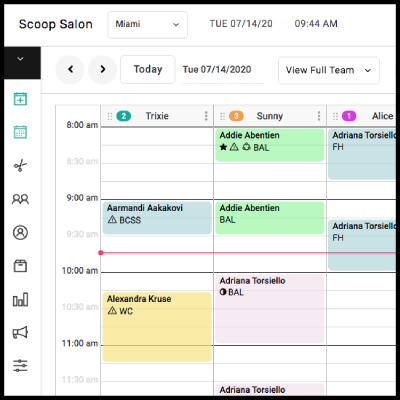
Quick Employee File Access
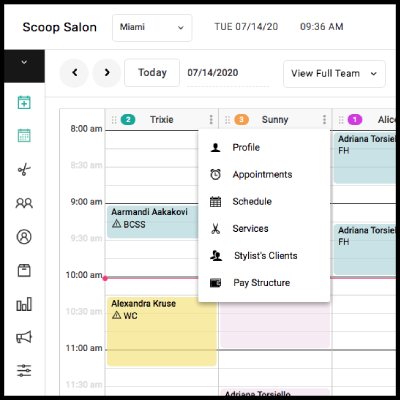
Elements of an Employee's file can be quickly accessed by selecting the three dots while viewing the calendar from a desktop.
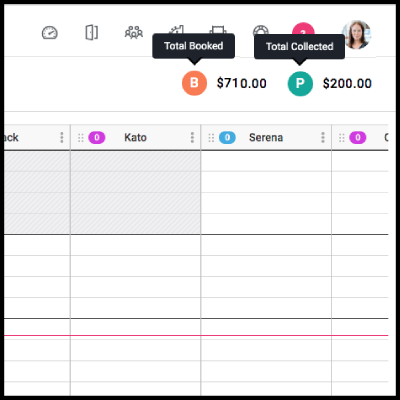
Totals on Calendar
The total dollar amount scheduled and the total dollar amount collected are shown for each day. If viewing an individual provider's week, the totals show for the time period being displayed.