Aura Salonware will be releasing the following system updates on December 1, 2021
Watch the Aura Academy Release Preview recording HERE.
Upcoming Releases:
System updates include, but are not limited to...
Mobile Ticket Re-Design
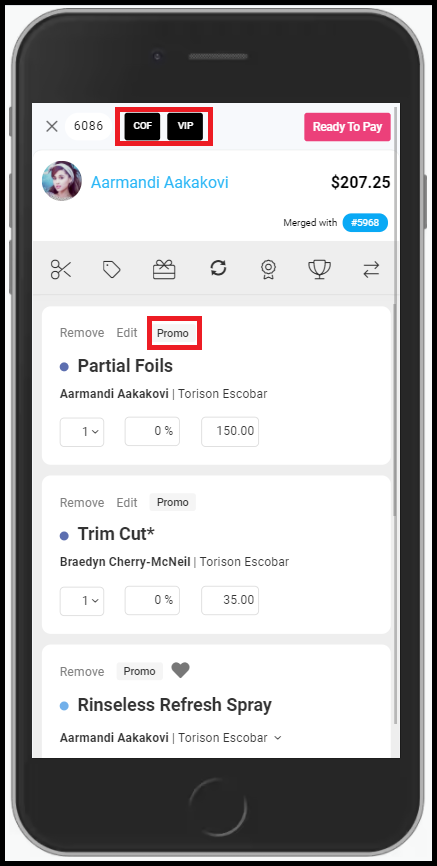
The mobile ticket has been re-designed and includes a promo button next to each service. When the promo button is clicked, any promotions that apply to the given service display. The pencil (edit) icon has been renamed “Edit”. This icon is used to make any edits to the service, provider, and/or time. The X (delete) icon has been renamed to “Remove”. This icon is used to remove a service from the ticket and appointment calendar.
Click HERE to watch the video.
Desktop & Tablet Ticket Re-Design
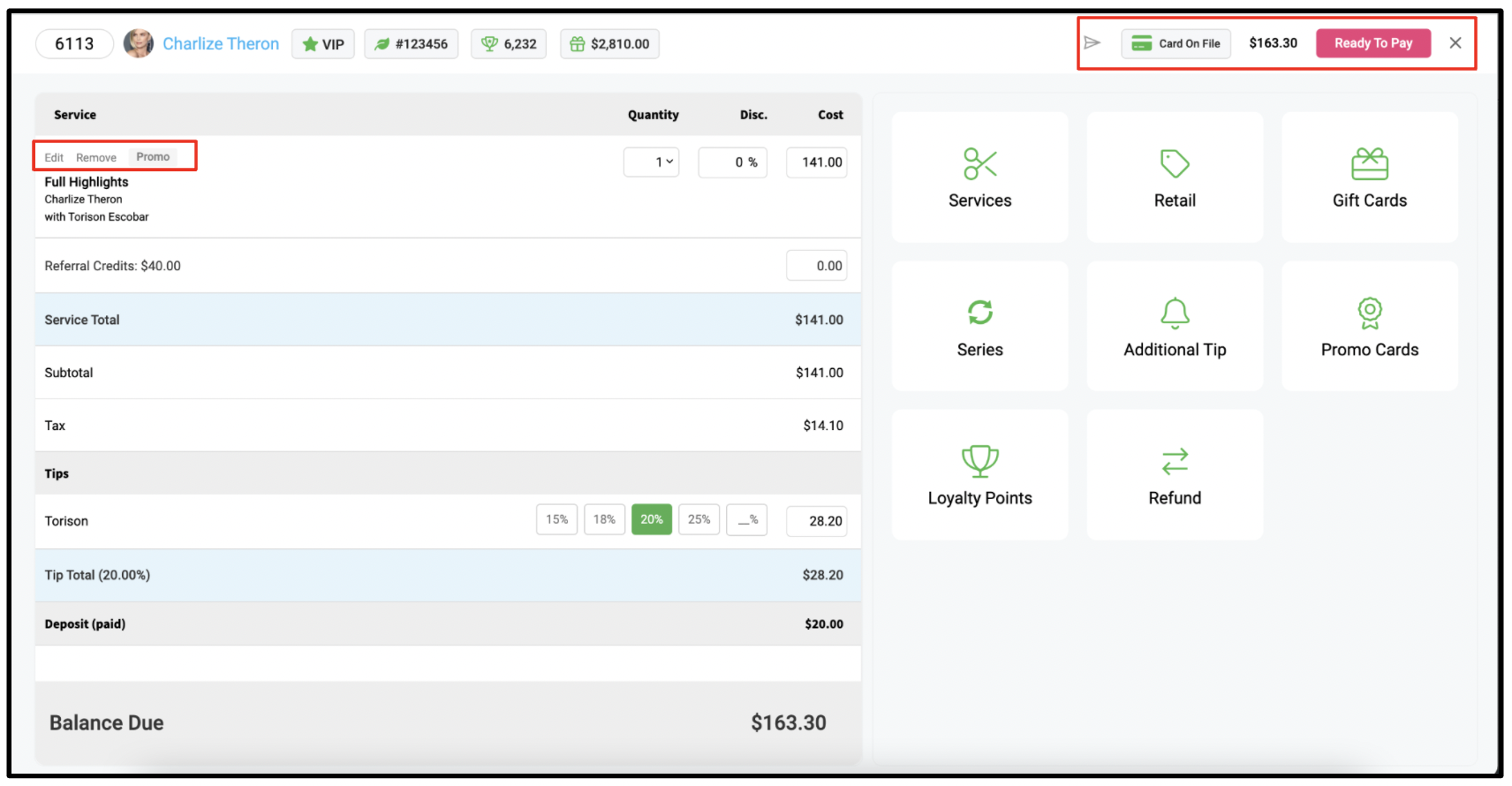
The desktop view of the ticket has been re-designed and now includes a promo button next to each service. When the promo button is clicked, any promotions that apply to the given service will be shown. The pencil (edit) icon has been renamed “Edit”. This icon is used to make any edits to the service, provider, and/or time. The X (delete) icon has been renamed to “Remove”.
The ready-to-pay button and send password icon have been relocated to the top right of the ticket.
Employee Action Report: Mark as Paid
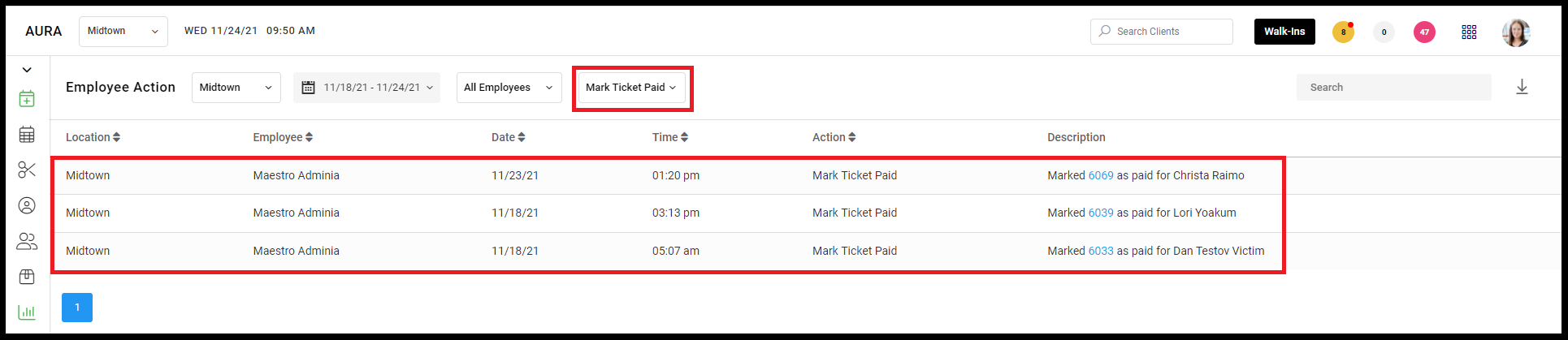
By navigating to Report > Employee Actions, users can filter by ‘Mark Ticket Paid’. This will show the report of all transactions that were ‘Mark as Paid’ within the given dates chosen.
Click HERE to watch the video.
New Client App Settings Available
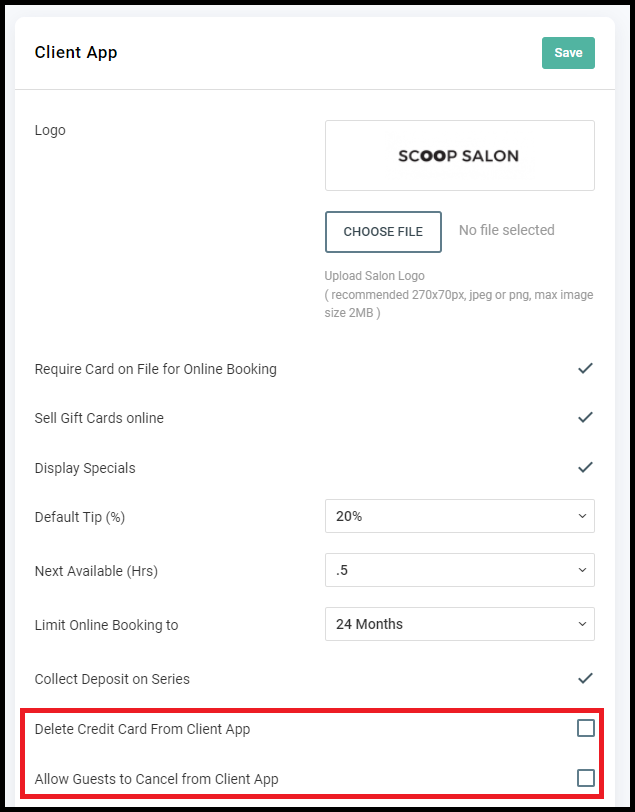
New Client App Settings are available to Owners and potentially Managers by navigating to Salon Settings > Client App. When ‘Delete Credit Card From Client App’ is checked, this allows for users to delete their credit card from their client profile. When ‘Allow Guests to Cancel from Client App’ is checked, this allows for users to cancel their upcoming appointments via the client app.
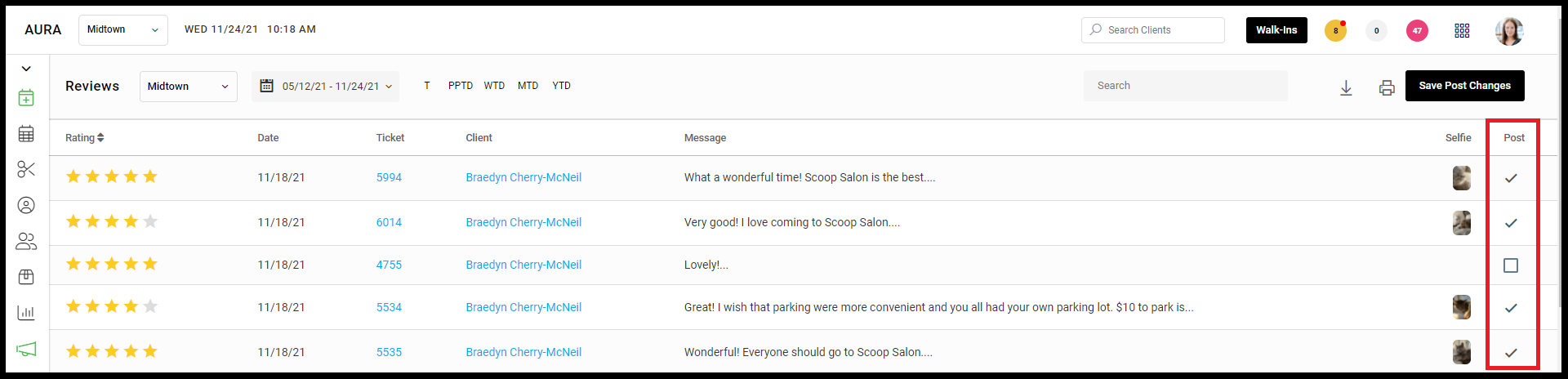
Publish Social Buddy Reviews
By navigating to Marketing > Reviews users can publish their Social Buddy Reviews. When the checkbox is checked for a post, that post will be viewable via the public link on mobile. You may also link this page to your website!
Click HERE to watch the video.
Service Categories Update
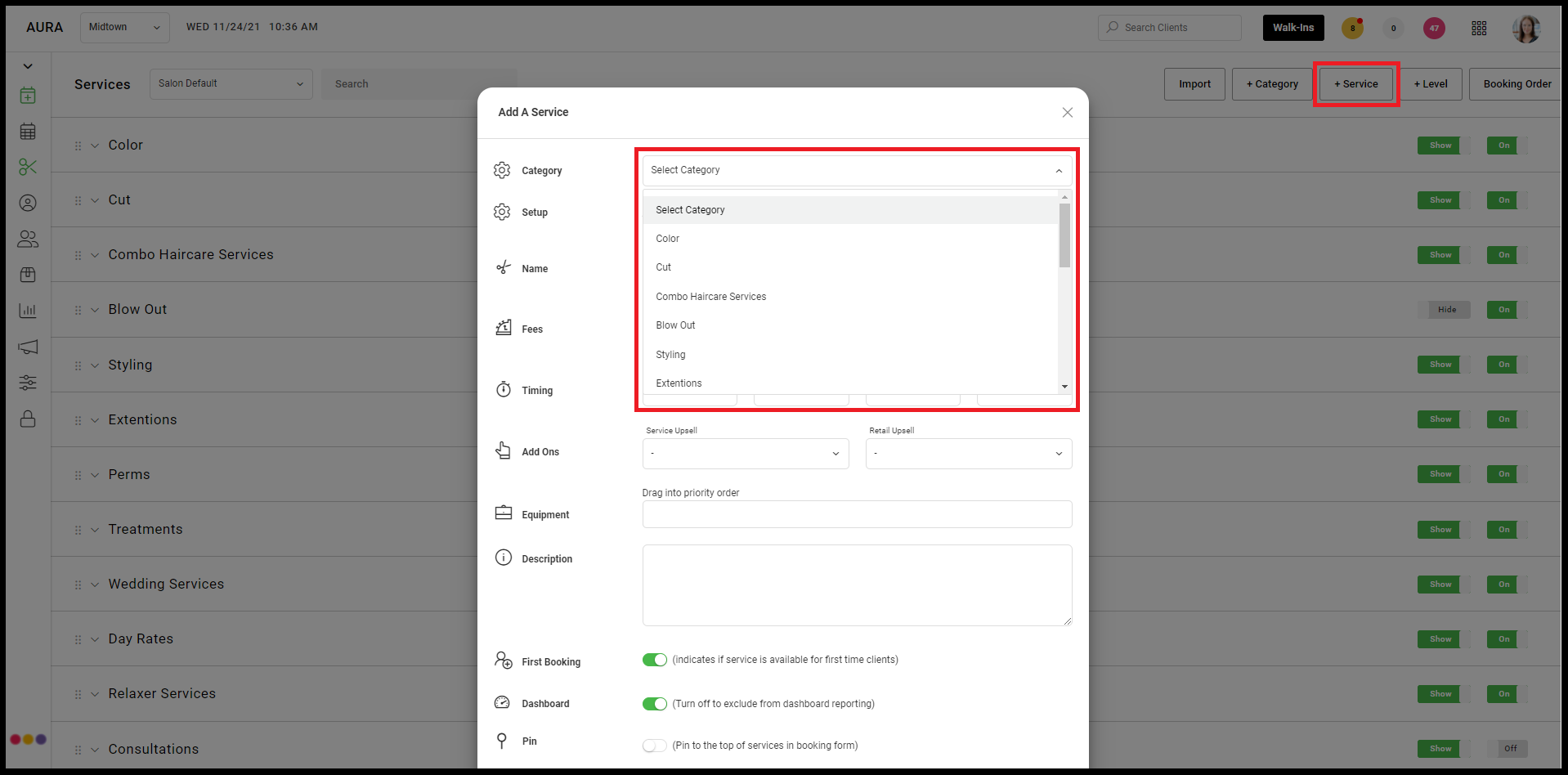
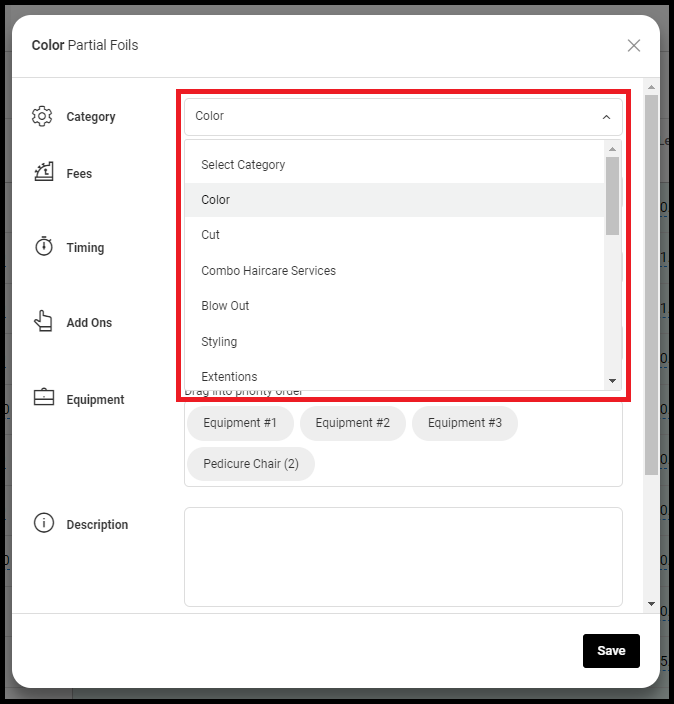
Owners and managers can now add services from the “+ Service” button located on the top right of the Services tab and select the applicable service category from the “Category” dropdown menu. Users can change service categories for existing services by clicking the gear icon for the service and selecting the applicable category from the dropdown menu.
Series Expiration Dates
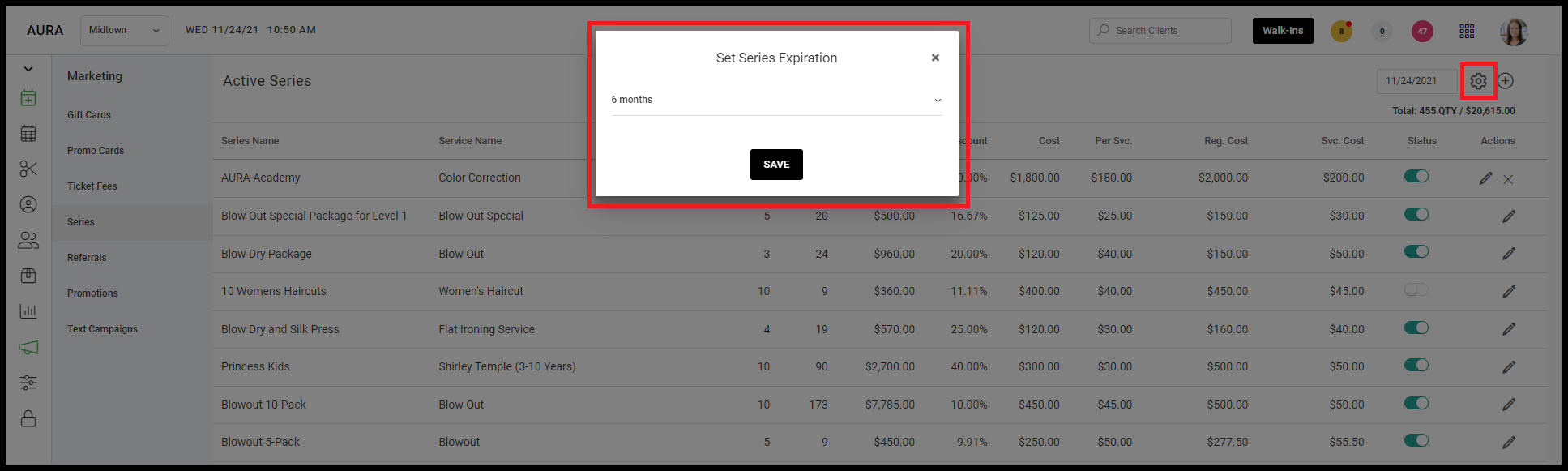
Expiration dates can now be enabled for series by navigating to Marketing > Series and clicking the gear icon on the top right of the screen to open the series settings. From here, you can set up your series with no expiration, or expiration date of 6 months or 1 year.
NOTE: This only applies to NEW series that are created after the expiration date is set. Any existing series will not be impacted.
Click HERE to watch the video.
Merge Open Tickets
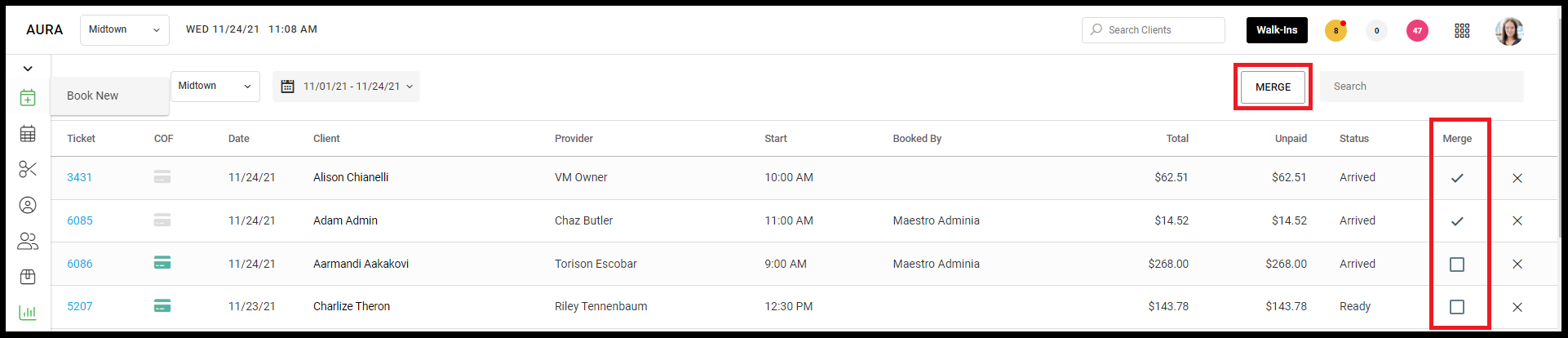
Users can merge walk-in tickets by navigating to Open Tickets. Check any tickets you would like to merge, then click the ‘Merge’ button.
Learn more here.
Click HERE to watch the video.
Processed Ticket Edits
Owners and managers can edit a processed ticket by navigating to Transactions > Choose Previous Date > Click on Ticket Number > Ticket. Users can edit the service, delete a service, add a service, add a gift card or promo card to the ticket as long as the changes do not impact the amount collected. These changes will be tracked on the Employee Action Report.

Provider Access: Client View
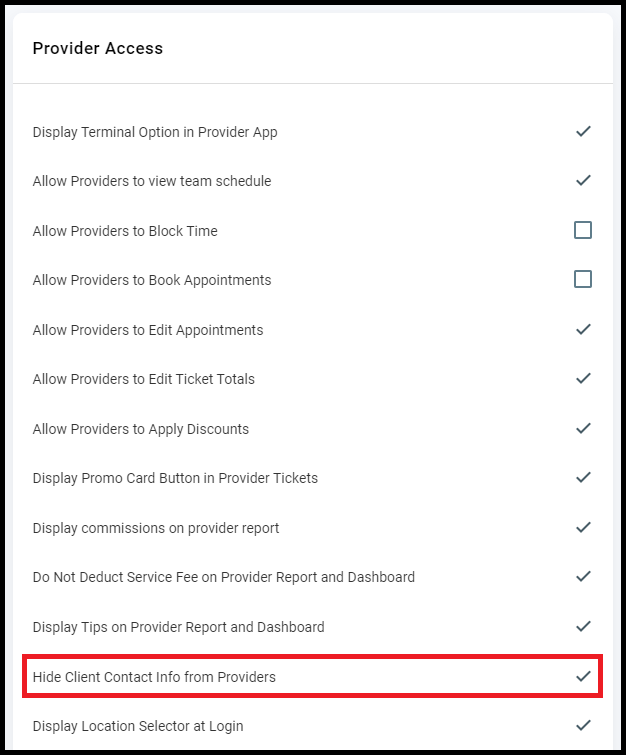
Providers can access the client file via mobile with the contact information of the client hidden from the provider. To enable, navigate to Salon Settings > Access and check 'Hide Client Contact Info from Providers'. This will hide the client profile, card on file, and phone number from the provider's view.
Accent Colors in Client App
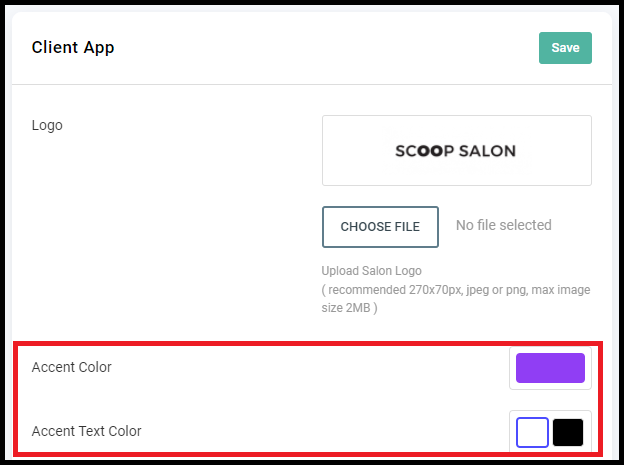
Salons can now adjust the accent colors for online booking by navigating to Salon Settings > Client App > Accent Color/Accent Text Color.
Inline Refunds
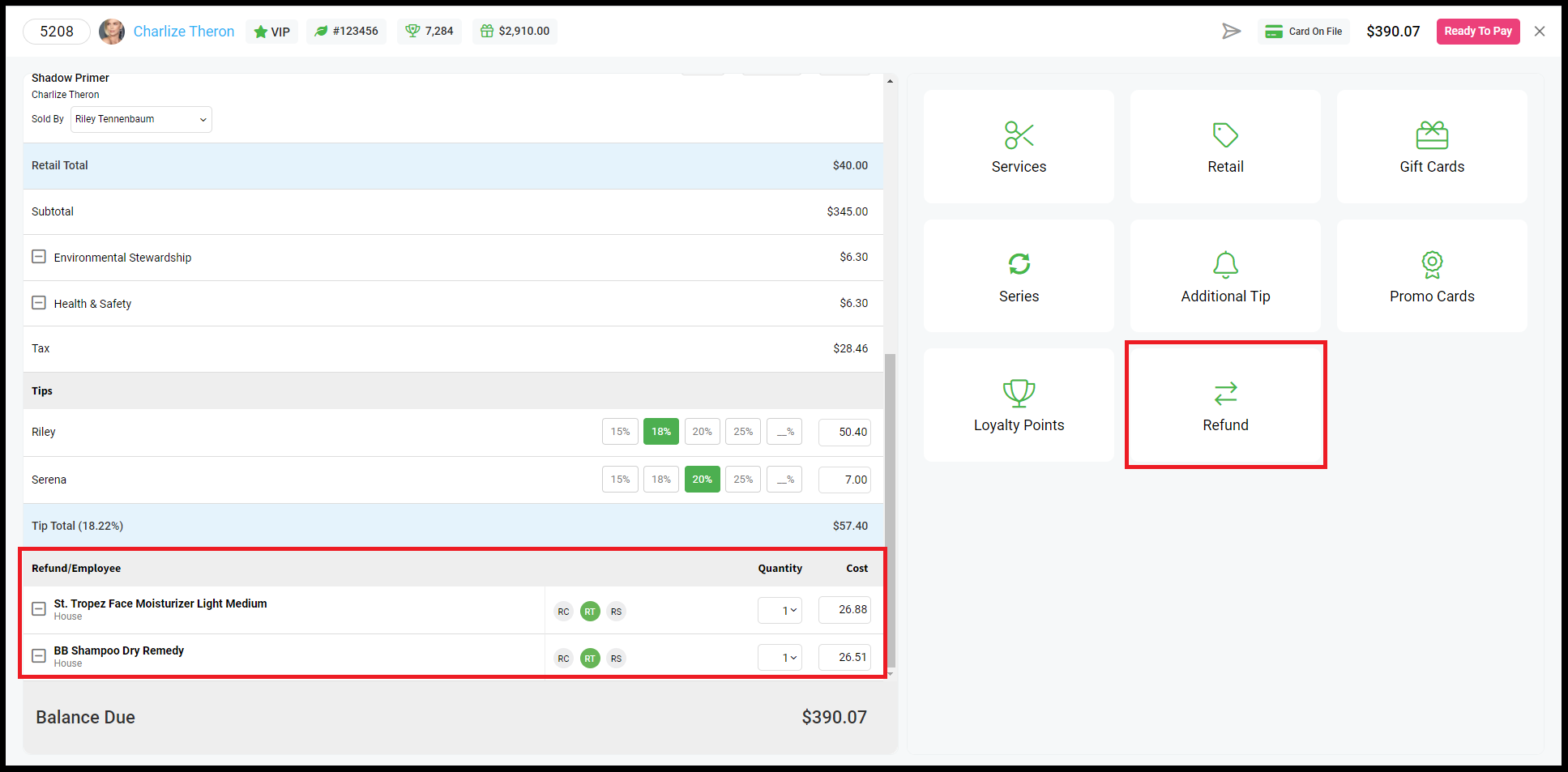
Users can refund within an open ticket by navigating to the ticket and clicking 'Refund' in the right panel. All previously purchased retail, service, and tips will be shown. Click the '+' button within the appropriate line item, and said item will be added to the ticket under 'Refund/Employee' and deducted from the total balance due.
Click HERE to watch the video.