Aura Salonware will be releasing the following system updates on July 21, 2022
To watch the release preview video, click here.
System updates include, but are not limited to...
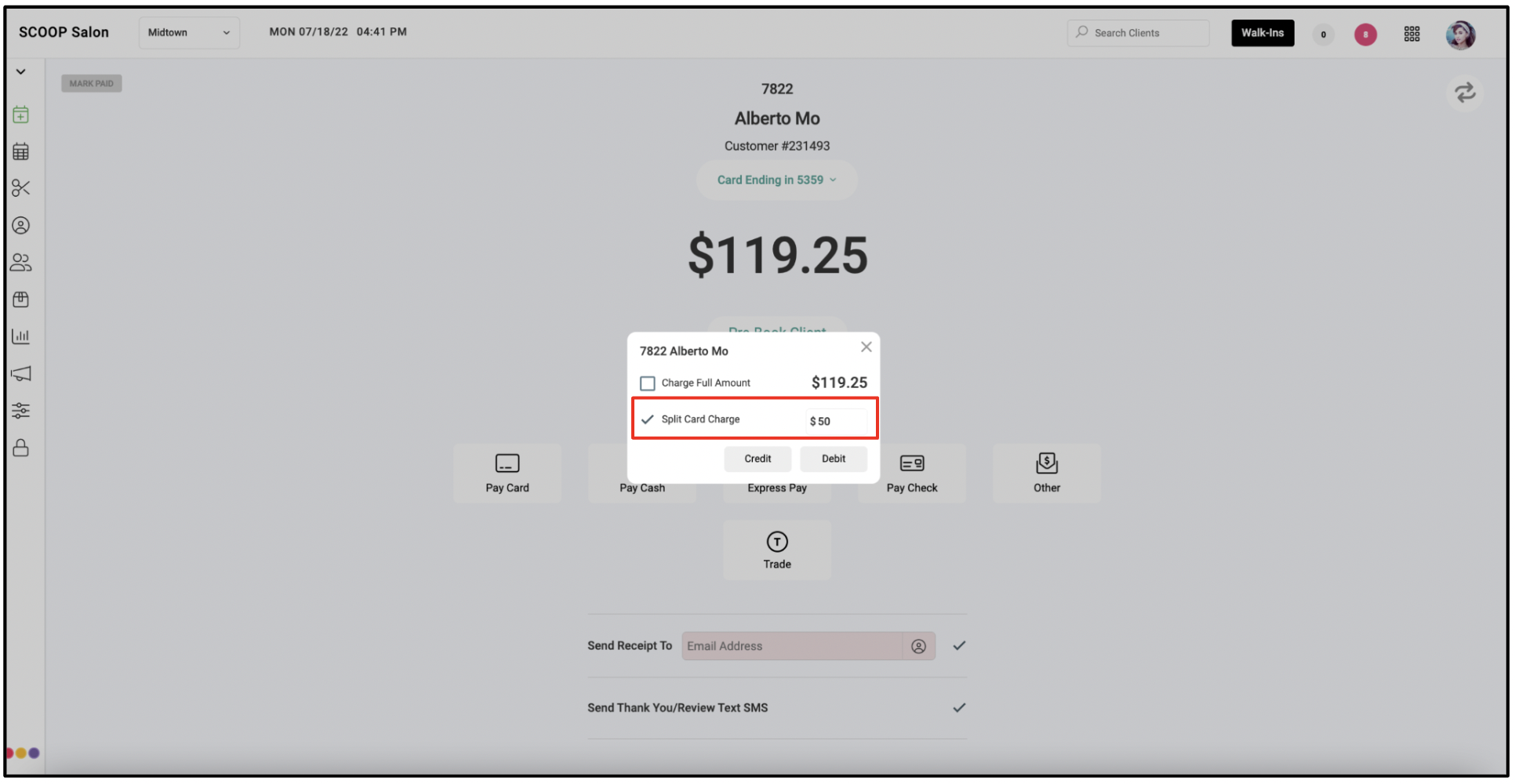
Split Credit Card Payments
Pay for a ticket using more than one credit card on your terminal. Simply, select "Pay Card" on the Ready to Pay Screen, and enter the amount you want to collect for the first card. Aura will automatically communicate with the terminal to complete the first sale. Once the sale is complete, the balance due will automatically update and you are ready to collect your next payment!
To learn more, click here.
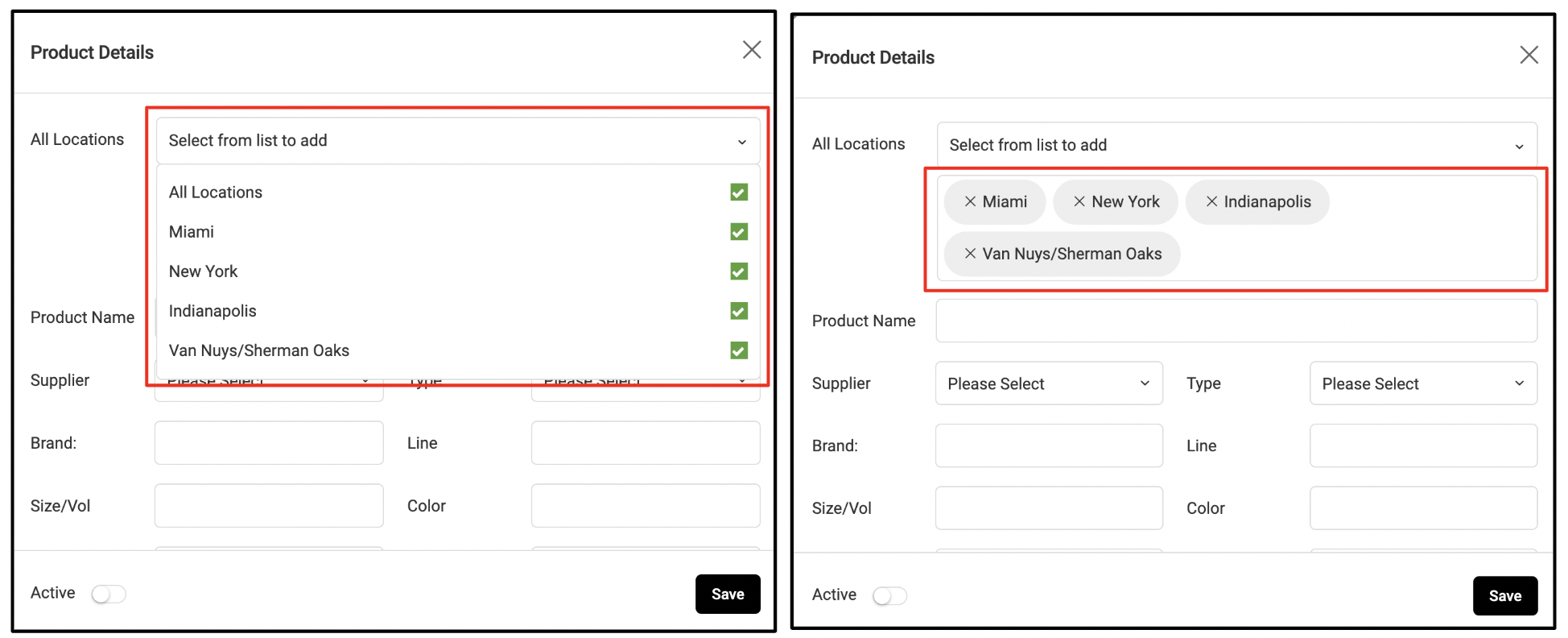
Multi-Location Inventory: Add/Edit Products
Add and edit products at multiple locations simultaneously from your Product list. Select "All Locations" or cherry pick which locations you would like to update. Once saved, the product will be added or edited at all selected locations.
Note: On hand quantity is not editable when adding or editing a product for multiple locations.
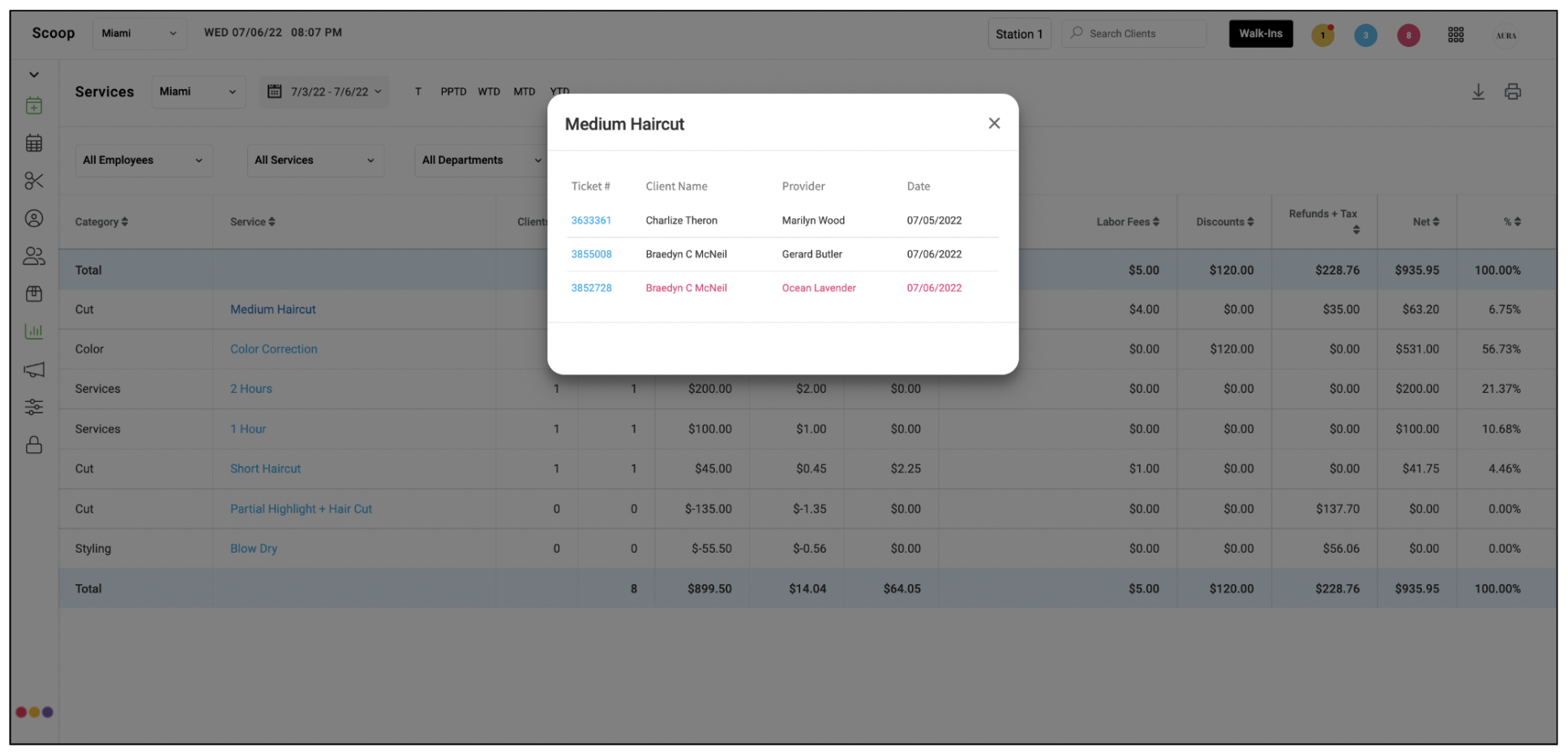
Service Report: Details Popup
Select the service name on the Service Report and a details popup that includes service sales and refunds will display. Refunds display in red.
Purchase Order Notes
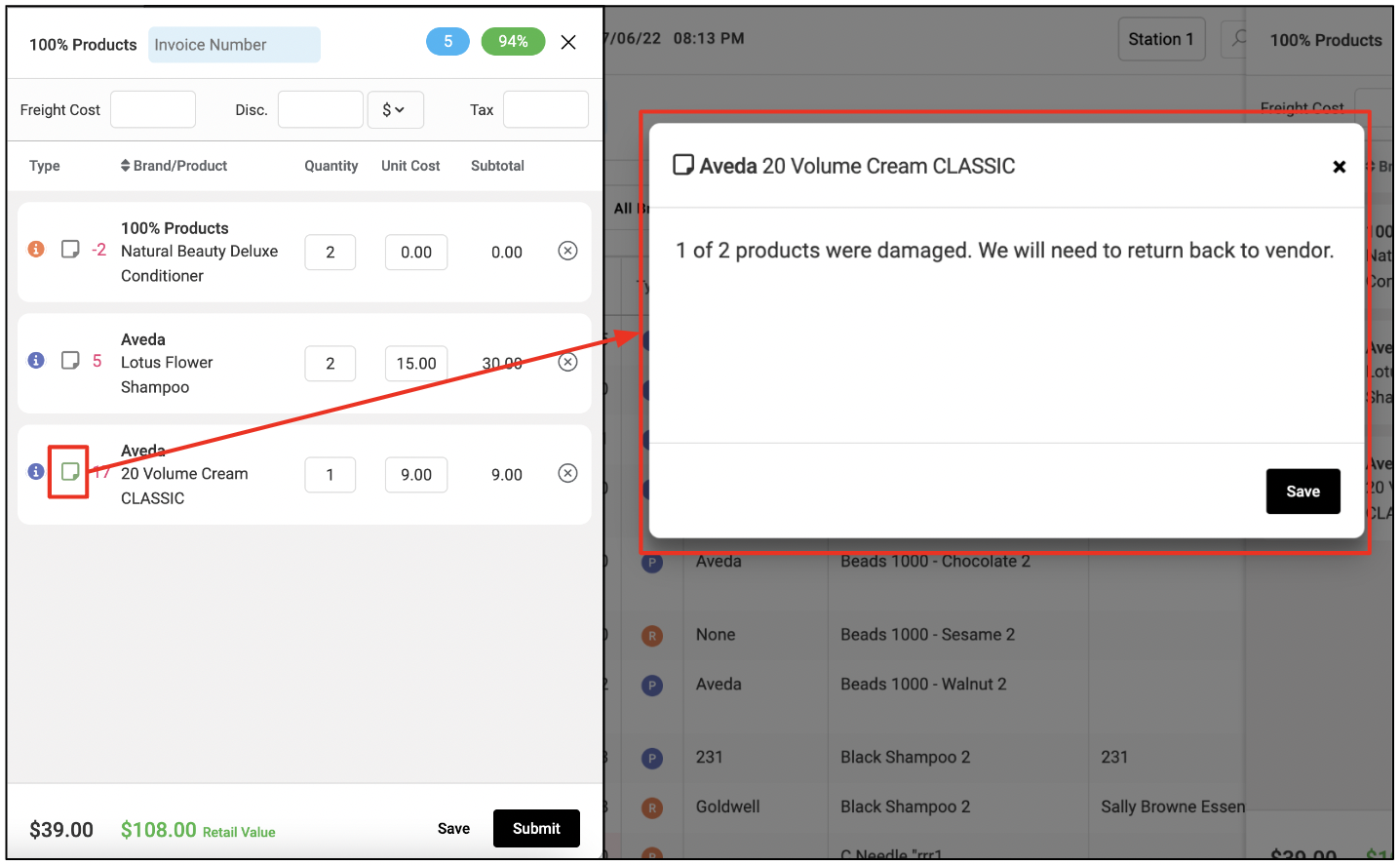
Add internal notes to products on your purchase order for other team members to refer back to in the future. The notes icon will display in green when notes have been added. Notes can be added at any stage of the purchase order process.
Create a New Product on Purchase Order
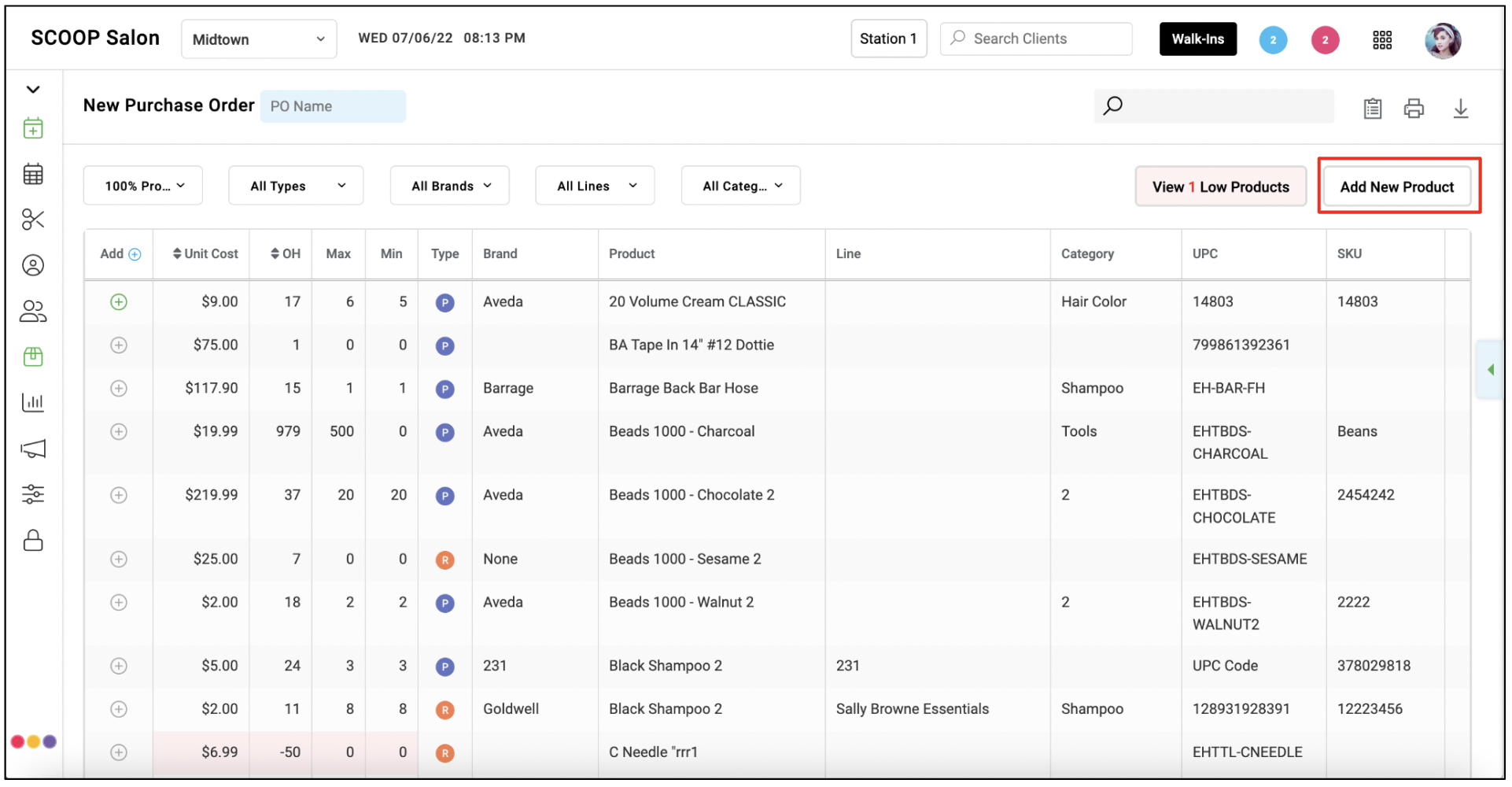
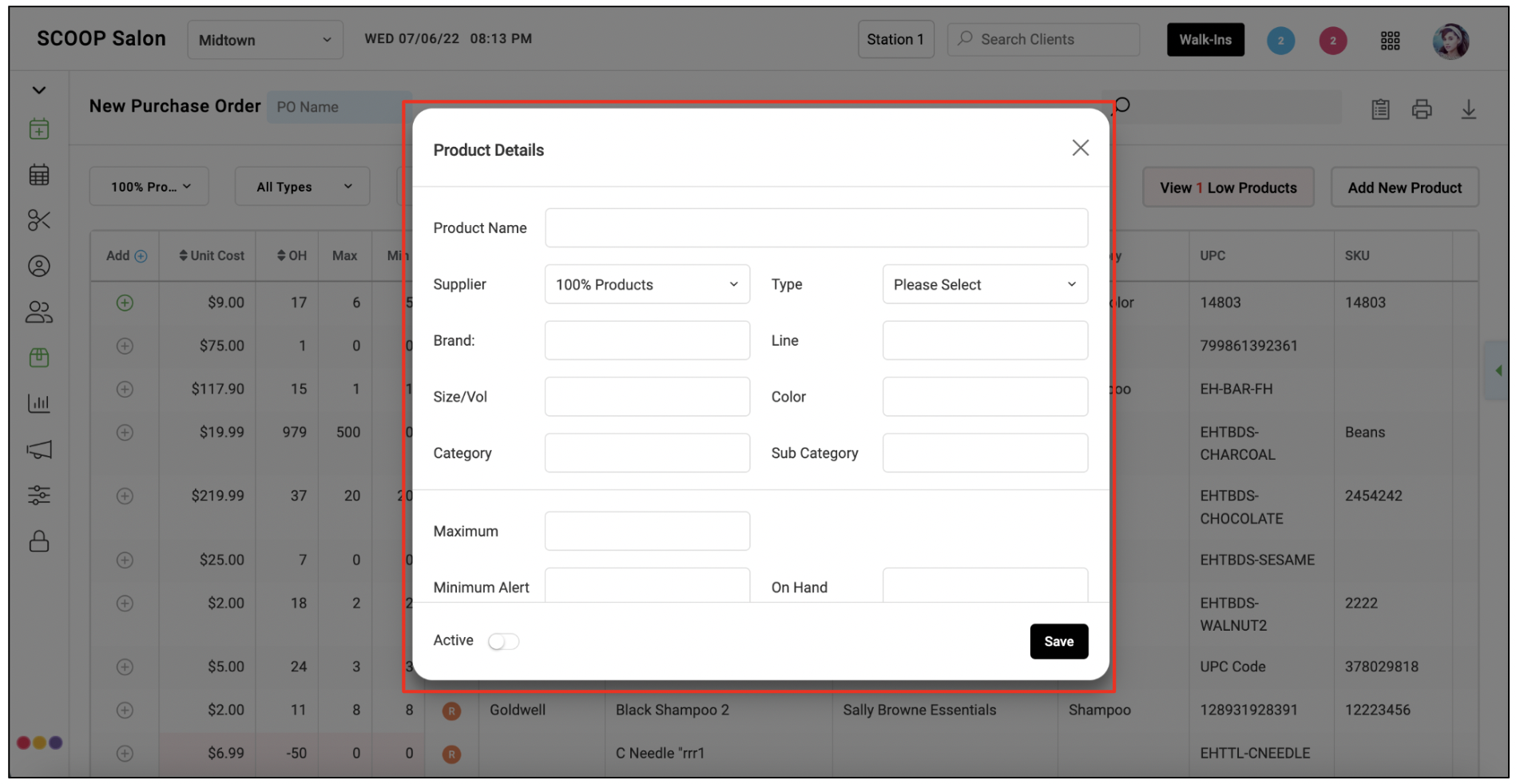
Add a new product to your inventory directly from the purchase order builder. Once the product has been created, you may add that product prior to submitting purchase order and/or during the restock process.
Restock Purchase Order With Barcode Scanner
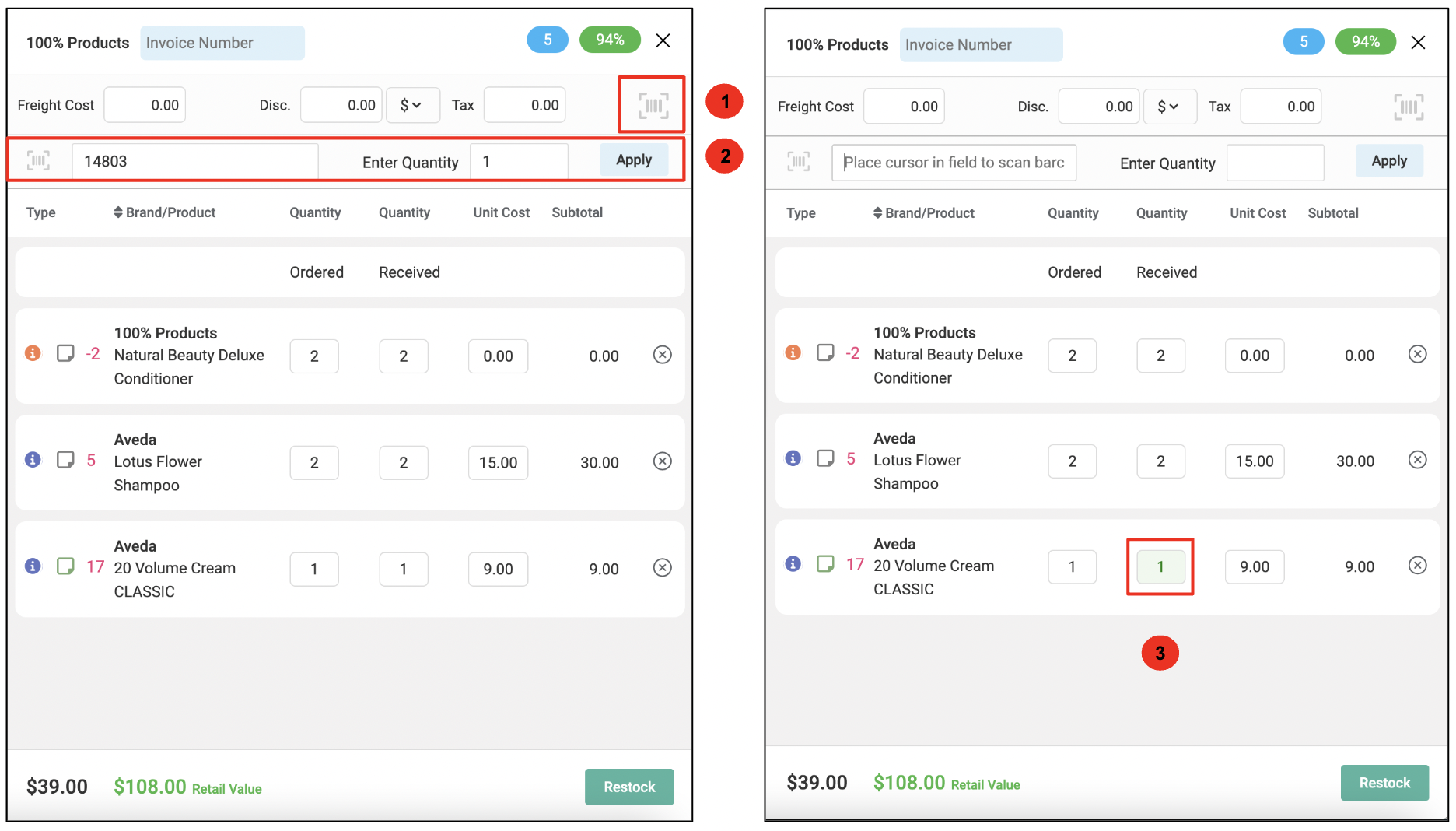
Use your barcode scanner to count products when restocking a purchase order.
Simply, select the barcode icon, scan the UPC, enter the quantity and click "Apply".
The scanned product will display in green to indicate the product has been counted.
Register Report
Express Pay transactions are now visible on the Register Report.
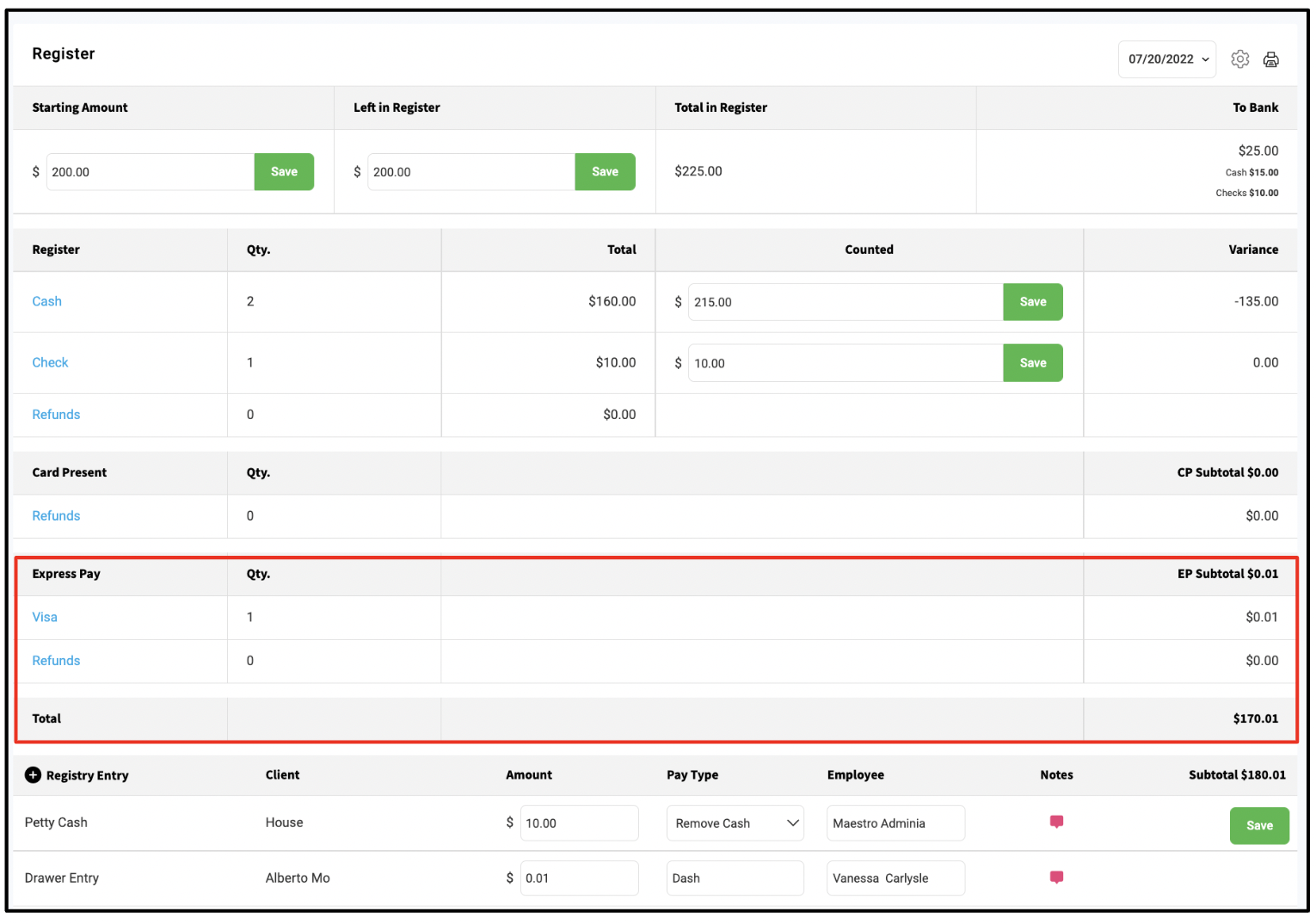
In addition, Petty Cash has been replaced with 'Register Entry.' Register Entries includes both Petty Cash and Drawer Entry.
To learn more, click here.
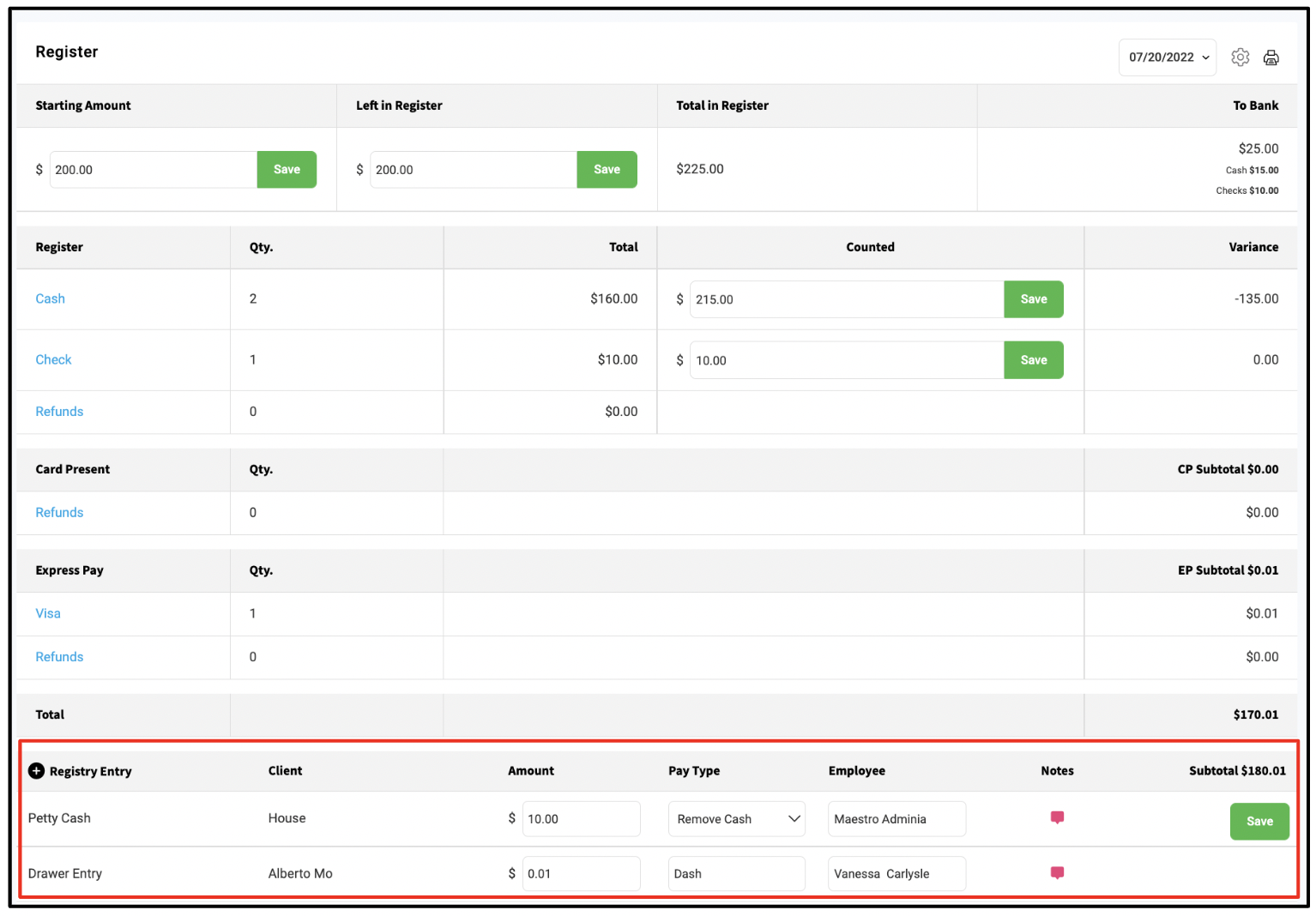
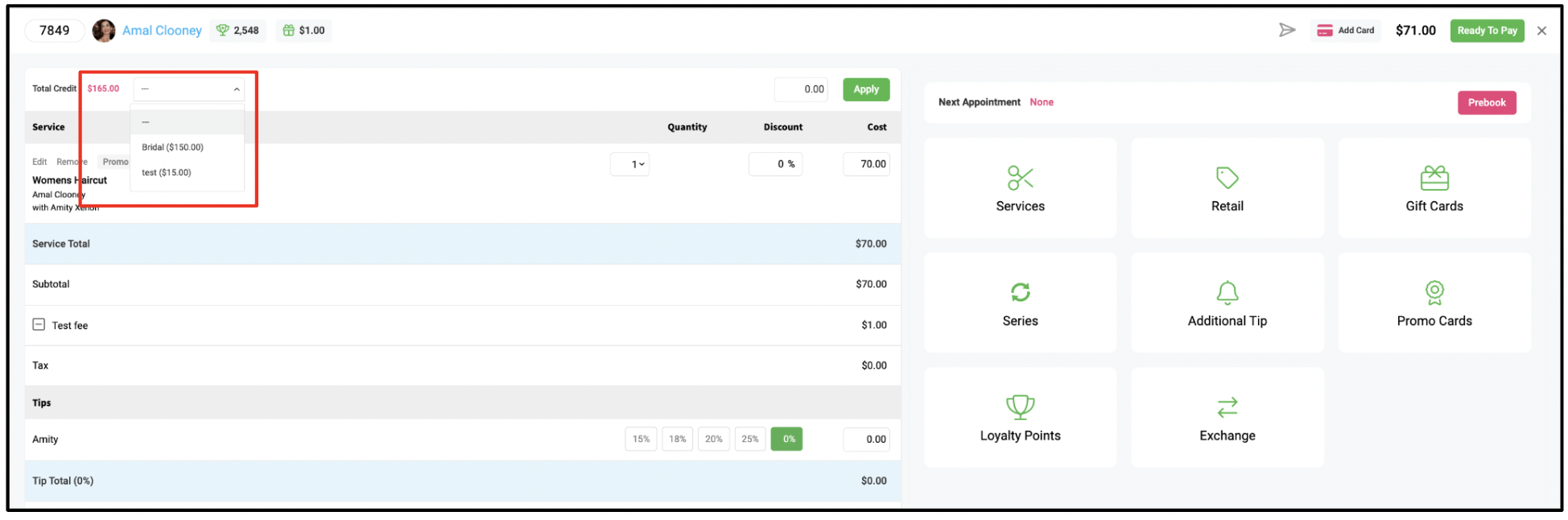
Drawer Entries can be applied to a client's account to be later redeemed on a ticket.
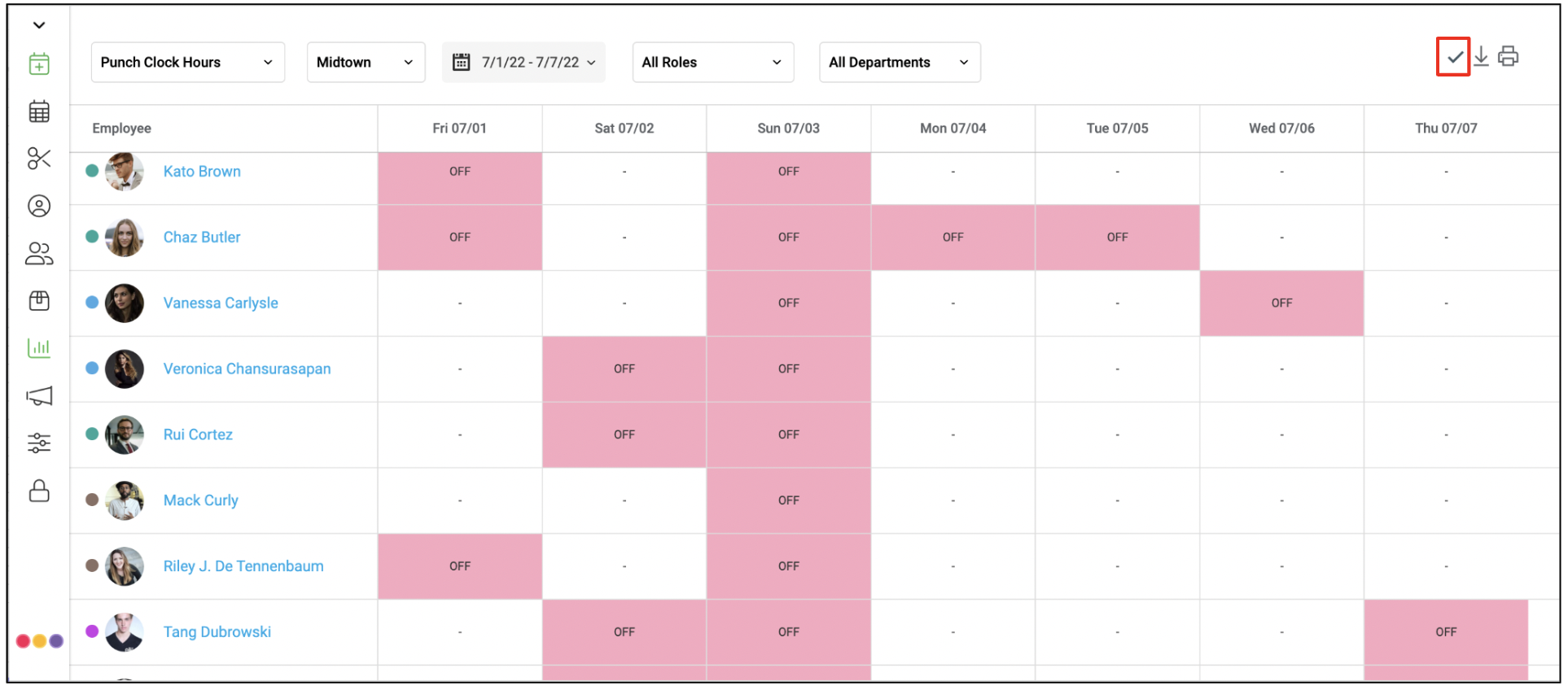
Punch Clock Hours Report
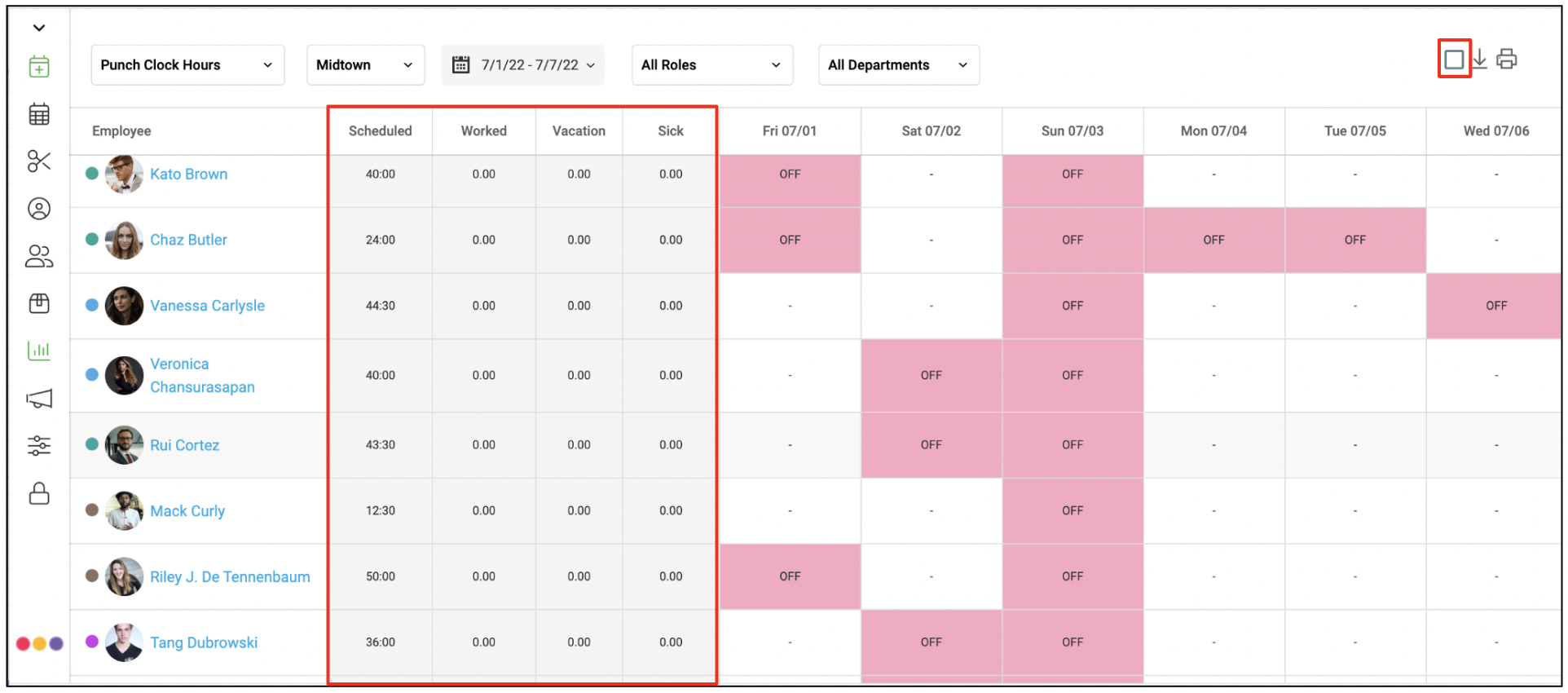
Temporarily hide the total columns on the punch clock hours report. Select the box on the top right corner to hide the Hours Scheduled, Hours Worked, Vacation and Sick Hour columns. Uncheck the box to display the summary columns.
Sales Report Updates
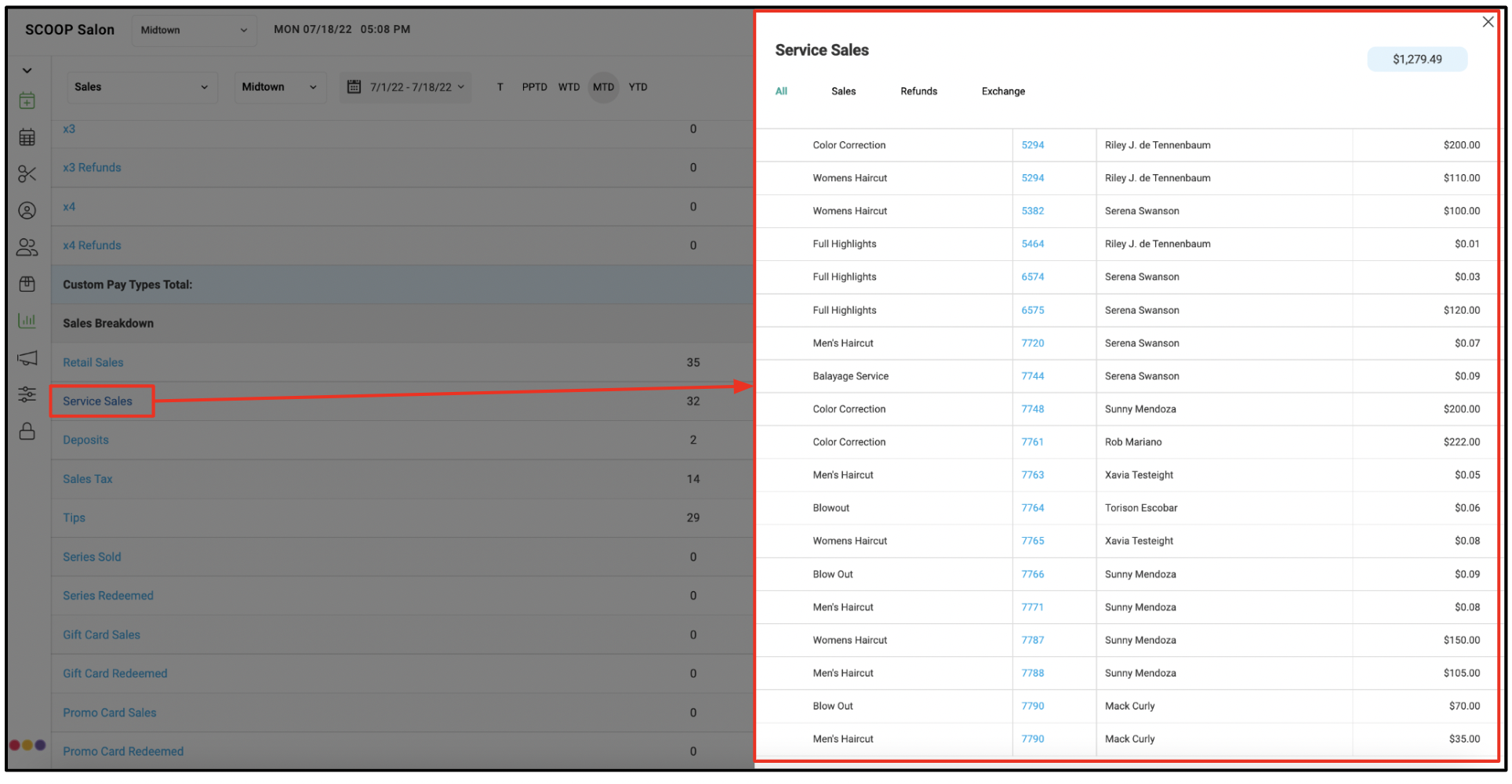
Owners and Manager are able to see a breakdown of Service, Retail, and Tip sales, refunds and exchanges that are factored into the total on the report. Click the line item to view details.