We are excited to announce the following AURA Salonware System updates!
Secondary Rewards
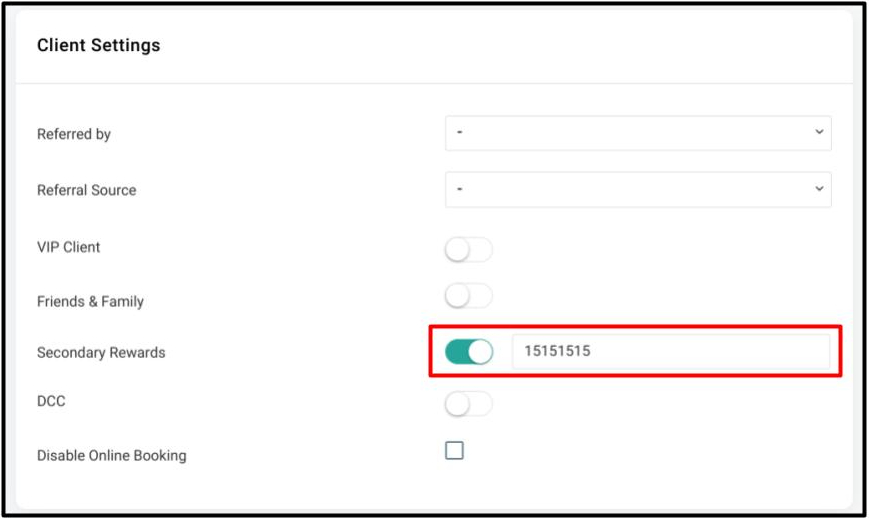
If your salon offers a secondary reward program aside from AURA’s built in loyalty program, such as Aveda A+ Rewards, then Management and Reception staff can identify clients who participate in the Secondary Rewards program on the client’s profile. Providers will also have the ability to set secondary rewards for a client if “Hide client contact info from Providers” is disabled under Salon Settings > Access.
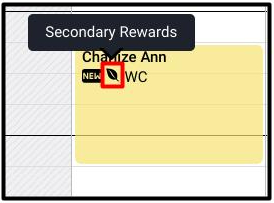
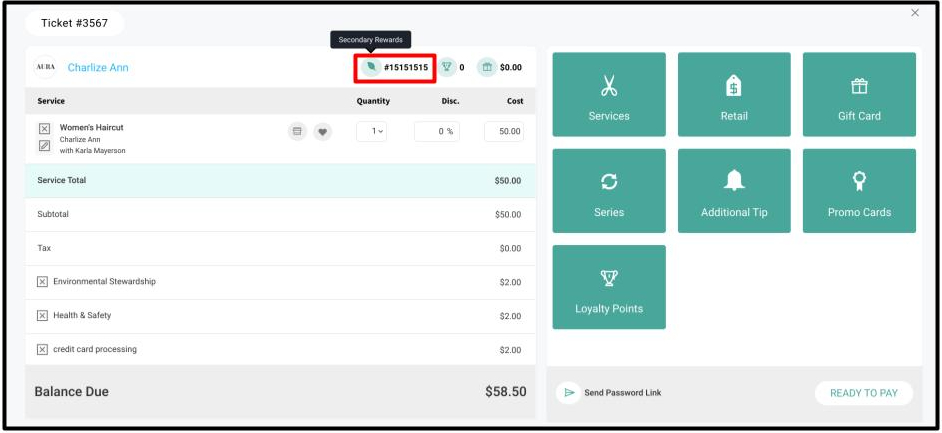
If the Secondary Rewards toggle in the client file is turned on and an ID number is entered then a Secondary Rewards indicator will display on the appointment calendar and on the open ticket as a quick reference during the guest’s visit. Find more information on how to add Secondary Rewards to a Client's file HERE
Front Desk Access to Purchase Orders
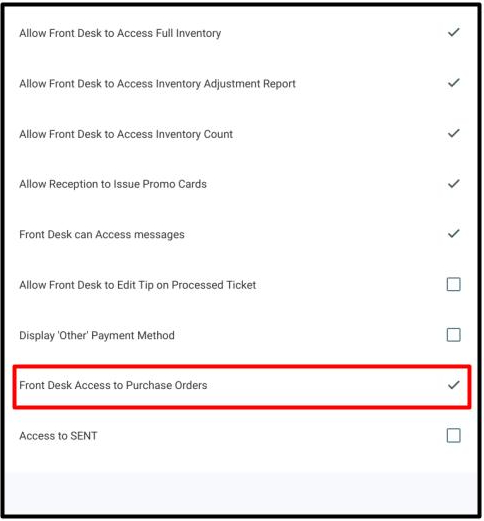
Owners can give Front Desk Access to create, edit, submit, receive, and restock a Purchase Order. This access can be enabled in Access under the Salon Settings tab. If this Access is not enabled, then only Owner and Manager can access Purchase Orders. This Access will default to disabled. Find more information on how to turn on this access HERE
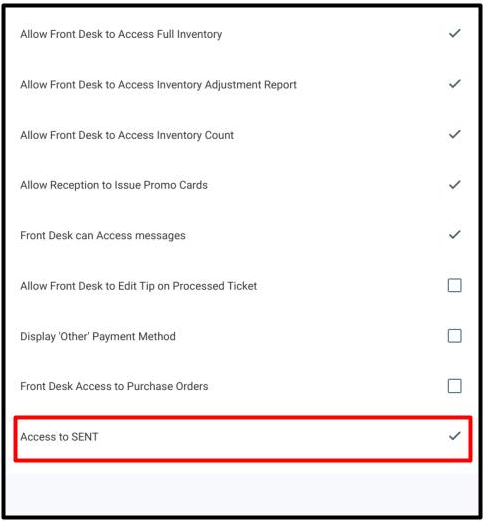
Front Desk Access to Sent
Owners can give Front Desk Access to SENT messages by turning on that feature under Access in the Salon Settings tab. If this access is enabled, Front Desk has access to create, edit, and send out a SENT campaign. If this access is disabled, then only the Owner and Manager has access to create, edit and send out SENT campaigns. This Access will default to disabled. Find more information on how to turn on this access HERE
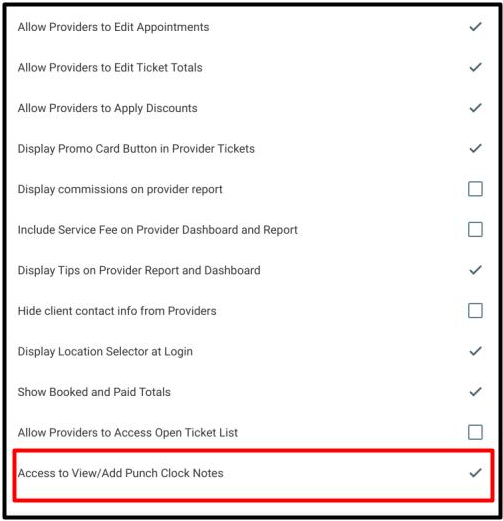
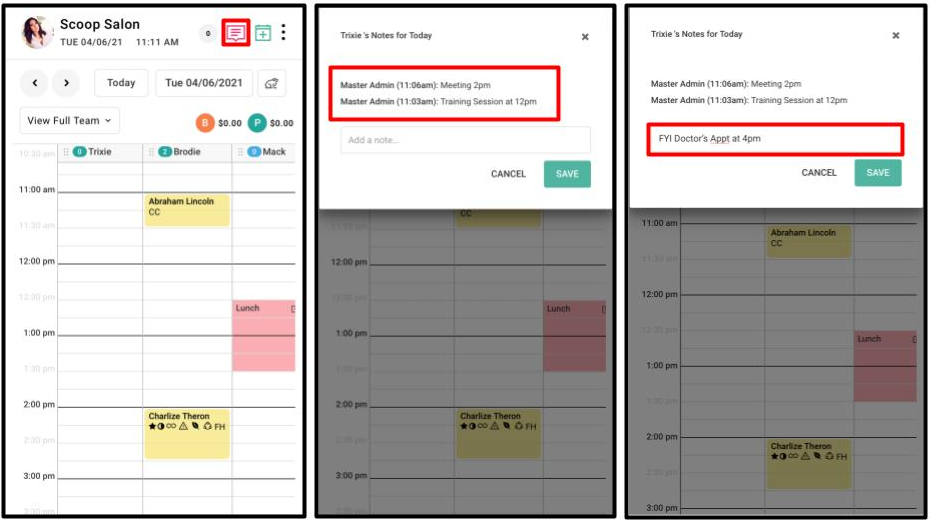
Punch Clock Notes Displayed to Providers
Owners and Managers can allow Providers to view and add punch clock notes by enabling “Access to View/Add Punch Clock Notes” under Salon Settings > Access. If enabled, Providers are able to view notes from their management team and add additional notes from the punch clock page in the provider app. If disabled, Providers are not able to view or add any punch clock notes. All entered provider notes display for the management team under the “Punch Clock Hours” tab in their employee file. This Access is defaulted to disabled.
Service Fee By Provider
Owners and Managers can customize the Service Fee by provider from the Provider’s service list. If a customized service fee is not entered, then the salon's default service fee will be set automatically for the Provider. Find more information on how to customize Service Fees for a Provider HERE

For more information regarding these new features or live support, contact support@aurasalonware.com